

進行状況ウィンドウ
実行中のダウンロードにはそれぞれ進行状況ウィンドウがあります。ダウンロードが開始されると開きます。再度開くには、リスト内のダウンロードをダブルクリックします。
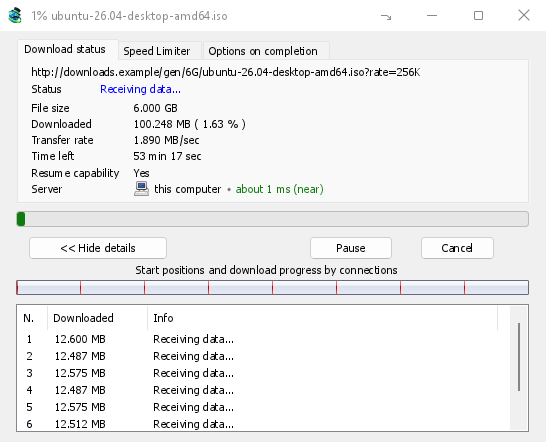
「ダウンロードの状態」タブには以下が表示されます。
- 状態 — 接続中...、データを受信しています...、一時停止、完了、またはエラー。
- ファイル サイズ、ダウンロード済み、転送速度。
- 残り時間。
- Resume capability — Yes if the server lets GDM continue the download later, No if it doesn't.
- サーバー — サーバーの場所と距離。サーバーの場所をご覧ください。
詳細を表示 >>(既定で開いています)を選ぶと、接続ビューが表示されます。
- ファイル全体のバーで、各接続の開始位置と進行状況が表示されます(接続ごとの開始位置とダウンロード進行状況)。
- 接続ごとに1行のテーブル: 接続番号、ダウンロード量、現在の動作。
ボタン:
- 一時停止はダウンロードを停止し、ダウンロード済みの部分を保持します。再開はダウンロードを続行します。
- キャンセルはダウンロードを停止し、ウィンドウを閉じます。ダウンロードはリストに残り、再開できます。
- ウィンドウの閉じるボタンでウィンドウを閉じても、ダウンロードは実行されたままになります。
- Hide to the notification area (a short dash with an arrow down to the corner; on Windows in the title bar, left of Minimize) puts the window in the notification area; Downloads in progress in the tray icon's menu brings it back. See The tray icon.
サーバーの場所
ダウンロード ファイル情報、進行状況ウィンドウ、およびプロパティには、ダウンロード元サーバーの場所が表示されます。国旗と国名に続いて、サーバーとの往復にかかる時間が表示されます。たとえば、約 24 ms (近い)のように表示されます。
- 近い(緑):60 ミリ秒未満。通常、同じ国または隣接する国です。
- 中程度(琥珀色):60~150 ミリ秒。通常、同じ大陸内です。
- 遠い(赤):150 ミリ秒以上。通常、別の大陸です。遠いサーバーは速度が遅いことが多く、接続数を増やすことで最も効果が得られます。
行にカーソルを合わせると、サーバーのアドレスと時間の測定方法が表示されます。
How GDM knows:
- The country comes from a table of address ranges that comes with GDM (IP to Country Lite by DB-IP, CC BY 4.0), looked up on your computer. GDM never sends the address anywhere to ask where it is. The table is updated with each release; an address that has moved since may show its old country.
- The time is measured from the download's own connections, as each one opens: GDM sends nothing extra to the server. It is an estimate (the time to open a connection, divided by its round trips: one for http, two for https), so it says about. The quickest connection counts.
- お使いのコンピューターまたはローカルネットワーク上のサーバーは、旗なしでそのように表示されます。
- Through a proxy, GDM only sees the proxy, so it says through a proxy (with the proxy's country when it knows it) instead of guessing the server's. A VPN that works at the system level can't be seen: the country is then the server's, but the time includes the VPN's detour.
- コンテンツデリバリーネットワーク(Cloudflare、Amazon CloudFront、Fastly、Akamai など)は、サイト所有者のサーバーからではなく、お近くのサーバーからファイルを配信します。ツールチップにその旨が表示されます。場所はネットワークのサーバーであり、サイトの場所ではありません。
- Torrents, videos and galleries have no single server of GDM's own (peers, or yt-dlp's and gallery-dl's), so their windows don't show one.
プロパティには、最後に実行されたときに確認された情報が保持されるため、完了したダウンロードでもどこから来たかが表示されます。
さらに2つのタブ:
- 速度制限 — このダウンロードのみの制限。以下を参照。
- 完了時のオプション — ファイルの保存先を表示します。「ダウンロード完了ダイアログを表示」のチェックを外すと、このファイルでは「ダウンロード完了」ダイアログが表示されなくなります。
タブを非表示 をクリックすると、このダウンロードのウィンドウからタブが削除され、ダウンロードの状態 に戻ります。タブを元に戻すには、タブの行を右クリックして 非表示のタブを表示 を選択します。ウィンドウを閉じて再度開いても元に戻ります。
ダウンロードが完了したとき
ダウンロード完了には、ファイルのサイズ、アドレス、保存場所が表示されます。開く、プログラムから開く、フォルダーを開く、または閉じるを選択してください。Windowsでは、右下の小さなボックスをエクスプローラー、メール、チャットにドラッグしてファイルをドロップすることもできます。このウィンドウは、クリックするまで他のプログラムの上に表示されますが、入力中のプログラムからキーボードのフォーカスを奪うことはありません。
今後表示しないようにするには、「今後このダイアログを表示しない」にチェックを入れます。これは「オプション → ダウンロード → ダウンロード完了ダイアログを表示」で再度オンにできます。
How GDM uses connections
GDM splits a file into parts and downloads them over several connections at once:
- 既定では8つの接続を使用します。オプション → 接続 → 既定の最大接続数で1から32まで設定できます。また、そこで32以上の接続を許可にチェックを入れると、最大128まで設定できます。接続数を増やしても、サーバーが各接続を制限された速度で送信し、かつ1つのアドレスからその数の接続を許可する場合にのみ役立ちます。ほとんどのサーバーははるかに少ない接続数しか許可しません。
- 接続がその部分のダウンロードを完了すると、残っている最大の半分を引き継ぐため、他の接続がまだ作業している間、アイドル状態になる接続はありません。
- 他の接続よりもはるかに遅い接続は切断され、再度開かれます。
- Some servers allow only a few connections. GDM notices this and stops asking that server for more. What it has learned shows in Options → Connection under Exceptions, marked (auto).
- サーバーの接続数を自分で設定できます。「オプション → 接続 → 新規」でサーバー名と接続数を入力します。
Each connection writes straight into the file's place on disk, in a part file named <name>.mdm.part next to the final file. When every part is done, GDM checks the size and renames it. There is no temporary folder and no joining step at the end.
再開
A download resumes where it stopped: after you stop it, after the connection drops, or after Windows or GDM crashes. GDM saves how far each part has got as it goes.
- 失敗した接続は自動的に再試行されます。進行状況ウィンドウのテーブルには、再試行中とその理由が表示されます。
- 停止したダウンロードを続行するには、ダウンロードを選択し、ツールバーの再開(またはファイル → 今すぐダウンロード)をクリックします。
- Before continuing, GDM checks that the file on the server is still the same. If it changed, the download stops with the file changed on the server. Use Redownload to start again from the beginning.
- If Resume capability is No, the server can't send a file in parts. GDM then downloads it over one connection, and a download that stops has to start over.
中断されたダウンロードを再開するには、期限切れのリンクも含まれます。
VPN のみを使用: ネットワーク アダプターとそのキル スイッチ
Options → Proxy / Socks → Network adapter holds every connection GDM opens to one network adapter, usually your VPN's: downloads, FTP, torrents, video pages and galleries, GDM's own downloads and the update check. It works as a kill switch: when the adapter disconnects, or the VPN is switched off, nothing goes out through your normal connection. Running downloads stop with … is not connected, and start again by themselves when the adapter is back. The line under the list shows the adapter's address, or that it isn't connected. Details in Options → Proxy / Socks and, for torrents, in Torrents and your security.
DNS
Options → Connection → DNS chooses who turns the servers' names into addresses: the system's DNS (the default), or an encrypted one (DNS over HTTPS or TLS) such as Cloudflare, Google, Quad9, AdGuard, NextDNS or your own. With a network adapter chosen, GDM asks it through the adapter, so the names stay inside your VPN too. See Options → Connection.
速度制限
The Speed Limiter keeps GDM from using all of your connection.
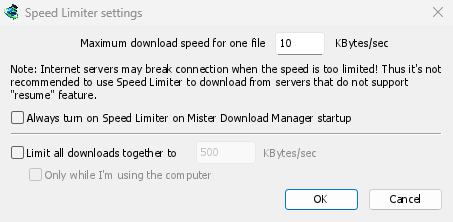
すべてのダウンロードに適用
- ダウンロード → 速度制限 → 設定...を選択します。
- 1つのファイルに対する最大ダウンロード速度をKB/秒で設定します。初期値は10なので、リミッターをオンにする前に設定してください。
- OKをクリックします。
- ダウンロード → 速度制限 → オンにするを選択します。オフにすると、再びフルスピードになります。
Always turn on Speed Limiter on GolinksPRO Download Manager startup turns it on each time GDM starts.
ここでは、トレントは1つのファイルとしてカウントされます。各トレントには独自の制限が適用されます。独自の制限があるダウンロード(「1つのダウンロードの場合」を参照)は、その制限を維持します。
すべてのダウンロードを合計して制限
In the same window, tick Limit all downloads together to and set the speed. This caps GDM as a whole, however many files are downloading, torrents included. When torrents and other downloads run at the same time, each side gets at least half of the speed, and more when the other side needs less: a torrent going slowly leaves the rest to the other downloads, and the other way round. It applies whenever it is ticked, whether the per-file limiter is on or off.
Tick Only while I'm using the computer to apply it only while you use the mouse or keyboard. After a minute without input, GDM goes back to full speed.
個別のダウンロードに適用
ダウンロードの進行状況ウィンドウで、速度制限タブを開きます。
- 速度制限を使用するにチェックを入れます。
- 最大ダウンロード速度をKB/秒で設定します。新しい制限はすぐに適用されます。
- Tick Remember Speed Limiter settings for this file on download stop/resume to keep this limit for the file: it applies again when you resume it later, even after restarting GDM.
トレントの場合、制限はそのトレントのみに適用されます。他のダウンロードはそれぞれの制限を維持します。トレントは16 KB/秒未満に制限することはできません。それより低い制限を設定しても16 KB/秒が適用されます。
一部のサーバーでは、速度が非常に低い場合に接続が切断されることがあります。再開できないサーバー(再開機能: いいえ)では、厳しい制限を避けてください。
次のステップ
無料、オープンソース、広告なし、試用期間なし。
Download GolinksPRO Download Manager