

YouTube、Vimeo、TikTok、その他多くのサイトから、好きな画質で動画を保存できます。
手順
- ブラウザでビデオを開き、アドレスバーからページのURLをコピーします。
- In GDM, click Add URL (or press Ctrl+N) and click OK. GDM sees that the address is a video's page and opens Download video from a page. (You can also open it with Tasks → Download video from a page..., paste the address and click Look up.)
- The first time, GDM needs its video helper. Click Install yt-dlp (about 23 MB). GDM downloads it from its official release and checks it before use.
- Wait while GDM looks the page up. The list of qualities appears, best first, with Audio only at the end: the sound as the site has it, then, with ffmpeg (next step), as an MP3 at its best variable bitrate or at 320, 256, 192 or 128 kbps.
- For the best qualities and MP3, GDM needs ffmpeg, which joins the picture and the sound, and makes the MP3. On Windows GDM offers to install it (about 80 MB): click Install ffmpeg if you want them. On Linux and macOS GDM uses the system's ffmpeg. Without it, you get the qualities that come with their sound.
- 画質を選びます。
- 保存先とファイル名を確認します。ファイル名には動画のタイトルが使われます。必要に応じて変更できます。
- 字幕を使う場合は、字幕で言語を選びます。字幕は動画と同じ場所に保存されます。ビデオに埋め込むにチェックを入れると、動画に埋め込まれます(字幕を参照)。
- 今すぐダウンロードをクリックするか、開始せずにリストに追加するには後でをクリックします。
ビデオはリストに表示され、他のファイルと同様にダウンロードされます。
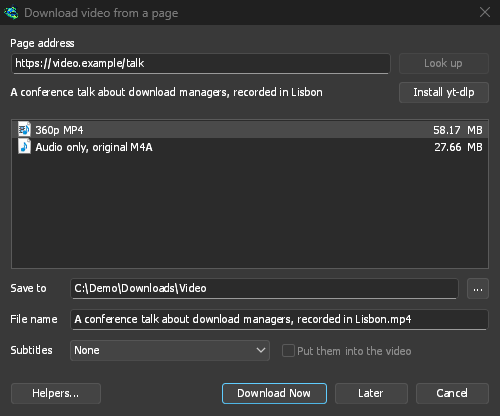
GDM lists the qualities: pick one. 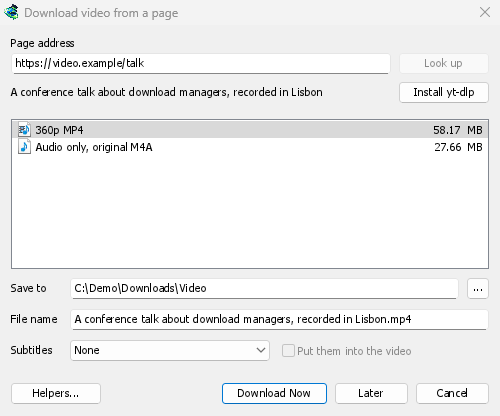
他のファイルと同じようにダウンロードされます。 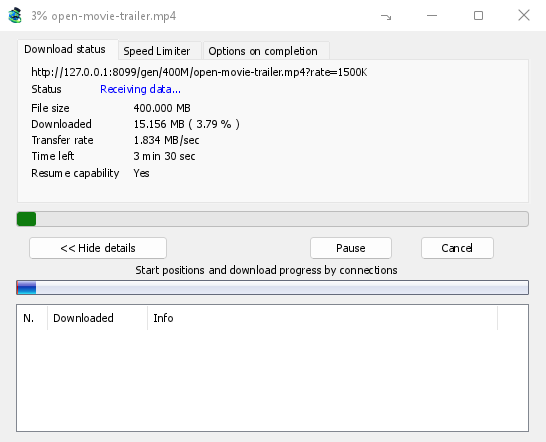
知っておくと良いこと
- プレイリストやミックスの中の動画へのリンクを指定すると、その動画だけがダウンロードされ、リスト全体はダウンロードされません。
- DRMで保護されたビデオ(ほとんどの有料ストリーミングサービス)はダウンロードできません。
- ダウンロードが一部のサイトの利用規約に違反する場合があります。規約は各自で確認してください。
動画をダウンロードできない場合は、ビデオのダウンロードをご覧ください。
次のステップ
無料、オープンソース、広告なし、試用期間なし。
Download GolinksPRO Download Manager