

ポータブル版は USB メモリから直接実行でき、ダウンロードリストと設定も USB メモリに保存されます。設定を少し変更すれば、ダウンロードしたファイルも USB メモリに保存できます。
1. Put GDM on the stick
- リリースから
MisterDownloadManager-<version>-portable.zipをダウンロードします。 - ダウンロードしたファイルをスティックに解凍します。例えば
E:\GDMに解凍します。 - Check that there is a
datafolder next tomisterdownloadmanager.exe. That folder is what makes GDM portable. Don't delete it. misterdownloadmanager.exeを実行し、言語を選択します。
2. ダウンロードを USB メモリに保存する
既定では、ダウンロードは使用しているコンピューターのダウンロードフォルダーに保存されます。ダウンロードをスティックに保存するには:
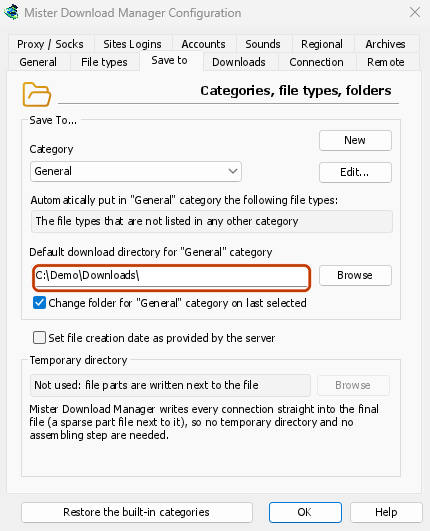
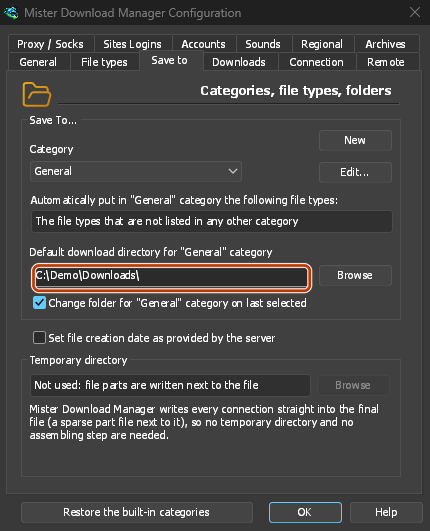
- ダウンロード → オプションを開き、保存先タブを選択します。
- カテゴリで一般を選択します。
- 「一般」カテゴリの既定のダウンロードディレクトリで、参照をクリックし、スティック上のフォルダー(例:
E:\Downloads)を選択します。 - 次のカテゴリ(圧縮、ドキュメント、音楽、プログラム、ビデオ、トレント)を選択し、同様に設定します(例:
E:\Downloads\Video)。 - OKをクリックします。
3. 使用する
- URL を追加、クリップボード(オプション → 一般 → クリップボードにコピーされたリンクをダウンロードするよう提案する)、またはドロップターゲット(タスク → ドロップ ターゲットを表示)でダウンロードを追加します。
- ブラウザ拡張機能は、インストーラーが必要なため、ポータブル版にダウンロードを送信できません。
- Before you unplug the stick, quit GDM with Tasks → Exit so it saves everything. Closing the window only hides it in the tray.
別のコンピューターで
Windows may give the stick another drive letter, such as F: instead of E:. The folders you set, and the downloads already in the list, still point at the old letter. Check Options → Save to and change the folders if needed. When GDM is about to save into a folder that doesn't exist, it asks whether to create it.
次のステップ
無料、オープンソース、広告なし、試用期間なし。
Download GolinksPRO Download Manager