

Set up the extension once, and every download link you click in Firefox, Chrome, Edge, Brave, Opera or Vivaldi goes to GDM.
始める前に
On Windows, GDM must be installed with the setup, with Set up browser integration (Chrome, Edge, Brave, Firefox) ticked. It is ticked by default. If you're not sure, run the setup again. A portable copy can't do this. On Linux and macOS, start GDM once: it sets browser integration up itself.
GDM's Add GolinksPRO Download Manager to your browser window, which opens at each start until a browser's extension has reached GDM, does the steps below for you: Add the extension opens the store's page in that browser.
設定が完了すると、ダウンロードリンクは次のようになります。
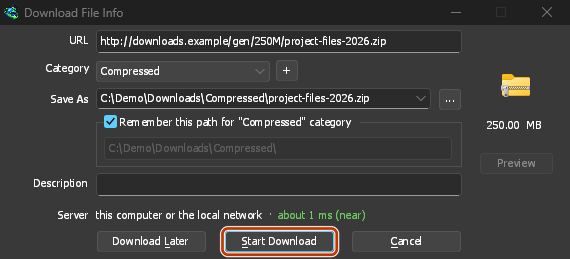
Click a download link in the browser: Download File Info opens in GDM. 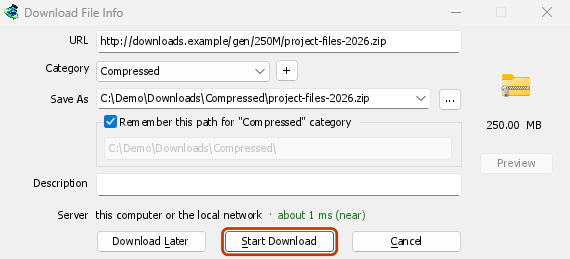
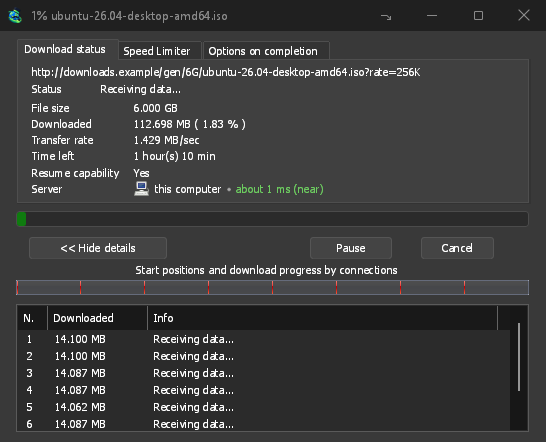
「ダウンロード開始」をクリックすると、進行状況ウィンドウにダウンロードの進み具合が表示されます。 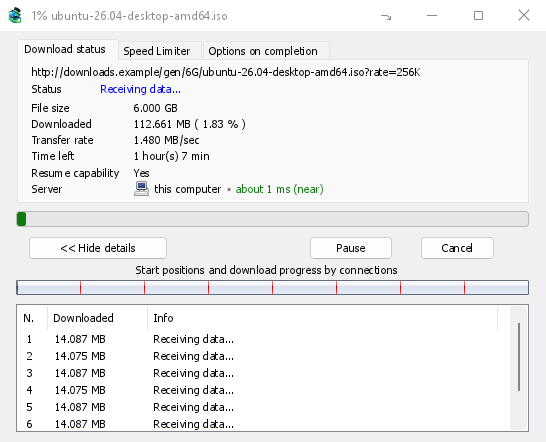
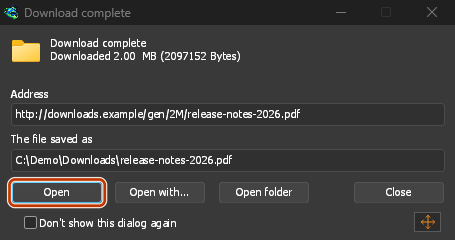
ダウンロード完了: ファイルを開くか、「フォルダーを開く」をクリックします。 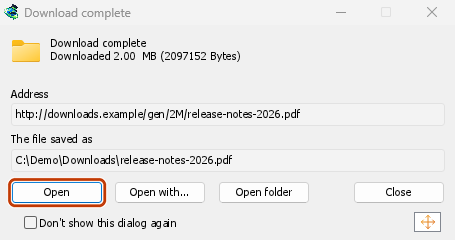
Firefoxの場合
- Open the add-on's page on addons.mozilla.org, GolinksPRO Download Manager, and click Add to Firefox. Zen and LibreWolf use the same page.
- Firefoxが確認を求めますので、追加をクリックします。Firefoxがアドオンを最新の状態に保ちます。
- Go to a web page and click a download link, for example a ZIP or an EXE: GDM opens Download File Info. Click Start Download.
Chrome、Edge、Brave、Opera、Vivaldiの場合
- Open the extension's page in the Chrome Web Store, GolinksPRO Download Manager, and click Add to Chrome. In Edge the button is Get, and Edge first asks to Allow extensions from other stores: click Allow.
- ブラウザが確認を求めます。拡張機能を追加をクリックしてください。これにより拡張機能は最新の状態に保たれます。
- Go to a web page and click a download link, for example a ZIP or an EXE: GDM opens Download File Info. Click Start Download.
ストアなしの場合
ブラウザがストアを使用できない場合(組織によって管理されているコンピューター、または独自のビルドの場合)、手動で拡張機能を追加します。
- ブラウザの拡張機能ページを開きます。アドレスバーに
chrome://extensions、edge://extensions、またはbrave://extensionsと入力してください。 - 開発者モードをオンにします。
- パッケージ化されていない拡張機能を読み込むをクリックします。
- Choose the
extension\chromiumfolder inside GDM's folder. If you installed GDM for yourself, that is%LOCALAPPDATA%\Programs\GolinksPRO Download Manager\extension\chromium; you can paste that path into the folder box. - GolinksPRO Download Manager appears. Make sure it is turned on.
- ウェブページにアクセスし、ZIPやEXEなどのダウンロードリンクをクリックします。
- GDM opens Download File Info instead of the browser downloading the file. Click Start Download.
You don't need to start GDM first: if it isn't running, it starts by itself.
Choose what GDM takes
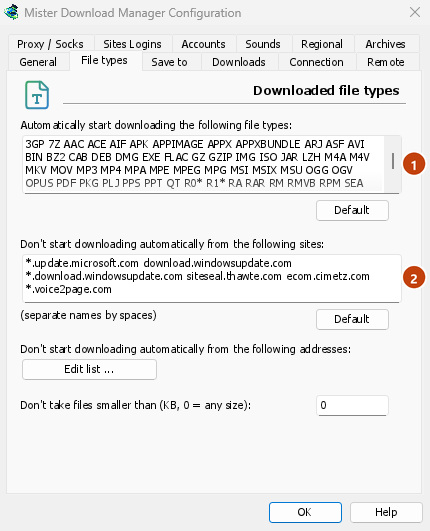
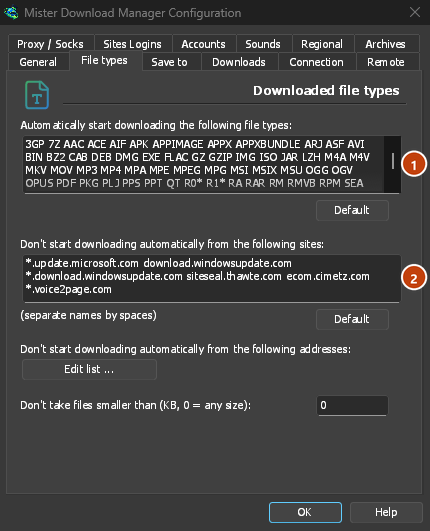
- ファイルの種類: オプション → ファイルの種類 → 以下のファイルの種類を自動的にダウンロードを開始する。スペースで区切って種類を追加または削除します。
- 除外するサイト: オプション → ファイルの種類 → 以下のサイトからは自動的にダウンロードを開始しない。サイト名を追加します。例:
downloads.example.comまたは*.example.com。 - One browser only: Options → General → Capture downloads from the following browsers. Untick the ones GDM should leave alone.
Everything GDM doesn't take stays with the browser.
ブラウザで開くリンクをダウンロードする
Links to a PDF or a video file, which the browser would open itself, go to GDM too when their type is listed. To leave one to the browser, hold Alt while clicking it (Firefox opens it; Chrome and Edge download it themselves). Any other link: right-click it and choose Download with GolinksPRO Download Manager, which takes any type.
次のステップ
無料、オープンソース、広告なし、試用期間なし。
Download GolinksPRO Download Manager