

Set up the extension once, and every download link you click in Firefox, Chrome, Edge, Brave, Opera or Vivaldi goes to GDM.
开始之前
On Windows, GDM must be installed with the setup, with Set up browser integration (Chrome, Edge, Brave, Firefox) ticked. It is ticked by default. If you're not sure, run the setup again. A portable copy can't do this. On Linux and macOS, start GDM once: it sets browser integration up itself.
GDM's Add GolinksPRO Download Manager to your browser window, which opens at each start until a browser's extension has reached GDM, does the steps below for you: Add the extension opens the store's page in that browser.
设置完成后,点击下载链接时会发生以下情况:
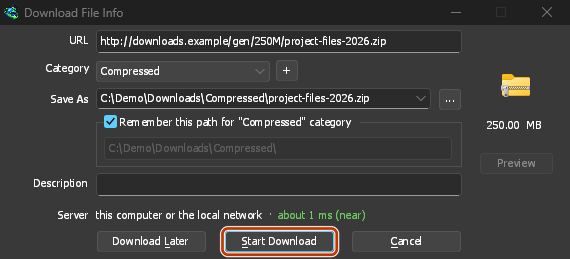
Click a download link in the browser: Download File Info opens in GDM. 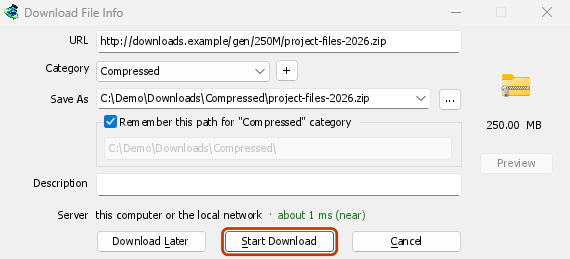
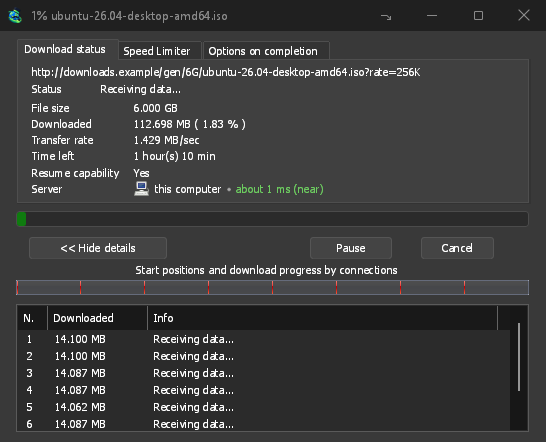
开始下载:进度窗口显示文件正在下载。 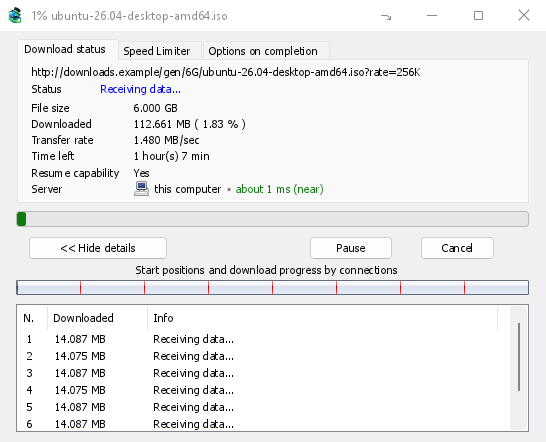
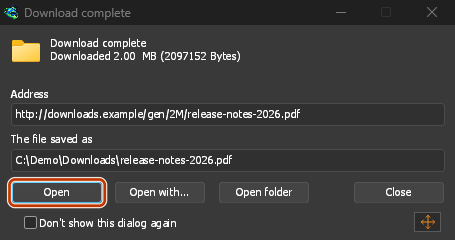
下载完成:打开文件,或打开文件夹。 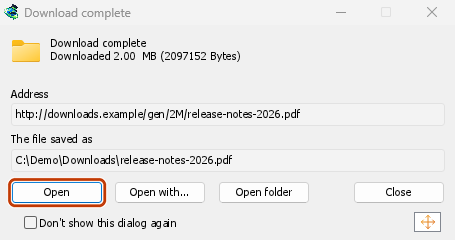
在 Firefox 中
- Open the add-on's page on addons.mozilla.org, GolinksPRO Download Manager, and click Add to Firefox. Zen and LibreWolf use the same page.
- Firefox 会要求确认:点击添加。Firefox 会自动更新此附加组件。
- Go to a web page and click a download link, for example a ZIP or an EXE: GDM opens Download File Info. Click Start Download.
在 Chrome、Edge、Brave、Opera 或 Vivaldi 中
- Open the extension's page in the Chrome Web Store, GolinksPRO Download Manager, and click Add to Chrome. In Edge the button is Get, and Edge first asks to Allow extensions from other stores: click Allow.
- 浏览器会要求确认:点击添加扩展。浏览器会自动更新此扩展。
- Go to a web page and click a download link, for example a ZIP or an EXE: GDM opens Download File Info. Click Start Download.
不通过商店安装
如果浏览器无法使用其应用商店(例如计算机由组织管理,或您使用的是自行构建的版本),请手动添加扩展:
- 打开浏览器的扩展程序页面:在地址栏中输入
chrome://extensions、edge://extensions或brave://extensions。 - 开启开发者模式。
- 点击加载已解压的扩展程序。
- Choose the
extension\chromiumfolder inside GDM's folder. If you installed GDM for yourself, that is%LOCALAPPDATA%\Programs\GolinksPRO Download Manager\extension\chromium; you can paste that path into the folder box. - GolinksPRO Download Manager appears. Make sure it is turned on.
- 访问一个网页并点击一个下载链接,例如 ZIP 或 EXE 文件。
- GDM opens Download File Info instead of the browser downloading the file. Click Start Download.
You don't need to start GDM first: if it isn't running, it starts by itself.
Choose what GDM takes
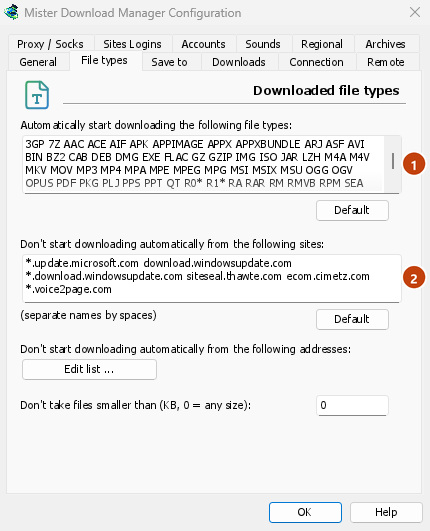
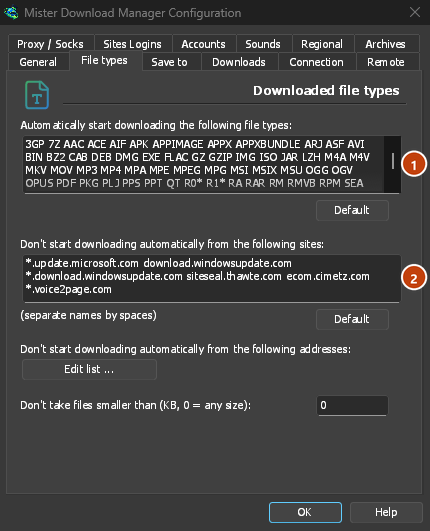
- 选择文件类型:选项 → 文件类型 → 自动开始下载以下文件类型。添加或删除文件类型,各类型之间用空格分隔。
- 要忽略的站点:选项 → 文件类型 → 不自动从以下站点开始下载。添加站点名称,例如
downloads.example.com或*.example.com。 - One browser only: Options → General → Capture downloads from the following browsers. Untick the ones GDM should leave alone.
Everything GDM doesn't take stays with the browser.
下载浏览器原本会打开的链接
Links to a PDF or a video file, which the browser would open itself, go to GDM too when their type is listed. To leave one to the browser, hold Alt while clicking it (Firefox opens it; Chrome and Edge download it themselves). Any other link: right-click it and choose Download with GolinksPRO Download Manager, which takes any type.
下一步
免费、开源、无广告、无试用版。
Download GolinksPRO Download Manager