

GDM runs on 64-bit Windows 10 and Windows 11, and on 64-bit Linux: see On Linux. Builds for macOS are new and still experimental: see On a Mac.
选择下载文件
所有版本都在发布页面上。Windows 有三个文件:
| 文件 | 说明 |
|---|---|
MisterDownloadManager-<version>-setup.exe |
The installer. Pick this one unless you have a reason not to. It can set up browser integration and open .torrent files and magnet links with GDM. |
MisterDownloadManager-<version>-portable.zip |
便携版。下载列表和设置保留在程序旁边的 data 文件夹中,并且不会写入注册表。浏览器集成需要安装程序。请参阅便携模式。 |
MisterDownloadManager-<version>-x64.zip |
不带安装程序的程序。它将数据保存在 %APPDATA%\misterdownloadmanager 中,就像已安装的版本一样。 |
在 Linux 上
GDM runs on 64-bit Linux with a desktop session. It is tested on Ubuntu 24.04, Debian 12 and
Fedora, with GNOME, KDE Plasma, Xfce and Cinnamon, on X11 and in Wayland sessions. Pick one
of these files (up to version 0.2.4, their names end in -experimental, as in
...-linux-x86_64-experimental.deb):
| 文件 | 说明 |
|---|---|
...-linux-x86_64.deb |
For Ubuntu, Debian, Mint and Pop!_OS: sudo apt install ./<file>.deb. It brings the libraries GDM needs. |
...-linux-x86_64.rpm |
For Fedora, openSUSE and RHEL: sudo dnf install ./<file>.rpm. It brings the libraries GDM needs. |
...-linux-x86_64.AppImage |
可在大多数发行版上运行:使其可执行(chmod +x)并运行。它会原地更新(帮助 → 检查更新)。 |
...-linux-x86_64.tar.gz |
适用于任何发行版的纯程序。 |
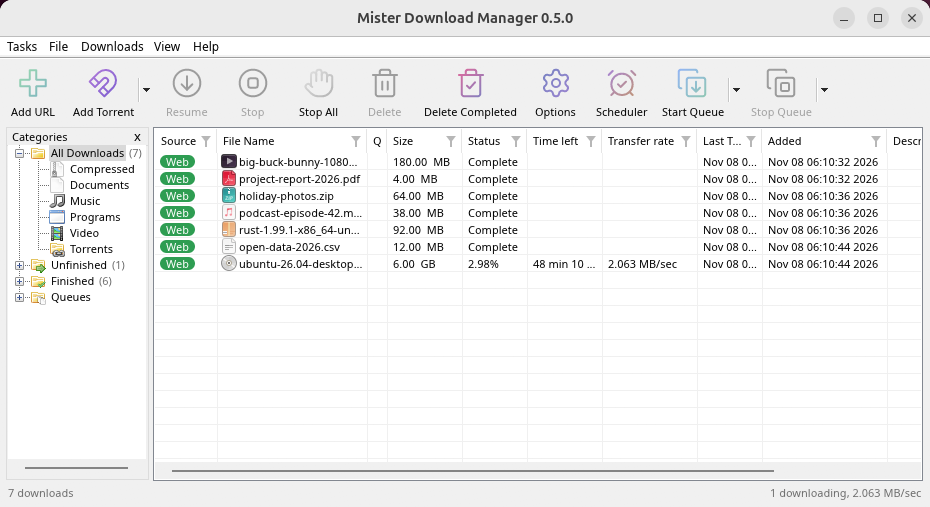
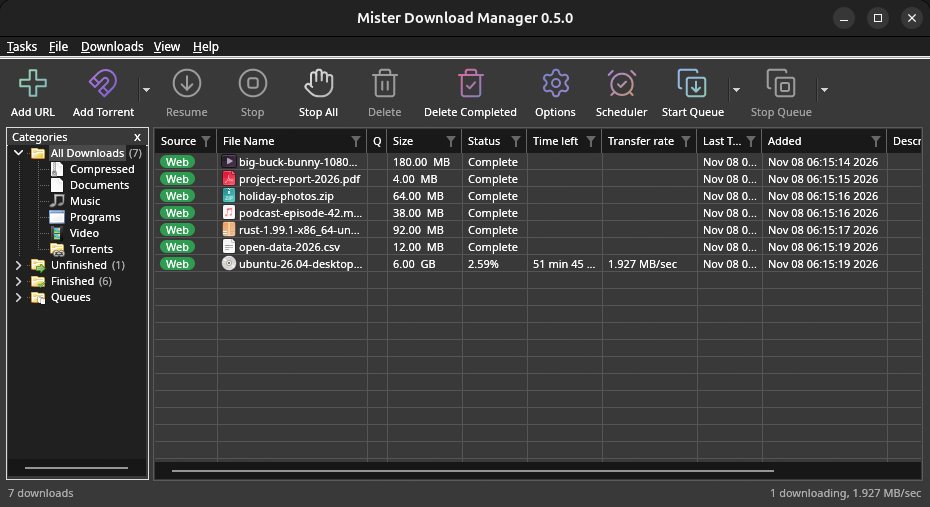
Browser integration is set up by GDM itself at each start (the browsers installed then are found); add the extension as in Browser integration. Firefox installed as a Snap (Ubuntu's) reaches GDM once you allow it; other Snap and Flatpak browsers can't (see Flatpak and Snap browsers). The tray icon, Dark Mode support and Launch on startup work on GNOME (Ubuntu's), KDE Plasma, Xfce and Cinnamon.
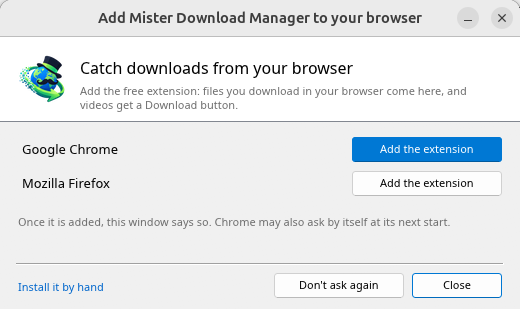
In a Wayland session the windows go through XWayland (below). Not there yet on Linux: screen readers (Orca) don't read GDM's windows; browsers installed as a Flatpak can't reach GDM (Firefox from Flathub may, through the desktop as the Snap does, but that isn't checked yet); and View → Draw with → Vulkan is a choice, OpenGL stays the default.
In a Wayland session (GNOME, KDE Plasma and others), GDM's windows run through XWayland when it is there: Wayland doesn't let a program place its own windows, so GDM's menus and drop-down lists would open in the middle of the screen. To run on Wayland itself anyway, start it with MDM_WAYLAND=1 misterdownloadmanager. If the system lacks a library X11 windows need (such as libxkbcommon-x11, which the .deb and .rpm bring but the AppImage and the tar.gz can't), GDM opens on Wayland instead; with no window system it can use, it names what's missing and the command that installs it.
窗口是本帮助中描述的那些,带有桌面字体、文件图标和标题栏:
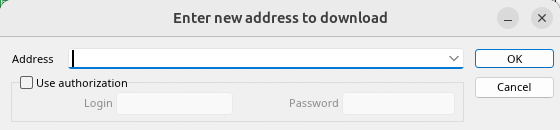
添加 URL。 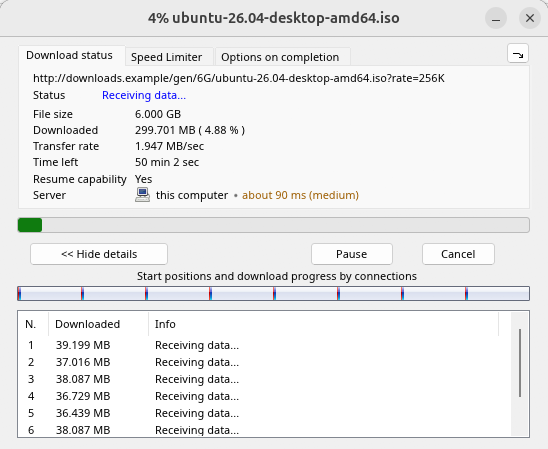
下载进度。 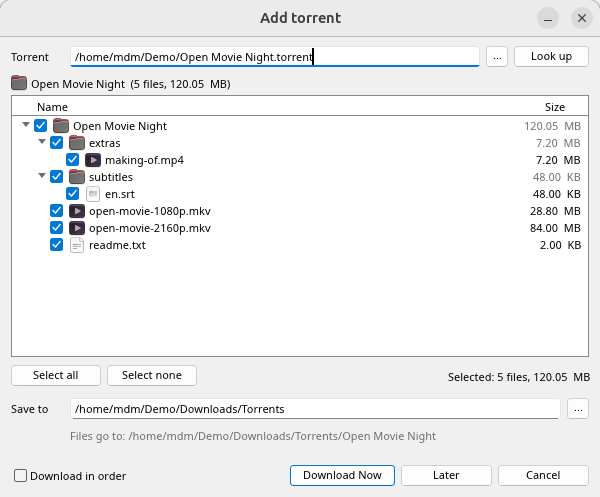
添加种子。 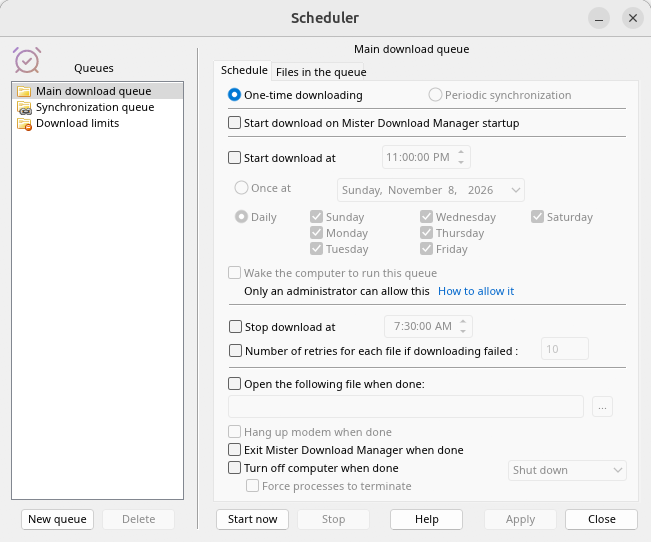
计划程序。 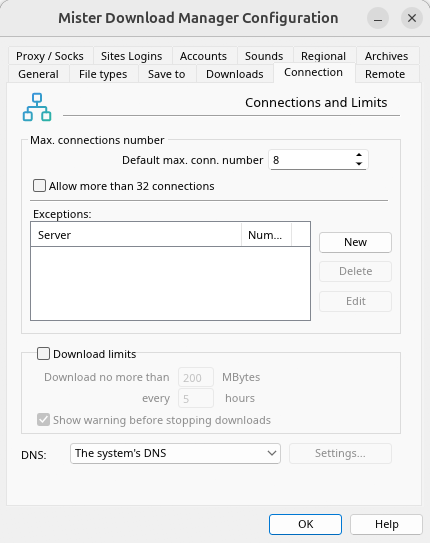
选项。
在其他已测试的桌面上:
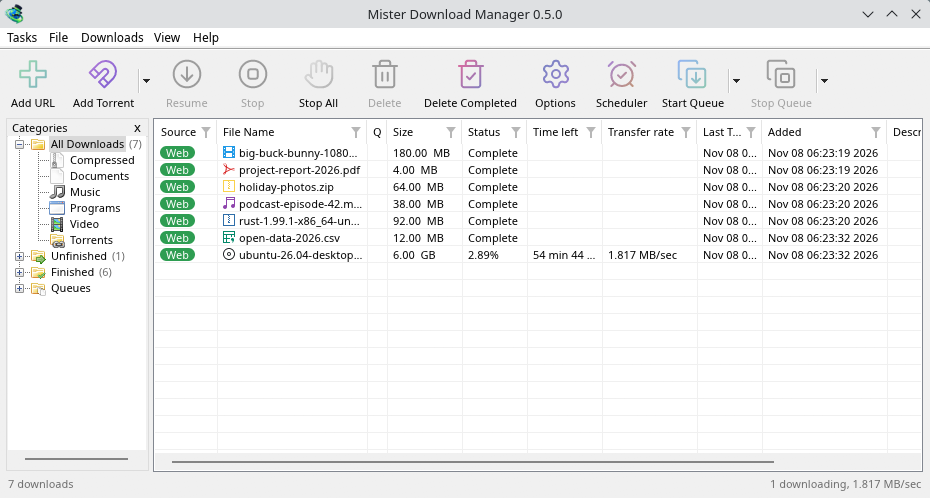
KDE Plasma。 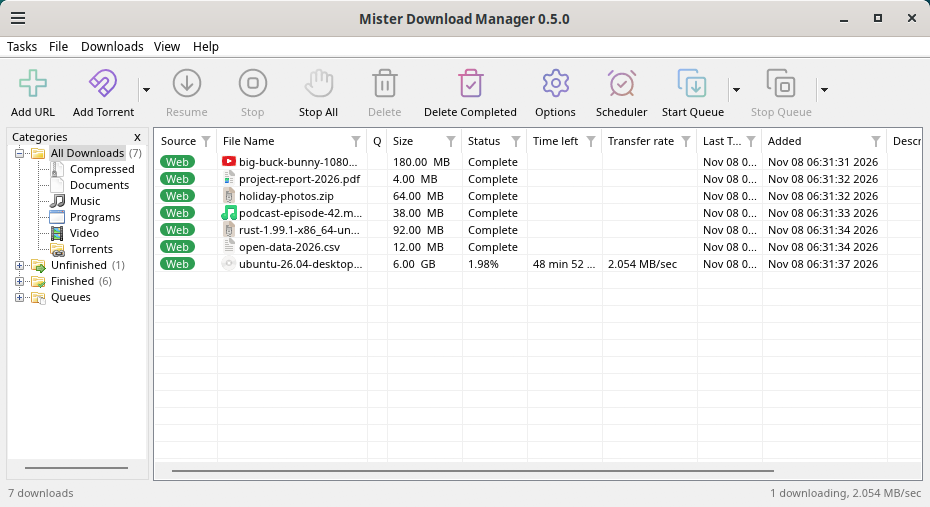
Cinnamon。 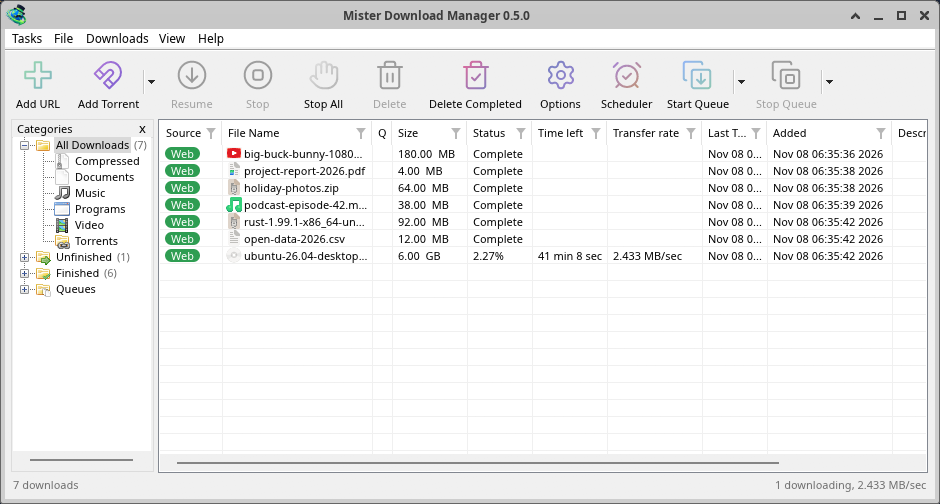
Xfce。
在 Linux 上卸载
sudo apt remove misterdownloadmanager (or sudo dnf remove misterdownloadmanager) removes the
programs, and the small files that tell your browsers where GDM's helper is: the .deb and .rpm
install those for everyone (in /etc and /usr/lib), for Chrome, Chromium, Edge, Brave, Vivaldi
and Firefox (the Snap too), so GDM doesn't write them in your home folder. For the AppImage or the
tar.gz, delete the file or the folder.
What GDM keeps in your home folder stays, as with any package: your list and settings
(~/.local/share/misterdownloadmanager), the AppImage's and the tar.gz's browser files, and
those of the browsers that read them only there (Opera, Helium, Thorium, and Firefox's forks:
Zen, LibreWolf, Floorp, Waterfox). A package can't remove those: it never touches
home folders. Without GDM they lead nowhere, so the extension says it can't reach GDM. To remove
them as well, run this as each user who used GDM, before uninstalling:
misterdownloadmanager-nmhost --unregister
(来自 AppImage:~/.local/share/misterdownloadmanager/browser-host/misterdownloadmanager-nmhost --unregister。)已经卸载了?这会移除相同的文件:
find ~/.mozilla ~/.librewolf ~/.config -name com.misterdownloadmanager.host.json -delete 2>/dev/null
在 Mac 上
macOS 版本是新推出的,仍在实验阶段:我们自己尚未在 Mac 上试用过,因此您将是首批用户之一。请告诉我们您的体验,无论是好是坏。
| 文件 | 说明 |
|---|---|
...-macos-arm64-experimental.dmg |
For a Mac with Apple Silicon (M1 or later: Apple menu → About This Mac shows a Chip). Open it and drag GolinksPRO Download Manager to Applications. macOS asks before its first start, because the app isn't notarized by Apple: right-click it and choose Open (on macOS 15 and later: System Settings → Privacy & Security → Open Anyway). |
...-macos-x86_64-experimental.dmg |
同样,适用于配备 Intel 处理器(关于本机显示 处理器)的 Mac。 |
Browser integration is set up by GDM itself at each start (the browsers installed then are found); add the extension as in Browser integration.
通过安装程序安装
- 运行
MisterDownloadManager-<version>-setup.exe。 - Choose the language. Windows' display language is already selected. The setup offers every language GDM has, and GDM starts in the one you pick.
- 选择是仅为您安装还是为计算机上的所有人安装。仅为您安装不需要管理员权限,并会安装到
%LOCALAPPDATA%\Programs\GolinksPRO Download Manager。为所有人安装会安装到Program Files。 - Pick what the setup should do: - Set up browser integration (Chrome, Edge, Brave, Firefox) - Open .torrent files and magnet links with GolinksPRO Download Manager - Start GolinksPRO Download Manager when Windows starts - Create a desktop shortcut (off unless you tick it)
- Click Install, then Finish to start GDM.
If GDM is already running, the setup asks it to save and close first. To update, use Help → Check for updates → Update now, or run the setup of the new version; your list and settings stay.
浏览器集成在每个浏览器中都需要多一步:添加扩展。在 Firefox 中,点击 addons.mozilla.org 上的页面中的添加到 Firefox;在 Chrome、Edge、Brave、Opera 和 Vivaldi 中,点击 Chrome 网上应用店中的页面中的添加到 Chrome。浏览器集成会展示具体操作。
卸载
Uninstall GDM from Windows Settings → Apps. The uninstaller asks whether to delete your download list and settings too. Your downloaded files are never touched.
使用 zip 副本
- 将文件解压到您有写入权限的文件夹中(不要直接解压到
Program Files)。 - 运行
misterdownloadmanager.exe。
zip 文件包含与安装程序相同的程序:应用程序、misterdownloadmanager-cli.exe(用于从命令行下载;请参阅命令行和自动化)以及 extension 文件夹。
首次启动和语言
- Installed with the setup: GDM starts in the language you chose in the setup.
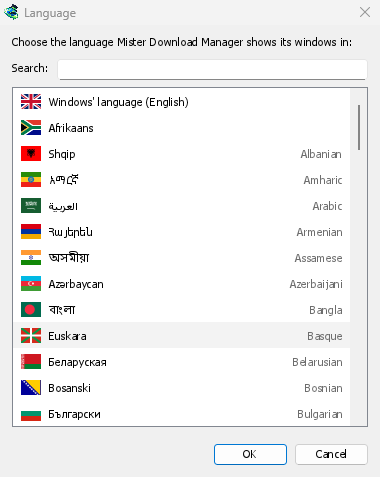
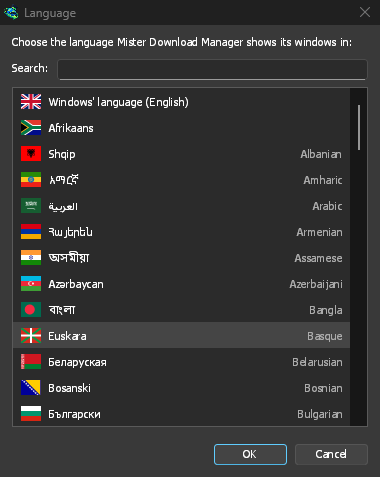
- Otherwise: GDM shows the list of languages, each with its flag and its own name. Pick yours.
您可以随时在视图 → 语言中更改语言。更多信息请参阅语言。
视频辅助工具
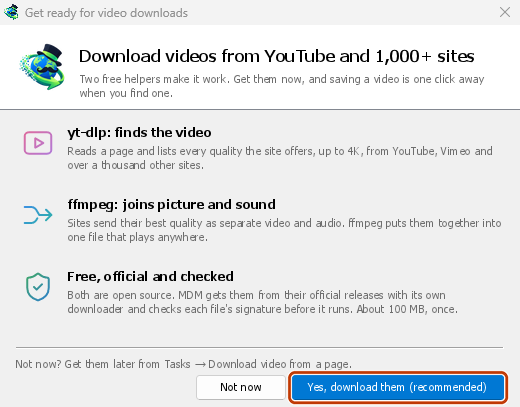
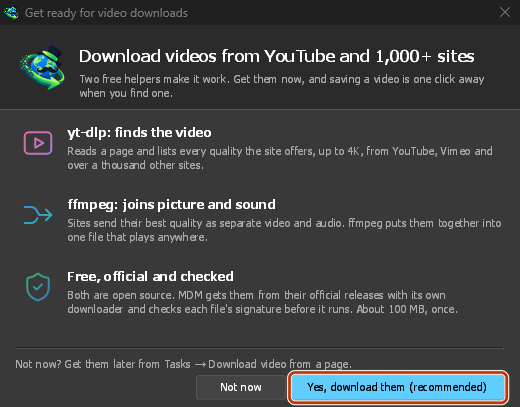
Next, GDM offers its two free video helpers: yt-dlp, which finds the video on a page, and ffmpeg, which joins its picture and sound. Click Yes, download them (recommended) and they download in the background, about 100 MB, once. Not now leaves them for later: the video window offers them when you first need them. More in Videos.
主窗口
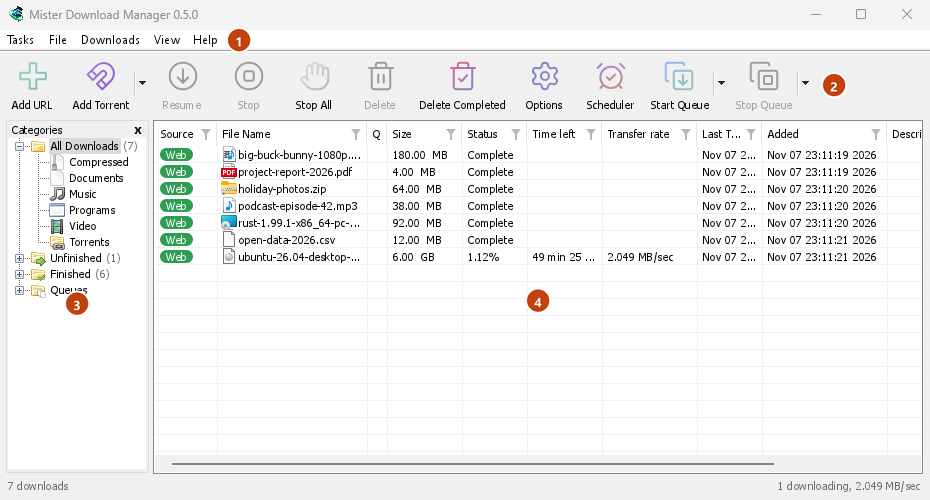
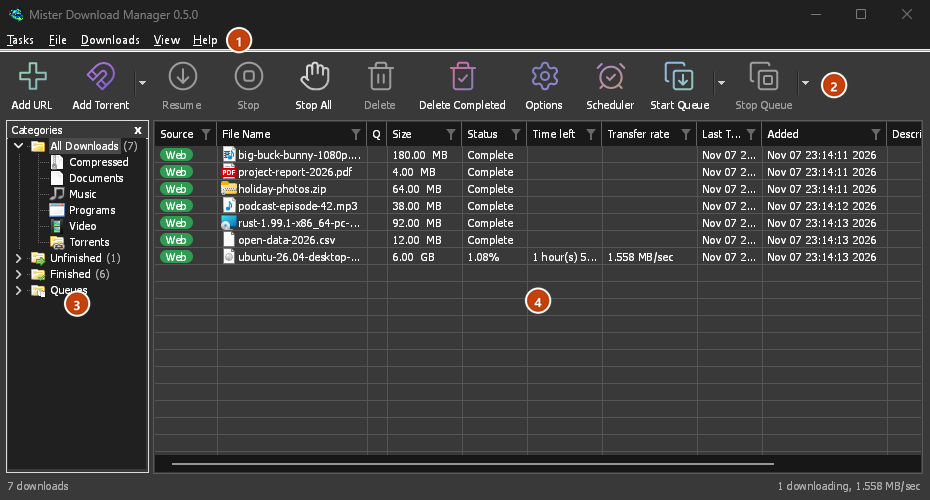
从上到下:
- 菜单栏。
- 任务 — 添加下载、种子、磁力链接、批量下载和网页视频;种子设置;链接抓取器;RSS 源;显示拖放目标;导入和导出列表;退出。
- 文件 — 对选中的下载执行以下操作:停止下载、删除、立即下载、重新下载。
- 下载 — 暂停所有、停止所有、删除所有已完成、查找、计划程序、队列、速度限制器和选项。
- 视图 — 显示或隐藏类别,排序列表(整理文件),深色模式支持,始终为深色,主题,界面大小(所有窗口更大,100% 到 200%;也支持Ctrl +、Ctrl −和Ctrl 0),绘制方式(OpenGL,或 Windows 上的 Direct3D,Linux 上的 Vulkan,macOS 上的 Metal)和语言。
- Help — help pages and tutorials (on the website, in your language when it has it), Keyboard shortcuts, Report a problem, Check for updates, About, Tell a friend and Support GDM (its creator's GitHub Sponsors page: optional, nothing in GDM changes).
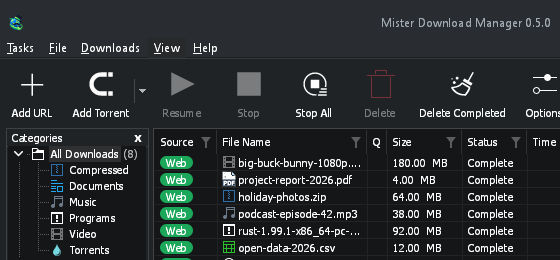
- 工具栏。添加 URL、添加 Torrent、恢复、停止、停止所有、删除、删除已完成、选项、计划程序、启动队列、停止队列。点击添加 Torrent、启动队列和停止队列旁边的小箭头可打开更多选项。
- 类别(左侧)。选择列表显示的内容:所有下载、未完成、已完成和队列,每个项目下还有相应的类别。拖动窗格与列表之间的分隔线可加宽窗格。
- 下载列表(右侧)。每行一个下载。请参阅下载列表。
深色模式
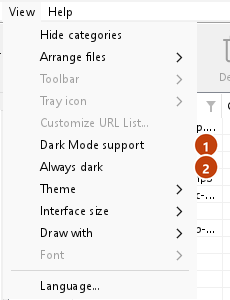
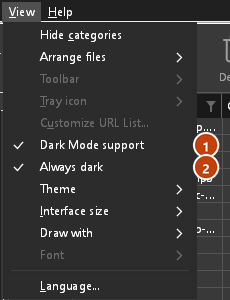
GDM follows your system: when Windows (or your desktop's light/dark preference on Linux and macOS) is set to dark mode, so is GDM. To keep GDM light whatever the system does, turn off View → Dark Mode support. To keep it dark whatever the system does, for example on a desktop that reports no preference, turn on View → Always dark.
主题
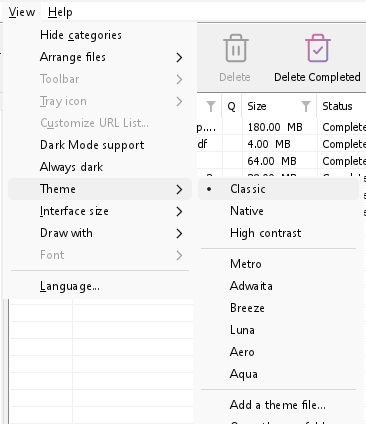
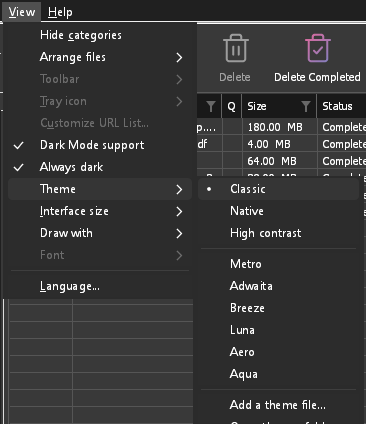
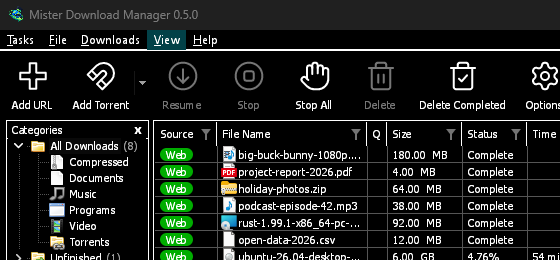
View → Theme changes GDM's look at once, keeping its layout:
- Classic: GDM's own look, the default.
- 本机:使用系统颜色。Windows 的强调色(设置 → 个性化 → 颜色),以及开启时的高对比度主题;Linux 桌面环境的强调色和高对比度设置(GNOME 47 及更高版本、KDE Plasma);macOS 的强调色。更改这些设置时,GDM 也会随之更新。
- 高对比度:黑白配色、鲜明的强调色、所有边缘均清晰显示,文本对比度至少为 7:1。
- Metro: Windows 8's flat look: square corners, flat buttons and boxes, a coloured title bar with the title centred (on Windows, where GDM draws it), and one-colour icons (Microsoft's Fluent UI System Icons).
- Adwaita: GNOME's look: round corners, flat grey buttons, a rounded focus ring, GNOME's check boxes, a header bar with the title in bold and round buttons (on Windows, where GDM draws it), and GNOME's Adwaita icons, in colour for files and categories, one colour in the toolbar.
- Breeze: KDE Plasma's look: rounded corners, buttons and boxes that take the accent's edge under the pointer or when focused, KDE's check boxes and focus frame, KDE's title bar with the title centred and round buttons (on Windows, where GDM draws it), and KDE's Breeze icons.
- Luna: Windows XP's look: buttons shaded from white with an orange glow under the pointer, green ticks, square text boxes, progress in green blocks, a deep blue title bar with the title in bold (on Windows, where GDM draws it), and colourful icons drawn for GDM in that manner.
- Aero: Windows 7's look: glossy buttons that turn light blue under the pointer, quiet check boxes, a glossy green progress bar, a glassy title bar with the title on a soft glow (on Windows), and glossy icons drawn for GDM in that manner.
- Aqua: Mac OS X's look: gel buttons round at the ends (the default one blue), glossy check boxes, a blue focus ring, a blue gel progress bar, a grey title bar with small round buttons (on Windows), and icons drawn for GDM in that manner.
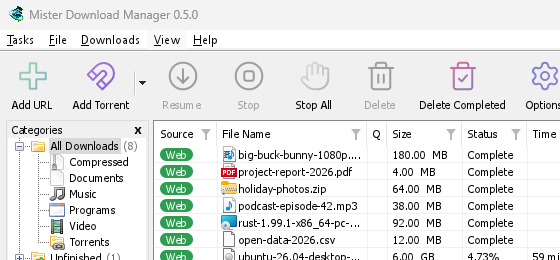
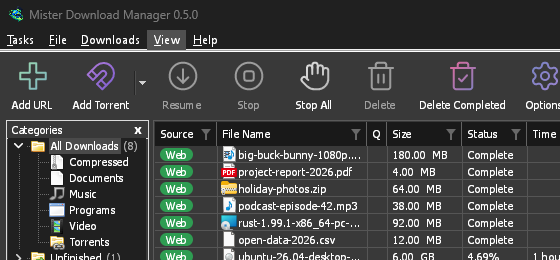
经典 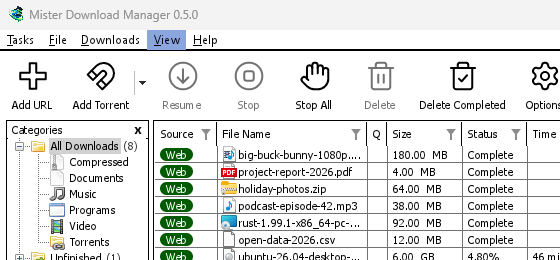
高对比度 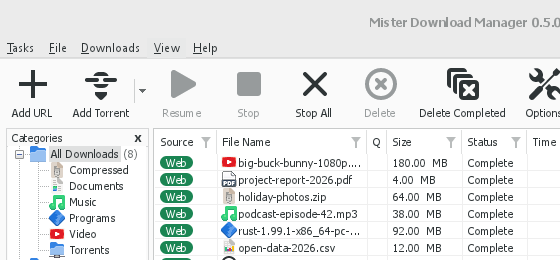
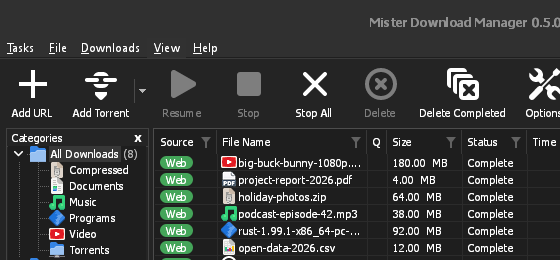
Adwaita 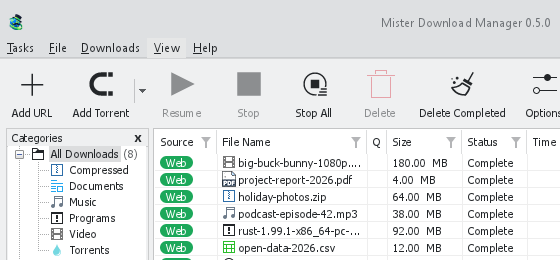
Breeze
每个主题都有亮色和深色模式:深色模式支持 和 始终为深色 像以前一样在它们之间进行选择。您放入主题文件夹(视图 → 主题 → 打开主题文件夹)的主题文件也会在此处列出,Base16 和 pywal 配色方案也是如此(视图 → 主题 → 添加主题文件…;pywal 运行时遵循 wal):主题 说明了该文件夹的位置、主题文件包含的内容(inherits、颜色、大小、控件形状、图标)、配色方案的颜色如何使用,以及如何制作和分享主题文件。
托盘图标
Closing the main window doesn't quit GDM. It hides in the notification area, and downloads, queues and schedules carry on. To make closing quit (a portable copy's folder can then be deleted), untick Options → General → Keep running when closing the window. If there is no icon for GDM at all — not in the notification area, nor behind the ^ hidden icons — the window minimizes to the taskbar instead, so downloads continue and there is a way back. An icon behind ^ can be clicked to bring the window back, and starting GDM again always does.
On Linux this needs a tray, which most desktops have (KDE Plasma, Xfce, Cinnamon, Ubuntu's GNOME or GNOME with the AppIndicator extension, waybar's tray). On a desktop without one (some tiling window managers), closing the window quits GDM, since there would be nowhere to bring it back from.
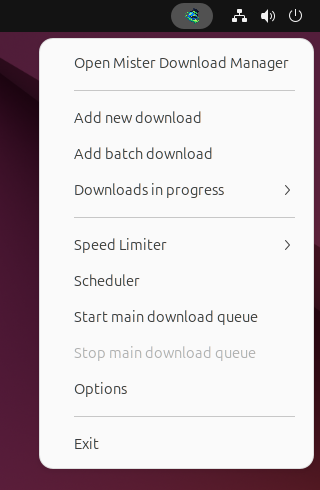
- 点击托盘图标可恢复窗口。
- 右键单击它可选择添加新下载、添加批量下载、正在进行的下载、速度限制器、计划程序、主下载队列、选项和退出。
- 正在进行的下载列出正在运行的下载。选择一个可查看其进度窗口。
当选项 → 常规中的最小化到通知区域开启时,“最小化”也会将主窗口隐藏到通知区域。此选项默认开启;如果通知区域没有图标,“最小化”会将窗口发送到任务栏。
下载进度窗口也可以通过其“最小化”按钮或“隐藏到通知区域”按钮(一个短横线,带一个指向角落的箭头)隐藏到那里。
在 Windows 上,该按钮位于窗口标题栏的“最小化”按钮左侧,以及标题栏菜单 (Alt+Space) 中。在 Linux 和 macOS 上,它位于标签行末尾。
要恢复窗口,请在正在进行的下载中选择它,或双击列表中的下载项。
要退出,请选择任务 → 退出或托盘菜单中的退出。
Where GDM keeps its data
下载列表和设置保存在 %APPDATA%\misterdownloadmanager (downloads.json) 中;在 Linux 上保存在 ~/.local/share/misterdownloadmanager 中,在 Mac 上保存在 ~/Library/Application Support/misterdownloadmanager 中。便携版则将其保存在 data 文件夹中。下载的文件会保存到您的 下载 文件夹,并按类别分类到子文件夹中;您可以在选项 → 保存到 中更改此设置。
下一步
免费、开源、无广告、无试用版。
Download GolinksPRO Download Manager