

GDM runs on 64-bit Windows 10 and Windows 11, and on 64-bit Linux: see On Linux. Builds for macOS are new and still experimental: see On a Mac.
Een download kiezen
Elke versie staat op de Releases-pagina. Voor Windows zijn er drie bestanden:
| Bestand | Beschrijving |
|---|---|
MisterDownloadManager-<version>-setup.exe |
The installer. Pick this one unless you have a reason not to. It can set up browser integration and open .torrent files and magnet links with GDM. |
MisterDownloadManager-<version>-portable.zip |
Een draagbare kopie. De downloadlijst en instellingen blijven in een data-map naast het programma en er wordt niets naar het register geschreven. Voor browserintegratie is het installatieprogramma nodig. Zie Draagbare modus. |
MisterDownloadManager-<version>-x64.zip |
Dezelfde programma's zonder installatieprogramma. Het bewaart zijn gegevens in %APPDATA%\misterdownloadmanager, net als een geïnstalleerde kopie. |
Op Linux
GDM runs on 64-bit Linux with a desktop session. It is tested on Ubuntu 24.04, Debian 12 and
Fedora, with GNOME, KDE Plasma, Xfce and Cinnamon, on X11 and in Wayland sessions. Pick one
of these files (up to version 0.2.4, their names end in -experimental, as in
...-linux-x86_64-experimental.deb):
| Bestand | Beschrijving |
|---|---|
...-linux-x86_64.deb |
For Ubuntu, Debian, Mint and Pop!_OS: sudo apt install ./<file>.deb. It brings the libraries GDM needs. |
...-linux-x86_64.rpm |
For Fedora, openSUSE and RHEL: sudo dnf install ./<file>.rpm. It brings the libraries GDM needs. |
...-linux-x86_64.AppImage |
Werkt op de meeste distributies: maak het uitvoerbaar (chmod +x) en voer het uit. Het werkt zichzelf ter plekke bij (Help → Controleren op updates). |
...-linux-x86_64.tar.gz |
De gewone programma's, voor elke distributie. |
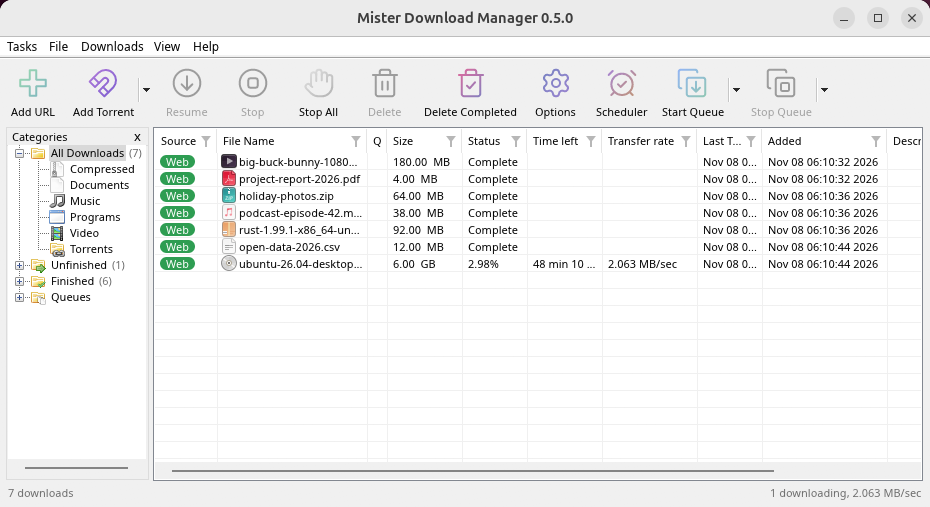
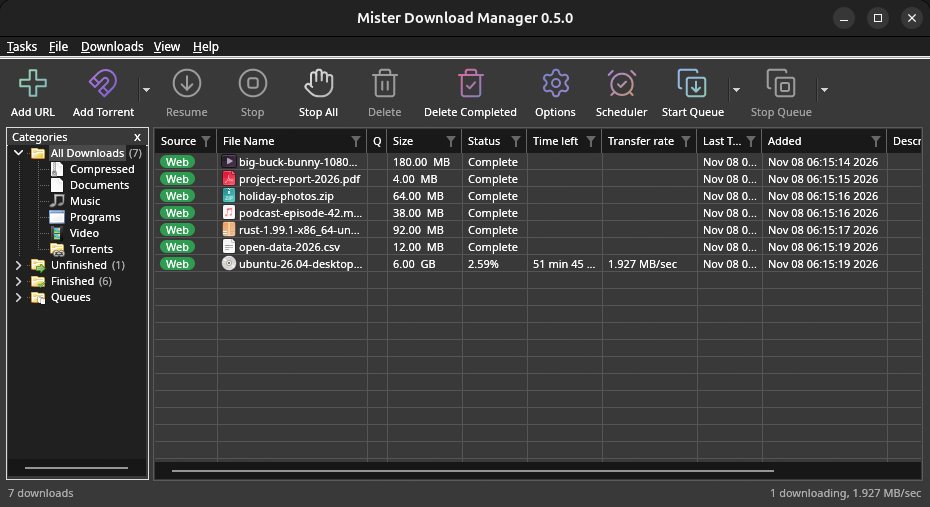
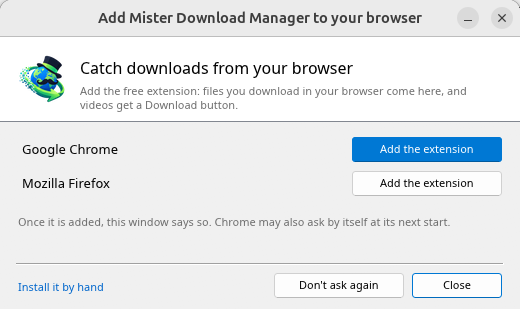
Browser integration is set up by GDM itself at each start (the browsers installed then are found); add the extension as in Browser integration. Firefox installed as a Snap (Ubuntu's) reaches GDM once you allow it; other Snap and Flatpak browsers can't (see Flatpak and Snap browsers). The tray icon, Dark Mode support and Launch on startup work on GNOME (Ubuntu's), KDE Plasma, Xfce and Cinnamon.
In a Wayland session the windows go through XWayland (below). Not there yet on Linux: screen readers (Orca) don't read GDM's windows; browsers installed as a Flatpak can't reach GDM (Firefox from Flathub may, through the desktop as the Snap does, but that isn't checked yet); and View → Draw with → Vulkan is a choice, OpenGL stays the default.
In a Wayland session (GNOME, KDE Plasma and others), GDM's windows run through XWayland when it is there: Wayland doesn't let a program place its own windows, so GDM's menus and drop-down lists would open in the middle of the screen. To run on Wayland itself anyway, start it with MDM_WAYLAND=1 misterdownloadmanager. If the system lacks a library X11 windows need (such as libxkbcommon-x11, which the .deb and .rpm bring but the AppImage and the tar.gz can't), GDM opens on Wayland instead; with no window system it can use, it names what's missing and the command that installs it.
De vensters zijn de vensters die in deze help worden beschreven, met de lettertypen, bestandsiconen en titelbalken van de desktop:
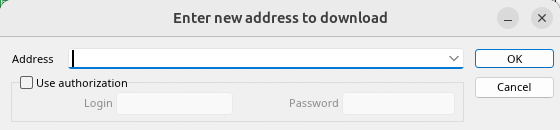
URL toevoegen. 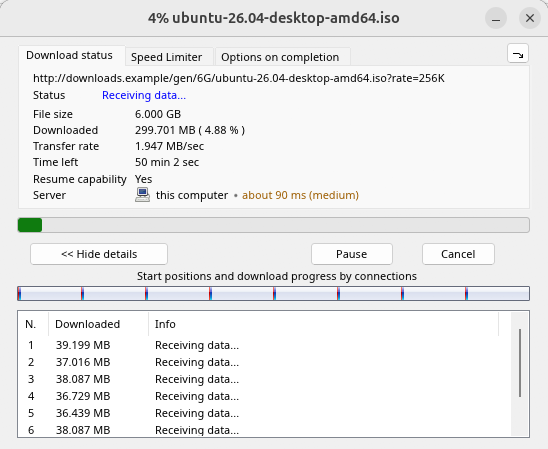
De voortgang van een download. 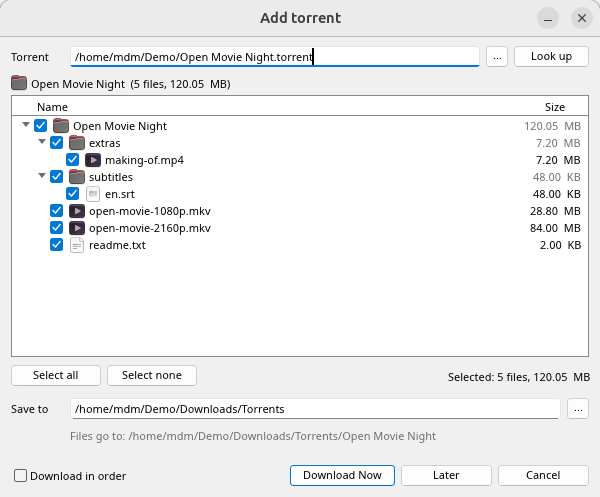
Torrent toevoegen. 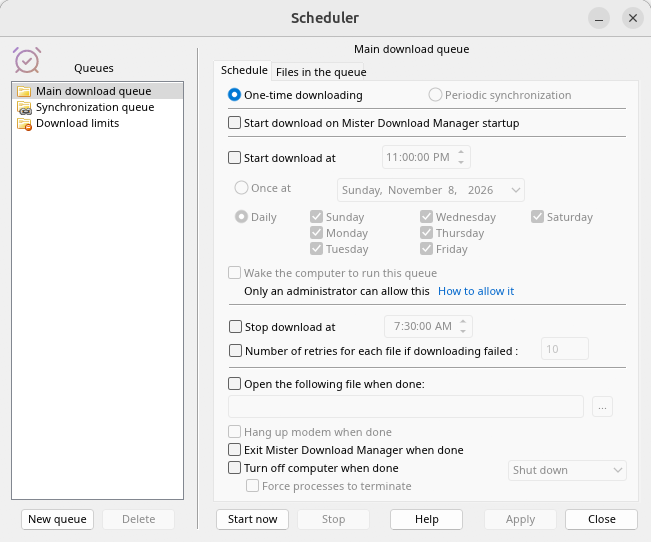
De Planner. 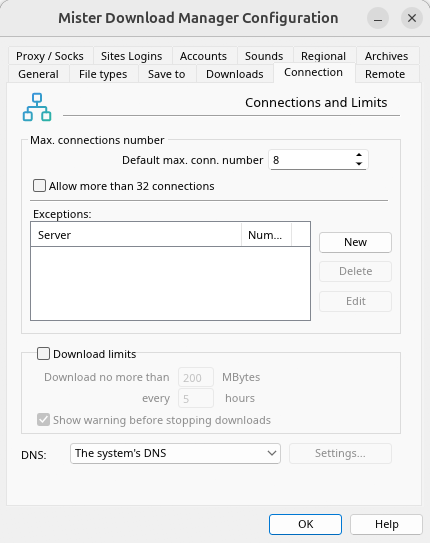
Opties.
En op de andere desktops waarop het is gecontroleerd:
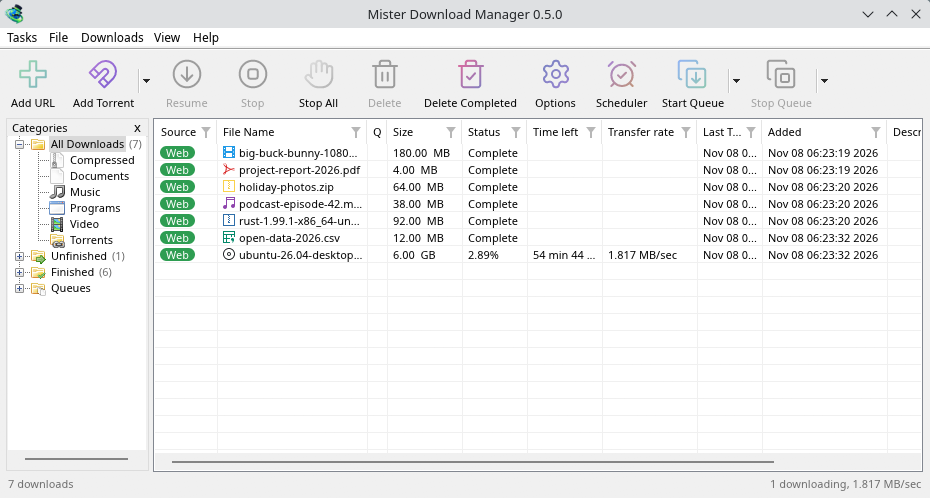
KDE Plasma. 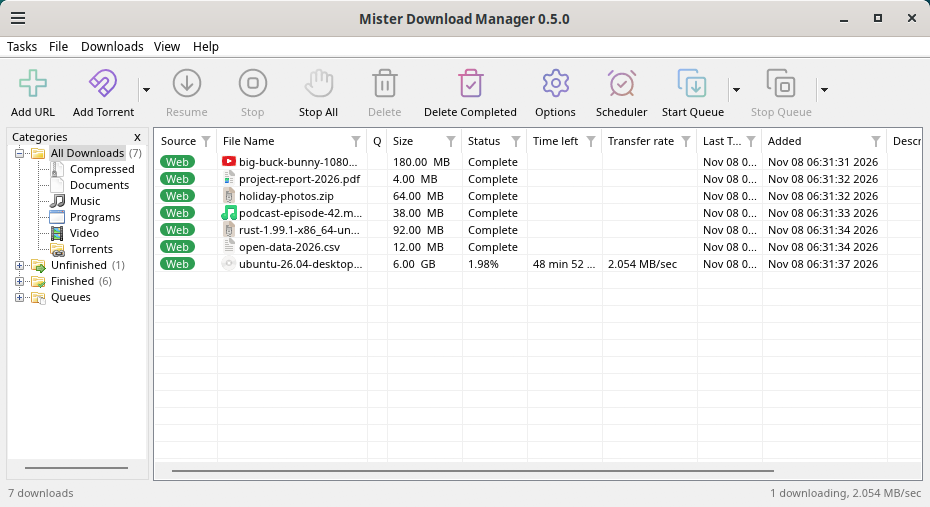
Cinnamon. 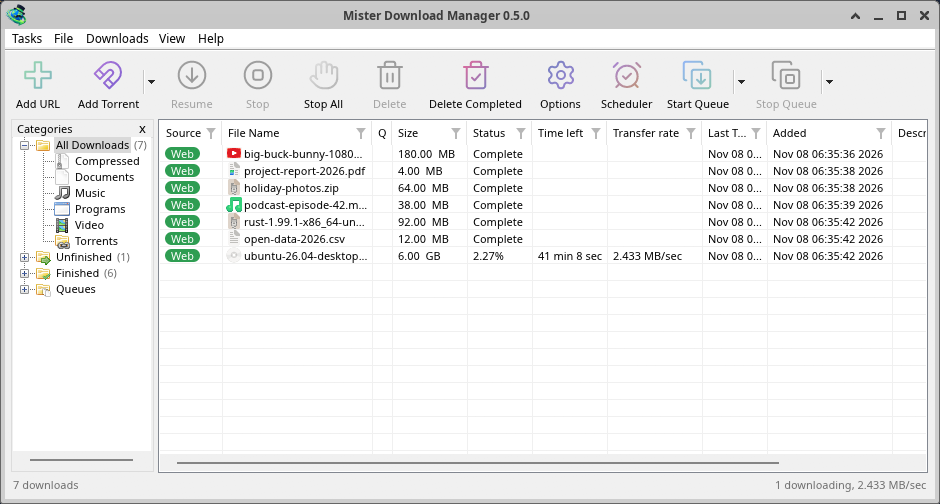
Xfce.
Verwijderen op Linux
sudo apt remove misterdownloadmanager (or sudo dnf remove misterdownloadmanager) removes the
programs, and the small files that tell your browsers where GDM's helper is: the .deb and .rpm
install those for everyone (in /etc and /usr/lib), for Chrome, Chromium, Edge, Brave, Vivaldi
and Firefox (the Snap too), so GDM doesn't write them in your home folder. For the AppImage or the
tar.gz, delete the file or the folder.
What GDM keeps in your home folder stays, as with any package: your list and settings
(~/.local/share/misterdownloadmanager), the AppImage's and the tar.gz's browser files, and
those of the browsers that read them only there (Opera, Helium, Thorium, and Firefox's forks:
Zen, LibreWolf, Floorp, Waterfox). A package can't remove those: it never touches
home folders. Without GDM they lead nowhere, so the extension says it can't reach GDM. To remove
them as well, run this as each user who used GDM, before uninstalling:
misterdownloadmanager-nmhost --unregister
(Van de AppImage: ~/.local/share/misterdownloadmanager/browser-host/misterdownloadmanager-nmhost --unregister.) Al verwijderd? Dit verwijdert dezelfde bestanden:
find ~/.mozilla ~/.librewolf ~/.config -name com.misterdownloadmanager.host.json -delete 2>/dev/null
Op een Mac
De macOS-builds zijn nieuw en nog experimenteel: we hebben ze zelf nog niet op een Mac geprobeerd, dus u zou een van de eersten zijn. Vertel ons alstublieft hoe het ging, goed of slecht.
| Bestand | Beschrijving |
|---|---|
...-macos-arm64-experimental.dmg |
For a Mac with Apple Silicon (M1 or later: Apple menu → About This Mac shows a Chip). Open it and drag GolinksPRO Download Manager to Applications. macOS asks before its first start, because the app isn't notarized by Apple: right-click it and choose Open (on macOS 15 and later: System Settings → Privacy & Security → Open Anyway). |
...-macos-x86_64-experimental.dmg |
Hetzelfde, voor een Mac met een Intel-processor (Over deze Mac toont een Processor). |
Browser integration is set up by GDM itself at each start (the browsers installed then are found); add the extension as in Browser integration.
Installeren met het installatieprogramma
- Voer
MisterDownloadManager-<version>-setup.exeuit. - Choose the language. Windows' display language is already selected. The setup offers every language GDM has, and GDM starts in the one you pick.
- Kies of u alleen voor uzelf of voor iedereen op de computer wilt installeren. Alleen voor uzelf vereist geen beheerdersrechten en gaat naar
%LOCALAPPDATA%\Programs\GolinksPRO Download Manager. Voor iedereen gaat naarProgram Files. - Pick what the setup should do: - Set up browser integration (Chrome, Edge, Brave, Firefox) - Open .torrent files and magnet links with GolinksPRO Download Manager - Start GolinksPRO Download Manager when Windows starts - Create a desktop shortcut (off unless you tick it)
- Click Install, then Finish to start GDM.
If GDM is already running, the setup asks it to save and close first. To update, use Help → Check for updates → Update now, or run the setup of the new version; your list and settings stay.
Browserintegratie vereist nog één stap in elke browser: het toevoegen van de extensie. Klik in Firefox op Toevoegen aan Firefox op de pagina op addons.mozilla.org; in Chrome, Edge, Brave, Opera en Vivaldi op Toevoegen aan Chrome op de pagina in de Chrome Web Store. Browserintegratie laat zien hoe.
Verwijderen
Uninstall GDM from Windows Settings → Apps. The uninstaller asks whether to delete your download list and settings too. Your downloaded files are never touched.
Een zip-kopie gebruiken
- Pak het bestand uit in een map waar u naar kunt schrijven (niet rechtstreeks in
Program Files). - Voer
misterdownloadmanager.exeuit.
De zip-bestanden bevatten dezelfde programma's als de setup: de app, misterdownloadmanager-cli.exe (downloads via de opdrachtregel; zie Opdrachtregel en automatisering) en de extension-map.
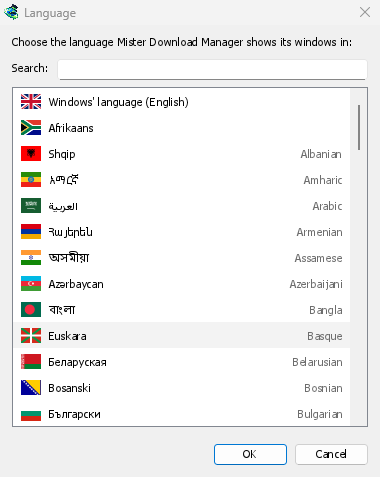
Eerste keer starten en de taal
- Installed with the setup: GDM starts in the language you chose in the setup.
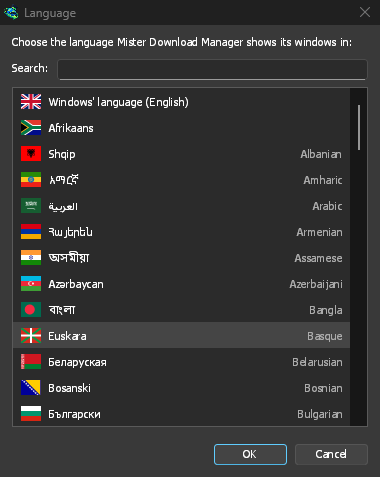
- Otherwise: GDM shows the list of languages, each with its flag and its own name. Pick yours.
U kunt dit op elk moment wijzigen via Beeld → Taal. Meer hierover in Talen.
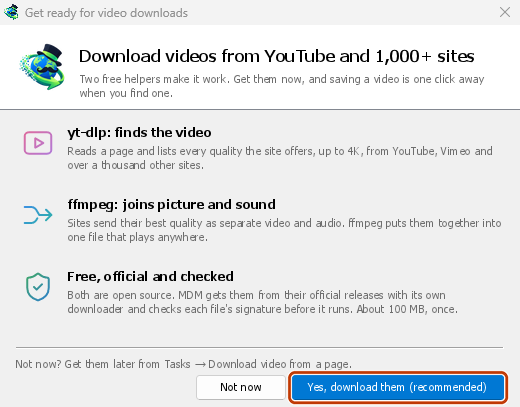
De videohelpers
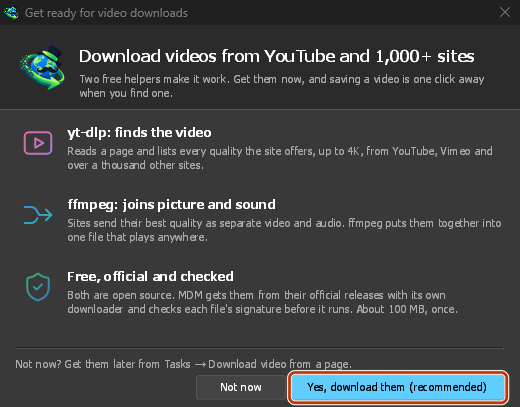
Next, GDM offers its two free video helpers: yt-dlp, which finds the video on a page, and ffmpeg, which joins its picture and sound. Click Yes, download them (recommended) and they download in the background, about 100 MB, once. Not now leaves them for later: the video window offers them when you first need them. More in Videos.
Het hoofdvenster
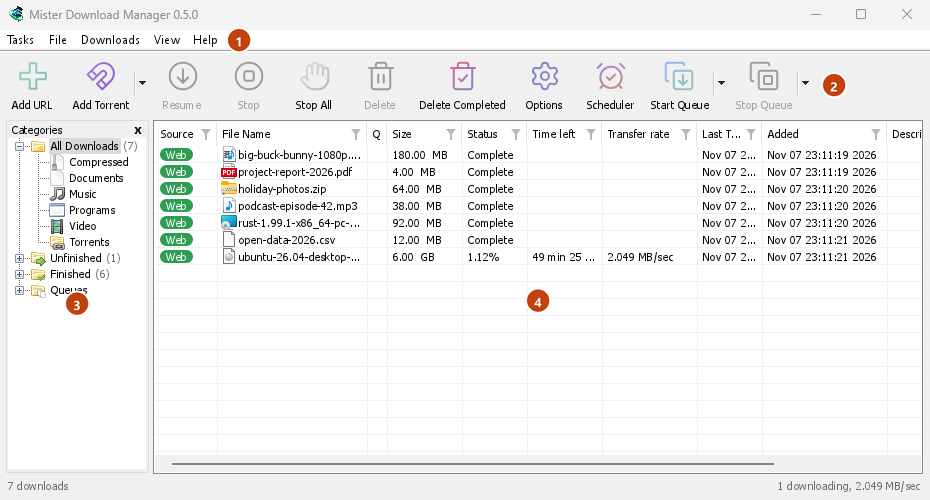
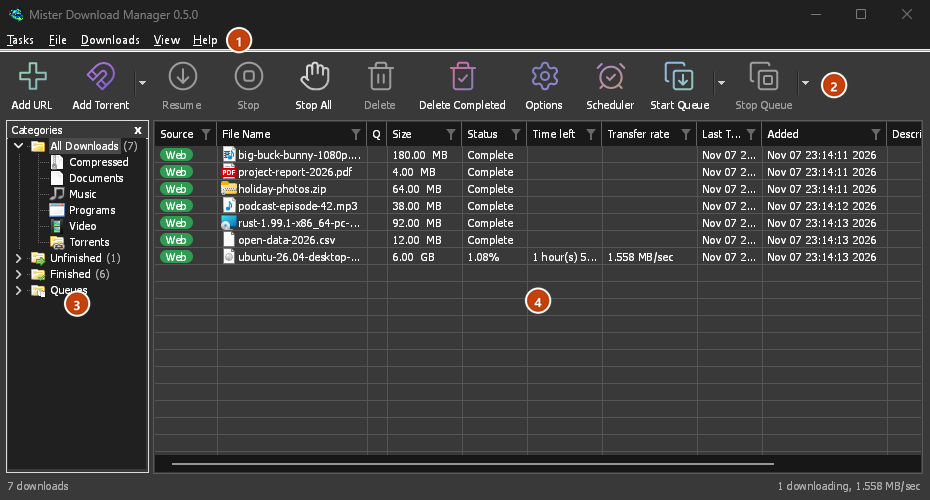
Van boven naar beneden:
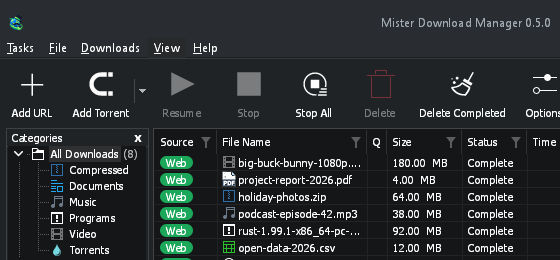
- Menubalk.
- Taken — downloads, torrents, magneetlinks, batchdownloads en video's van een pagina toevoegen; Torrent-instellingen; Link grabber; RSS-feeds; het drop-doel weergeven; de lijst importeren en exporteren; afsluiten.
- Bestand — de geselecteerde download: Download stoppen, Verwijderen, Nu downloaden, Opnieuw downloaden.
- Downloads — Alles pauzeren, Alles stoppen, Alle voltooide downloads verwijderen, Zoeken, de Planner, wachtrijen, de Snelheidsbegrenzer en Opties.
- Beeld — categorieën weergeven of verbergen, de lijst sorteren (Bestanden rangschikken), Ondersteuning voor donkere modus, Altijd donker, Thema, Interfasegrootte (elk venster groter, 100 % tot 200 %; ook Ctrl +, Ctrl − en Ctrl 0), Tekenen met (OpenGL, of Direct3D op Windows, Vulkan op Linux, Metal op macOS) en Taal.
- Help — help pages and tutorials (on the website, in your language when it has it), Keyboard shortcuts, Report a problem, Check for updates, About, Tell a friend and Support GDM (its creator's GitHub Sponsors page: optional, nothing in GDM changes).
- Werkbalk. URL toevoegen, Torrent toevoegen, Hervatten, Stoppen, Alles stoppen, Verwijderen, Voltooide verwijderen, Opties, Planner, Wachtrij starten, Wachtrij stoppen. De kleine pijl naast Torrent toevoegen, Wachtrij starten en Wachtrij stoppen opent meer keuzes.
- Categorieën (links). Kies wat de lijst toont: Alle downloads, Onvoltooid, Gedownload en Wachtrijen, elk met zijn categorieën. Sleep de ruimte tussen het paneel en de lijst om deze breder te maken.
- Downloadlijst (rechts). Eén rij per download. Zie De downloadlijst.
Donkere modus
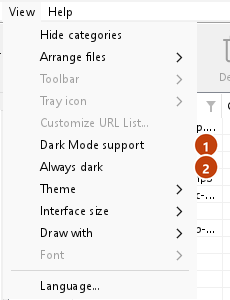
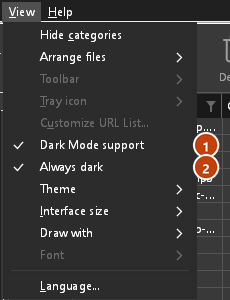
GDM follows your system: when Windows (or your desktop's light/dark preference on Linux and macOS) is set to dark mode, so is GDM. To keep GDM light whatever the system does, turn off View → Dark Mode support. To keep it dark whatever the system does, for example on a desktop that reports no preference, turn on View → Always dark.
Thema's
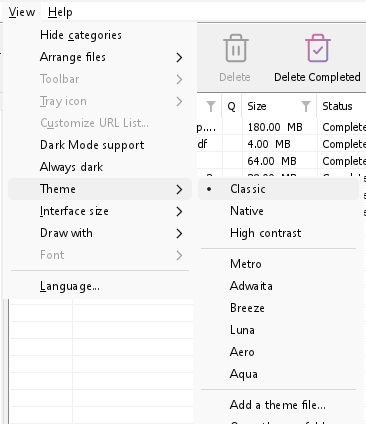
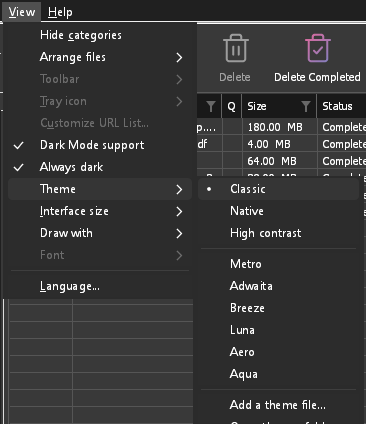
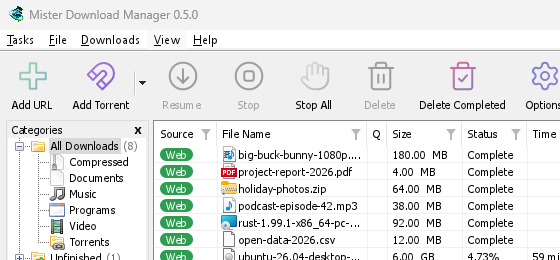
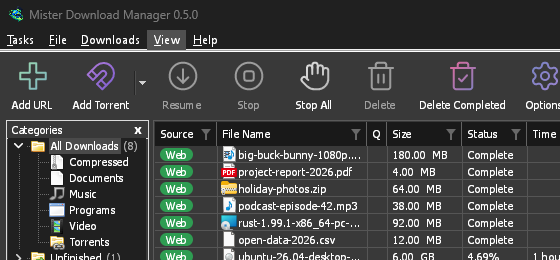
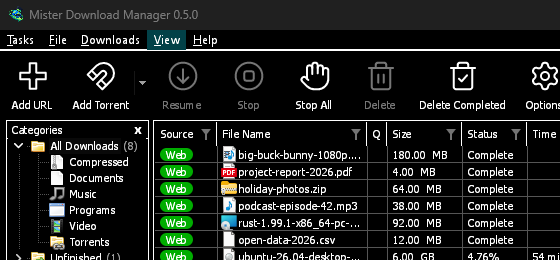
View → Theme changes GDM's look at once, keeping its layout:
- Classic: GDM's own look, the default.
- Systeemeigen: de kleuren van uw systeem. De accentkleur van Windows (Instellingen → Persoonlijke instellingen → Kleuren) en, indien ingeschakeld, het contrastthema; de accentkleur van het bureaublad en de hogere contrastinstelling op Linux (GNOME 47 en later, KDE Plasma); de accentkleur op macOS. GDM volgt deze wanneer u ze wijzigt.
- Hoog contrast: zwart-wit, een helder accent, elke rand getekend, tekst met een contrastverhouding van 7:1 of meer.
- Metro: Windows 8's flat look: square corners, flat buttons and boxes, a coloured title bar with the title centred (on Windows, where GDM draws it), and one-colour icons (Microsoft's Fluent UI System Icons).
- Adwaita: GNOME's look: round corners, flat grey buttons, a rounded focus ring, GNOME's check boxes, a header bar with the title in bold and round buttons (on Windows, where GDM draws it), and GNOME's Adwaita icons, in colour for files and categories, one colour in the toolbar.
- Breeze: KDE Plasma's look: rounded corners, buttons and boxes that take the accent's edge under the pointer or when focused, KDE's check boxes and focus frame, KDE's title bar with the title centred and round buttons (on Windows, where GDM draws it), and KDE's Breeze icons.
- Luna: Windows XP's look: buttons shaded from white with an orange glow under the pointer, green ticks, square text boxes, progress in green blocks, a deep blue title bar with the title in bold (on Windows, where GDM draws it), and colourful icons drawn for GDM in that manner.
- Aero: Windows 7's look: glossy buttons that turn light blue under the pointer, quiet check boxes, a glossy green progress bar, a glassy title bar with the title on a soft glow (on Windows), and glossy icons drawn for GDM in that manner.
- Aqua: Mac OS X's look: gel buttons round at the ends (the default one blue), glossy check boxes, a blue focus ring, a blue gel progress bar, a grey title bar with small round buttons (on Windows), and icons drawn for GDM in that manner.
Klassiek 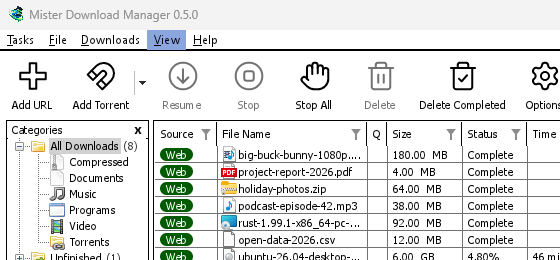
Hoog contrast 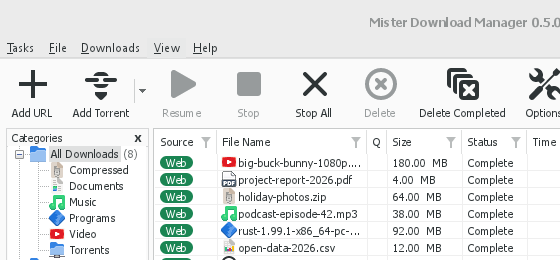
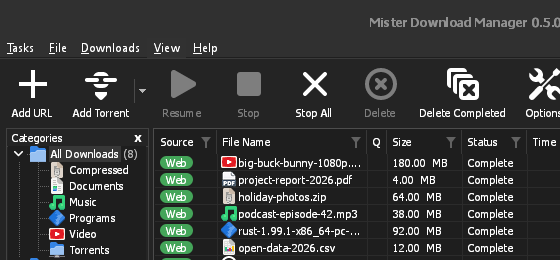
Adwaita 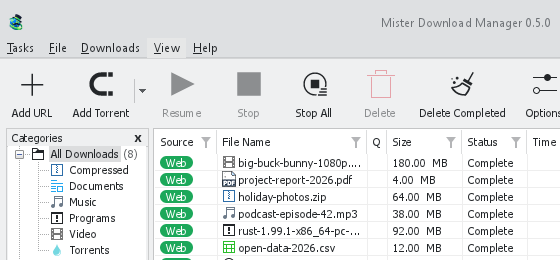
Breeze
Elk heeft een lichte en een donkere kant: Ondersteuning voor donkere modus en Altijd donker kiezen daartussen zoals voorheen. Themabestanden die u in de themamap plaatst (Beeld → Thema → Map met thema's openen) worden daar ook vermeld, evenals Base16- en pywal-kleurenschema's (Beeld → Thema → Themabestand toevoegen…; pywal volgt wal terwijl het draait): Thema's vertelt waar die map is, wat een themabestand bevat (inherits, kleuren, groottes, besturingsvormen, pictogrammen), hoe de kleuren van een schema worden gebruikt, en hoe u er een maakt en deelt.
Het pictogram in het systeemvak
Closing the main window doesn't quit GDM. It hides in the notification area, and downloads, queues and schedules carry on. To make closing quit (a portable copy's folder can then be deleted), untick Options → General → Keep running when closing the window. If there is no icon for GDM at all — not in the notification area, nor behind the ^ hidden icons — the window minimizes to the taskbar instead, so downloads continue and there is a way back. An icon behind ^ can be clicked to bring the window back, and starting GDM again always does.
On Linux this needs a tray, which most desktops have (KDE Plasma, Xfce, Cinnamon, Ubuntu's GNOME or GNOME with the AppIndicator extension, waybar's tray). On a desktop without one (some tiling window managers), closing the window quits GDM, since there would be nowhere to bring it back from.
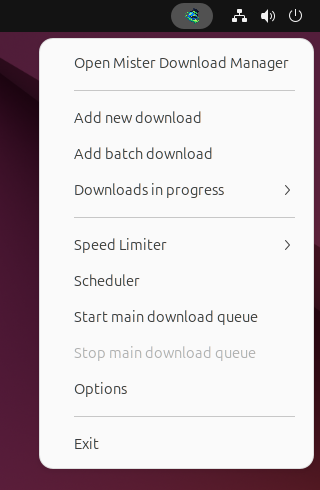
- Klik op het pictogram in het systeemvak om het venster weer te openen.
- Klik met de rechtermuisknop op het pictogram voor Nieuwe download toevoegen, Batchdownload toevoegen, Actieve downloads, Snelheidsbegrenzer, Planner, de hoofdwachtrij met downloads, Opties en Afsluiten.
- Actieve downloads toont de downloads die bezig zijn. Kies er een om het voortgangsvenster te bekijken.
Minimaliseren verbergt het hoofdvenster daar ook, terwijl Minimaliseren naar het systeemvak is ingeschakeld in Opties → Algemeen. Dit is standaard ingeschakeld; als er geen pictogram in het systeemvak is, stuurt Minimaliseren het venster naar de taakbalk.
Ook het voortgangsvenster van een download kan naar het systeemvak worden verborgen, met de knop Minimaliseren of de knop Verbergen in het systeemvak: een kort streepje met een pijl naar beneden in de hoek.
Op Windows staat die knop in de titelbalk van het venster, links van Minimaliseren, en in het menu van de titelbalk (Alt+Space). Op Linux en macOS staat de knop aan het einde van de tabbalk.
Om het venster weer te openen, kiest u de download in Actieve downloads of dubbelklikt u op de download in de lijst.
Kies Taken → Afsluiten of Afsluiten in het menu van het systeemvak om GDM af te sluiten.
Where GDM keeps its data
De downloadlijst en instellingen bevinden zich in %APPDATA%\misterdownloadmanager (downloads.json); op Linux in ~/.local/share/misterdownloadmanager, op een Mac in ~/Library/Application Support/misterdownloadmanager. Een draagbare kopie bewaart ze in plaats daarvan in de map data. Gedownloade bestanden gaan naar uw map Downloads, gesorteerd in een map per categorie; u kunt dit wijzigen in Opties → Opslaan in.
Volgende stappen
- Uw eerste bestand downloaden →
- Send browser downloads to GDM →
- Meer informatie over de downloadlijst →
Gratis, open source, geen advertenties, geen proefversie.
Download GolinksPRO Download Manager