

With the GDM extension, clicking a download link in your browser hands the download to GDM. GDM gets the address together with the page it came from (the referrer), your cookies for the site and the browser's User-Agent, so downloads that need you to be signed in still work.
De extensie werkt in Google Chrome, Microsoft Edge, Brave, Opera en Vivaldi, in Firefox 140 of nieuwer, en in Safari 17 of nieuwer op een Mac (zie Safari).
Browsers built on them work too: Chromium and Helium take the extension as Chrome does, Brave Origin as Brave does, Zen and LibreWolf as Firefox does. On Windows, Zen has a bug of its own (see The browser and GDM aren't connected).
Instellen
Browserintegratie bestaat uit twee delen: een klein helperprogramma waarmee de browser communiceert, en de extensie zelf.
- Install GDM with the setup and keep Set up browser integration (Chrome, Edge, Brave, Firefox) ticked. This registers the helper. (The portable copy can't do this; see Portable mode.) On Linux and macOS GDM registers it itself, each time it starts, for the browsers installed then.
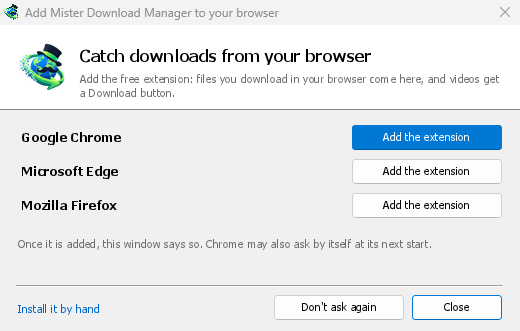
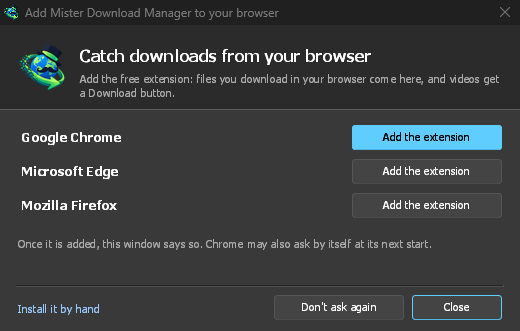
- Add the extension to each browser you use, as below: Firefox from its add-ons store, the others from the Chrome Web Store. Until a browser's extension has reached GDM, GDM's Add GolinksPRO Download Manager to your browser window opens at each start: it lists the browsers it found, and Add the extension opens the store's page in that browser. Install it by hand opens the steps for loading it without the store; Don't ask again stops the window.
Firefox
Firefox 140 or later is needed. Install the add-on from its page on addons.mozilla.org, GolinksPRO Download Manager: click Add to Firefox. Firefox keeps it updated. Zen and LibreWolf install it from the same page. (GDM's Add GolinksPRO Download Manager to your browser window opens that page for you.)
Chrome, Edge, Brave, Opera en Vivaldi
Install the extension from its page in the Chrome Web Store, GolinksPRO Download Manager: click Add to Chrome. In Edge the button is Get: Edge first asks to Allow extensions from other stores (click Allow), then Add extension. The browser keeps it updated. GDM's Add GolinksPRO Download Manager to your browser window opens that page in each browser for you, and Chrome may offer it by itself at its next start once GDM is installed.
To load it by hand instead (a browser that can't use the store, or a build of your own): its files are in the extension folder where GDM is installed: %LOCALAPPDATA%\Programs\GolinksPRO Download Manager\extension if you installed it for yourself, or Program Files\GolinksPRO Download Manager\extension if you installed it for everyone. Every release also has them as their own download, ...-extension-chromium.zip (unzip it first).
- Open de extensiepagina:
chrome://extensions,edge://extensionsofbrave://extensions. - Schakel Ontwikkelaarsmodus in.
- Klik op Uitgepakte extensie laden en selecteer de map
extension\chromium.
GolinksPRO Download Manager appears in the list. Leave it turned on. Pin its button to the toolbar to see at a glance whether the browser reaches GDM.
Safari (macOS)
De Mac-app bevat de Safari-extensie: er hoeft niets te worden gedownload. Safari 17 of nieuwer en macOS 14 of nieuwer zijn vereist.
- Drag GDM to Applications and start it once. GDM's Add GolinksPRO Download Manager to your browser window lists Safari: How to Add shows the steps below.
- In Safari open Settings → Extensions and tick GolinksPRO Download Manager. Click Always Allow on Every Website: the extension needs to read the site to pass your sign-in on.
- Aangezien de app niet door Apple is genotariseerd (de experimentele builds zijn dat niet), toont Safari de extensie alleen als niet-ondertekende extensies zijn toegestaan: Instellingen → Geavanceerd → Toon functies voor webontwikkelaars, daarna Instellingen → Ontwikkelaar → Sta niet-ondertekende extensies toe. Safari vergeet deze instelling elke keer dat het wordt afgesloten.
Safari laat een extensie de downloads van de browser niet zien of stoppen, dus wat werkt, verschilt van de andere browsers:
- Works as in the other browsers: the right-click items, the button over videos, Media on this page, the toolbar button, Alt-click, GDM starting by itself, and every rule in Options.
- A click on a link to a file type GDM takes goes to GDM. A download the page starts by itself (a script, or a link with no file name in its address that the server answers with a file) stays with Safari: use right-click → Download with GolinksPRO Download Manager for those.
- Niet beschikbaar: het delen van de proxy of VPN van de browser, en een download vanuit een formulier.
Vanuit het zipbestand
The -x64.zip copy has no installer, but you can register the helper yourself. Open a command prompt in GDM's folder and run:
misterdownloadmanager-nmhost.exe --register
Dit geldt alleen voor uw Windows-account. --unregister maakt de registratie ongedaan. Laad daarna de extensie zoals hierboven beschreven vanuit de map extension in het zipbestand.
Wat hiervoor nodig is
When you click a download, the extension checks GDM's Options:
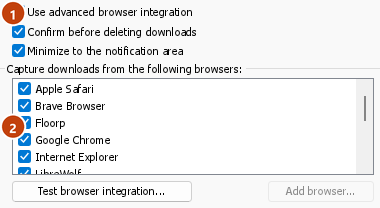
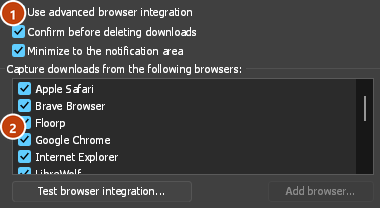
- Options → General → Use advanced browser integration must be on. Turn it off to send nothing to GDM.
- In Opties → Algemeen → Downloads van de volgende browsers vastleggen moet uw browser zijn aangevinkt.
- Opties → Bestandstypen → Volgende bestandstypen automatisch downloaden moet het bestandstype vermelden. De lijst begint met de gebruikelijke: ZIP, RAR, 7Z, EXE, MSI, ISO, DMG, DEB, RPM, APPIMAGE, MP3, MP4, MKV, WEBM, PDF, AI-modellen zoals GGUF en SAFETENSORS, 3D-bestanden zoals GLB en STL, en nog veel meer. Al het andere kan aan de lijst worden toegevoegd.
- Bij Opties → Bestandstypen → Niet automatisch downloaden vanaf de volgende sites mag de site niet vermeld staan. Namen worden gescheiden door spaties.
*komt overeen met elk deel van een naam, zoals in*.update.microsoft.com. Onder deze optie kunt u met Lijst bewerken ... volledige adressen opgeven die moeten worden overgeslagen, één per regel (https://example.com/private/*). - Met Opties → Bestandstypen → Geen bestanden kleiner dan worden kleine bestanden (zoals een bon of een pictogram) door de browser gedownload. Met 0 worden bestanden van elke grootte overgenomen.
- De extensie moet toegang hebben tot de site. Als u de toegang beperkt tot bepaalde sites (of tot Bij klikken), kan de extensie uw aanmeldingsgegevens niet doorgeven. Downloads van die sites worden dan door de browser afgehandeld.
When the browser keeps a download, the extension's button says which of these left it there, with the file's name, and GDM's log has a line for each one (logs\mdm.log in GDM's data folder).
Zowel het adres waarop u hebt geklikt als het adres waarnaar de omleidingen leiden, worden gecontroleerd. Zo blijft een uitgesloten site uitgesloten, ook als die u naar een andere server doorstuurt. Alle andere downloads worden door de browser afgehandeld. Wijzigingen in Opties zijn binnen een minuut zichtbaar in de browser; u hoeft de browser niet opnieuw te starten.
When GDM takes a download, it gets the browser's file name, size and type with it, so Download File Info shows them at once without asking the server again. A download from a form (a button that posts and gets a file back) is posted again by GDM with the form's data; a form that sends a file stays with the browser.
When GDM takes a download, the browser's own copy is cancelled and removed from the browser's download list. In Firefox and the browsers built on it (Waterfox, Zen, LibreWolf), GDM takes it as soon as the server answers, before the browser asks What should … do with this file?: for a file GDM takes, that question never shows (Waterfox asks it for every new type of file). Files GDM doesn't take get the question as before. Download File Info opens in GDM (unless you turned it off in Options → Downloads). Cancelling there doesn't hand the download back to the browser.
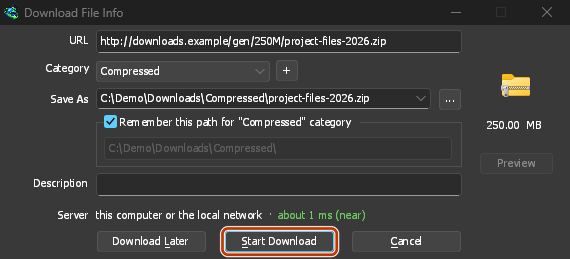
Click a download link in the browser: Download File Info opens in GDM. 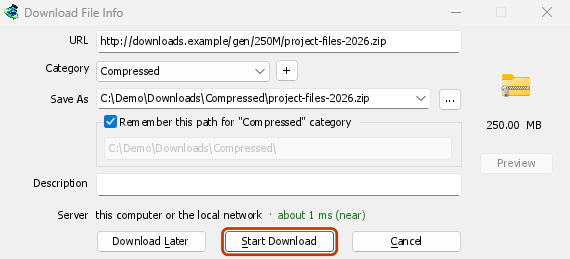
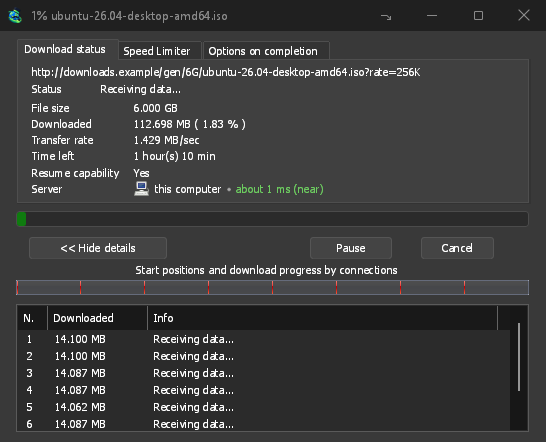
Download starten: het voortgangsvenster toont de binnenkomende download. 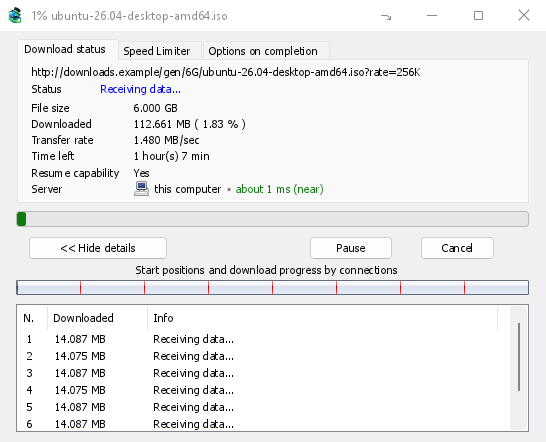
Download voltooid: Open het bestand, of Map openen. 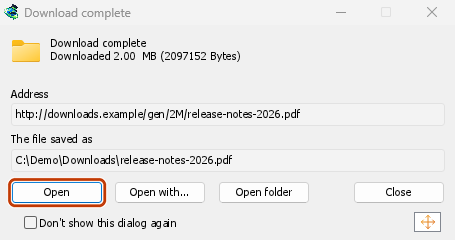
Downloads from a private window use that window's cookies, never the normal ones, and aren't kept in GDM's list after it closes.
Files GDM downloads from the browser are marked as coming from the internet, as the browser marks its own: Windows checks a program with SmartScreen before it runs and Office opens a document in Protected View.
Bestanden die de browser zou openen
A PDF, a song or a video that the browser would show or play itself goes to GDM too, when its type is in Options → File types (not on the excluded sites). To turn this off, untick Also take files the browser would open in Options → General → Keys.... This needs a Chromium browser (Chrome, Edge, Brave, Opera, Vivaldi) version 128 or later, or Firefox.
De werkbalkknop
The extension's button shows whether the browser reaches GDM. A red ! means it doesn't; click the button to see why, and How to fix it opens the matching section of The browser and GDM aren't connected. The button also:
- Downloads van deze browser overnemen: vink het uit om te pauzeren, en elke download blijft bij de browser totdat u het weer aanvinkt.
- Never take downloads from the current site: adds it to GDM's excluded sites.
- Open GolinksPRO Download Manager and Options....
- Media on this page: what the page has loaded that GDM can download (see below).
Een VPN- of proxy-extensie
A VPN or proxy extension is a proxy for the browser only. Switch on Send downloads through this browser's proxy or VPN extension in the extension's toolbar popup (it's off as installed), and GDM downloads what it takes from the browser through the same proxy (with Options → Proxy / Socks → Use proxy/socks from a browser's request, on by default; see Options). Switched off, the extension reads nothing of the browser's proxy.
- Firefox asks you once, at the switch, to allow the extension to read the browser's proxy; switching it off takes that permission back. GDM gets the proxy the browser's own request for the file took, including the ones a VPN extension picks for each request.
- Chrome, Edge, Brave, Opera and Vivaldi can't ask for that permission at the switch, so the
extension has it from the install (Chrome counts it under the access to every site the extension
already asks for, so it adds no line to the install prompt and the update asks for nothing new).
The switch asks nothing. GDM gets the browser's effective proxy, whoever set it (a VPN or proxy
extension, a policy, the command line): a fixed server for the download's scheme (
http,https,socks4,socks5), unless the address is on its bypass list, or its proxy auto-config script (by its address or inline). With no proxy, or the system's, nothing is sent and GDM goes by its own Options. A QUIC proxy can't be shared.
In beide gevallen wordt de login van de proxy nooit gelezen: een proxy die vraagt om de eigen login van de VPN-extensie kan niet worden gedeeld, en de download meldt dit in plaats van zonder te gaan.
Media op deze pagina
Sommige pagina's spelen een video af zonder een link ernaartoe, en sommige spelers verbergen deze ook voor de downloadknop. De werkbalkknop toont een lijst van wat de pagina heeft geladen, zodat u het toch kunt opslaan:
- Streams: HLS (
.m3u8) en DASH (.mpd), de manier waarop de meeste sites lange video's afspelen. Elke stream wordt één keer vermeld, ongeacht het aantal kwaliteiten waartussen de speler schakelde, met de kwaliteiten (1080p · 720p) en de lengte wanneer de extensie deze kan lezen. Een stream waarvan het adres niet eindigt op.m3u8of.mpd, en die als platte tekst wordt aangeboden, wordt ook gevonden: wanneer u de lijst opent (of op de downloadknop boven de speler drukt) en de speler een stream afspeelt, leest de extensie de eerste paar kilobytes van wat die speler heeft opgehaald om deze te herkennen. Er wordt niets gelezen totdat u erom vraagt. - Video- en geluidsbestanden die de pagina heeft afgespeeld (MP4, WebM, MP3 en dergelijke), met hun grootte en, voor een video, de beeldgrootte.
Start the video first: the list fills as the page loads things, and it's emptied when the tab goes
to another page. With Prefix media file names with the page title on, a file from the list is
named after the page, then its own name (The page - clip.mp4). Click Download beside one: a stream opens GDM's Download video from a page
window, which reads its qualities (yt-dlp does the work); a file goes to GDM's list like any other
download. Your cookies for its server, the page as the referrer and your browser's User-Agent go
with it, as they do for a link you click.
Pieces of a stream (its segments) are never listed. A copy-protected stream (DRM: Widevine, PlayReady, FairPlay, as most paid streaming services use) is listed as Protected, with no Download button: no tool may break that protection, and GDM doesn't try.
Dit vereist niets meer van u: de extensie ziet al wat de browser downloadt om downloads over te dragen. Wat het opmerkt, blijft in het geheugen van de browser en wordt vergeten wanneer de browser wordt gesloten.
Right-click: Download with GolinksPRO Download Manager
Right-click a link, a video, a sound or a picture and choose Download with GolinksPRO Download Manager. GDM downloads it whatever its type: you asked for it, so the file types list and the excluded sites don't apply here (they only decide which downloads GDM takes over by itself). A video that plays as a stream goes to the Download video window with the stream its player loaded (HLS or DASH), as the button over videos sends it, with your cookies for the stream's server and the page as the referrer.
Select part of a page and right-click it for Download selected links with GolinksPRO Download Manager, or right-click the page for Download all links with GolinksPRO Download Manager: the links open in Link grabber, sorted into packages, where you tick the ones you want.
If GDM can't be reached when you choose one of these, the help page opens at the section that explains why.
De downloadknop boven video's
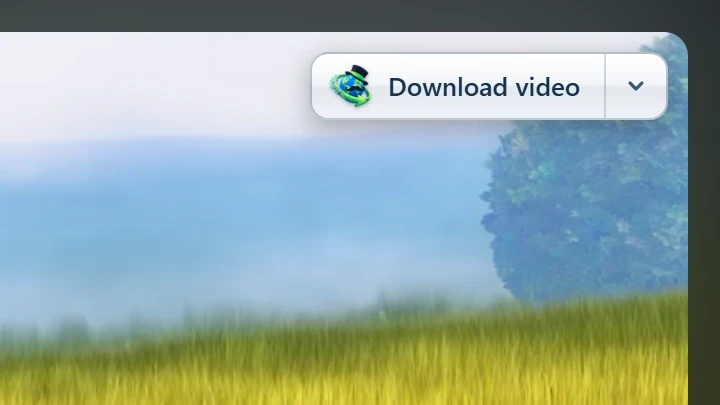
Point at a video on a web page and a small Download video button appears at its edge. Click it and GDM's Download video from a page window opens and looks up the qualities it can download. It takes the video you clicked: its own file when it plays one, or the stream the player loaded (HLS or DASH), else the page. When the button can't tell which one you mean, the toolbar button's Media on this page lists them all. Embedded players work too, and your sign-in for the site, the page that embeds the player and your browser's User-Agent go with it, so videos for members, or that play only on the site that embeds them, can be downloaded. Sound players get the button too.
Het blijft uit de weg: het verschijnt alleen terwijl u naar een video wijst (of de speler de focus van het toetsenbord heeft; Tab verplaatst dan naar de knop), vervaagt wanneer de aanwijzer rust, en laat kleine video's en korte gedempte lussen (geanimeerde afbeeldingen, achtergronden) weg. In volledig scherm volgt het de video wanneer de speler dit toestaat. Bij een auteursrechtelijk beschermde video (DRM) staat er dat de video niet kan worden opgeslagen.
- Verplaatsen: sleep het overal langs de rand van de video; het klikt vast aan de dichtstbijzijnde rand en blijft daar op die site.
- Its menu (the arrow next to it): Hide on this video, Never on the site (GDM remembers the site), and Button settings..., which opens GDM's Options.
- Turn it off, or see the sites it stays off: Options → General → Customize GDM Download panels in browsers → Edit....
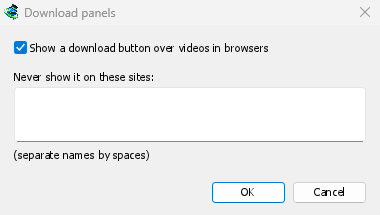
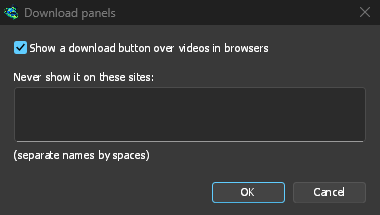
De knop volgt de rest van de integratie: hij verschijnt niet als Geavanceerde browserintegratie gebruiken is uitgeschakeld of de browser is uitgevinkt.
Toetsen om vastleggen te forceren of te voorkomen
Hold Alt while clicking a link to let the browser download it instead of GDM. In Firefox, Alt+click saves a link only when its browser.altClickSave setting is on (in about:config); otherwise right-click the link and choose Save Link As..., which the browser keeps. Options → General → Keys... says so, and holds Also take files the browser would open.
Om de downloads van een site permanent in de browser te houden, gebruikt u de werkbalkknop Nooit downloads overnemen van, of voegt u de site toe aan Niet automatisch downloaden starten vanaf de volgende sites. Om een bestandstype in de browser te houden, verwijdert u het uit de lijst met bestandstypen.
When GDM isn't running
You don't need to start GDM first. When the browser hands over a download and GDM isn't running, the helper starts it and passes the download on.
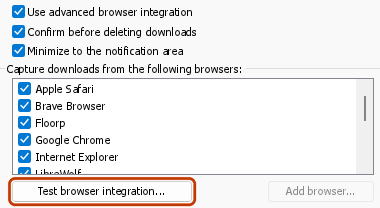
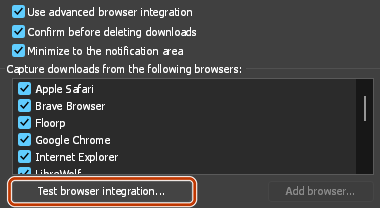
If GDM can't be reached at all (it was uninstalled, or the helper isn't registered), the download stays with the browser, so nothing is lost, and the toolbar button shows a red !. See The browser and GDM aren't connected, or run Options → General → Test browser integration....
Volgende stappen
- Handleiding: downloads uit uw browser opvangen →
- Change which file types GDM takes →
- Als de browser downloads niet overdraagt →
Gratis, open source, geen advertenties, geen proefversie.
Download GolinksPRO Download Manager