

With the GDM extension, clicking a download link in your browser hands the download to GDM. GDM gets the address together with the page it came from (the referrer), your cookies for the site and the browser's User-Agent, so downloads that need you to be signed in still work.
La extensión funciona en Google Chrome, Microsoft Edge, Brave, Opera y Vivaldi, en Firefox 140 o posterior, y en Safari 17 o posterior en Mac (consulta Safari).
Browsers built on them work too: Chromium and Helium take the extension as Chrome does, Brave Origin as Brave does, Zen and LibreWolf as Firefox does. On Windows, Zen has a bug of its own (see The browser and GDM aren't connected).
Configurarlo
La integración con el navegador consta de dos partes: un pequeño programa auxiliar con el que se comunica el navegador y la propia extensión.
- Install GDM with the setup and keep Set up browser integration (Chrome, Edge, Brave, Firefox) ticked. This registers the helper. (The portable copy can't do this; see Portable mode.) On Linux and macOS GDM registers it itself, each time it starts, for the browsers installed then.
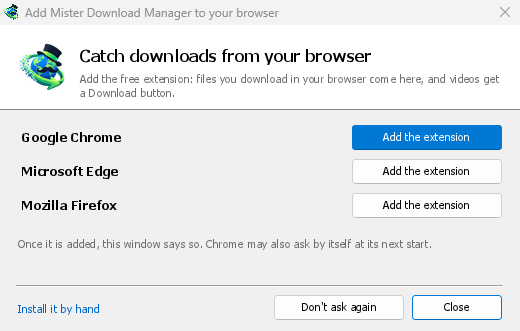
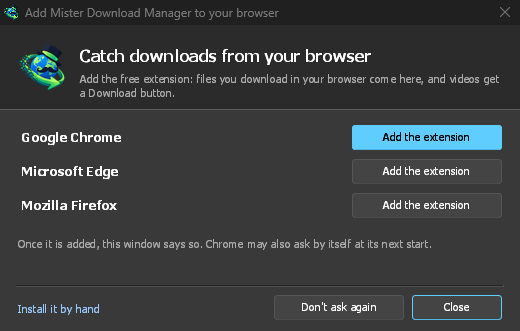
- Add the extension to each browser you use, as below: Firefox from its add-ons store, the others from the Chrome Web Store. Until a browser's extension has reached GDM, GDM's Add GolinksPRO Download Manager to your browser window opens at each start: it lists the browsers it found, and Add the extension opens the store's page in that browser. Install it by hand opens the steps for loading it without the store; Don't ask again stops the window.
Firefox
Firefox 140 or later is needed. Install the add-on from its page on addons.mozilla.org, GolinksPRO Download Manager: click Add to Firefox. Firefox keeps it updated. Zen and LibreWolf install it from the same page. (GDM's Add GolinksPRO Download Manager to your browser window opens that page for you.)
Chrome, Edge, Brave, Opera y Vivaldi
Install the extension from its page in the Chrome Web Store, GolinksPRO Download Manager: click Add to Chrome. In Edge the button is Get: Edge first asks to Allow extensions from other stores (click Allow), then Add extension. The browser keeps it updated. GDM's Add GolinksPRO Download Manager to your browser window opens that page in each browser for you, and Chrome may offer it by itself at its next start once GDM is installed.
To load it by hand instead (a browser that can't use the store, or a build of your own): its files are in the extension folder where GDM is installed: %LOCALAPPDATA%\Programs\GolinksPRO Download Manager\extension if you installed it for yourself, or Program Files\GolinksPRO Download Manager\extension if you installed it for everyone. Every release also has them as their own download, ...-extension-chromium.zip (unzip it first).
- Abra la página de extensiones:
chrome://extensions,edge://extensionsobrave://extensions. - Active el Modo de desarrollador.
- Haga clic en Cargar descomprimida y elija la carpeta
extension\chromium.
GolinksPRO Download Manager appears in the list. Leave it turned on. Pin its button to the toolbar to see at a glance whether the browser reaches GDM.
Safari (macOS)
La aplicación para Mac incluye la extensión de Safari: no hay nada que descargar. Se necesita Safari 17 o posterior y macOS 14 o posterior.
- Drag GDM to Applications and start it once. GDM's Add GolinksPRO Download Manager to your browser window lists Safari: How to Add shows the steps below.
- In Safari open Settings → Extensions and tick GolinksPRO Download Manager. Click Always Allow on Every Website: the extension needs to read the site to pass your sign-in on.
- Mientras la aplicación no esté certificada por Apple (las versiones experimentales no lo están), Safari solo muestra la extensión si se permiten las extensiones sin firmar: Configuración → Avanzado → Mostrar funciones para desarrolladores web, luego Configuración → Desarrollador → Permitir extensiones sin firmar. Safari olvida esa configuración cada vez que se cierra.
Safari no permite que una extensión vea ni detenga las descargas del navegador, por lo que su funcionamiento difiere del de otros navegadores:
- Works as in the other browsers: the right-click items, the button over videos, Media on this page, the toolbar button, Alt-click, GDM starting by itself, and every rule in Options.
- A click on a link to a file type GDM takes goes to GDM. A download the page starts by itself (a script, or a link with no file name in its address that the server answers with a file) stays with Safari: use right-click → Download with GolinksPRO Download Manager for those.
- No disponible: compartir el proxy o VPN del navegador, y una descarga desde un formulario.
Desde el zip simple
The -x64.zip copy has no installer, but you can register the helper yourself. Open a command prompt in GDM's folder and run:
misterdownloadmanager-nmhost.exe --register
Esto es solo para su cuenta de Windows. --unregister lo deshace. Luego cargue la extensión como se indicó anteriormente, desde la carpeta extension del zip.
Lo que se necesita
When you click a download, the extension checks GDM's Options:
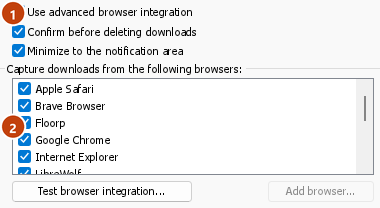
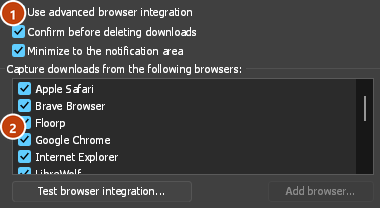
- Options → General → Use advanced browser integration must be on. Turn it off to send nothing to GDM.
- Opciones → General → Capturar descargas de los siguientes navegadores debe tener su navegador marcado.
- Opciones → Tipos de archivo → Iniciar la descarga automáticamente de los siguientes tipos de archivo debe incluir el tipo de archivo. La lista comienza con los habituales: ZIP, RAR, 7Z, EXE, MSI, ISO, DMG, DEB, RPM, APPIMAGE, MP3, MP4, MKV, WEBM, PDF, modelos de IA como GGUF y SAFETENSORS, archivos 3D como GLB y STL, y muchos más. Cualquier otro se puede añadir a la lista.
- Opciones → Tipos de archivo → No iniciar descargas automáticamente desde los siguientes sitios no debe incluir el sitio. Los nombres se separan por espacios, y
*coincide con cualquier parte, como en*.update.microsoft.com. Editar lista... debajo de ella lista direcciones completas para dejar en paz, una por línea (https://example.com/private/*). - Opciones → Tipos de archivo → No tomar archivos de tamaño inferior a deja los archivos pequeños (un recibo, un icono) al navegador. 0 toma cualquier tamaño.
- La extensión debe tener permiso para leer el sitio. Cuando la limita a algunos sitios (o Al hacer clic), no puede pasar su inicio de sesión, por lo que deja las descargas de esos sitios al navegador.
When the browser keeps a download, the extension's button says which of these left it there, with the file's name, and GDM's log has a line for each one (logs\mdm.log in GDM's data folder).
Se comprueban tanto la dirección en la que hizo clic como aquella a la que llevaron sus redirecciones, por lo que un sitio que excluyó permanece excluido incluso cuando le envía a otro servidor. Todo lo demás se queda con el navegador. Los cambios en Opciones llegan al navegador en un minuto; no necesita reiniciarlo.
When GDM takes a download, it gets the browser's file name, size and type with it, so Download File Info shows them at once without asking the server again. A download from a form (a button that posts and gets a file back) is posted again by GDM with the form's data; a form that sends a file stays with the browser.
When GDM takes a download, the browser's own copy is cancelled and removed from the browser's download list. In Firefox and the browsers built on it (Waterfox, Zen, LibreWolf), GDM takes it as soon as the server answers, before the browser asks What should … do with this file?: for a file GDM takes, that question never shows (Waterfox asks it for every new type of file). Files GDM doesn't take get the question as before. Download File Info opens in GDM (unless you turned it off in Options → Downloads). Cancelling there doesn't hand the download back to the browser.
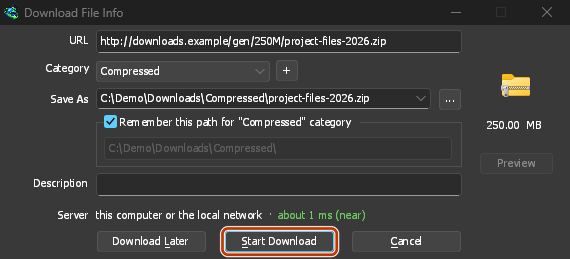
Click a download link in the browser: Download File Info opens in GDM. 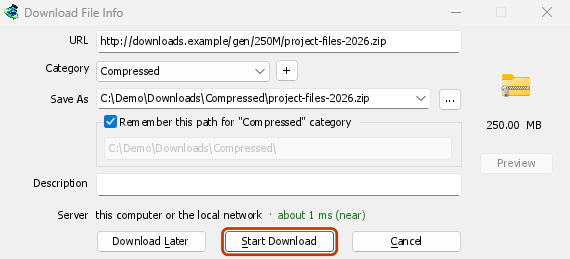
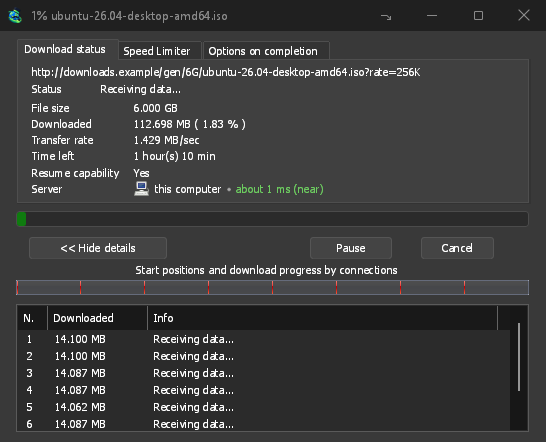
Iniciar descarga: la ventana de progreso muestra cómo avanza la descarga. 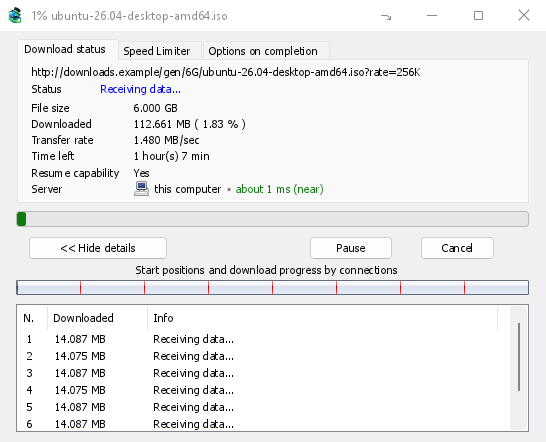
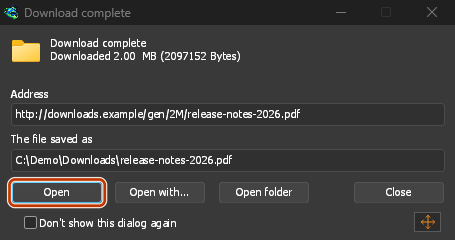
Descarga completa: Abrir el archivo, o Abrir carpeta. 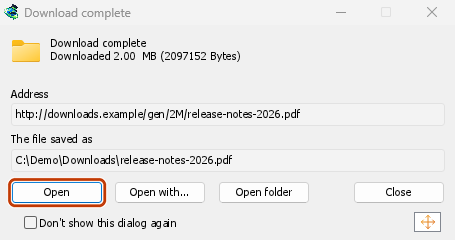
Downloads from a private window use that window's cookies, never the normal ones, and aren't kept in GDM's list after it closes.
Files GDM downloads from the browser are marked as coming from the internet, as the browser marks its own: Windows checks a program with SmartScreen before it runs and Office opens a document in Protected View.
Archivos que el navegador abriría
A PDF, a song or a video that the browser would show or play itself goes to GDM too, when its type is in Options → File types (not on the excluded sites). To turn this off, untick Also take files the browser would open in Options → General → Keys.... This needs a Chromium browser (Chrome, Edge, Brave, Opera, Vivaldi) version 128 or later, or Firefox.
El botón de la barra de herramientas
The extension's button shows whether the browser reaches GDM. A red ! means it doesn't; click the button to see why, and How to fix it opens the matching section of The browser and GDM aren't connected. The button also:
- Tomar descargas de este navegador: desmárcala para pausar la captura. Todas las descargas se quedarán en el navegador hasta que vuelvas a marcarla.
- Never take downloads from the current site: adds it to GDM's excluded sites.
- Open GolinksPRO Download Manager and Options....
- Media on this page: what the page has loaded that GDM can download (see below).
Una extensión de VPN o proxy
A VPN or proxy extension is a proxy for the browser only. Switch on Send downloads through this browser's proxy or VPN extension in the extension's toolbar popup (it's off as installed), and GDM downloads what it takes from the browser through the same proxy (with Options → Proxy / Socks → Use proxy/socks from a browser's request, on by default; see Options). Switched off, the extension reads nothing of the browser's proxy.
- Firefox asks you once, at the switch, to allow the extension to read the browser's proxy; switching it off takes that permission back. GDM gets the proxy the browser's own request for the file took, including the ones a VPN extension picks for each request.
- Chrome, Edge, Brave, Opera and Vivaldi can't ask for that permission at the switch, so the
extension has it from the install (Chrome counts it under the access to every site the extension
already asks for, so it adds no line to the install prompt and the update asks for nothing new).
The switch asks nothing. GDM gets the browser's effective proxy, whoever set it (a VPN or proxy
extension, a policy, the command line): a fixed server for the download's scheme (
http,https,socks4,socks5), unless the address is on its bypass list, or its proxy auto-config script (by its address or inline). With no proxy, or the system's, nothing is sent and GDM goes by its own Options. A QUIC proxy can't be shared.
En ambos, el inicio de sesión del proxy nunca se lee: un proxy que pide el propio inicio de sesión de la extensión VPN no se puede compartir, y la descarga lo indica en lugar de continuar sin él.
Contenido multimedia en esta página
Algunas páginas reproducen vídeos sin ofrecer un enlace y algunos reproductores también los ocultan al botón de descarga. El botón de la barra de herramientas muestra lo que ha cargado la página, para que puedas guardarlo:
- Flujos: HLS (
.m3u8) y DASH (.mpd), los formatos que usan la mayoría de los sitios para reproducir vídeos largos. Cada flujo aparece una sola vez, aunque el reproductor haya cambiado entre varias calidades. También se muestran las calidades (1080p · 720p) y la duración, si la extensión puede leerlas. La extensión también detecta los flujos servidos como texto sin formato cuya dirección no termina en.m3u8o.mpd: cuando abres la lista (o pulsas el botón de descarga sobre el reproductor) mientras este reproduce un flujo, la extensión lee los primeros kilobytes de los datos que ha recibido el reproductor para reconocerlo. No se lee nada hasta que lo solicitas. - Archivos de vídeo y audio que ha reproducido la página (MP4, WebM, MP3 y similares), con su tamaño y, si son vídeos, la resolución.
Start the video first: the list fills as the page loads things, and it's emptied when the tab goes
to another page. With Prefix media file names with the page title on, a file from the list is
named after the page, then its own name (The page - clip.mp4). Click Download beside one: a stream opens GDM's Download video from a page
window, which reads its qualities (yt-dlp does the work); a file goes to GDM's list like any other
download. Your cookies for its server, the page as the referrer and your browser's User-Agent go
with it, as they do for a link you click.
Pieces of a stream (its segments) are never listed. A copy-protected stream (DRM: Widevine, PlayReady, FairPlay, as most paid streaming services use) is listed as Protected, with no Download button: no tool may break that protection, and GDM doesn't try.
No tienes que hacer nada más: la extensión ya ve lo que descarga el navegador para poder hacerse cargo de las descargas. La información que registra permanece en la memoria del navegador y se borra al cerrarlo.
Right-click: Download with GolinksPRO Download Manager
Right-click a link, a video, a sound or a picture and choose Download with GolinksPRO Download Manager. GDM downloads it whatever its type: you asked for it, so the file types list and the excluded sites don't apply here (they only decide which downloads GDM takes over by itself). A video that plays as a stream goes to the Download video window with the stream its player loaded (HLS or DASH), as the button over videos sends it, with your cookies for the stream's server and the page as the referrer.
Select part of a page and right-click it for Download selected links with GolinksPRO Download Manager, or right-click the page for Download all links with GolinksPRO Download Manager: the links open in Link grabber, sorted into packages, where you tick the ones you want.
If GDM can't be reached when you choose one of these, the help page opens at the section that explains why.
El botón de descarga sobre los vídeos
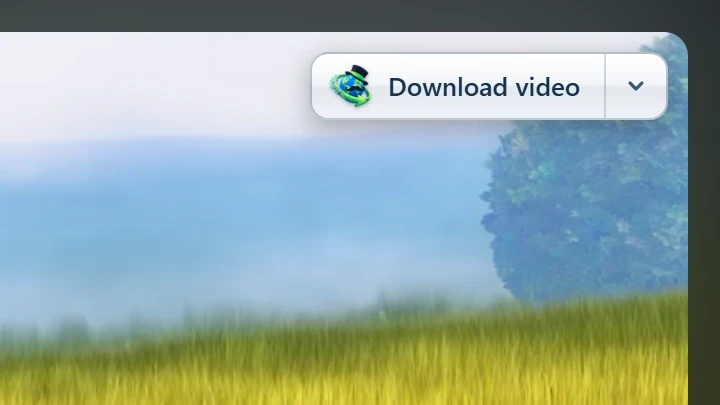
Point at a video on a web page and a small Download video button appears at its edge. Click it and GDM's Download video from a page window opens and looks up the qualities it can download. It takes the video you clicked: its own file when it plays one, or the stream the player loaded (HLS or DASH), else the page. When the button can't tell which one you mean, the toolbar button's Media on this page lists them all. Embedded players work too, and your sign-in for the site, the page that embeds the player and your browser's User-Agent go with it, so videos for members, or that play only on the site that embeds them, can be downloaded. Sound players get the button too.
No molesta: solo aparece mientras apuntas a un vídeo (o cuando el reproductor tiene el foco del teclado; al pulsar Tab, el foco pasa al botón), se desvanece cuando el puntero se queda quieto y no aparece en vídeos pequeños ni en bucles cortos sin sonido (imágenes animadas y fondos). En pantalla completa, sigue al vídeo si el reproductor lo permite. Si el vídeo está protegido contra copia (DRM), indica que no se puede guardar.
- Colocarlo: arrástralo a cualquier punto del borde del vídeo; se ajustará al borde más cercano y permanecerá allí en ese sitio.
- Its menu (the arrow next to it): Hide on this video, Never on the site (GDM remembers the site), and Button settings..., which opens GDM's Options.
- Turn it off, or see the sites it stays off: Options → General → Customize GDM Download panels in browsers → Edit....
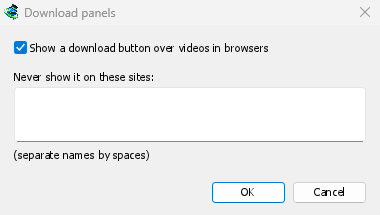
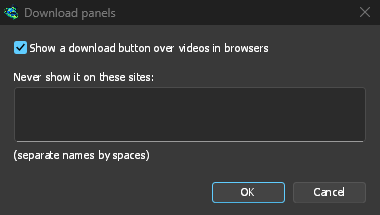
El botón depende del resto de la integración: no aparece si Usar integración avanzada del navegador está desactivado o si el navegador no está seleccionado.
Teclas para forzar o evitar la captura
Hold Alt while clicking a link to let the browser download it instead of GDM. In Firefox, Alt+click saves a link only when its browser.altClickSave setting is on (in about:config); otherwise right-click the link and choose Save Link As..., which the browser keeps. Options → General → Keys... says so, and holds Also take files the browser would open.
Para que las descargas de un sitio se queden siempre en el navegador, usa Nunca tomar descargas de en el botón de la barra de herramientas o añade el sitio a No iniciar descargas automáticamente desde los siguientes sitios. Para que un tipo de archivo se quede en el navegador, quítalo de la lista de tipos de archivo.
When GDM isn't running
You don't need to start GDM first. When the browser hands over a download and GDM isn't running, the helper starts it and passes the download on.
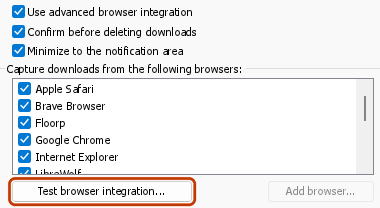
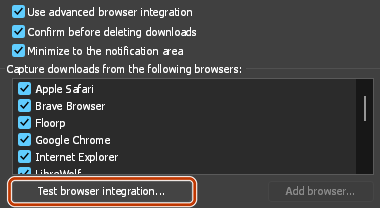
If GDM can't be reached at all (it was uninstalled, or the helper isn't registered), the download stays with the browser, so nothing is lost, and the toolbar button shows a red !. See The browser and GDM aren't connected, or run Options → General → Test browser integration....
Pasos siguientes
- Tutorial: capturar descargas del navegador →
- Change which file types GDM takes →
- Si el navegador no transfiere las descargas →
Gratis, código abierto, sin anuncios, sin prueba.
Download GolinksPRO Download Manager