

With the GDM extension, clicking a download link in your browser hands the download to GDM. GDM gets the address together with the page it came from (the referrer), your cookies for the site and the browser's User-Agent, so downloads that need you to be signed in still work.
Tiện ích mở rộng hoạt động trên Google Chrome, Microsoft Edge, Brave, Opera và Vivaldi, trên Firefox 140 trở lên, và trên Safari 17 trở lên trên máy Mac (xem Safari).
Browsers built on them work too: Chromium and Helium take the extension as Chrome does, Brave Origin as Brave does, Zen and LibreWolf as Firefox does. On Windows, Zen has a bug of its own (see The browser and GDM aren't connected).
Thiết lập
Tích hợp trình duyệt gồm 2 phần: một chương trình hỗ trợ nhỏ để trình duyệt giao tiếp và chính tiện ích mở rộng.
- Install GDM with the setup and keep Set up browser integration (Chrome, Edge, Brave, Firefox) ticked. This registers the helper. (The portable copy can't do this; see Portable mode.) On Linux and macOS GDM registers it itself, each time it starts, for the browsers installed then.
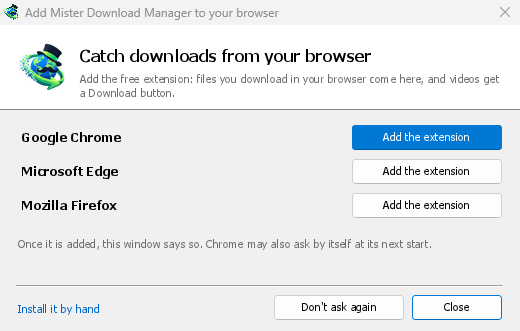
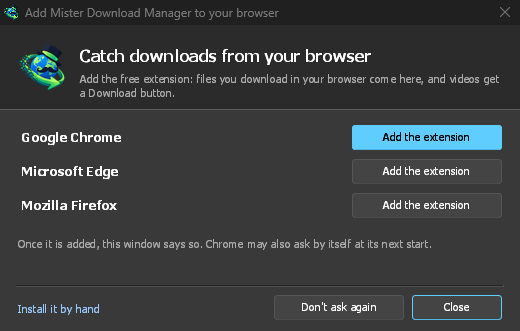
- Add the extension to each browser you use, as below: Firefox from its add-ons store, the others from the Chrome Web Store. Until a browser's extension has reached GDM, GDM's Add GolinksPRO Download Manager to your browser window opens at each start: it lists the browsers it found, and Add the extension opens the store's page in that browser. Install it by hand opens the steps for loading it without the store; Don't ask again stops the window.
Firefox
Firefox 140 or later is needed. Install the add-on from its page on addons.mozilla.org, GolinksPRO Download Manager: click Add to Firefox. Firefox keeps it updated. Zen and LibreWolf install it from the same page. (GDM's Add GolinksPRO Download Manager to your browser window opens that page for you.)
Chrome, Edge, Brave, Opera và Vivaldi
Install the extension from its page in the Chrome Web Store, GolinksPRO Download Manager: click Add to Chrome. In Edge the button is Get: Edge first asks to Allow extensions from other stores (click Allow), then Add extension. The browser keeps it updated. GDM's Add GolinksPRO Download Manager to your browser window opens that page in each browser for you, and Chrome may offer it by itself at its next start once GDM is installed.
To load it by hand instead (a browser that can't use the store, or a build of your own): its files are in the extension folder where GDM is installed: %LOCALAPPDATA%\Programs\GolinksPRO Download Manager\extension if you installed it for yourself, or Program Files\GolinksPRO Download Manager\extension if you installed it for everyone. Every release also has them as their own download, ...-extension-chromium.zip (unzip it first).
- Mở trang tiện ích mở rộng:
chrome://extensions,edge://extensionshoặcbrave://extensions. - Bật Chế độ nhà phát triển.
- Nhấp vào Tải tiện ích đã giải nén và chọn thư mục
extension\chromium.
GolinksPRO Download Manager appears in the list. Leave it turned on. Pin its button to the toolbar to see at a glance whether the browser reaches GDM.
Safari (macOS)
Ứng dụng Mac đã bao gồm tiện ích mở rộng Safari: không cần tải xuống thêm. Cần có Safari 17 trở lên và macOS 14 trở lên.
- Drag GDM to Applications and start it once. GDM's Add GolinksPRO Download Manager to your browser window lists Safari: How to Add shows the steps below.
- In Safari open Settings → Extensions and tick GolinksPRO Download Manager. Click Always Allow on Every Website: the extension needs to read the site to pass your sign-in on.
- Vì ứng dụng chưa được Apple chứng thực (các bản thử nghiệm chưa được), Safari chỉ liệt kê tiện ích mở rộng khi cho phép các tiện ích không có chữ ký: Cài đặt → Nâng cao → Hiển thị tính năng cho nhà phát triển web, sau đó Cài đặt → Nhà phát triển → Cho phép tiện ích không có chữ ký. Safari sẽ quên cài đặt này mỗi khi thoát.
Safari không cho phép tiện ích mở rộng xem hoặc dừng các lượt tải xuống của trình duyệt, vì vậy cách hoạt động khác với các trình duyệt khác:
- Works as in the other browsers: the right-click items, the button over videos, Media on this page, the toolbar button, Alt-click, GDM starting by itself, and every rule in Options.
- A click on a link to a file type GDM takes goes to GDM. A download the page starts by itself (a script, or a link with no file name in its address that the server answers with a file) stays with Safari: use right-click → Download with GolinksPRO Download Manager for those.
- Không khả dụng: chia sẻ proxy hoặc VPN của trình duyệt, và tải xuống từ một biểu mẫu.
Từ tệp zip thông thường
The -x64.zip copy has no installer, but you can register the helper yourself. Open a command prompt in GDM's folder and run:
misterdownloadmanager-nmhost.exe --register
Thao tác này chỉ áp dụng cho tài khoản Windows của bạn. --unregister sẽ hủy đăng ký. Sau đó, tải tiện ích mở rộng như hướng dẫn ở trên từ thư mục extension trong tệp zip.
Cách hoạt động
When you click a download, the extension checks GDM's Options:
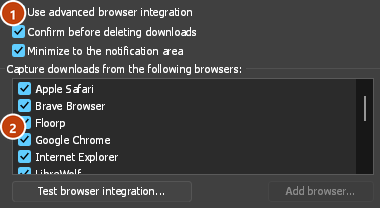
- Options → General → Use advanced browser integration must be on. Turn it off to send nothing to GDM.
- Trong Tùy chọn → Chung → Chụp các lượt tải xuống từ các trình duyệt sau, phải chọn trình duyệt bạn dùng.
- Tùy chọn → Loại tệp → Tự động bắt đầu tải xuống các loại tệp sau phải liệt kê loại tệp. Danh sách bắt đầu với các loại phổ biến: ZIP, RAR, 7Z, EXE, MSI, ISO, DMG, DEB, RPM, APPIMAGE, MP3, MP4, MKV, WEBM, PDF, các mô hình AI như GGUF và SAFETENSORS, các tệp 3D như GLB và STL, và nhiều loại khác. Bất kỳ loại nào khác có thể được thêm vào danh sách.
- Tùy chọn → Loại tệp → Không tự động bắt đầu tải xuống từ các trang web sau không được có trang web đó trong danh sách. Các tên được phân tách bằng dấu cách, và
*khớp với bất kỳ phần nào, như trong*.update.microsoft.com. Mục Sửa danh sách ... bên dưới liệt kê các địa chỉ đầy đủ cần bỏ qua, mỗi địa chỉ trên một dòng (https://example.com/private/*). - Tùy chọn → Loại tệp → Không tải xuống các tệp nhỏ hơn sẽ để trình duyệt xử lý các tệp nhỏ (như biên lai hoặc biểu tượng). Giá trị 0 áp dụng cho mọi kích thước.
- Phải cho phép tiện ích mở rộng đọc nội dung trang web. Nếu chỉ cho phép trên một số trang web (hoặc chọn Khi nhấp), tiện ích không thể chuyển thông tin đăng nhập của bạn, nên các lượt tải xuống từ những trang web đó sẽ do trình duyệt xử lý.
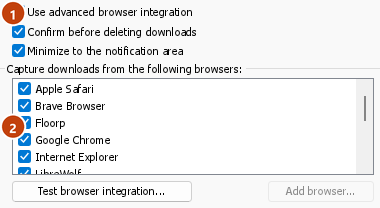
When the browser keeps a download, the extension's button says which of these left it there, with the file's name, and GDM's log has a line for each one (logs\mdm.log in GDM's data folder).
GDM kiểm tra cả địa chỉ bạn nhấp vào lẫn địa chỉ sau khi chuyển hướng. Vì vậy, trang web bạn đã loại trừ vẫn bị loại trừ ngay cả khi chuyển bạn đến máy chủ khác. Các lượt tải xuống khác vẫn do trình duyệt xử lý. Các thay đổi trong Tùy chọn sẽ được áp dụng trong trình duyệt trong vòng một phút; bạn không cần khởi động lại trình duyệt.
When GDM takes a download, it gets the browser's file name, size and type with it, so Download File Info shows them at once without asking the server again. A download from a form (a button that posts and gets a file back) is posted again by GDM with the form's data; a form that sends a file stays with the browser.
When GDM takes a download, the browser's own copy is cancelled and removed from the browser's download list. In Firefox and the browsers built on it (Waterfox, Zen, LibreWolf), GDM takes it as soon as the server answers, before the browser asks What should … do with this file?: for a file GDM takes, that question never shows (Waterfox asks it for every new type of file). Files GDM doesn't take get the question as before. Download File Info opens in GDM (unless you turned it off in Options → Downloads). Cancelling there doesn't hand the download back to the browser.
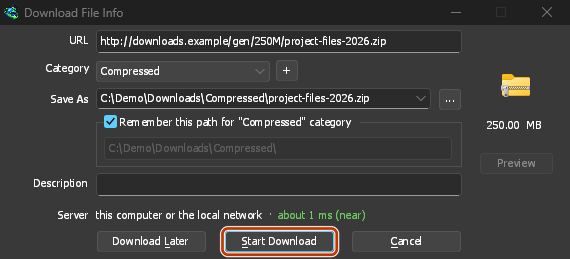
Click a download link in the browser: Download File Info opens in GDM. 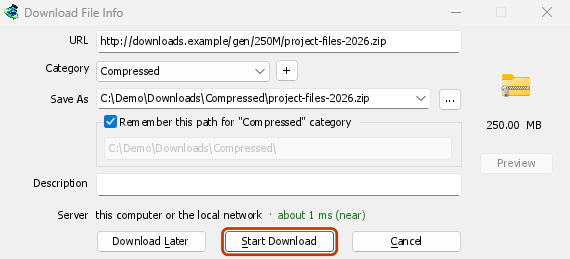
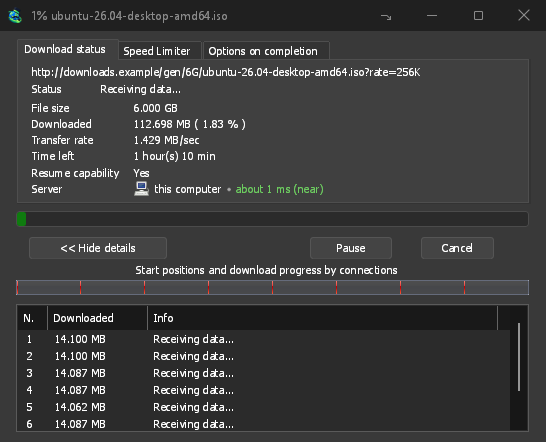
Bắt đầu tải xuống: cửa sổ tiến trình hiển thị tệp đang được tải xuống. 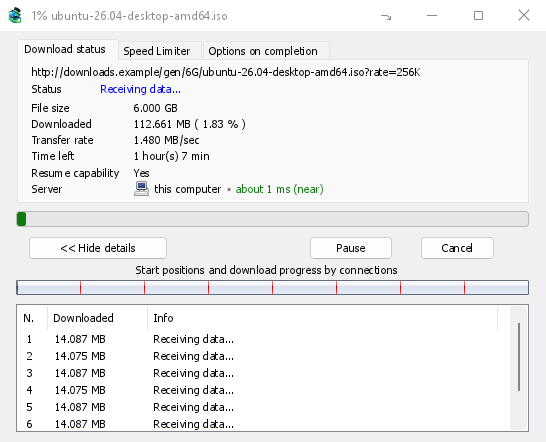
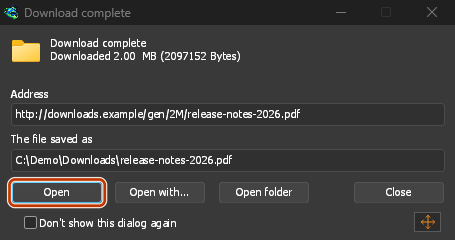
Tải xuống hoàn tất: Mở tệp, hoặc Mở thư mục. 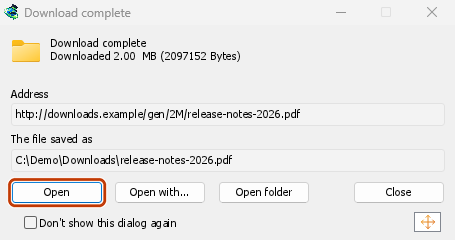
Downloads from a private window use that window's cookies, never the normal ones, and aren't kept in GDM's list after it closes.
Files GDM downloads from the browser are marked as coming from the internet, as the browser marks its own: Windows checks a program with SmartScreen before it runs and Office opens a document in Protected View.
Tệp mà trình duyệt sẽ mở
A PDF, a song or a video that the browser would show or play itself goes to GDM too, when its type is in Options → File types (not on the excluded sites). To turn this off, untick Also take files the browser would open in Options → General → Keys.... This needs a Chromium browser (Chrome, Edge, Brave, Opera, Vivaldi) version 128 or later, or Firefox.
Nút thanh công cụ
The extension's button shows whether the browser reaches GDM. A red ! means it doesn't; click the button to see why, and How to fix it opens the matching section of The browser and GDM aren't connected. The button also:
- Nhận tải xuống từ trình duyệt này: bỏ chọn để tạm dừng; mọi lượt tải xuống sẽ do trình duyệt xử lý cho đến khi bạn chọn lại.
- Never take downloads from the current site: adds it to GDM's excluded sites.
- Open GolinksPRO Download Manager and Options....
- Media on this page: what the page has loaded that GDM can download (see below).
Tiện ích VPN hoặc proxy
A VPN or proxy extension is a proxy for the browser only. Switch on Send downloads through this browser's proxy or VPN extension in the extension's toolbar popup (it's off as installed), and GDM downloads what it takes from the browser through the same proxy (with Options → Proxy / Socks → Use proxy/socks from a browser's request, on by default; see Options). Switched off, the extension reads nothing of the browser's proxy.
- Firefox asks you once, at the switch, to allow the extension to read the browser's proxy; switching it off takes that permission back. GDM gets the proxy the browser's own request for the file took, including the ones a VPN extension picks for each request.
- Chrome, Edge, Brave, Opera and Vivaldi can't ask for that permission at the switch, so the
extension has it from the install (Chrome counts it under the access to every site the extension
already asks for, so it adds no line to the install prompt and the update asks for nothing new).
The switch asks nothing. GDM gets the browser's effective proxy, whoever set it (a VPN or proxy
extension, a policy, the command line): a fixed server for the download's scheme (
http,https,socks4,socks5), unless the address is on its bypass list, or its proxy auto-config script (by its address or inline). With no proxy, or the system's, nothing is sent and GDM goes by its own Options. A QUIC proxy can't be shared.
Trong cả hai trường hợp, thông tin đăng nhập của proxy không bao giờ được đọc: một proxy yêu cầu thông tin đăng nhập của tiện ích VPN không thể chia sẻ, và bản tải xuống sẽ thông báo như vậy thay vì tiếp tục mà không có nó.
Nội dung đa phương tiện trên trang này
Một số trang phát video mà không có liên kết đến video đó, và một số trình phát còn ẩn video khỏi nút tải xuống. Nút trên thanh công cụ liệt kê nội dung trang đã tải, vì vậy bạn vẫn có thể lưu video:
- Luồng: HLS (
.m3u8) và DASH (.mpd), cách hầu hết các trang phát video dài. Mỗi luồng chỉ được liệt kê một lần, bất kể trình phát đã chuyển qua bao nhiêu mức chất lượng. Danh sách hiển thị các mức chất lượng (1080p · 720p) và thời lượng nếu tiện ích mở rộng đọc được. Tiện ích cũng tìm thấy luồng có địa chỉ không kết thúc bằng.m3u8hoặc.mpdvà được gửi dưới dạng văn bản thuần. Khi bạn mở danh sách (hoặc nhấn nút tải xuống trên trình phát) trong lúc trình phát phát luồng, tiện ích đọc vài kilobyte đầu tiên mà trình phát tải về để nhận dạng luồng. Tiện ích không đọc gì cho đến khi bạn yêu cầu. - Tệp video và âm thanh mà trang đã phát (MP4, WebM, MP3 và các định dạng tương tự), cùng kích thước tệp và, với video, kích thước hình ảnh.
Start the video first: the list fills as the page loads things, and it's emptied when the tab goes
to another page. With Prefix media file names with the page title on, a file from the list is
named after the page, then its own name (The page - clip.mp4). Click Download beside one: a stream opens GDM's Download video from a page
window, which reads its qualities (yt-dlp does the work); a file goes to GDM's list like any other
download. Your cookies for its server, the page as the referrer and your browser's User-Agent go
with it, as they do for a link you click.
Pieces of a stream (its segments) are never listed. A copy-protected stream (DRM: Widevine, PlayReady, FairPlay, as most paid streaming services use) is listed as Protected, with no Download button: no tool may break that protection, and GDM doesn't try.
Bạn không cần làm gì thêm: tiện ích mở rộng đã theo dõi nội dung trình duyệt tải xuống để chuyển giao các lượt tải xuống. Thông tin được ghi lại chỉ lưu trong bộ nhớ của trình duyệt và sẽ bị xóa khi trình duyệt đóng.
Right-click: Download with GolinksPRO Download Manager
Right-click a link, a video, a sound or a picture and choose Download with GolinksPRO Download Manager. GDM downloads it whatever its type: you asked for it, so the file types list and the excluded sites don't apply here (they only decide which downloads GDM takes over by itself). A video that plays as a stream goes to the Download video window with the stream its player loaded (HLS or DASH), as the button over videos sends it, with your cookies for the stream's server and the page as the referrer.
Select part of a page and right-click it for Download selected links with GolinksPRO Download Manager, or right-click the page for Download all links with GolinksPRO Download Manager: the links open in Link grabber, sorted into packages, where you tick the ones you want.
If GDM can't be reached when you choose one of these, the help page opens at the section that explains why.
Nút tải xuống trên video
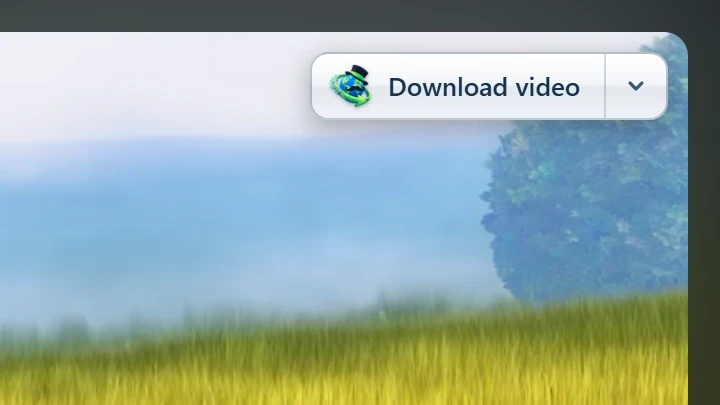
Point at a video on a web page and a small Download video button appears at its edge. Click it and GDM's Download video from a page window opens and looks up the qualities it can download. It takes the video you clicked: its own file when it plays one, or the stream the player loaded (HLS or DASH), else the page. When the button can't tell which one you mean, the toolbar button's Media on this page lists them all. Embedded players work too, and your sign-in for the site, the page that embeds the player and your browser's User-Agent go with it, so videos for members, or that play only on the site that embeds them, can be downloaded. Sound players get the button too.
Nút không gây cản trở: chỉ hiển thị khi bạn di chuột qua video (hoặc khi trình phát được chọn bằng bàn phím; nhấn Tab để chuyển đến nút), mờ dần khi con trỏ đứng yên và không xuất hiện trên video nhỏ hoặc các đoạn lặp ngắn không có tiếng (ảnh động, hình nền). Ở chế độ toàn màn hình, nút đi theo video nếu trình phát cho phép. Với video được bảo vệ bản quyền (DRM), nút sẽ cho biết không thể lưu video.
- Di chuyển: kéo nút đến vị trí bất kỳ dọc theo cạnh video; nút sẽ tự căn vào cạnh gần nhất và giữ nguyên vị trí đó trên trang web.
- Its menu (the arrow next to it): Hide on this video, Never on the site (GDM remembers the site), and Button settings..., which opens GDM's Options.
- Turn it off, or see the sites it stays off: Options → General → Customize GDM Download panels in browsers → Edit....
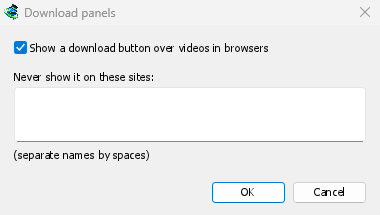
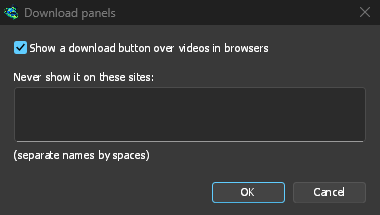
Nút này hoạt động theo cài đặt tích hợp trình duyệt: nút sẽ không hiển thị nếu Sử dụng tích hợp trình duyệt nâng cao bị tắt hoặc trình duyệt không được chọn.
Phím để buộc hoặc ngăn chặn việc bắt tải xuống
Hold Alt while clicking a link to let the browser download it instead of GDM. In Firefox, Alt+click saves a link only when its browser.altClickSave setting is on (in about:config); otherwise right-click the link and choose Save Link As..., which the browser keeps. Options → General → Keys... says so, and holds Also take files the browser would open.
Để trình duyệt luôn tải xuống các tệp từ một trang web, hãy dùng tùy chọn Không bao giờ tải xuống từ trong nút trên thanh công cụ hoặc thêm trang web vào danh sách Không tự động bắt đầu tải xuống từ các trang web sau. Để trình duyệt tải xuống một loại tệp, hãy xóa loại đó khỏi danh sách loại tệp.
When GDM isn't running
You don't need to start GDM first. When the browser hands over a download and GDM isn't running, the helper starts it and passes the download on.
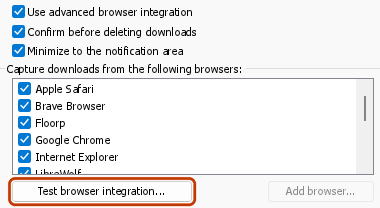
If GDM can't be reached at all (it was uninstalled, or the helper isn't registered), the download stays with the browser, so nothing is lost, and the toolbar button shows a red !. See The browser and GDM aren't connected, or run Options → General → Test browser integration....
Các bước tiếp theo
- Hướng dẫn: bắt tải xuống từ trình duyệt của bạn →
- Change which file types GDM takes →
- Nếu trình duyệt không chuyển giao tệp tải xuống →
Miễn phí, mã nguồn mở, không quảng cáo, không dùng thử.
Download GolinksPRO Download Manager