

GDM runs on 64-bit Windows 10 and Windows 11, and on 64-bit Linux: see On Linux. Builds for macOS are new and still experimental: see On a Mac.
เลือกไฟล์ที่จะดาวน์โหลด
ดาวน์โหลดได้ทุกเวอร์ชันจากหน้า Releases สำหรับ Windows มีไฟล์ 3 แบบ:
| ไฟล์ | คืออะไร |
|---|---|
MisterDownloadManager-<version>-setup.exe |
The installer. Pick this one unless you have a reason not to. It can set up browser integration and open .torrent files and magnet links with GDM. |
MisterDownloadManager-<version>-portable.zip |
สำเนาแบบพกพา รายการดาวน์โหลดและการตั้งค่าจะอยู่ในโฟลเดอร์ data ถัดจากโปรแกรม และไม่มีการเขียนข้อมูลลงในรีจิสทรี การรวมเข้ากับเบราว์เซอร์ต้องใช้ตัวติดตั้ง ดูที่ โหมดพกพา |
MisterDownloadManager-<version>-x64.zip |
โปรแกรมเดียวกันที่ไม่มีตัวติดตั้ง โดยเก็บข้อมูลไว้ใน %APPDATA%\misterdownloadmanager เหมือนกับโปรแกรมที่ติดตั้งแล้ว |
บน Linux
GDM runs on 64-bit Linux with a desktop session. It is tested on Ubuntu 24.04, Debian 12 and
Fedora, with GNOME, KDE Plasma, Xfce and Cinnamon, on X11 and in Wayland sessions. Pick one
of these files (up to version 0.2.4, their names end in -experimental, as in
...-linux-x86_64-experimental.deb):
| ไฟล์ | คืออะไร |
|---|---|
...-linux-x86_64.deb |
For Ubuntu, Debian, Mint and Pop!_OS: sudo apt install ./<file>.deb. It brings the libraries GDM needs. |
...-linux-x86_64.rpm |
For Fedora, openSUSE and RHEL: sudo dnf install ./<file>.rpm. It brings the libraries GDM needs. |
...-linux-x86_64.AppImage |
ทำงานบนการแจกจ่ายส่วนใหญ่: ทำให้เป็นไฟล์ที่เรียกใช้งานได้ (chmod +x) แล้วเรียกใช้ โปรแกรมจะอัปเดตตัวเองในตำแหน่งเดิม (วิธีใช้ → ตรวจหาการอัปเดต) |
...-linux-x86_64.tar.gz |
โปรแกรมแบบไม่ติดตั้ง ใช้ได้กับทุกระบบ |
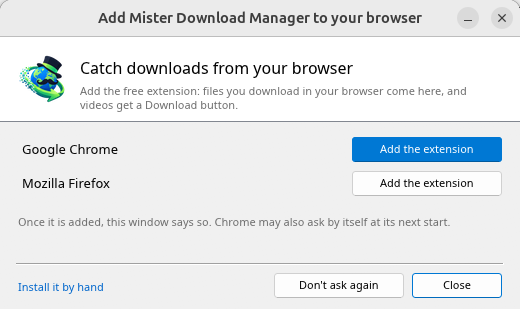
Browser integration is set up by GDM itself at each start (the browsers installed then are found); add the extension as in Browser integration. Firefox installed as a Snap (Ubuntu's) reaches GDM once you allow it; other Snap and Flatpak browsers can't (see Flatpak and Snap browsers). The tray icon, Dark Mode support and Launch on startup work on GNOME (Ubuntu's), KDE Plasma, Xfce and Cinnamon.
In a Wayland session the windows go through XWayland (below). Not there yet on Linux: screen readers (Orca) don't read GDM's windows; browsers installed as a Flatpak can't reach GDM (Firefox from Flathub may, through the desktop as the Snap does, but that isn't checked yet); and View → Draw with → Vulkan is a choice, OpenGL stays the default.
In a Wayland session (GNOME, KDE Plasma and others), GDM's windows run through XWayland when it is there: Wayland doesn't let a program place its own windows, so GDM's menus and drop-down lists would open in the middle of the screen. To run on Wayland itself anyway, start it with MDM_WAYLAND=1 misterdownloadmanager. If the system lacks a library X11 windows need (such as libxkbcommon-x11, which the .deb and .rpm bring but the AppImage and the tar.gz can't), GDM opens on Wayland instead; with no window system it can use, it names what's missing and the command that installs it.
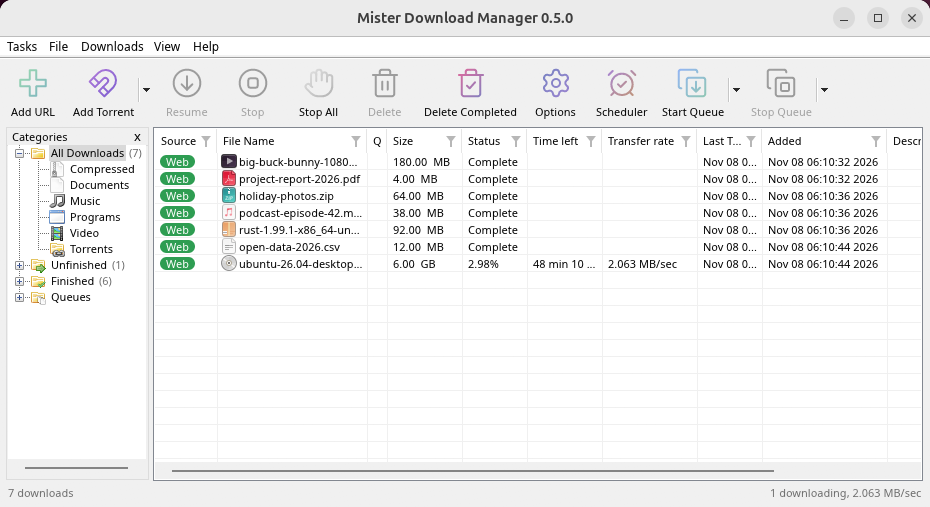
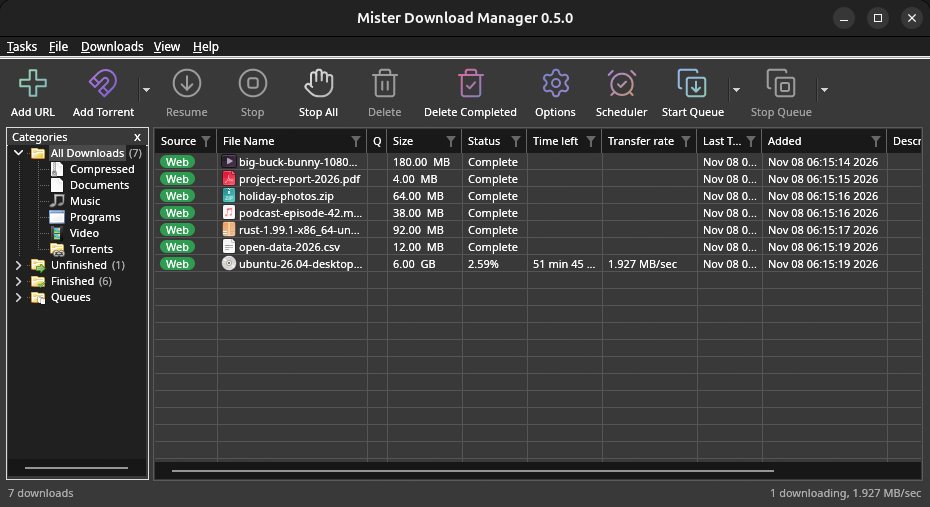
หน้าต่างเป็นแบบที่อธิบายไว้ในวิธีใช้นี้ พร้อมฟอนต์, ไอคอนไฟล์ และแถบชื่อเรื่องของเดสก์ท็อป:
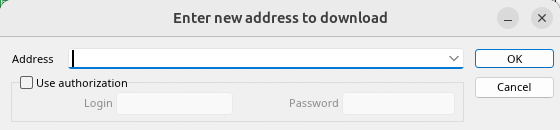
เพิ่ม URL 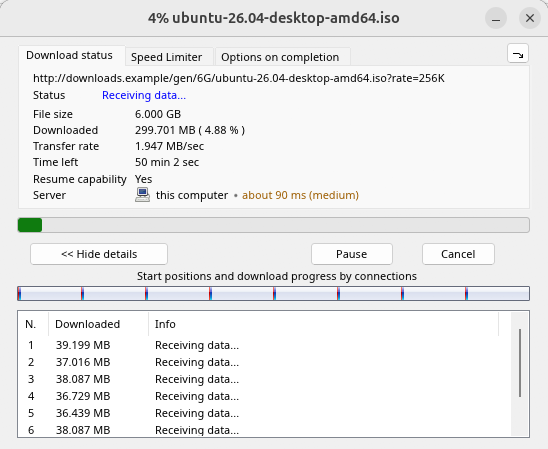
ความคืบหน้าการดาวน์โหลด 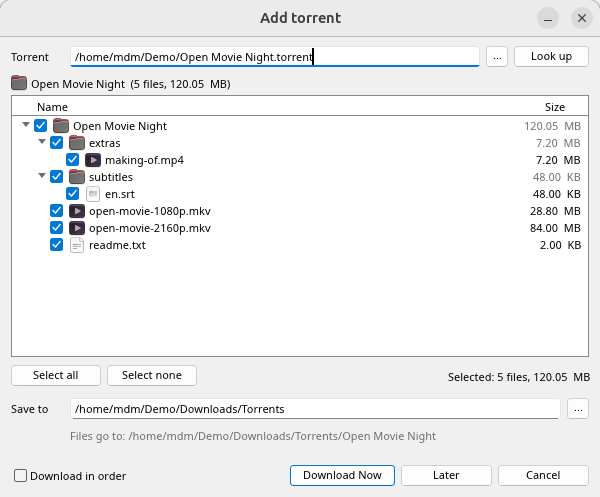
เพิ่มทอร์เรนต์ 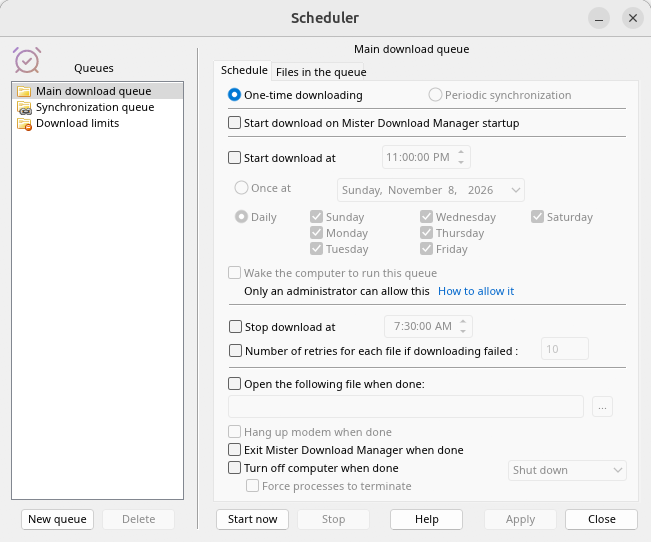
ตัวจัดกำหนดการ 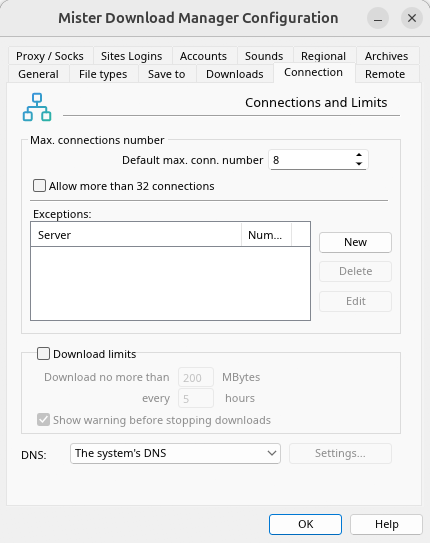
ตัวเลือก
และบนเดสก์ท็อปอื่น ๆ ที่ตรวจสอบแล้ว:
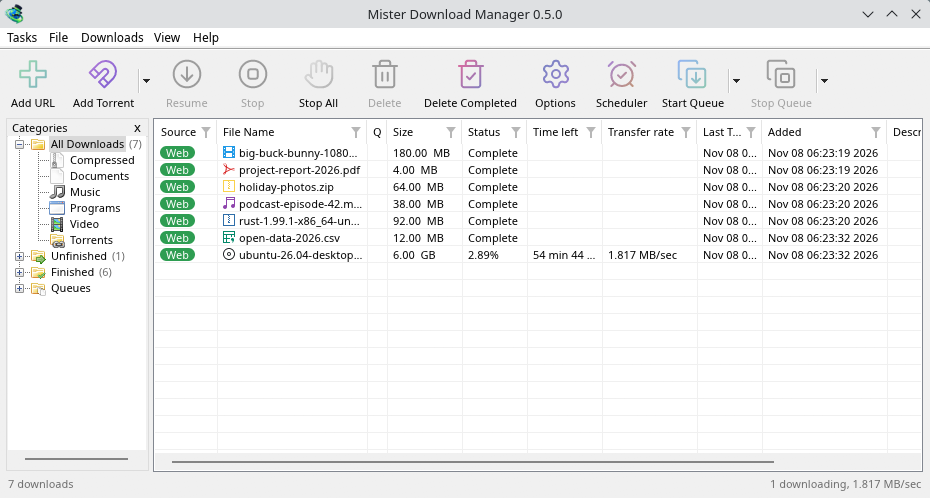
KDE Plasma 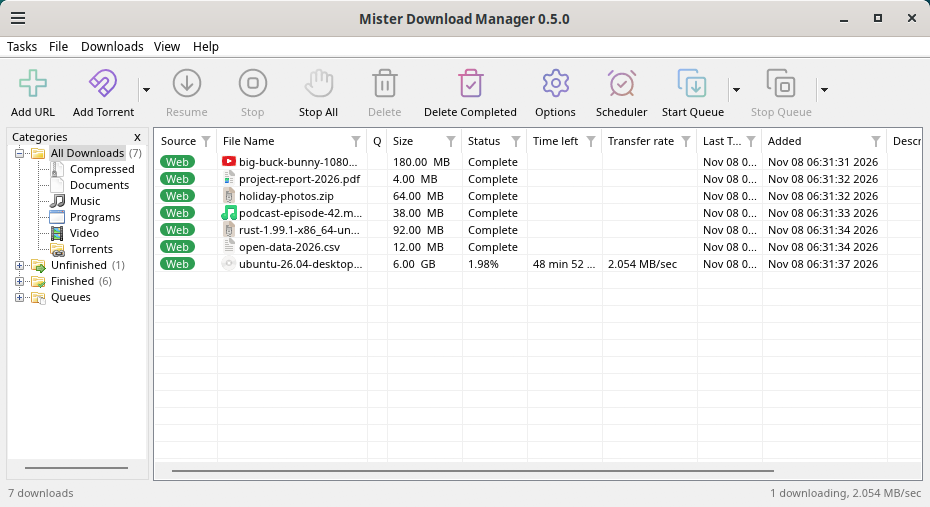
Cinnamon 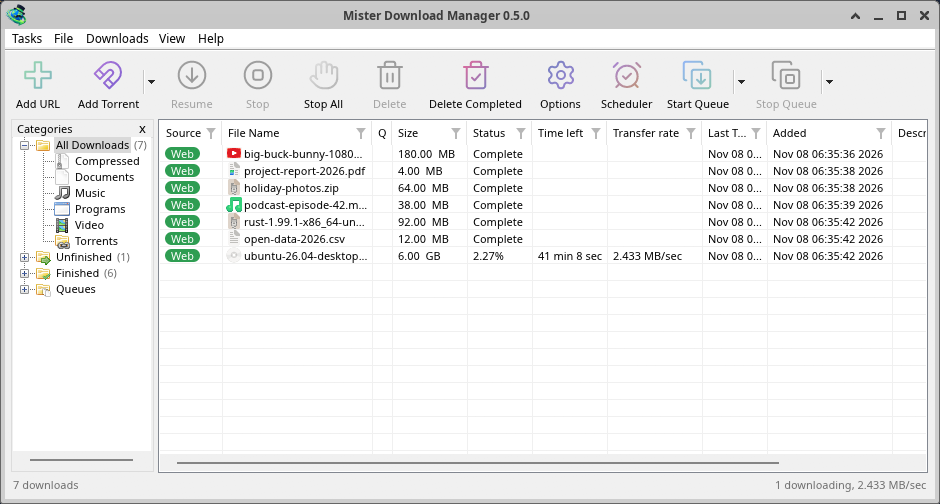
Xfce
ถอนการติดตั้งบน Linux
sudo apt remove misterdownloadmanager (or sudo dnf remove misterdownloadmanager) removes the
programs, and the small files that tell your browsers where GDM's helper is: the .deb and .rpm
install those for everyone (in /etc and /usr/lib), for Chrome, Chromium, Edge, Brave, Vivaldi
and Firefox (the Snap too), so GDM doesn't write them in your home folder. For the AppImage or the
tar.gz, delete the file or the folder.
What GDM keeps in your home folder stays, as with any package: your list and settings
(~/.local/share/misterdownloadmanager), the AppImage's and the tar.gz's browser files, and
those of the browsers that read them only there (Opera, Helium, Thorium, and Firefox's forks:
Zen, LibreWolf, Floorp, Waterfox). A package can't remove those: it never touches
home folders. Without GDM they lead nowhere, so the extension says it can't reach GDM. To remove
them as well, run this as each user who used GDM, before uninstalling:
misterdownloadmanager-nmhost --unregister
(จาก AppImage: ~/.local/share/misterdownloadmanager/browser-host/misterdownloadmanager-nmhost --unregister) ถอนการติดตั้งไปแล้วใช่ไหม? คำสั่งนี้จะลบไฟล์เดียวกัน:
find ~/.mozilla ~/.librewolf ~/.config -name com.misterdownloadmanager.host.json -delete 2>/dev/null
บน Mac
ส่วนที่สร้างสำหรับ macOS นั้นใหม่และยังอยู่ในขั้นทดลอง: เรายังไม่ได้ลองใช้บน Mac ด้วยตัวเอง ดังนั้นคุณจะเป็นคนกลุ่มแรก ๆ โปรด บอกเราว่าผลเป็นอย่างไร ไม่ว่าจะดีหรือไม่ดี
| ไฟล์ | คืออะไร |
|---|---|
...-macos-arm64-experimental.dmg |
For a Mac with Apple Silicon (M1 or later: Apple menu → About This Mac shows a Chip). Open it and drag GolinksPRO Download Manager to Applications. macOS asks before its first start, because the app isn't notarized by Apple: right-click it and choose Open (on macOS 15 and later: System Settings → Privacy & Security → Open Anyway). |
...-macos-x86_64-experimental.dmg |
เช่นเดียวกัน สำหรับ Mac ที่ใช้โปรเซสเซอร์ Intel (เกี่ยวกับ Mac เครื่องนี้ จะแสดง โปรเซสเซอร์) |
Browser integration is set up by GDM itself at each start (the browsers installed then are found); add the extension as in Browser integration.
ติดตั้งด้วยตัวติดตั้ง
- เรียกใช้
MisterDownloadManager-<version>-setup.exe - Choose the language. Windows' display language is already selected. The setup offers every language GDM has, and GDM starts in the one you pick.
- เลือกว่าจะติดตั้งสำหรับผู้ใช้คนเดียวหรือทุกคนในคอมพิวเตอร์ การติดตั้งสำหรับผู้ใช้คนเดียวไม่ต้องใช้สิทธิ์ผู้ดูแลระบบ และจะติดตั้งใน
%LOCALAPPDATA%\Programs\GolinksPRO Download Managerส่วนการติดตั้งสำหรับทุกคนจะติดตั้งในProgram Files - Pick what the setup should do: - Set up browser integration (Chrome, Edge, Brave, Firefox) - Open .torrent files and magnet links with GolinksPRO Download Manager - Start GolinksPRO Download Manager when Windows starts - Create a desktop shortcut (off unless you tick it)
- Click Install, then Finish to start GDM.
If GDM is already running, the setup asks it to save and close first. To update, use Help → Check for updates → Update now, or run the setup of the new version; your list and settings stay.
การเชื่อมต่อกับเบราว์เซอร์ต้องทำอีกขั้นตอนในแต่ละเบราว์เซอร์ นั่นคือการเพิ่มส่วนขยาย ใน Firefox ให้คลิก เพิ่มไปยัง Firefox ที่ หน้าส่วนขยายบน addons.mozilla.org ส่วนใน Chrome, Edge, Brave, Opera และ Vivaldi ให้คลิก เพิ่มไปยัง Chrome ที่ หน้าส่วนขยายใน Chrome Web Store ดูวิธีได้ที่ การเชื่อมต่อกับเบราว์เซอร์
ถอนการติดตั้ง
Uninstall GDM from Windows Settings → Apps. The uninstaller asks whether to delete your download list and settings too. Your downloaded files are never touched.
ใช้สำเนาแบบ zip
- แตกไฟล์ไปยังโฟลเดอร์ที่เขียนได้ (ไม่ใช่แตกลงใน
Program Files) - เรียกใช้
misterdownloadmanager.exe
ไฟล์ zip มีโปรแกรมเดียวกันกับตัวติดตั้ง: แอป, misterdownloadmanager-cli.exe (ดาวน์โหลดจากบรรทัดคำสั่ง; ดู บรรทัดคำสั่งและระบบอัตโนมัติ) และโฟลเดอร์ extension
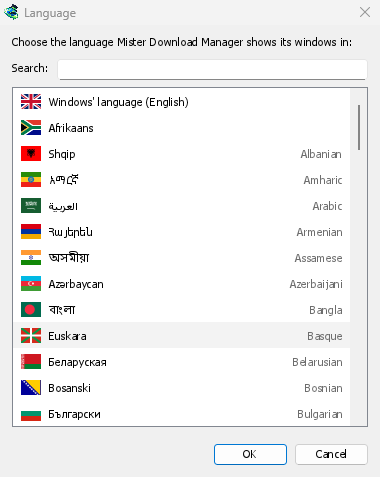
การเริ่มต้นใช้งานครั้งแรกและภาษา
- Installed with the setup: GDM starts in the language you chose in the setup.
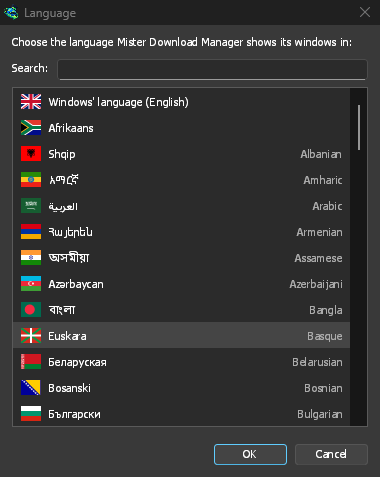
- Otherwise: GDM shows the list of languages, each with its flag and its own name. Pick yours.
คุณสามารถเปลี่ยนได้ตลอดเวลาที่ มุมมอง → ภาษา ดูเพิ่มเติมที่ ภาษา
ตัวช่วยวิดีโอ
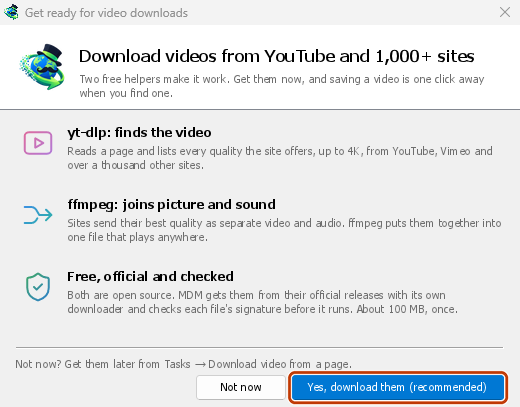
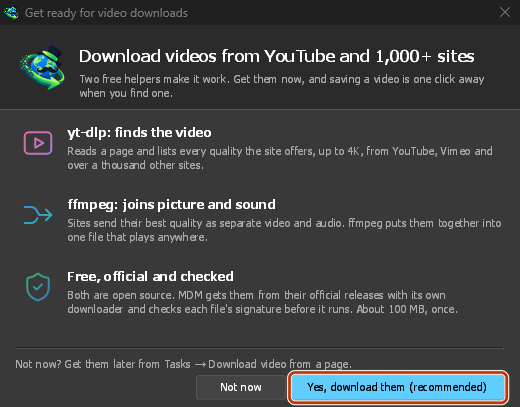
Next, GDM offers its two free video helpers: yt-dlp, which finds the video on a page, and ffmpeg, which joins its picture and sound. Click Yes, download them (recommended) and they download in the background, about 100 MB, once. Not now leaves them for later: the video window offers them when you first need them. More in Videos.
หน้าต่างหลัก
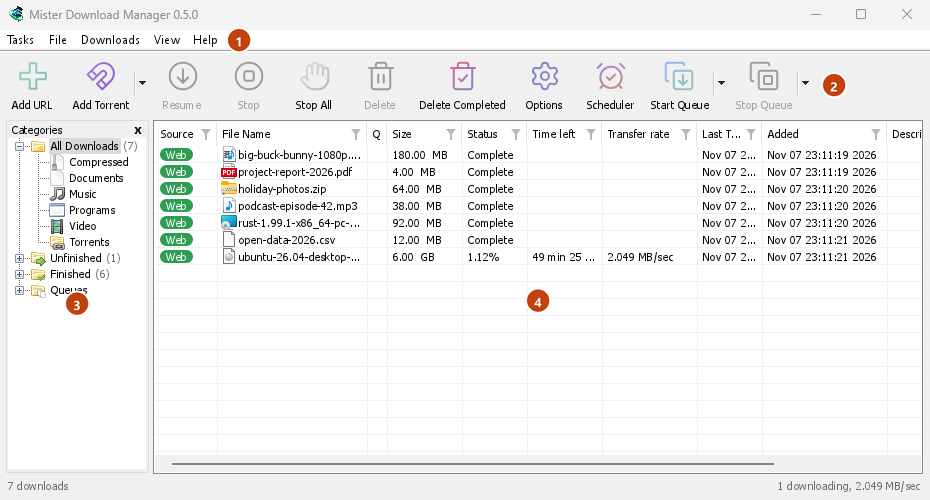
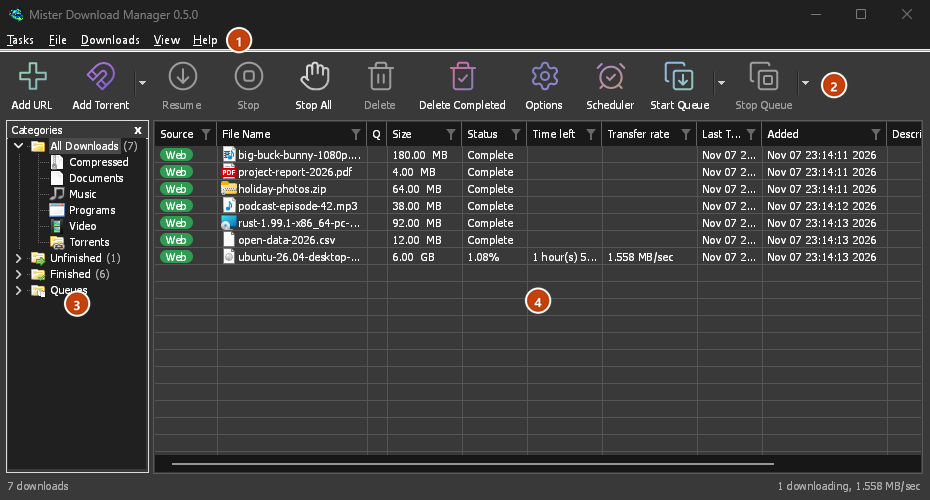
จากบนลงล่าง:
- แถบเมนู
- งาน — เพิ่มการดาวน์โหลด, ทอร์เรนต์, ลิงก์แม่เหล็ก, การดาวน์โหลดแบบกลุ่ม และวิดีโอจากหน้าเว็บ; การตั้งค่าทอร์เรนต์; ตัวดึงลิงก์; ฟีด RSS; แสดงเป้าหมายการลากและวาง; นำเข้าและส่งออกรายการ; ออก
- ไฟล์ — การดาวน์โหลดที่เลือก: หยุดการดาวน์โหลด, เอาออก, ดาวน์โหลดเดี๋ยวนี้, ดาวน์โหลดใหม่
- การดาวน์โหลด — หยุดชั่วคราวทั้งหมด, หยุดทั้งหมด, ลบที่เสร็จสมบูรณ์ทั้งหมด, ค้นหา, ตัวจัดกำหนดการ, คิว, ตัวจำกัดความเร็ว และ ตัวเลือก
- มุมมอง — แสดงหรือซ่อนหมวดหมู่, จัดเรียงรายการ (จัดเรียงไฟล์), รองรับโหมดมืด, มืดตลอดเวลา, ชุดรูปแบบ, ขนาดส่วนติดต่อ (ทุกหน้าต่างใหญ่ขึ้น, 100 % ถึง 200 %; Ctrl +, Ctrl − และ Ctrl 0 ด้วย), วาดด้วย (OpenGL, หรือ Direct3D บน Windows, Vulkan บน Linux, Metal บน macOS) และ ภาษา
- Help — help pages and tutorials (on the website, in your language when it has it), Keyboard shortcuts, Report a problem, Check for updates, About, Tell a friend and Support GDM (its creator's GitHub Sponsors page: optional, nothing in GDM changes).
- แถบเครื่องมือ เพิ่ม URL, เพิ่มทอร์เรนต์, ดำเนินการต่อ, หยุด, หยุดทั้งหมด, ลบ, ลบที่เสร็จสมบูรณ์แล้ว, ตัวเลือก, ตัวจัดกำหนดการ, เริ่มคิว, หยุดคิว ลูกศรเล็กๆ ถัดจาก เพิ่มทอร์เรนต์, เริ่มคิว และ หยุดคิว จะเปิดตัวเลือกเพิ่มเติม
- หมวดหมู่ (ซ้าย) เลือกสิ่งที่รายการแสดง: การดาวน์โหลดทั้งหมด, ยังไม่เสร็จสิ้น, เสร็จสิ้น และ คิว โดยแต่ละรายการมีหมวดหมู่ของตัวเอง ลากช่องว่างระหว่างบานหน้าต่างและรายการเพื่อขยายให้กว้างขึ้น
- รายการดาวน์โหลด (ขวา) หนึ่งแถวต่อหนึ่งการดาวน์โหลด ดู รายการดาวน์โหลด
โหมดมืด
GDM follows your system: when Windows (or your desktop's light/dark preference on Linux and macOS) is set to dark mode, so is GDM. To keep GDM light whatever the system does, turn off View → Dark Mode support. To keep it dark whatever the system does, for example on a desktop that reports no preference, turn on View → Always dark.
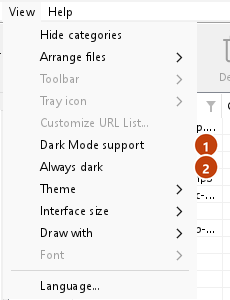
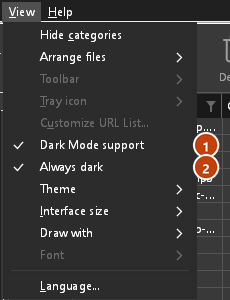
ชุดรูปแบบ
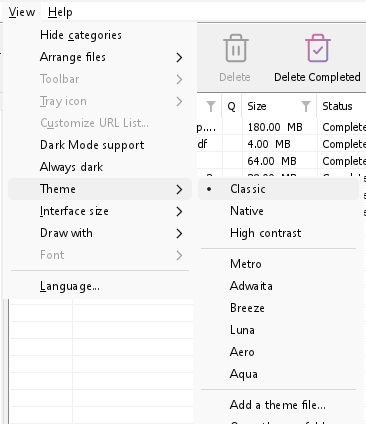
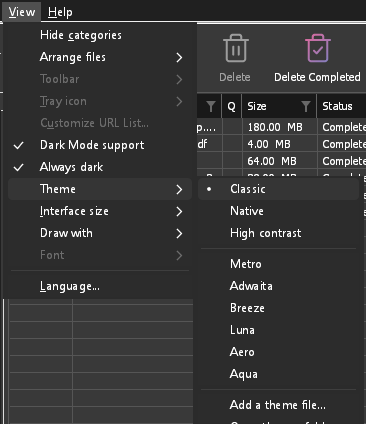
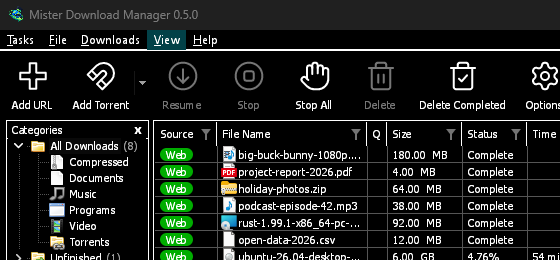
View → Theme changes GDM's look at once, keeping its layout:
- Classic: GDM's own look, the default.
- ดั้งเดิม: สีของระบบของคุณ สีเน้นของ Windows (การตั้งค่า → การปรับเปลี่ยนในแบบของคุณ → สี) และเมื่อเปิดใช้งาน ธีมคอนทราสต์ของ Windows; สีเน้นของเดสก์ท็อปและการตั้งค่าคอนทราสต์ที่สูงขึ้นบน Linux (GNOME 47 และใหม่กว่า, KDE Plasma); สีเน้นบน macOS โดยจะติดตามการเปลี่ยนแปลงเมื่อคุณเปลี่ยน
- ความคมชัดสูง: ขาวดำ, เน้นสีสดใส, วาดขอบทุกด้าน, ข้อความมีอัตราส่วน 7:1 หรือมากกว่า
- Metro: Windows 8's flat look: square corners, flat buttons and boxes, a coloured title bar with the title centred (on Windows, where GDM draws it), and one-colour icons (Microsoft's Fluent UI System Icons).
- Adwaita: GNOME's look: round corners, flat grey buttons, a rounded focus ring, GNOME's check boxes, a header bar with the title in bold and round buttons (on Windows, where GDM draws it), and GNOME's Adwaita icons, in colour for files and categories, one colour in the toolbar.
- Breeze: KDE Plasma's look: rounded corners, buttons and boxes that take the accent's edge under the pointer or when focused, KDE's check boxes and focus frame, KDE's title bar with the title centred and round buttons (on Windows, where GDM draws it), and KDE's Breeze icons.
- Luna: Windows XP's look: buttons shaded from white with an orange glow under the pointer, green ticks, square text boxes, progress in green blocks, a deep blue title bar with the title in bold (on Windows, where GDM draws it), and colourful icons drawn for GDM in that manner.
- Aero: Windows 7's look: glossy buttons that turn light blue under the pointer, quiet check boxes, a glossy green progress bar, a glassy title bar with the title on a soft glow (on Windows), and glossy icons drawn for GDM in that manner.
- Aqua: Mac OS X's look: gel buttons round at the ends (the default one blue), glossy check boxes, a blue focus ring, a blue gel progress bar, a grey title bar with small round buttons (on Windows), and icons drawn for GDM in that manner.
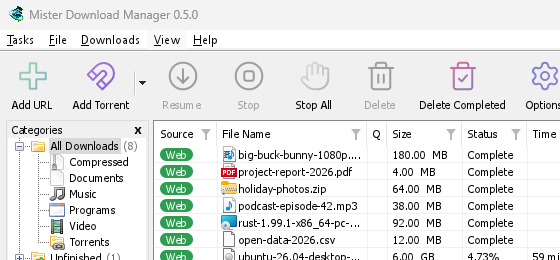
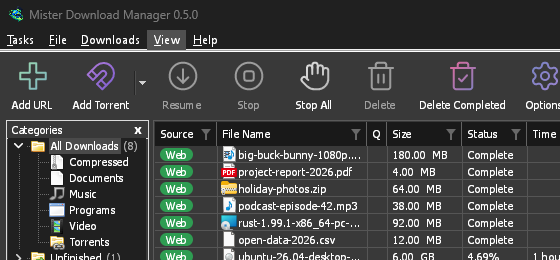
คลาสสิก 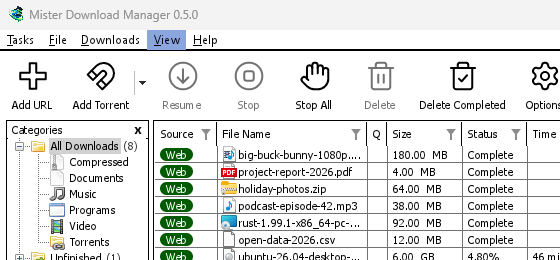
ความคมชัดสูง 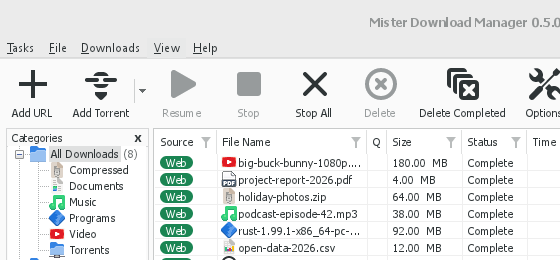
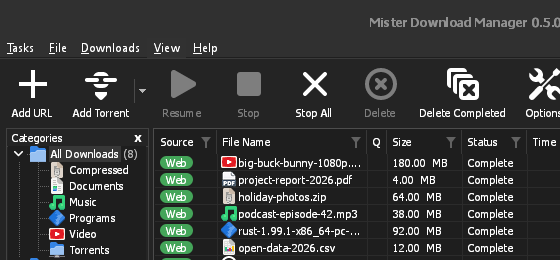
Adwaita 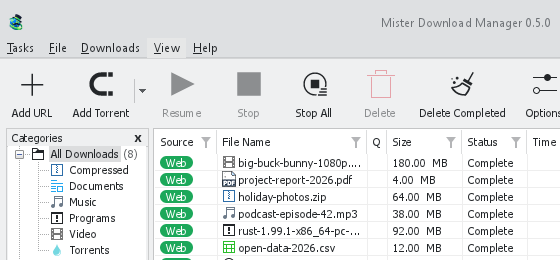
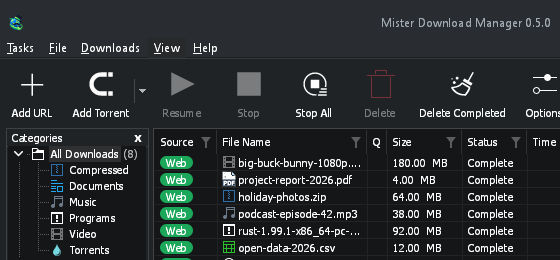
Breeze
แต่ละชุดรูปแบบมีด้านสว่างและด้านมืด: รองรับโหมดมืด และ มืดตลอดเวลา ใช้เลือกโหมดตามเดิม ไฟล์ชุดรูปแบบที่คุณใส่ในโฟลเดอร์ชุดรูปแบบ (มุมมอง → ชุดรูปแบบ → เปิดโฟลเดอร์ชุดรูปแบบ) จะแสดงอยู่ในรายการนั้นด้วย รวมถึงชุดสี Base16 และ pywal (มุมมอง → ชุดรูปแบบ → เพิ่มไฟล์ธีม…; pywal จะทำงานตาม wal เมื่อโปรแกรมทำงาน): ชุดรูปแบบ จะบอกว่าโฟลเดอร์นั้นอยู่ที่ไหน ไฟล์ชุดรูปแบบมีอะไรบ้าง (inherits, สี, ขนาด, รูปทรงส่วนควบคุม, ไอคอน) วิธีใช้สีของชุดรูปแบบ และวิธีสร้างและแบ่งปันชุดรูปแบบ
ไอคอนในพื้นที่แจ้งเตือน
Closing the main window doesn't quit GDM. It hides in the notification area, and downloads, queues and schedules carry on. To make closing quit (a portable copy's folder can then be deleted), untick Options → General → Keep running when closing the window. If there is no icon for GDM at all — not in the notification area, nor behind the ^ hidden icons — the window minimizes to the taskbar instead, so downloads continue and there is a way back. An icon behind ^ can be clicked to bring the window back, and starting GDM again always does.
On Linux this needs a tray, which most desktops have (KDE Plasma, Xfce, Cinnamon, Ubuntu's GNOME or GNOME with the AppIndicator extension, waybar's tray). On a desktop without one (some tiling window managers), closing the window quits GDM, since there would be nowhere to bring it back from.
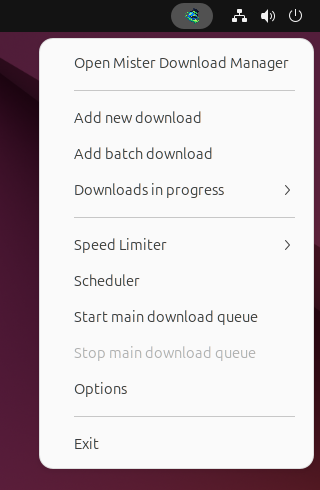
- คลิกไอคอนในพื้นที่แจ้งเตือนเพื่อเรียกหน้าต่างกลับมา
- คลิกขวาที่ไอคอนเพื่อเลือก เพิ่มการดาวน์โหลดใหม่, เพิ่มการดาวน์โหลดเป็นชุด, กำลังดาวน์โหลด, ตัวจำกัดความเร็ว, ตัวจัดกำหนดการ, คิวดาวน์โหลดหลัก, ตัวเลือก และ ออก
- กำลังดาวน์โหลด แสดงรายการดาวน์โหลดที่กำลังทำงาน เลือกรายการเพื่อดูหน้าต่างความคืบหน้า
ย่อเล็กสุด จะซ่อนหน้าต่างหลักไว้ที่นั่นเช่นกัน เมื่อเปิด ย่อเล็กสุดไปยังพื้นที่แจ้งเตือน ใน ตัวเลือก → ทั่วไป ซึ่งเปิดใช้งานโดยค่าเริ่มต้น หากพื้นที่แจ้งเตือนไม่มีไอคอน ย่อเล็กสุด จะส่งหน้าต่างไปยังแถบงานแทน
หน้าต่างความคืบหน้าของการดาวน์โหลดก็ซ่อนไปยังพื้นที่แจ้งเตือนได้เช่นกัน โดยใช้ปุ่ม ย่อเล็กสุด หรือปุ่ม ซ่อนไปยังพื้นที่แจ้งเตือน: ปุ่มนี้เป็นขีดสั้น ๆ พร้อมลูกศรชี้ลงไปที่มุม
บน Windows ปุ่มนั้นอยู่ในแถบชื่อเรื่องของหน้าต่าง ทางซ้ายของปุ่มย่อเล็กสุด และอยู่ในเมนูของแถบชื่อเรื่อง (Alt+Space) บน Linux และ macOS ปุ่มนี้อยู่ท้ายแถวแท็บ
หากต้องการเรียกหน้าต่างกลับมา ให้เลือกรายการนั้นใน กำลังดาวน์โหลด หรือดับเบิลคลิกที่รายการดาวน์โหลด
หากต้องการออก ให้เลือก งาน → ออก หรือ ออก ในเมนูของพื้นที่แจ้งเตือน
Where GDM keeps its data
รายการดาวน์โหลดและการตั้งค่าอยู่ใน %APPDATA%\misterdownloadmanager (downloads.json); บน Linux อยู่ใน ~/.local/share/misterdownloadmanager, บน Mac อยู่ใน ~/Library/Application Support/misterdownloadmanager สำเนาแบบพกพาจะเก็บไว้ในโฟลเดอร์ data แทน ไฟล์ที่ดาวน์โหลดจะไปที่โฟลเดอร์ ดาวน์โหลด ของคุณ โดยจัดเรียงเป็นโฟลเดอร์ตามหมวดหมู่ คุณสามารถเปลี่ยนได้ใน ตัวเลือก → บันทึกไปที่
ขั้นตอนถัดไป
ฟรี, โอเพนซอร์ส, ไม่มีโฆษณา, ไม่มีช่วงทดลองใช้
Download GolinksPRO Download Manager