

ขั้นแรก ให้ดูว่าเกิดอะไรขึ้น
การดาวน์โหลดแต่ละครั้งจะเก็บบันทึกเหตุการณ์ล่าสุดไว้ เช่น การลองใหม่ การเปลี่ยนเส้นทาง การตอบกลับของเซิร์ฟเวอร์ และข้อผิดพลาด
- วางเมาส์เหนือ สถานะ ของการดาวน์โหลดในรายการเพื่อดูเหตุการณ์
- หรือเปิดหน้าต่างความคืบหน้า (ดับเบิลคลิกการดาวน์โหลดที่ยังไม่เสร็จ) ตารางการเชื่อมต่อจะแสดงว่าแต่ละการเชื่อมต่อกำลังทำอะไร และแสดง กำลังลองใหม่ พร้อมเหตุผลเมื่อการเชื่อมต่อล้มเหลว
- คุณสมบัติของไฟล์ (Alt+Enter) จะแสดง การลองครั้งล่าสุด และ ผลลัพธ์
การดาวน์โหลดแสดงข้อผิดพลาด
- อ่านเหตุผล (วางเมาส์เหนือ สถานะ)
- เลือกการดาวน์โหลดแล้วคลิก ดำเนินการต่อ ข้อผิดพลาดหลายอย่างเกิดจากเซิร์ฟเวอร์หรือการเชื่อมต่อขัดข้องชั่วคราว
- หากลิงก์หมดอายุ (พบบ่อยกับลิงก์จากเว็บไซต์ที่ต้องลงชื่อเข้าใช้ หรือลิงก์ที่มีการจำกัดเวลา) ให้รับลิงก์ใหม่: คลิกขวา → รีเฟรชที่อยู่ดาวน์โหลด ดู ดำเนินการดาวน์โหลดที่หยุดชะงักต่อ
- If it says the file changed on the server, the file isn't the one GDM started with. Right-click → Redownload to start again from the beginning.
- หากมีข้อความว่า Google Drive ไม่สามารถให้ไฟล์นี้ได้ในขณะนี้ แสดงว่าถึงขีดจำกัดการดาวน์โหลดของ Drive สำหรับไฟล์นั้นแล้ว ดู ลิงก์ Google Drive
การดาวน์โหลดเริ่มใหม่แทนที่จะดำเนินการต่อ
- Look at Resume capability in the progress window. No means the server can't send a file in parts, so GDM can't continue it later.
- เซิร์ฟเวอร์บางแห่งรายงานวันที่ใหม่สำหรับไฟล์เดิมทุกครั้ง ให้ทำเครื่องหมายที่ ตัวเลือก → การดาวน์โหลด → ไม่สนใจการเปลี่ยนแปลงเวลาแก้ไขไฟล์เมื่อดาวน์โหลดต่อ
ดาวน์โหลดช้า
- ตรวจสอบว่าปิดตัวจำกัดความเร็วแล้ว: การดาวน์โหลด → ตัวจำกัดความเร็ว → ปิด นอกจากนี้ ให้ตรวจสอบ การดาวน์โหลด → ตัวจำกัดความเร็ว → การตั้งค่า... → จำกัดการดาวน์โหลดทั้งหมดรวมกันที่ ซึ่งมีผลแม้จะปิดตัวจำกัดความเร็วอยู่
- ตรวจสอบแท็บ ตัวจำกัดความเร็ว ของการดาวน์โหลดเองในหน้าต่างความคืบหน้า
- Check Options → Connection. A low Default max. conn. number, or an exception for the server, means fewer connections. Rows marked (auto) are servers that refused more connections; GDM can't do more there.
- ตรวจสอบ ขีดจำกัดการดาวน์โหลด ในตัวจัดกำหนดการ เมื่อถึงขีดจำกัด การดาวน์โหลดจะรอพร้อมข้อความ กำลังรอ: ถึงขีดจำกัดการดาวน์โหลดแล้ว (ตัวจัดกำหนดการ)
The browser doesn't send downloads to GDM
- Was GDM installed with the setup, with Set up browser integration ticked? A portable copy can't take browser downloads. Run the setup again to add it.
- Is the extension loaded and turned on? Look for GolinksPRO Download Manager on the browser's extensions page. In Firefox, install it from addons.mozilla.org: a temporary add-on is gone after a restart. See Browser integration.
- เปิด ตัวเลือก → ทั่วไป → ใช้การรวมเบราว์เซอร์ขั้นสูง และทำเครื่องหมายที่เบราว์เซอร์ของคุณใต้ รับการดาวน์โหลดจากเบราว์เซอร์ต่อไปนี้ หรือไม่?
- Is the file's type in Options → File types? Only listed types are taken automatically. Download with GolinksPRO Download Manager on the right-click menu takes any link.
- เว็บไซต์อยู่ใน ไม่เริ่มดาวน์โหลดอัตโนมัติจากเว็บไซต์ต่อไปนี้ หรือไม่?
When none of this helps, the browser keeps the download, so nothing is lost. The extension's toolbar button says why it couldn't reach GDM; see The browser and GDM aren't connected.
ตัวจัดกำหนดการไม่ได้เริ่มคิว
- GDM must be running at that time. Closing the window is fine (it stays in the tray); Tasks → Exit is not.
- คลิก ใช้งาน หลังจากตั้งเวลาแล้วหรือไม่?
- รายวัน จะเริ่มเฉพาะในวันที่ทำเครื่องหมายไว้เท่านั้น ครั้งเดียวที่ จะเริ่มเฉพาะในวันที่นั้นเท่านั้น
- คอมพิวเตอร์ที่อยู่ในโหมดพักเครื่องจะไม่ทำงานจนกว่าจะปลุก เว้นแต่คิวจะเลือก ปลุกคอมพิวเตอร์เพื่อเริ่มคิวนี้ (ใน Windows ต้องเปิด อนุญาตตัวจับเวลาปลุก ในแผนการใช้พลังงาน; ตัวจัดกำหนดการจะแจ้งเมื่อปิดอยู่) ดู ปลุกคอมพิวเตอร์เพื่อเริ่มคิว
ดาวน์โหลดวิดีโอไม่ได้
ดูที่ หากดาวน์โหลดวิดีโอไม่ได้
ลิงก์แม่เหล็กใช้เวลานาน
A magnet link has to get the torrent's file list from other peers first. That can take a minute or two, and longer for torrents with few peers. If nobody answers in about three minutes, GDM gives up; try again later, or use the .torrent file if the site offers one.
GDM uses a lot of memory
ตัวจัดการงานแสดงตัวเลขหลายค่า ซึ่งมีความหมายต่างกัน:
- Memory (on the Processes tab) is what GDM holds for itself alone, its private working set. With the window open and nothing downloading, that is about 70 MB.
- Working set (Details tab, add the column) adds memory shared with other programs. GDM draws its windows with the graphics card, so the graphics driver's memory counts here too, about 120 MB in all.
- Commit size is memory GDM has reserved, whether in use or not.
Closed to the notification area, GDM gives its memory back to Windows: Memory drops to under 10 MB within seconds and stays low while it waits. Downloads, queues and the scheduler go on as before. The list of every language (View → Language) loads fonts for every script while it's open; GDM lets them go when it closes.
ข้อความเล็กเกินไปหรือเบลอ
GDM keeps Internet Download Manager's compact sizes. On a large or high-resolution screen, choose View → Interface size (125 %, 150 %, 175 % or 200 %), or press Ctrl + and Ctrl − in any GDM window, as in a browser; Ctrl 0 goes back to 100 %. Every window follows at once, and GDM starts at that size next time. It comes on top of Windows' own display scale (Settings → System → Display → Scale).
หน้าต่างที่ใหญ่กว่าหน้าจอในขนาดนั้น (ตัวเลือกที่ 200 % บนหน้าจอ 1366 × 768) จะเปิดขึ้นเท่าที่หน้าจออนุญาต และส่วนที่เหลือจะเลื่อนได้: ด้วยแถบเลื่อน, ล้อเมาส์ หรือกด Tab ไปยังส่วนควบคุมถัดไป
GDM tells Windows it draws for each monitor's own scale, so Windows never stretches its windows into blur, and it draws Windows' fonts grid-fitted to whole pixels. If the text still looks blurred, tell us your screen's resolution and Windows' display scale when you report it.
หน้าต่างค้างหรือไม่แสดงผลอย่างถูกต้อง
On Windows, GDM draws its windows with Direct3D 12; on Linux and macOS, with OpenGL, or with Vulkan (Linux) or Metal (macOS) when you choose them. A graphics driver can still misbehave: a window that holds still for seconds, flickers, or shows wrong colours or blocks. Try the other one: choose View → Draw with → OpenGL (or Direct3D, Vulkan, Metal), then quit GDM (Tasks → Exit) and start it again. Choosing the first one goes back the same way.
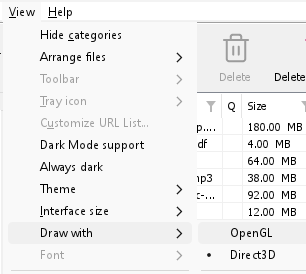
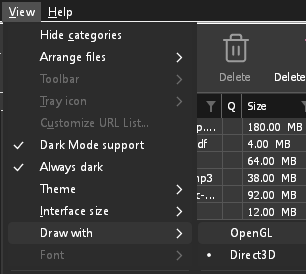
- If Direct3D, Vulkan or Metal can't start on your computer (no driver for it, some virtual machines), or its first window doesn't show within 10 seconds of its own (the time GDM spends loading your list and its icons doesn't count, however slow the computer is just after it starts), GDM draws with OpenGL, and View → Draw with says so and why. Choosing it again tries it again at the next start.
- บน Linux, Vulkan ต้องใช้ไดรเวอร์ Vulkan ของการ์ดกราฟิก: ไดรเวอร์ Mesa (
mesa-vulkan-driversบน Ubuntu และ Debian,vulkan-radeonหรือvulkan-intelบน Arch) สำหรับ AMD และ Intel หรือไดรเวอร์ของ NVIDIA สำหรับการ์ด NVIDIA - If neither can start, GDM draws with a software renderer (Microsoft's on Windows, Mesa's on Linux), so the window still opens (Remote Desktop, a virtual machine without a graphics driver). It works, but keeps the processor busier.
- If the graphics card is reset while GDM runs (a driver update), GDM starts again by itself. Lost twice in 10 minutes, it goes back to OpenGL, and View → Draw with says why.
- การอัปเดตไดรเวอร์กราฟิกจากเว็บไซต์ของผู้ผลิตการ์ด (Intel, AMD หรือ NVIDIA) ช่วยแก้ปัญหาเหล่านี้ได้หลายข้อ
- A freeze whose report shows the window thread inside the graphics driver as it shows a frame (
ig4icd64.dllorig9icd64.dllfor Intel,nvoglv64.dllfor NVIDIA,atio6axx.dllfor AMD, underopengl32.dll) is the driver's OpenGL stuck, not GDM: on Windows, choose View → Draw with → Direct3D (the default) and restart GDM, and update the graphics driver. If Draw with says Direct3D didn't start there, the line under it says why. - A freeze or crash report says which one was drawing, on which graphics card and driver, and why that one (chosen, the default, or the other one failing), on its
Drawing with:line near the top: include it when you report a problem. A freeze report also says whether GDM was busy, waiting, or hardly ran at all (a computer too busy to run it); see Crash reports.
The setup or GDM won't start
- หาก Windows แจ้งว่า Windows ปกป้องพีซีของคุณ ให้คลิก ข้อมูลเพิ่มเติม ตรวจสอบว่าไฟล์
MisterDownloadManager-<version>-setup.exeมาจากหน้า Releases แล้วคลิก เรียกใช้ต่อไป - GDM runs only once. Starting it again brings the running copy's window to the front. If nothing appears, look for GDM's icon in the notification area.
- Linux, from the AppImage or the tar.gz: if the system lacks a library GDM's window needs (such as
libxkbcommon-x11), GDM names it on the terminal and in a message box, with the command that installs it (sudo apt install libxkbcommon-x11-0, or your distribution's). The .deb and .rpm bring these libraries themselves. In a Wayland session GDM opens its window on Wayland instead. - Linux, the first start is slow: GDM looks up the system's fonts for every script once, all together, while it starts (fontconfig); a first start on a busy computer can take a few seconds more. Install your distribution's Noto fonts if some scripts or symbols show as boxes.
My antivirus or VirusTotal flags GDM
โปรแกรมแอนติไวรัสบางโปรแกรมจะแจ้งเตือนโปรแกรมติดตั้งใหม่เพียงเพราะไม่เคยเห็นมาก่อน และกลไกการเรียนรู้ของเครื่องมักจะทำเช่นนี้มากที่สุด ใน VirusTotal หากมีกลไกขนาดเล็กจำนวนหนึ่งแจ้งเตือนโปรแกรมติดตั้งใหม่ในขณะที่กลไกขนาดใหญ่ไม่แจ้งเตือน มักจะเป็นผลบวกปลอม เราจะรายงานเรื่องเหล่านี้ไปยังผู้จำหน่ายเมื่อเราพบเห็น
วิธีตรวจสอบว่าสำเนาของคุณเป็นของจริง:
- Download GDM only from the website or GitHub Releases.
- รับค่า SHA-256 ของไฟล์ของคุณ บน Windows ให้รัน
certutil -hashfile "MisterDownloadManager-0.5.0-setup.exe" SHA256; บน Linux ให้รันsha256sumตามด้วยชื่อไฟล์ - เปรียบเทียบกับบรรทัดของไฟล์เดียวกันใน
SHA256SUMS.txtของรุ่นนั้น
หากตรงกัน แสดงว่าเป็นไฟล์ที่เราเผยแพร่ ทุกรุ่นสร้างขึ้นบน GitHub จาก ซอร์สโค้ดสาธารณะ ดังนั้นทุกคนสามารถอ่านสิ่งที่อยู่ในนั้นได้
If your antivirus quarantined GDM, restore it and add an exception for its folder. If it flags something other than the setup or GDM's own programs, or a copy from anywhere else, don't run it, and please tell us.
การดาวน์โหลด HTTPS ล้มเหลวด้วยข้อความ “ไม่มีใบรับรอง” (Linux)
A minimal Linux system (often with the AppImage, the tar.gz or a build from source) may have no CA certificates, which GDM needs to check a secure server. Plain http:// and ftp:// downloads still work; each https:// or ftps:// one stops at once saying the computer has no certificates to check the server with. Install the ca-certificates package (sudo apt install ca-certificates, sudo dnf install ca-certificates), then resume the download. The .deb and .rpm bring it.
ตำแหน่งจัดเก็บข้อมูล
- เมื่อติดตั้งหรือใช้ไฟล์ zip แบบธรรมดา:
%APPDATA%\misterdownloadmanagerรายการและการตั้งค่าอยู่ในdownloads.json - แบบพกพา: โฟลเดอร์
dataถัดจากmisterdownloadmanager.exe - Linux:
~/.local/share/misterdownloadmanager; Mac:~/Library/Application Support/misterdownloadmanager - รหัสผ่าน (การเข้าสู่ระบบไซต์, พร็อกซี, บัญชี debrid) อยู่ในพวงกุญแจของระบบ ไม่ใช่ใน
downloads.json; ดู ตัวเลือก → การเข้าสู่ระบบไซต์
To back up your list, quit GDM (Tasks → Exit) and copy downloads.json.
การอัปเดต
Help → Check for updates... tells you whether a newer version is out, and what is new in it. Check for updates at every start in that window lets GDM look by itself: a few seconds after it starts, and once a day while it stays open. When there's a new version, its window opens in front.
When there is one, Update now downloads it, checks it, puts it in place and restarts GDM; your list, settings and downloads stay as they are:
| คุณติดตั้ง | สิ่งที่อัปเดตเดี๋ยวนี้ทำ |
|---|---|
| Windows, โปรแกรมติดตั้ง | เรียกใช้โปรแกรมติดตั้งใหม่โดยไม่แสดงหน้าต่าง การติดตั้งสำหรับผู้ใช้ทั้งหมดจะขอสิทธิ์จากผู้ดูแลระบบ |
| Windows, แบบพกพาหรือไฟล์ zip ธรรมดา | แทนที่โปรแกรมในโฟลเดอร์นั้น (เก็บโฟลเดอร์ data ของสำเนาแบบพกพาไว้) |
| Mac | แทนที่แอปในโฟลเดอร์ Applications |
| Linux, AppImage หรือ .tar.gz | แทนที่ AppImage หรือโปรแกรมในโฟลเดอร์นั้น |
| Linux, ไฟล์ .deb หรือ .rpm | เปิดแพ็กเกจที่ตรวจสอบแล้วด้วยตัวติดตั้งแพ็กเกจของระบบ ซึ่งจะขอรหัสผ่าน |
| Linux, แพ็กเกจจากตัวจัดการแพ็กเกจอื่น (pacman, ...) | ไม่มี: หน้าต่างจะแจ้ง และการอัปเดตระบบของคุณจะนำเวอร์ชันใหม่มาให้ |
GDM installs an update only when the release's list of checksums is signed by GDM's release key and the file matches it; anything else is refused, and Download opens the Releases page instead. Updating this way starts with version 0.2.1: earlier versions open the Releases page.
นอกจากนี้ ยังอัปเดต AppImage ได้ด้วยเครื่องมือ AppImage (AppImageLauncher, Gear Lever, AppImageUpdate) โดย AppImage จะมีที่อยู่สำหรับการอัปเดต และแต่ละรุ่นจะมีไฟล์ .AppImage.zsync ของตัวเอง เครื่องมือเหล่านี้จึงดาวน์โหลดเฉพาะส่วนที่เปลี่ยนแปลง การอัปเดตด้วยวิธีนี้เริ่มใช้กับ AppImage ของเวอร์ชันถัดจาก 0.2.4
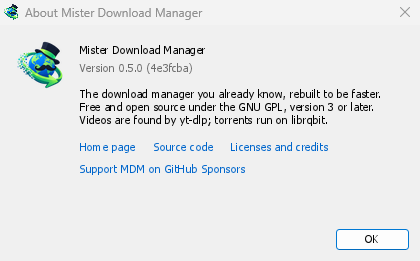
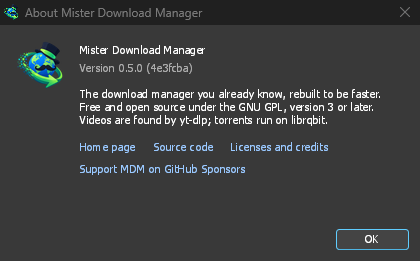
Help → About GolinksPRO Download Manager shows the version you have.
การรายงานปัญหา
Choose Help → Report a problem. It opens the bug report form on GitHub with your GDM version, your system and its version, how GDM was installed and its interface language already filled in. Describe what happened, what you expected and the steps that make it happen. For a download, include the address if you can share it, and the reason shown under Status.
นอกจากนี้ยัง เปิดแบบฟอร์มด้วยตนเองได้ โดยแบบฟอร์มจะขอรายละเอียดเดียวกัน
ขั้นตอนถัดไป
ฟรี, โอเพนซอร์ส, ไม่มีโฆษณา, ไม่มีช่วงทดลองใช้
Download GolinksPRO Download Manager