

There are several ways to give GDM something to download. Most of them end in the same window, Download File Info, where you choose where the file goes.
เพิ่ม URL
- คัดลอกที่อยู่ไฟล์ (ในเบราว์เซอร์: คลิกขวาที่ลิงก์ → คัดลอกลิงก์)
- คลิก เพิ่ม URL บนแถบเครื่องมือ เลือก งาน → เพิ่มการดาวน์โหลดใหม่ หรือกด Ctrl+N
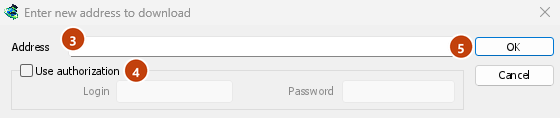
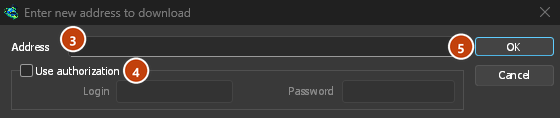
- หน้าต่าง ป้อนที่อยู่ใหม่เพื่อดาวน์โหลด จะเปิดขึ้น หากมีที่อยู่เว็บอยู่ในคลิปบอร์ด ที่อยู่จะถูกกรอกให้โดยอัตโนมัติ ลูกศรที่ท้ายช่อง ที่อยู่ จะแสดงรายการที่อยู่ 20 รายการล่าสุดที่คุณป้อน เลือกหนึ่งรายการเพื่อใช้ซ้ำ คลิกขวาที่ช่องเพื่อ ตัด, คัดลอก, วาง, ลบ และ เลือกทั้งหมด
- หากเซิร์ฟเวอร์ต้องการชื่อผู้ใช้และรหัสผ่าน ให้ทำเครื่องหมายที่ ใช้การอนุญาต แล้วพิมพ์ลงไป
- คลิก ตกลง
GDM takes http://, https://, ftp://, ftps://, ftpes:// and magnet: addresses. Anything else gets Invalid address.
หากที่อยู่เป็นหน้าวิดีโอ (YouTube, Vimeo, TikTok และอื่น ๆ) หน้าต่างวิดีโอจะเปิดขึ้นแทน ดู ดาวน์โหลดวิดีโอ ลิงก์แม่เหล็กจะเปิด เพิ่มทอร์เรนต์ ดู ทอร์เรนต์
FTP และ FTPS
การดาวน์โหลด FTP ทำงานเหมือนกับการดาวน์โหลดเว็บ: มีการเชื่อมต่อหลายรายการพร้อมกัน, สามารถหยุดชั่วคราวและดำเนินการต่อได้, และมีหน้าต่างแสดงความคืบหน้าแบบเดียวกัน
ftp://— FTP แบบไม่เข้ารหัสftpes://— FTP ที่ปลอดภัยด้วย TLS ตั้งแต่เริ่มต้นเซสชัน (explicit FTPS,AUTH TLS, โดยปกติใช้พอร์ต 21) ใช้เมื่อเซิร์ฟเวอร์ระบุว่ารองรับ TLSftps://— implicit FTPS, พอร์ต 990 เว้นแต่ที่อยู่จะระบุเป็นอย่างอื่น
ใบรับรองของเซิร์ฟเวอร์จะถูกตรวจสอบกับใบรับรองที่เชื่อถือได้ของ Windows (หรือของระบบ) เช่นเดียวกับ https:// หากระบบ Linux ไม่มีใบรับรองเหล่านี้ (การติดตั้งแบบน้อยที่สุดที่ไม่มีแพ็กเกจ ca-certificates) ก็ยังคงดาวน์โหลดผ่าน HTTP และ FTP แบบธรรมดาได้ การดาวน์โหลดที่ปลอดภัยแต่ละครั้งจะล้มเหลวทันที โดยแจ้งให้ติดตั้งแพ็กเกจนั้น
Logging in. Write the login in the address (ftp://user:password@server/folder/file.iso),
tick Use authorization, or save it in Options → Sites Logins. Without one, GDM logs in as
anonymous. The path is relative to the folder the login starts in; to start from the server's
root, write %2F after the server (ftp://server/%2Fpub/file.iso).
Resuming. GDM keeps the file's size and modification time. If either has changed when you resume, it says the file changed on the server instead of mixing two versions (Options → Downloads → Ignore file modification time changes skips the time check). The password is not written to the resume file next to the download: GDM gives it again when it resumes.
การเชื่อมต่อ โหมด Passive ถูกใช้เป็นค่าเริ่มต้น ตัวเลือก → พร็อกซี / SOCKS → ใช้ FTP ในโหมด PASV จะปิดโหมดนี้สำหรับเซิร์ฟเวอร์ที่รับเฉพาะการเชื่อมต่อแบบ Active FTP เชื่อมต่อกับเซิร์ฟเวอร์โดยตรง ไม่ผ่านพร็อกซี HTTP
Browsers no longer download ftp:// links themselves. Right-click one and choose Download with
GolinksPRO Download Manager, or copy it and use Add URL.
ลิงก์ Google Drive
วางลิงก์ Google Drive ตามที่ได้จาก แชร์ → คัดลอกลิงก์:
https://drive.google.com/file/d/…/view?usp=sharingพร้อมหรือไม่พร้อม/view;https://drive.google.com/uc?id=…&export=downloadและhttps://drive.google.com/open?id=…;https://docs.google.com/document/d/…/edit(และ Sheets, Slides, Drawings)
GDM downloads the file itself, as it was uploaded (a video comes in its own format, not the player's copy), with its real name and size, over several connections, and it can resume. For a large file, Drive shows a page that says it can't scan this file for viruses; GDM goes past it as Download anyway does.
Google Docs, Sheets และ Slides จะมาในรูปแบบไฟล์ Word (.docx), Excel (.xlsx) และ PowerPoint (.pptx) ส่วน Drawings จะมาในรูปแบบ .png ไฟล์เหล่านี้จะถูกสร้างขึ้นเมื่อมีการร้องขอ ดังนั้นขนาดของไฟล์จึงไม่เป็นที่ทราบจนกว่าจะดาวน์โหลดเสร็จสิ้น และไม่สามารถดาวน์โหลดต่อได้: การดาวน์โหลดที่ถูกขัดจังหวะจะต้องเริ่มต้นใหม่
Files that aren't shared with everyone. Right-click the link in the browser and choose Download with GolinksPRO Download Manager, or use Drive's own Download button: the extension passes your browser's Google sign-in with the download. GDM never asks for or keeps your password. Without a sign-in, GDM says the file needs you to sign in.
When Drive won't give a file. Drive limits how often a file can be downloaded: after many downloads in a day it answers "too many users have viewed or downloaded this file recently". GDM shows Drive's own words and writes nothing. Try again later (it can take up to a day), or sign in to Google in your browser and download from there, which often gets past the limit. GDM doesn't try to get around it. A file whose owner turned off downloading, or that your account can't open, gets no access.
ปุ่มวิดีโอที่อยู่เหนือวิดีโอใน Drive จะดาวน์โหลดไฟล์ต้นฉบับ ไม่ใช่สำเนาขนาดเล็กของโปรแกรมเล่น
โฟลเดอร์ ยังไม่สามารถดาวน์โหลดได้: ลิงก์ของโฟลเดอร์จะได้รับข้อความ นี่คือโฟลเดอร์ Google Drive ไม่ใช่ไฟล์ เปิดโฟลเดอร์ในเบราว์เซอร์แล้วดาวน์โหลดไฟล์จากที่นั่น
ข้อมูลไฟล์ดาวน์โหลด
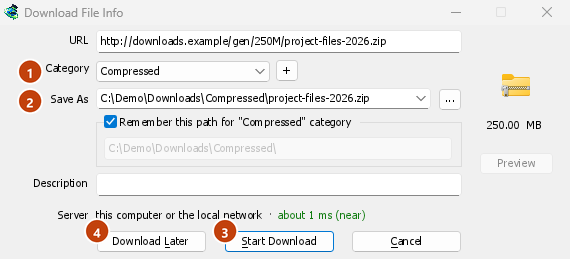
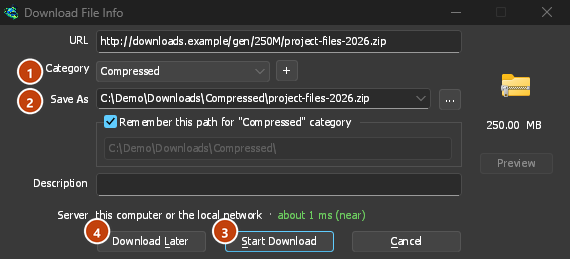
GDM asks the server for the file's name and size, and shows them in Download File Info:
- URL — ที่อยู่
- หมวดหมู่ — เลือกจากประเภทของไฟล์ (บีบอัด, เอกสาร, เพลง, โปรแกรม, วิดีโอ หรือทั่วไป) แต่ละหมวดหมู่มีโฟลเดอร์ของตัวเอง เครื่องหมาย + ข้าง ๆ จะสร้างหมวดหมู่ใหม่
- บันทึกเป็น — โฟลเดอร์และชื่อไฟล์ พิมพ์ชื่ออื่น เลือกจาก 20 โฟลเดอร์ล่าสุดที่บันทึกไฟล์ไว้โดยใช้ลูกศรท้ายช่อง หรือเลือกโฟลเดอร์ด้วย ...
- จดจำเส้นทางนี้สำหรับหมวดหมู่ "…" — ทำเครื่องหมายเพื่อทำให้โฟลเดอร์ที่คุณพิมพ์เป็นโฟลเดอร์ของหมวดหมู่นี้ตั้งแต่นี้เป็นต้นไป
- คำอธิบาย — บันทึกส่วนตัวของคุณ จะแสดงในคอลัมน์ คำอธิบาย ของรายการ และสามารถค้นหาได้ด้วยฟังก์ชันค้นหา
- Server — where the server is: its country's flag and name, and how long a round trip to it takes. See Where the server is. It stays blank when the browser handed the download over with its name and size, since GDM didn't need to ask the server.
จากนั้นเลือก:
- เริ่มการดาวน์โหลด (หรือ Enter) — ดาวน์โหลดทันที หน้าต่างแสดงความคืบหน้าจะเปิดขึ้น
- ดาวน์โหลดภายหลัง — เพิ่มลงในคิวโดยไม่เริ่มดาวน์โหลด ดูด้านล่าง
- ยกเลิก (หรือ Esc) — ไม่เพิ่มอะไรเลย
By default GDM starts downloading while this window is open, so no time is lost while you decide. Cancel drops what it fetched. You can turn this off in Options → Downloads → Start downloading immediately while displaying "Download File Info" dialog.
If the folder doesn't exist yet, GDM asks Do you want to create it? before it starts.
ดาวน์โหลดภายหลัง
Download Later puts the download in a queue instead of starting it. By default GDM asks which one: pick the queue under Add to queue, and tick Start the queue now if you want it to run straight away. Cancel leaves the download in the list, in no queue.
หากต้องการข้ามคำถามนั้นและใช้ คิวการดาวน์โหลดหลัก เสมอ ให้ปิด ตัวเลือก → การดาวน์โหลด → แสดงแผงเลือกคิวเมื่อกดปุ่ม "ดาวน์โหลดภายหลัง"
อ่านเพิ่มเติมเกี่ยวกับคิวได้ใน คิวและตัวจัดกำหนดการ
จากคลิปบอร์ด
With Options → General → Offer to download links copied to the clipboard ticked (it is, unless you turned it off), when you copy a link to a file type in Options → File types (ZIP, EXE, MP4, PDF and many more), Download File Info opens with it filled in, ready for Start Download. Links to other pages are left alone. With Options → Downloads → Show start download dialog off, the download starts at once instead. Only links copied while GDM runs are taken, never one that was already there.
ลากและวาง
- Choose Tasks → Show drop target. A small box with the GDM icon appears and stays on top of other windows.
- Drag a link from your browser onto it. GDM adds it as if you had used Add URL.
You can also drop magnet links and .torrent files on it. Drag the box to move it, and double-click it to bring the main window back. Right-click it for Show GolinksPRO Download Manager, Add new download and Hide drop target.
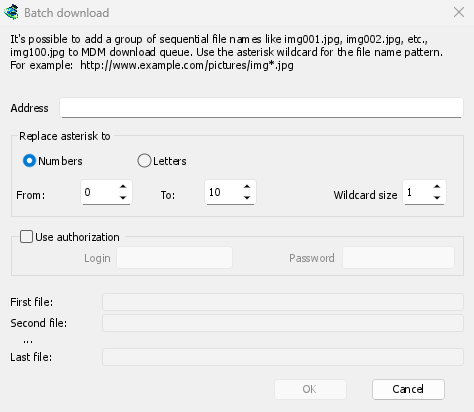
ดาวน์โหลดเป็นชุด: ไฟล์ที่มีหมายเลขจำนวนมาก
สำหรับไฟล์ที่มีชื่อแตกต่างกันเพียงแค่ตัวเลขหรือตัวอักษร เช่น photo001.jpg ถึง photo150.jpg:
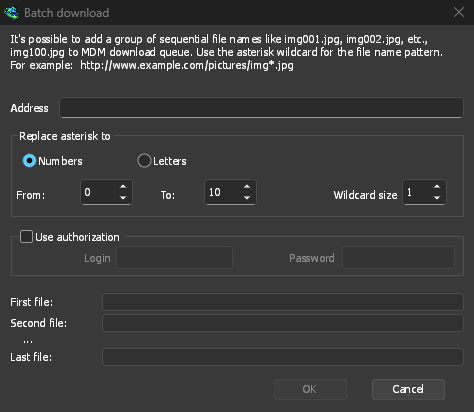
- เลือก งาน → เพิ่มการดาวน์โหลดเป็นชุด (งาน → เพิ่มการดาวน์โหลดเป็นชุดจากคลิปบอร์ด จะกรอกที่อยู่ที่คัดลอกไว้)
- ใน ที่อยู่ ให้เขียนที่อยู่โดยมีเครื่องหมายดอกจันหนึ่งตัวตรงที่ตัวเลขหรือตัวอักษรเปลี่ยนไป:
https://example.com/photo*.jpg - ใต้ แทนที่เครื่องหมายดอกจันด้วย ให้เลือก ตัวเลข หรือ ตัวอักษร จากนั้นเลือก จาก และ ถึง
- สำหรับตัวเลข ให้ตั้งค่า ขนาดสัญลักษณ์ตัวแทน เป็นจำนวนหลัก หากเป็น 3 ไฟล์จะเป็น
photo001.jpg,photo002.jpgและอื่นๆ - หากเซิร์ฟเวอร์ต้องใช้ข้อมูลเข้าสู่ระบบ ให้เลือก ใช้การอนุญาต
- ตรวจสอบ ไฟล์แรก, ไฟล์ที่สอง และ ไฟล์สุดท้าย จากนั้นคลิก ตกลง
The downloads go to a queue. As with Download Later, GDM asks which queue unless you turn off Options → Downloads → Show queue selection panel on closing batch download dialogs.
รายการลิงก์
หากต้องการเพิ่มลิงก์ทั้งหมดในไฟล์ข้อความ:
- เลือก งาน → นำเข้า → จากไฟล์ข้อความ
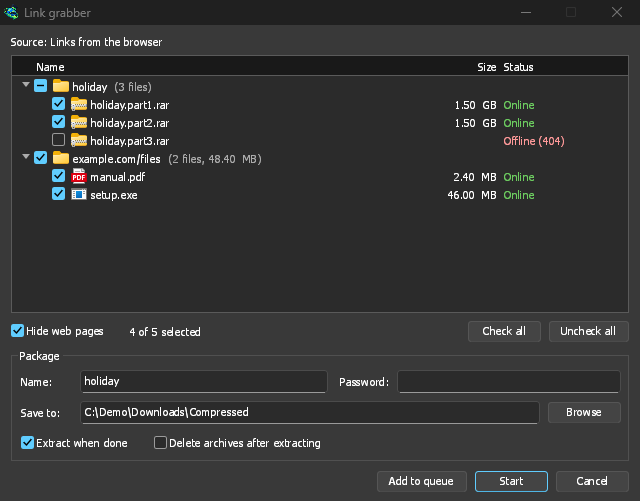
- Pick the file. Link grabber lists every web address GDM found in it, in packages.
- ยกเลิกการเลือกที่อยู่เว็บที่คุณไม่ต้องการ (เลือกทั้งหมด และ ไม่เลือกทั้งหมด จะช่วยได้) จากนั้นคลิก เพิ่มลงในคิว
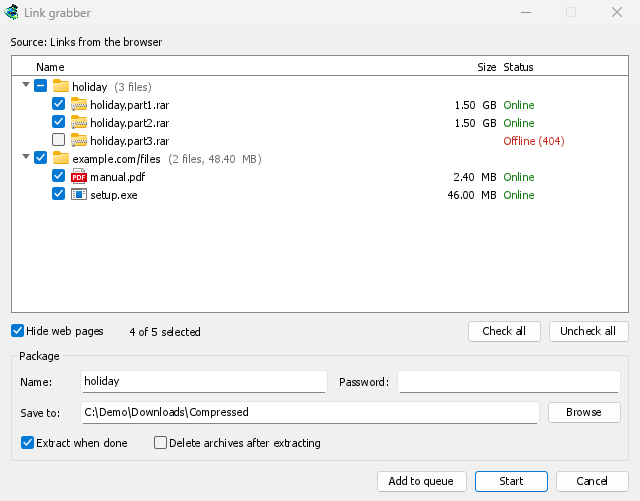
การดาวน์โหลดจะเข้าร่วมใน คิวการดาวน์โหลดหลัก พร้อมที่จะเริ่ม (เริ่ม ก็สามารถเริ่มได้เช่นกัน) งาน → นำเข้า → จากไฟล์ส่งออก IDM จะอ่านไฟล์ .ef2 พร้อมด้วยผู้แนะนำและคุกกี้ของการดาวน์โหลดแต่ละรายการ
งาน → ตัวคว้าลิงก์... จะเปิดหน้าต่างเดียวกันแต่ว่างเปล่า: วางข้อความที่มีลิงก์ลงไป (Ctrl+V) ดู ตัวคว้าลิงก์และไฟล์เก็บถาวร สำหรับแพ็กเกจ รหัสผ่านไฟล์เก็บถาวร และการแตกไฟล์เก็บถาวรเมื่อดาวน์โหลดเสร็จสิ้น
หากต้องการบันทึกรายการของคุณเอง ให้ใช้ งาน → ส่งออก → ไปยังไฟล์ข้อความ (หนึ่งที่อยู่ต่อหนึ่งบรรทัด) หรือ ส่งออกไปยังไฟล์ IDM
เมื่อมีที่อยู่นี้อยู่ในรายการแล้ว
By default GDM asks what to do when you add an address it already has. You can choose a fixed answer in Options → Downloads → If a duplicate download link is added:
- แสดงกล่องโต้ตอบและถามว่าจะทำอะไร
- เพิ่มรายการที่ซ้ำกันด้วยชื่อไฟล์ที่มีหมายเลข
- เพิ่มรายการที่ซ้ำกันและเขียนทับไฟล์ที่มีอยู่
- หากไฟล์ที่มีอยู่ดาวน์โหลดเสร็จสมบูรณ์ ให้แสดงกล่องโต้ตอบดาวน์โหลดเสร็จสมบูรณ์ มิฉะนั้น ให้ดำเนินการต่อ
ขั้นตอนถัดไป
- Send browser downloads to GDM →
- ดูการดาวน์โหลดในหน้าต่างความคืบหน้า →
- จัดคิวการดาวน์โหลดไว้ดาวน์โหลดภายหลัง →
ฟรี, โอเพนซอร์ส, ไม่มีโฆษณา, ไม่มีช่วงทดลองใช้
Download GolinksPRO Download Manager