

There are several ways to give GDM something to download. Most of them end in the same window, Download File Info, where you choose where the file goes.
إضافة URL
- انسخ عنوان الملف (في المستعرض: انقر بزر الفأرة الأيمن على الرابط → نسخ الرابط).
- انقر على إضافة URL في شريط الأدوات، أو اختر المهام → إضافة تنزيل جديد، أو اضغط Ctrl+N.
- تفتح نافذة أدخل عنوانا جديدا للتنزيل. إذا احتوت الحافظة على عنوان ويب، فسيكون العنوان مدخلا بالفعل. يعرض السهم في نهاية العنوان آخر 20 عنوانا أدخلتها؛ اختر أحدها لاستخدامه مجددا. انقر بزر الفأرة الأيمن على المربع لعرض الخيارات قص ونسخ ولصق وحذف وتحديد الكل.
- إذا كان الخادم يتطلب اسم مستخدم وكلمة مرور، فحدد استخدام التفويض وأدخلهما.
- انقر على موافق.
GDM takes http://, https://, ftp://, ftps://, ftpes:// and magnet: addresses. Anything else gets Invalid address.
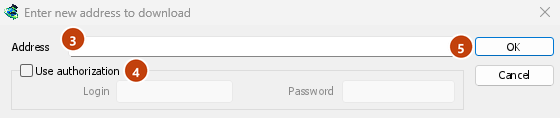
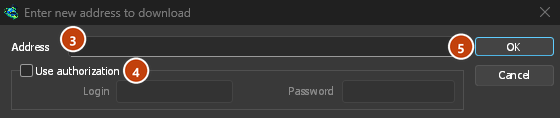
إذا كان العنوان لصفحة فيديو (YouTube وVimeo وTikTok وغيرها)، فستفتح نافذة الفيديو بدلا من ذلك. راجع تنزيلات الفيديو. يفتح الرابط المغناطيسي نافذة إضافة تورنت؛ راجع التورنت.
FTP وFTPS
تعمل تنزيلات FTP مثل تنزيلات الويب: عدة اتصالات في وقت واحد، إيقاف مؤقت واستئناف، ونفس نافذة التقدم.
ftp://— FTP غير مشفر.ftpes://— FTP مؤمن باستخدام TLS من بداية الجلسة (FTPS صريح،AUTH TLS، عادة المنفذ 21). استخدمه عندما يقول الخادم إنه يدعم TLS.ftps://— FTPS ضمني، المنفذ 990 ما لم يحدد العنوان منفذا آخر.
يتم التحقق من شهادة الخادم مقابل الشهادات الموثوقة في Windows (أو النظام)، كما هو الحال لـhttps://. لا يزال نظام Linux الذي لا يحتوي عليها (تثبيت بسيط بدون حزمة ca-certificates) ينزل عبر HTTP وFTP العاديين؛ ويفشل كل تنزيل آمن على الفور، مع رسالة تطلب تثبيت تلك الحزمة.
Logging in. Write the login in the address (ftp://user:password@server/folder/file.iso),
tick Use authorization, or save it in Options → Sites Logins. Without one, GDM logs in as
anonymous. The path is relative to the folder the login starts in; to start from the server's
root, write %2F after the server (ftp://server/%2Fpub/file.iso).
Resuming. GDM keeps the file's size and modification time. If either has changed when you resume, it says the file changed on the server instead of mixing two versions (Options → Downloads → Ignore file modification time changes skips the time check). The password is not written to the resume file next to the download: GDM gives it again when it resumes.
الاتصالات. يستخدم GDM الوضع السلبي افتراضيا. يؤدي الخيارات → الوكيل / SOCKS → استخدام FTP في وضع PASV إلى إيقافه للخوادم التي تقبل الاتصالات النشطة فقط. يتصل FTP بالخادم مباشرة، لا عبر وكيل HTTP.
Browsers no longer download ftp:// links themselves. Right-click one and choose Download with
GolinksPRO Download Manager, or copy it and use Add URL.
روابط Google Drive
الصق رابط Google Drive كما هو، أي الرابط الذي يظهر عند اختيار مشاركة → نسخ الرابط:
https://drive.google.com/file/d/…/view?usp=sharing، مع/viewأو بدونها؛https://drive.google.com/uc?id=…&export=downloadوhttps://drive.google.com/open?id=…؛https://docs.google.com/document/d/…/edit(وكذلك Sheets وSlides وDrawings).
GDM downloads the file itself, as it was uploaded (a video comes in its own format, not the player's copy), with its real name and size, over several connections, and it can resume. For a large file, Drive shows a page that says it can't scan this file for viruses; GDM goes past it as Download anyway does.
تنزل مستندات Google وSheets وSlides كملفات Word (.docx) وExcel (.xlsx) وPowerPoint (.pptx)، وتنزل الرسومات كملفات .png. تنشأ هذه الملفات عند طلبها، لذا لا يعرف حجمها حتى تصل، ولا يمكن متابعة تنزيلها؛ فإذا انقطع التنزيل، يبدأ من جديد.
Files that aren't shared with everyone. Right-click the link in the browser and choose Download with GolinksPRO Download Manager, or use Drive's own Download button: the extension passes your browser's Google sign-in with the download. GDM never asks for or keeps your password. Without a sign-in, GDM says the file needs you to sign in.
When Drive won't give a file. Drive limits how often a file can be downloaded: after many downloads in a day it answers "too many users have viewed or downloaded this file recently". GDM shows Drive's own words and writes nothing. Try again later (it can take up to a day), or sign in to Google in your browser and download from there, which often gets past the limit. GDM doesn't try to get around it. A file whose owner turned off downloading, or that your account can't open, gets no access.
ينزل زر الفيديو فوق فيديو Drive الملف الأصلي، وليس إحدى النسخ الأصغر التي يعرضها المشغل.
لا يمكن تنزيل المجلدات بعد: تظهر الرسالة هذا مجلد Google Drive، وليس ملفا عند فتح رابط مجلد. افتح المجلد في المستعرض ونزل ملفاته من هناك.
معلومات ملف التنزيل
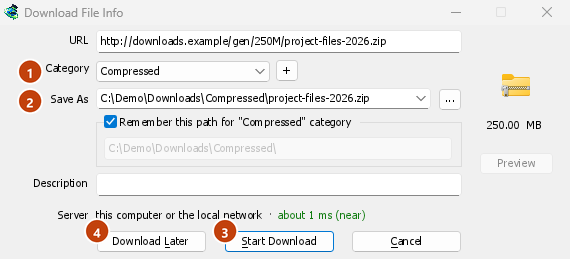
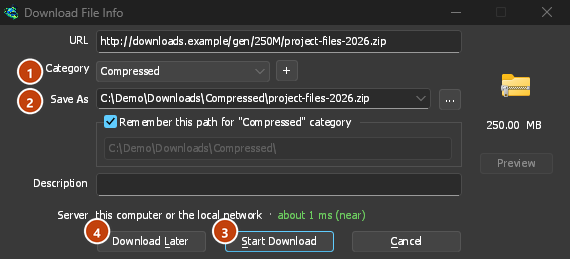
GDM asks the server for the file's name and size, and shows them in Download File Info:
- URL — العنوان.
- الفئة — تختار بحسب نوع الملف (المضغوطة، المستندات، الموسيقى، البرامج، الفيديو أو العام). لكل فئة مجلدها الخاص. ينشئ + بجانبها فئة جديدة.
- حفظ باسم — المجلد واسم الملف. يمكنك كتابة اسم آخر، أو اختيار أحد آخر 20 مجلدا حفظت فيها من السهم عند نهايته، أو اختيار مجلد باستخدام ....
- تذكر هذا المسار لفئة «…» — حدده ليصبح المجلد الذي كتبته مجلد الفئة من الآن فصاعدا.
- الوصف — ملاحظة تكتبها بنفسك. تظهر في عمود الوصف في القائمة، ويمكنك البحث عنها باستخدام «بحث».
- Server — where the server is: its country's flag and name, and how long a round trip to it takes. See Where the server is. It stays blank when the browser handed the download over with its name and size, since GDM didn't need to ask the server.
ثم اختر:
- بدء التنزيل (أو Enter) — ابدأ التنزيل الآن. ستفتح نافذة التقدم.
- تنزيل لاحقا — أضفه إلى قائمة انتظار من دون بدء التنزيل. راجع أدناه.
- إلغاء (أو Esc) — لا تضف شيئا.
By default GDM starts downloading while this window is open, so no time is lost while you decide. Cancel drops what it fetched. You can turn this off in Options → Downloads → Start downloading immediately while displaying "Download File Info" dialog.
If the folder doesn't exist yet, GDM asks Do you want to create it? before it starts.
تنزيل لاحقا
Download Later puts the download in a queue instead of starting it. By default GDM asks which one: pick the queue under Add to queue, and tick Start the queue now if you want it to run straight away. Cancel leaves the download in the list, in no queue.
لتخطي هذا السؤال واستخدام قائمة انتظار التنزيل الرئيسية دائما، أوقف الخيارات → التنزيلات → إظهار لوحة اختيار قائمة الانتظار عند الضغط على زر «تنزيل لاحقا».
المزيد عن قوائم الانتظار في قوائم الانتظار والجدولة.
من الحافظة
With Options → General → Offer to download links copied to the clipboard ticked (it is, unless you turned it off), when you copy a link to a file type in Options → File types (ZIP, EXE, MP4, PDF and many more), Download File Info opens with it filled in, ready for Start Download. Links to other pages are left alone. With Options → Downloads → Show start download dialog off, the download starts at once instead. Only links copied while GDM runs are taken, never one that was already there.
السحب والإفلات
- Choose Tasks → Show drop target. A small box with the GDM icon appears and stays on top of other windows.
- Drag a link from your browser onto it. GDM adds it as if you had used Add URL.
You can also drop magnet links and .torrent files on it. Drag the box to move it, and double-click it to bring the main window back. Right-click it for Show GolinksPRO Download Manager, Add new download and Hide drop target.
تنزيل جماعي: ملفات عديدة مرقمة
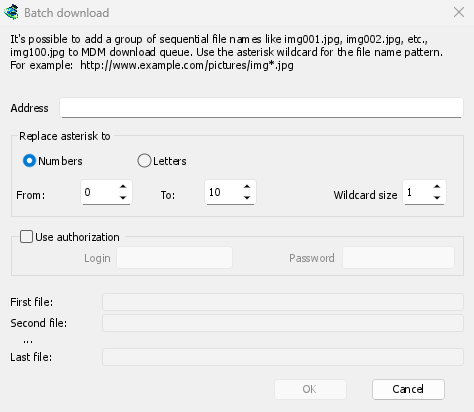
للملفات التي تختلف أسماؤها برقم أو حرف فقط، مثل photo001.jpg إلى photo150.jpg:
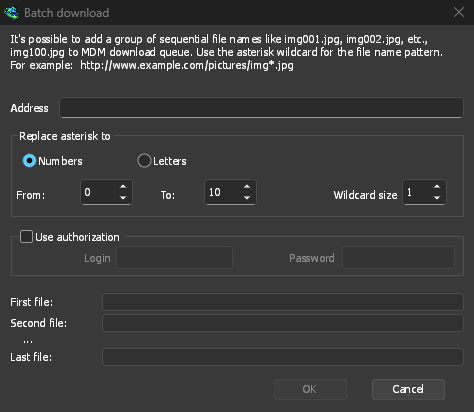
- اختر المهام ← إضافة تنزيل جماعي. (المهام ← إضافة تنزيل جماعي من الحافظة يملأ العنوان المنسوخ.)
- في العنوان، اكتب العنوان مع علامة نجمية واحدة حيث يتغير الرقم أو الحرف:
https://example.com/photo*.jpg. - تحت استبدال العلامة النجمية بـ، اختر أرقام أو أحرف، ثم من وإلى.
- بالنسبة للأرقام، اضبط حجم حرف البدل على عدد الأرقام. مع 3، تكون الملفات
photo001.jpg،photo002.jpgوهكذا. - إذا كان الخادم يتطلب تسجيل الدخول، فحدد استخدام التفويض.
- تحقق من الملف الأول، الملف الثاني والملف الأخير، ثم انقر على موافق.
The downloads go to a queue. As with Download Later, GDM asks which queue unless you turn off Options → Downloads → Show queue selection panel on closing batch download dialogs.
قائمة الروابط
لإضافة كل رابط في ملف نصي:
- اختر المهام ← استيراد ← من ملف نصي.
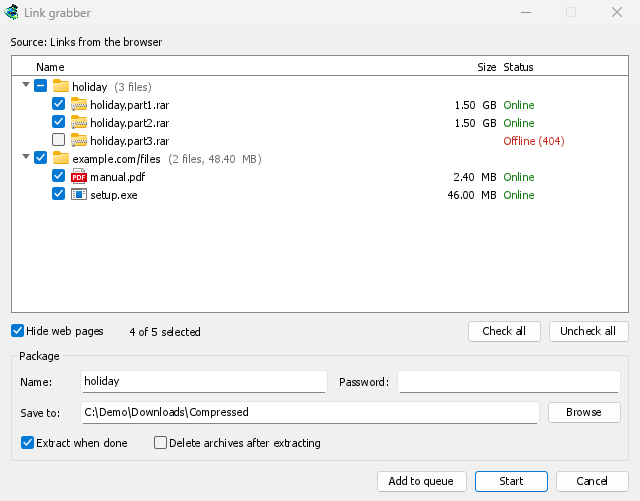
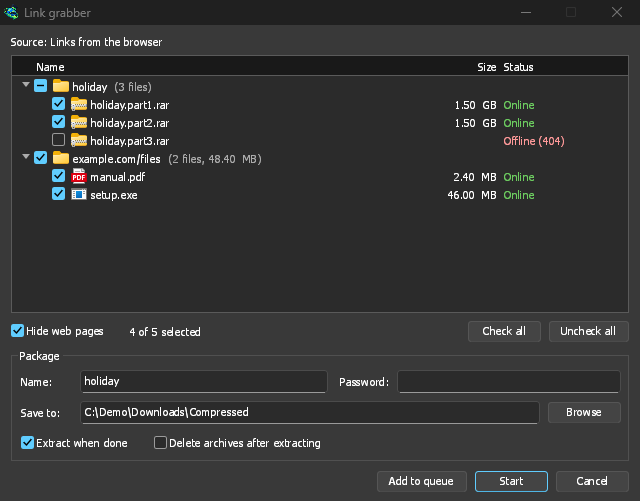
- Pick the file. Link grabber lists every web address GDM found in it, in packages.
- ألغ تحديد العناوين التي لا تريدها (تساعدك تحديد الكل وإلغاء تحديد الكل)، ثم انقر على إضافة إلى قائمة الانتظار.
تنضم التنزيلات إلى قائمة انتظار التنزيل الرئيسية، جاهزة للبدء (يبدأها بدء أيضا). تقرأ المهام → استيراد → من ملف تصدير IDM ملف .ef2، مع مرجع كل تنزيل وملفات تعريف الارتباط الخاصة به.
تفتح المهام → أداة التقاط الروابط... نفس النافذة فارغة: الصق نصا يحتوي على روابط (Ctrl+V). راجع أداة التقاط الروابط والأرشيفات للحصول على الحزم وكلمة مرور الأرشيف واستخراج الأرشيفات عند تنزيلها.
لحفظ قائمتك الخاصة، استخدم المهام ← تصدير ← إلى ملف نصي (عنوان واحد لكل سطر) أو إلى ملف تصدير IDM.
عندما يكون العنوان موجودا بالفعل في القائمة
By default GDM asks what to do when you add an address it already has. You can choose a fixed answer in Options → Downloads → If a duplicate download link is added:
- إظهار مربع حوار والسؤال عما يجب فعله.
- إضافة النسخة المكررة باسم ملف مرقم
- إضافة النسخة المكررة والكتابة فوق الملف الموجود
- إذا كان الملف الموجود كاملا، أظهر مربع حوار اكتمال التنزيل؛ وإلا فاستأنفه.
الخطوات التالية
- Send browser downloads to GDM →
- مشاهدة تنزيل في نافذة التقدم ←
- إضافة التنزيلات إلى قائمة الانتظار لوقت لاحق ←
مجاني، مفتوح المصدر، بدون إعلانات، بدون فترة تجريبية.
Download GolinksPRO Download Manager