

نافذة التقدم
لكل تنزيل قيد التشغيل نافذة تقدم خاصة به. تفتح عند بدء التنزيل؛ لإعادة فتحها، انقر نقرا مزدوجا فوق التنزيل في القائمة.
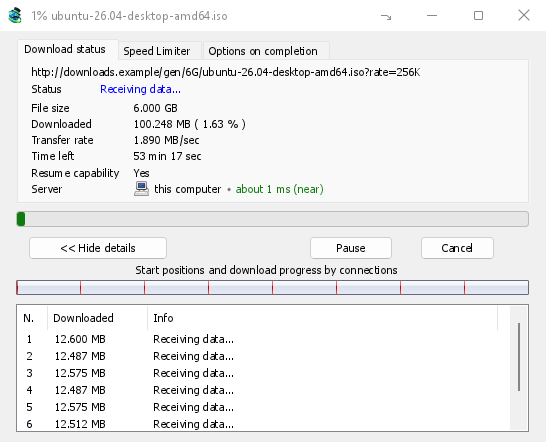
تعرض علامة التبويب حالة التنزيل ما يلي:
- الحالة — جار الاتصال...، جار استلام البيانات...، متوقف مؤقتا، مكتمل أو الخطأ.
- حجم الملف، تم التنزيل ومعدل النقل.
- الوقت المتبقي.
- Resume capability — Yes if the server lets GDM continue the download later, No if it doesn't.
- الخادم — مكان الخادم ومدى قربه. انظر أين يوجد الخادم.
إظهار التفاصيل >> (مفتوحة افتراضيا) تضيف عرض الاتصال:
- شريط للملف بأكمله، يوضح أين بدأ كل اتصال ومدى تقدمه (مواضع البدء وتقدم التنزيل حسب الاتصالات).
- جدول به صف واحد لكل اتصال: رقمه، مقدار ما تم تنزيله، وما يفعله الآن.
الأزرار:
- إيقاف مؤقت يوقف التنزيل ويحتفظ بما تم تنزيله؛ استئناف يتابعه.
- إلغاء الأمر يوقف التنزيل ويغلق النافذة. يبقى التنزيل في القائمة ويمكن استئنافه.
- إغلاق النافذة باستخدام زر الإغلاق الخاص بها يبقي التنزيل قيد التشغيل.
- يضع زر إخفاء إلى منطقة الإشعارات (شرطة قصيرة مع سهم لأسفل باتجاه الزاوية؛ في Windows في شريط العنوان، يسار تصغير) النافذة في منطقة الإشعارات؛ ويعيدها خيار التنزيلات الجارية في قائمة أيقونة علبة النظام. انظر أيقونة علبة النظام.
أين يوجد الخادم
تعرض نافذة معلومات ملف التنزيل ونافذة التقدم والخصائص مكان خادم التنزيل: علم بلده واسمه، ثم الوقت الذي تستغرقه رحلة ذهاب وعودة إليه، مثل حوالي 24 مللي ثانية (قريب).
- قريب (أخضر): أقل من 60 مللي ثانية، وعادة ما يكون في نفس البلد أو البلد المجاور.
- متوسط (كهرماني): من 60 إلى 150 مللي ثانية، وعادة ما يكون في نفس القارة.
- بعيد (أحمر): أكثر من 150 مللي ثانية، وعادة ما يكون في قارة أخرى. غالبا ما يكون الخادم البعيد أبطأ، وتساعده الاتصالات المتعددة أكثر.
مرر مؤشر الفأرة فوق السطر لمعرفة عنوان الخادم وكيف تم قياس الوقت.
How GDM knows:
- The country comes from a table of address ranges that comes with GDM (IP to Country Lite by DB-IP, CC BY 4.0), looked up on your computer. GDM never sends the address anywhere to ask where it is. The table is updated with each release; an address that has moved since may show its old country.
- The time is measured from the download's own connections, as each one opens: GDM sends nothing extra to the server. It is an estimate (the time to open a connection, divided by its round trips: one for http, two for https), so it says about. The quickest connection counts.
- يظهر الخادم الموجود على جهاز الكمبيوتر الخاص بك أو شبكتك المحلية على هذا النحو، بدون علم.
- Through a proxy, GDM only sees the proxy, so it says through a proxy (with the proxy's country when it knows it) instead of guessing the server's. A VPN that works at the system level can't be seen: the country is then the server's, but the time includes the VPN's detour.
- شبكة توصيل المحتوى (Cloudflare، Amazon CloudFront، Fastly، Akamai وغيرها) تقدم ملفا من خادم قريب منك، وليس من خادم مالك الموقع. تظهر تلميحة الأدوات ذلك: المكان هو خادم الشبكة، وليس مكان الموقع.
- Torrents, videos and galleries have no single server of GDM's own (peers, or yt-dlp's and gallery-dl's), so their windows don't show one.
تحتفظ الخصائص بما رأته آخر عملية تشغيل، لذلك لا يزال التنزيل المكتمل يظهر مصدره.
علامتا تبويب إضافيتان:
- محدد السرعة — حد لهذا التنزيل فقط. انظر أدناه.
- خيارات عند الاكتمال — تظهر مكان حفظ الملف. ألغ تحديد إظهار مربع حوار اكتمال التنزيل لتخطي مربع اكتمل التنزيل لهذا الملف فقط.
يخفي إخفاء علامة التبويب علامة تبويب من نافذة هذا التنزيل ويعود إلى حالة التنزيل. لإعادة علامات التبويب، انقر بزر الفأرة الأيمن على صف علامات التبويب واختر إظهار علامات التبويب المخفية؛ كما يؤدي إغلاق النافذة وفتحها مرة أخرى إلى إعادتها.
عند انتهاء التنزيل
اكتمل التنزيل يعرض حجم الملف وعنوانه ومكان حفظه. اختر فتح، فتح باستخدام...، فتح المجلد أو إغلاق. في Windows، يمكنك أيضا سحب المربع الصغير في أسفل اليمين إلى مستكشف الملفات، أو بريد إلكتروني، أو محادثة لإسقاط الملف هناك. تظهر النافذة فوق برامجك الأخرى حتى تنقر عليها، دون أن تسحب لوحة المفاتيح من البرنامج الذي تكتب فيه.
حدد عدم إظهار مربع الحوار هذا مرة أخرى لإيقاف رؤيته. يمكن إعادة تشغيله في الخيارات ← التنزيلات ← إظهار مربع حوار اكتمال التنزيل.
How GDM uses connections
GDM splits a file into parts and downloads them over several connections at once:
- يستخدم 8 اتصالات افتراضيا. يمكنك تعيين من 1 إلى 32 في الخيارات ← الاتصال ← الحد الأقصى الافتراضي لعدد الاتصالات، أو ما يصل إلى 128 بعد تحديد السماح بأكثر من 32 اتصالا هناك. تساعد الاتصالات الإضافية فقط عندما يرسل الخادم كل اتصال بسرعة محدودة ويسمح بهذا العدد من عنوان واحد؛ تسمح معظم الخوادم بعدد أقل بكثير.
- عندما ينهي اتصال جزءه، فإنه يتولى نصف أكبر جزء متبق، بحيث لا يبقى أي اتصال خاملا بينما لا يزال اتصال آخر يعمل.
- يتم إسقاط الاتصال الأبطأ بكثير من الآخرين وإعادة فتحه.
- Some servers allow only a few connections. GDM notices this and stops asking that server for more. What it has learned shows in Options → Connection under Exceptions, marked (auto).
- يمكنك تعيين رقم لخادم بنفسك: الخيارات ← الاتصال ← جديد، ثم اكتب اسم الخادم وعدد الاتصالات.
Each connection writes straight into the file's place on disk, in a part file named <name>.mdm.part next to the final file. When every part is done, GDM checks the size and renames it. There is no temporary folder and no joining step at the end.
الاستئناف
A download resumes where it stopped: after you stop it, after the connection drops, or after Windows or GDM crashes. GDM saves how far each part has got as it goes.
- يعيد GDM محاولة الاتصال تلقائيا إذا فشل. يعرض جدول نافذة التقدم إعادة المحاولة وسببها.
- لمتابعة تنزيل متوقف، حدده وانقر على استئناف في شريط الأدوات (أو ملف → تنزيل الآن).
- Before continuing, GDM checks that the file on the server is still the same. If it changed, the download stops with the file changed on the server. Use Redownload to start again from the beginning.
- If Resume capability is No, the server can't send a file in parts. GDM then downloads it over one connection, and a download that stops has to start over.
استئناف تنزيل معطل يشمل الروابط منتهية الصلاحية أيضا.
عبر VPN الخاص بك فقط: محول الشبكة ومفتاح الإيقاف الخاص به
Options → Proxy / Socks → Network adapter holds every connection GDM opens to one network adapter, usually your VPN's: downloads, FTP, torrents, video pages and galleries, GDM's own downloads and the update check. It works as a kill switch: when the adapter disconnects, or the VPN is switched off, nothing goes out through your normal connection. Running downloads stop with … is not connected, and start again by themselves when the adapter is back. The line under the list shows the adapter's address, or that it isn't connected. Details in Options → Proxy / Socks and, for torrents, in Torrents and your security.
نظام أسماء النطاقات (DNS)
Options → Connection → DNS chooses who turns the servers' names into addresses: the system's DNS (the default), or an encrypted one (DNS over HTTPS or TLS) such as Cloudflare, Google, Quad9, AdGuard, NextDNS or your own. With a network adapter chosen, GDM asks it through the adapter, so the names stay inside your VPN too. See Options → Connection.
محدد السرعة
The Speed Limiter keeps GDM from using all of your connection.
لكل تنزيل
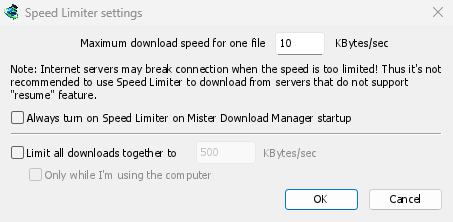
- اختر التنزيلات → محدد السرعة → الإعدادات....
- اضبط أقصى سرعة تنزيل لملف واحد بالكيلوبايت/ثانية. تبدأ من 10، لذا اضبطها قبل تشغيل المحدد.
- انقر على موافق.
- اختر التنزيلات → محدد السرعة → تشغيل. إيقاف التشغيل يعيد السرعة الكاملة.
Always turn on Speed Limiter on GolinksPRO Download Manager startup turns it on each time GDM starts.
يحسب التورنت كملف واحد هنا: كل تورنت يحصل على حده الخاص. التنزيل الذي له حد خاص به (انظر لتنزيل واحد) يحتفظ بهذا الحد.
لجميع التنزيلات معا
In the same window, tick Limit all downloads together to and set the speed. This caps GDM as a whole, however many files are downloading, torrents included. When torrents and other downloads run at the same time, each side gets at least half of the speed, and more when the other side needs less: a torrent going slowly leaves the rest to the other downloads, and the other way round. It applies whenever it is ticked, whether the per-file limiter is on or off.
Tick Only while I'm using the computer to apply it only while you use the mouse or keyboard. After a minute without input, GDM goes back to full speed.
لتنزيل واحد
في نافذة تقدم التنزيل، افتح علامة التبويب محدد السرعة:
- ضع علامة في مربع استخدام محدد السرعة.
- اضبط أقصى سرعة تنزيل بالكيلوبايت/ثانية. يتم تطبيق الحد الجديد على الفور.
- Tick Remember Speed Limiter settings for this file on download stop/resume to keep this limit for the file: it applies again when you resume it later, even after restarting GDM.
بالنسبة إلى التورنت، ينطبق الحد على ذلك التورنت وحده، وتبقى حدود التورنتات الأخرى كما هي. لا يمكن خفض حد التورنت عن 16 كيلوبايت/ثانية؛ فإذا حددت حدا أقل، فسيصبح 16.
تقطع بعض الخوادم الاتصال عندما تكون السرعة منخفضة جدا. تجنب وضع حد منخفض جدا للخوادم التي لا تدعم المتابعة (إمكانية المتابعة: لا).
الخطوات التالية
مجاني، مفتوح المصدر، بدون إعلانات، بدون فترة تجريبية.
Download GolinksPRO Download Manager