

La finestra di avanzamento
Ogni download in corso ha la sua finestra di avanzamento. Si apre all'avvio del download; per riaprirla, fai doppio clic sul download nell'elenco.
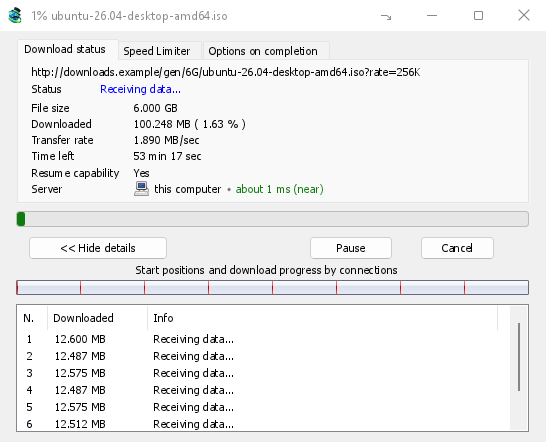
La scheda Stato del download mostra:
- Stato: Connessione in corso..., Ricezione dati..., In pausa, Completato o l'errore.
- Dimensione file, Scaricato e Velocità di trasferimento.
- Tempo rimanente.
- Resume capability — Yes if the server lets GDM continue the download later, No if it doesn't.
- Server: dove si trova il server e quanto è vicino. Vedi Dove si trova il server.
Mostra dettagli >> (aperto per impostazione predefinita) aggiunge la vista delle connessioni:
- Una barra dell'intero file, che mostra dove è iniziata ogni connessione e quanto è avanzata (Posizioni iniziali e avanzamento del download per connessione).
- Una tabella con una riga per connessione: il suo numero, quanto ha scaricato e cosa sta facendo in quel momento.
I pulsanti:
- Pausa ferma il download e mantiene ciò che ha; Riprendi lo continua.
- Annulla ferma il download e chiude la finestra. Il download rimane nell'elenco e può essere ripreso.
- Chiudendo la finestra con il suo pulsante di chiusura il download rimane in esecuzione.
- Il pulsante Nascondi nell'area di notifica (un trattino corto con una freccia in basso verso l'angolo; in Windows, nella barra del titolo, a sinistra di Riduci a icona) sposta la finestra nell'area di notifica; Download in corso nel menu dell'icona nell'area di notifica la riapre. Vedi L'icona nell'area di notifica.
Dove si trova il server
Informazioni sul file da scaricare, la finestra di avanzamento e Proprietà mostrano dove si trova il server di un download: la bandiera e il nome del suo paese, poi il tempo che impiega un viaggio di andata e ritorno, come circa 24 ms (vicino).
- Vicino (verde): meno di 60 ms, di solito lo stesso paese o quello adiacente.
- Medio (ambra): da 60 a 150 ms, di solito lo stesso continente.
- Lontano (rosso): oltre 150 ms, di solito un altro continente. Un server lontano è spesso più lento, e sono soprattutto questi server a trarre vantaggio da più connessioni.
Passa il puntatore sulla riga per vedere l'indirizzo del server e come è stato misurato il tempo.
How GDM knows:
- The country comes from a table of address ranges that comes with GDM (IP to Country Lite by DB-IP, CC BY 4.0), looked up on your computer. GDM never sends the address anywhere to ask where it is. The table is updated with each release; an address that has moved since may show its old country.
- The time is measured from the download's own connections, as each one opens: GDM sends nothing extra to the server. It is an estimate (the time to open a connection, divided by its round trips: one for http, two for https), so it says about. The quickest connection counts.
- Un server sul tuo computer o sulla tua rete locale viene mostrato come tale, senza bandiera.
- Through a proxy, GDM only sees the proxy, so it says through a proxy (with the proxy's country when it knows it) instead of guessing the server's. A VPN that works at the system level can't be seen: the country is then the server's, but the time includes the VPN's detour.
- Una rete di distribuzione di contenuti (Cloudflare, Amazon CloudFront, Fastly, Akamai e altri) serve un file da un server vicino a te, non da quello del proprietario del sito. La descrizione lo indica: il luogo è il server della rete, non dove si trova il sito.
- Torrents, videos and galleries have no single server of GDM's own (peers, or yt-dlp's and gallery-dl's), so their windows don't show one.
Proprietà conserva ciò che è stato visto nell'ultima esecuzione, quindi un download completato mostra ancora da dove proviene.
Altre due schede:
- Limitatore di velocità: un limite solo per questo download. Vedi sotto.
- Opzioni al termine: mostra dove verrà salvato il file. Deseleziona Mostra la finestra di download completato per saltare la finestra Download completato solo per questo file.
Il comando Nascondi scheda rimuove una scheda dalla finestra di questo download e torna a Stato del download. Per ripristinare le schede, fai clic destro sulla riga delle schede e scegli Mostra schede nascoste; anche chiudere la finestra e riaprirla le ripristina.
Quando un download termina
Download completato mostra la dimensione del file, il suo indirizzo e dove è stato salvato. Scegli Apri, Apri con..., Apri cartella o Chiudi. Su Windows puoi anche trascinare la piccola casella in basso a destra in Esplora file, in un'e-mail o in una chat per rilasciare il file lì. La finestra appare sopra gli altri programmi finché non fai clic su di essa, senza togliere lo stato attivo della tastiera al programma in cui stai digitando.
Seleziona Non mostrare più questa finestra per non vederla più. Può essere riattivata in Opzioni → Download → Mostra la finestra di download completato.
How GDM uses connections
GDM splits a file into parts and downloads them over several connections at once:
- Per impostazione predefinita, usa 8 connessioni. Puoi impostare da 1 a 32 in Opzioni → Connessione → N. max connessioni predefinito, o fino a 128 selezionando lì Consenti più di 32 connessioni. Più connessioni aiutano solo quando il server invia ciascuna a una velocità limitata e ne consente così tante da un singolo indirizzo; la maggior parte dei server ne consente molte meno.
- Quando una connessione termina la sua parte, prende in carico metà della parte più grande ancora rimanente, in modo che nessuna connessione rimanga inattiva mentre un'altra sta ancora lavorando.
- Una connessione molto più lenta delle altre viene interrotta e riaperta.
- Some servers allow only a few connections. GDM notices this and stops asking that server for more. What it has learned shows in Options → Connection under Exceptions, marked (auto).
- Puoi impostare tu un numero per un server: Opzioni → Connessione → Nuovo, poi digita il nome del server e il numero di connessioni.
Each connection writes straight into the file's place on disk, in a part file named <name>.mdm.part next to the final file. When every part is done, GDM checks the size and renames it. There is no temporary folder and no joining step at the end.
Ripresa
A download resumes where it stopped: after you stop it, after the connection drops, or after Windows or GDM crashes. GDM saves how far each part has got as it goes.
- Una connessione che non riesce viene riprovata automaticamente. La tabella della finestra di avanzamento mostra Nuovo tentativo e il motivo.
- Per continuare un download interrotto, selezionalo e fai clic su Riprendi nella barra degli strumenti (o File → Scarica ora).
- Before continuing, GDM checks that the file on the server is still the same. If it changed, the download stops with the file changed on the server. Use Redownload to start again from the beginning.
- If Resume capability is No, the server can't send a file in parts. GDM then downloads it over one connection, and a download that stops has to start over.
Riprendere un download interrotto vale anche per i collegamenti scaduti.
Solo tramite la tua VPN: la scheda di rete e il suo kill switch
Options → Proxy / Socks → Network adapter holds every connection GDM opens to one network adapter, usually your VPN's: downloads, FTP, torrents, video pages and galleries, GDM's own downloads and the update check. It works as a kill switch: when the adapter disconnects, or the VPN is switched off, nothing goes out through your normal connection. Running downloads stop with … is not connected, and start again by themselves when the adapter is back. The line under the list shows the adapter's address, or that it isn't connected. Details in Options → Proxy / Socks and, for torrents, in Torrents and your security.
Il DNS
Options → Connection → DNS chooses who turns the servers' names into addresses: the system's DNS (the default), or an encrypted one (DNS over HTTPS or TLS) such as Cloudflare, Google, Quad9, AdGuard, NextDNS or your own. With a network adapter chosen, GDM asks it through the adapter, so the names stay inside your VPN too. See Options → Connection.
Limitatore di velocità
The Speed Limiter keeps GDM from using all of your connection.
Per ogni download
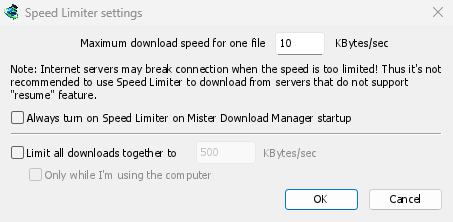
- Scegli Download → Limitatore di velocità → Impostazioni....
- Imposta la Velocità massima di download per un file in KB/sec. Inizia a 10, quindi impostala prima di attivare il limitatore.
- Fai clic su OK.
- Scegli Download → Limitatore di velocità → Attiva. Disattiva ripristina la piena velocità.
Always turn on Speed Limiter on GolinksPRO Download Manager startup turns it on each time GDM starts.
Qui un torrent conta come un file: ogni torrent ha il suo limite. Un download con un limite proprio (vedi Per un singolo download) mantiene quel limite.
Per tutti i download insieme
In the same window, tick Limit all downloads together to and set the speed. This caps GDM as a whole, however many files are downloading, torrents included. When torrents and other downloads run at the same time, each side gets at least half of the speed, and more when the other side needs less: a torrent going slowly leaves the rest to the other downloads, and the other way round. It applies whenever it is ticked, whether the per-file limiter is on or off.
Tick Only while I'm using the computer to apply it only while you use the mouse or keyboard. After a minute without input, GDM goes back to full speed.
Per un singolo download
Nella finestra di avanzamento del download, apri la scheda Limitatore di velocità:
- Seleziona Usa il limitatore di velocità.
- Imposta la Velocità massima di download in KB/sec. Il nuovo limite si applica immediatamente.
- Tick Remember Speed Limiter settings for this file on download stop/resume to keep this limit for the file: it applies again when you resume it later, even after restarting GDM.
Per un torrent, il limite si applica solo a quel torrent; gli altri mantengono il proprio. La velocità di un torrent non può essere limitata a meno di 16 KB/sec: se imposti un limite inferiore, la velocità sarà di 16 KB/sec.
Alcuni server interrompono la connessione quando la velocità è molto bassa. Evita di impostare un limite troppo basso per i server che non supportano la ripresa (Ripresa supportata: No).
Passi successivi
- Mantenere un po' di velocità per tutto il resto →
- Riprendere un download interrotto →
- Impostazioni di connessione in Opzioni →
Gratuito, open source, senza pubblicità, senza periodo di prova.
Download GolinksPRO Download Manager