

प्रगति विंडो
प्रत्येक चल रहे डाउनलोड की अपनी प्रगति विंडो होती है। यह डाउनलोड शुरू होने पर खुलती है; इसे फिर से खोलने के लिए, सूची में डाउनलोड पर डबल-क्लिक करें।
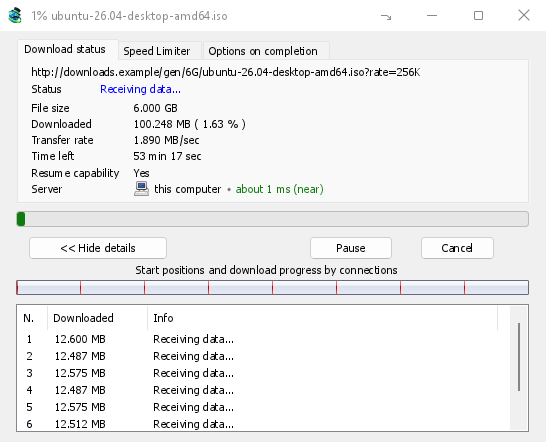
डाउनलोड स्थिति टैब दिखाता है:
- स्थिति — कनेक्ट किया जा रहा है..., डेटा प्राप्त हो रहा है..., रोका गया, पूर्ण या त्रुटि।
- फ़ाइल का आकार, डाउनलोड किया गया और स्थानांतरण दर।
- शेष समय।
- Resume capability — Yes if the server lets GDM continue the download later, No if it doesn't.
- सर्वर — सर्वर कहाँ है, और कितना पास है। सर्वर कहाँ है देखें।
विवरण दिखाएँ >> (डिफ़ॉल्ट रूप से खुला) कनेक्शन दृश्य जोड़ता है:
- पूरी फ़ाइल की एक पट्टी, यह दिखाते हुए कि प्रत्येक कनेक्शन कहाँ से शुरू हुआ और वह कितनी दूर तक पहुँचा (कनेक्शन द्वारा प्रारंभ स्थिति और डाउनलोड प्रगति)।
- प्रत्येक कनेक्शन के लिए एक पंक्ति वाली एक तालिका: उसकी संख्या, उसने कितना डाउनलोड किया है, और वह अभी क्या कर रहा है।
बटन:
- रोकें डाउनलोड को रोकता है और जो कुछ भी है उसे रखता है; फिर से शुरू करें इसे जारी रखता है।
- रद्द करें डाउनलोड को रोकता है और विंडो को बंद कर देता है। डाउनलोड सूची में रहता है और इसे फिर से शुरू किया जा सकता है।
- विंडो को उसके बंद बॉक्स से बंद करने पर डाउनलोड चलता रहता है।
- सूचना क्षेत्र में छिपाएँ (शीर्षक पट्टी में, छोटा करें के बाईं ओर एक तीर के साथ एक छोटा डैश; Windows पर) विंडो को सूचना क्षेत्र में रखता है; ट्रे आइकन के मेनू में प्रगति में डाउनलोड इसे वापस लाता है। ट्रे आइकन देखें।
सर्वर कहाँ है
फ़ाइल जानकारी डाउनलोड करें, प्रगति विंडो और गुण दिखाते हैं कि डाउनलोड का सर्वर कहाँ है: उसके देश का झंडा और नाम, फिर वहाँ तक जाने-आने में लगने वाला समय, जैसे लगभग 24 ms (पास)।
- पास (हरा): 60 ms से कम, आमतौर पर वही देश या अगला देश।
- मध्यम (एम्बर): 60 से 150 ms, आमतौर पर वही महाद्वीप।
- दूर (लाल): 150 ms से ज़्यादा, आमतौर पर दूसरा महाद्वीप। एक दूर का सर्वर अक्सर धीमा होता है, और ज़्यादा कनेक्शन इसमें सबसे ज़्यादा मदद करते हैं।
सर्वर का पता और समय कैसे मापा गया, यह देखने के लिए लाइन पर होवर करें।
How GDM knows:
- The country comes from a table of address ranges that comes with GDM (IP to Country Lite by DB-IP, CC BY 4.0), looked up on your computer. GDM never sends the address anywhere to ask where it is. The table is updated with each release; an address that has moved since may show its old country.
- The time is measured from the download's own connections, as each one opens: GDM sends nothing extra to the server. It is an estimate (the time to open a connection, divided by its round trips: one for http, two for https), so it says about. The quickest connection counts.
- आपके कंप्यूटर या आपके स्थानीय नेटवर्क पर एक सर्वर बिना किसी झंडे के ऐसा ही दिखाता है।
- Through a proxy, GDM only sees the proxy, so it says through a proxy (with the proxy's country when it knows it) instead of guessing the server's. A VPN that works at the system level can't be seen: the country is then the server's, but the time includes the VPN's detour.
- एक सामग्री वितरण नेटवर्क (Cloudflare, Amazon CloudFront, Fastly, Akamai और अन्य) आपके पास के सर्वर से एक फ़ाइल प्रदान करता है, न कि साइट मालिक के सर्वर से। टूलटिप ऐसा कहता है: स्थान नेटवर्क का सर्वर है, न कि जहाँ साइट है।
- Torrents, videos and galleries have no single server of GDM's own (peers, or yt-dlp's and gallery-dl's), so their windows don't show one.
गुण वह रखता है जो पिछली बार देखा गया था, इसलिए एक पूरा हुआ डाउनलोड अभी भी दिखाता है कि वह कहाँ से आया था।
दो और टैब:
- गति सीमित करने वाला — केवल इस डाउनलोड के लिए एक सीमा। नीचे देखें।
- पूरा होने पर विकल्प — दिखाता है कि फ़ाइल कहाँ सहेजी जाएगी। केवल इस फ़ाइल के लिए डाउनलोड पूर्ण संवाद दिखाएँ का निशान हटाएँ, ताकि डाउनलोड पूरा वाला बॉक्स न दिखे।
टैब छुपाएँ इस डाउनलोड की विंडो से एक टैब हटा देता है और डाउनलोड स्थिति पर वापस चला जाता है। टैब वापस लाने के लिए, टैब पंक्ति पर राइट-क्लिक करें और छिपे हुए टैब दिखाएँ चुनें; विंडो को बंद करके फिर से खोलने से भी वे वापस आ जाते हैं।
जब कोई डाउनलोड समाप्त होता है
डाउनलोड पूरा फ़ाइल का आकार, उसका पता और सहेजने की जगह दिखाता है। खोलें, इसके साथ खोलें..., फ़ोल्डर खोलें या बंद करें चुनें। Windows पर आप नीचे दाईं ओर के छोटे बॉक्स को Explorer, ईमेल या चैट में खींचकर फ़ाइल वहाँ छोड़ भी सकते हैं। यह विंडो आपके दूसरे प्रोग्रामों के ऊपर तब तक दिखाई देती है, जब तक आप इस पर क्लिक नहीं करते। यह उस प्रोग्राम से कीबोर्ड का नियंत्रण नहीं लेती जिसमें आप टाइप कर रहे हैं।
यह संवाद फिर से न देखने के लिए यह संवाद फिर से न दिखाएँ पर निशान लगाएँ। इसे विकल्प → डाउनलोड → डाउनलोड पूर्ण संवाद दिखाएँ में फिर से चालू किया जा सकता है।
How GDM uses connections
GDM splits a file into parts and downloads them over several connections at once:
- डिफ़ॉल्ट रूप से यह 8 कनेक्शन का उपयोग करता है। आप विकल्प → कनेक्शन → डिफ़ॉल्ट अधिकतम कनेक्शन संख्या में 1 से 32 तक की संख्या सेट कर सकते हैं। वहाँ 32 से अधिक कनेक्शन की अनुमति दें पर निशान लगाने के बाद 128 तक की संख्या सेट कर सकते हैं। अधिक कनेक्शन तभी मददगार होते हैं, जब सर्वर हर कनेक्शन की गति सीमित करता हो और एक पते से इतने कनेक्शन की अनुमति देता हो। ज़्यादातर सर्वर इससे बहुत कम कनेक्शन की अनुमति देते हैं।
- जब कोई कनेक्शन अपना भाग पूरा कर लेता है, तो वह बाकी बचे सबसे बड़े भाग का आधा हिस्सा ले लेता है। इससे कोई कनेक्शन खाली नहीं बैठता, जबकि दूसरा काम कर रहा हो।
- दूसरों से बहुत धीमे कनेक्शन को बंद करके फिर से खोला जाता है।
- Some servers allow only a few connections. GDM notices this and stops asking that server for more. What it has learned shows in Options → Connection under Exceptions, marked (auto).
- आप किसी सर्वर के लिए खुद कनेक्शन की संख्या सेट कर सकते हैं: विकल्प → कनेक्शन → नया चुनें, फिर सर्वर का नाम और कनेक्शन की संख्या लिखें।
Each connection writes straight into the file's place on disk, in a part file named <name>.mdm.part next to the final file. When every part is done, GDM checks the size and renames it. There is no temporary folder and no joining step at the end.
फिर से शुरू करना
A download resumes where it stopped: after you stop it, after the connection drops, or after Windows or GDM crashes. GDM saves how far each part has got as it goes.
- कनेक्शन विफल होने पर फिर से कोशिश की जाती है। प्रगति विंडो की तालिका में फिर से कोशिश जारी है और उसका कारण दिखता है।
- रुका हुआ डाउनलोड जारी रखने के लिए उसे चुनें और टूलबार में फिर से शुरू करें पर क्लिक करें (या फ़ाइल → अभी डाउनलोड करें चुनें)।
- Before continuing, GDM checks that the file on the server is still the same. If it changed, the download stops with the file changed on the server. Use Redownload to start again from the beginning.
- If Resume capability is No, the server can't send a file in parts. GDM then downloads it over one connection, and a download that stops has to start over.
रुका हुआ डाउनलोड फिर से शुरू करें में समय-सीमा समाप्त हो चुके लिंक भी शामिल हैं।
केवल आपके VPN के माध्यम से: नेटवर्क एडाप्टर और उसका किल स्विच
Options → Proxy / Socks → Network adapter holds every connection GDM opens to one network adapter, usually your VPN's: downloads, FTP, torrents, video pages and galleries, GDM's own downloads and the update check. It works as a kill switch: when the adapter disconnects, or the VPN is switched off, nothing goes out through your normal connection. Running downloads stop with … is not connected, and start again by themselves when the adapter is back. The line under the list shows the adapter's address, or that it isn't connected. Details in Options → Proxy / Socks and, for torrents, in Torrents and your security.
DNS
Options → Connection → DNS chooses who turns the servers' names into addresses: the system's DNS (the default), or an encrypted one (DNS over HTTPS or TLS) such as Cloudflare, Google, Quad9, AdGuard, NextDNS or your own. With a network adapter chosen, GDM asks it through the adapter, so the names stay inside your VPN too. See Options → Connection.
गति सीमित करने वाला
The Speed Limiter keeps GDM from using all of your connection.
हर डाउनलोड के लिए
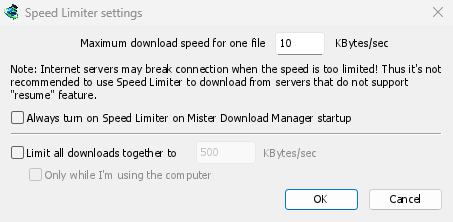
- डाउनलोड → गति सीमित करने वाला → सेटिंग्स... चुनें।
- एक फ़ाइल के लिए अधिकतम डाउनलोड गति KB/सेकंड में सेट करें। इसकी शुरुआती संख्या 10 है, इसलिए गति सीमित करने वाला चालू करने से पहले इसे सेट करें।
- ठीक है पर क्लिक करें।
- डाउनलोड → गति सीमित करने वाला → चालू करें चुनें। बंद करें चुनने पर पूरी गति फिर से मिलती है।
Always turn on Speed Limiter on GolinksPRO Download Manager startup turns it on each time GDM starts.
यहाँ टोरेंट को एक फ़ाइल माना जाता है: हर टोरेंट की अपनी गति सीमा होती है। जिस डाउनलोड की अपनी गति सीमा है (एक डाउनलोड के लिए देखें), उसकी वही सीमा बनी रहती है।
सभी डाउनलोड के लिए एक साथ
In the same window, tick Limit all downloads together to and set the speed. This caps GDM as a whole, however many files are downloading, torrents included. When torrents and other downloads run at the same time, each side gets at least half of the speed, and more when the other side needs less: a torrent going slowly leaves the rest to the other downloads, and the other way round. It applies whenever it is ticked, whether the per-file limiter is on or off.
Tick Only while I'm using the computer to apply it only while you use the mouse or keyboard. After a minute without input, GDM goes back to full speed.
एक डाउनलोड के लिए
डाउनलोड की प्रगति विंडो में, गति सीमित करने वाला टैब खोलें:
- स्पीड लिमिटर का उपयोग करें पर टिक करें।
- KB/सेकंड में अधिकतम डाउनलोड गति सेट करें। नई सीमा तुरंत लागू होती है।
- Tick Remember Speed Limiter settings for this file on download stop/resume to keep this limit for the file: it applies again when you resume it later, even after restarting GDM.
टोरेंट के लिए, सीमा केवल उसी टोरेंट पर लागू होती है; बाकी डाउनलोड की सीमाएँ वही रहती हैं। टोरेंट की गति 16 KB/सेकंड से कम नहीं की जा सकती: इससे कम सीमा सेट करने पर भी इसकी गति 16 KB/सेकंड रहती है।
कुछ सर्वर गति बहुत कम होने पर कनेक्शन तोड़ देते हैं। जिन सर्वर पर डाउनलोड फिर से शुरू नहीं किया जा सकता (फिर से शुरू करने की क्षमता: नहीं), उनके लिए बहुत कम सीमा न रखें।
अगले चरण
मुफ़्त, ओपन सोर्स, कोई विज्ञापन नहीं, कोई ट्रायल नहीं।
Download GolinksPRO Download Manager