

İlerleme penceresi
Her çalışan indirme işleminin kendi ilerleme penceresi vardır. İndirme başladığında açılır; tekrar açmak için listedeki indirme işlemine çift tıklayın.
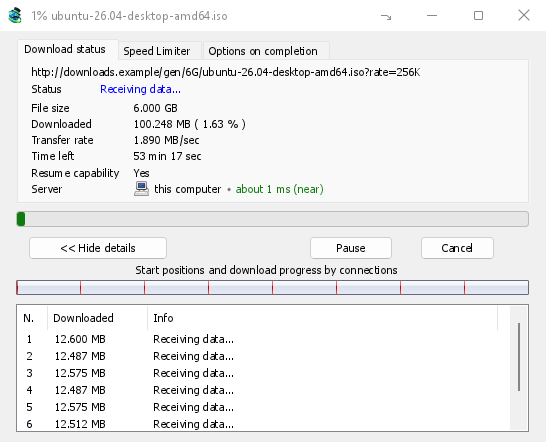
İndirme durumu sekmesi şunları gösterir:
- Durum — Bağlanılıyor..., Veri alınıyor..., Duraklatıldı, Tamamlandı veya hata.
- Dosya boyutu, İndirilen ve Aktarım hızı.
- Kalan süre.
- Resume capability — Yes if the server lets GDM continue the download later, No if it doesn't.
- Sunucu — sunucunun konumu ve yakınlığı. Bkz. Sunucunun konumu.
Detayları göster >> (varsayılan olarak açık) bağlantı görünümünü ekler:
- Her bağlantının nerede başladığını ve ne kadar ilerlediğini gösteren tüm dosyanın bir çubuğu (Bağlantılara göre başlangıç konumları ve indirme ilerlemesi).
- Her bağlantı için bir satır içeren bir tablo: bağlantı numarası, ne kadar indirdiği ve şu anda ne yaptığı.
Düğmeler:
- Duraklat indirmeyi durdurur ve indirileni korur; Sürdür devam ettirir.
- İptal indirmeyi durdurur ve pencereyi kapatır. İndirme listede kalır ve sürdürülebilir.
- Pencereyi kapatma kutusuyla kapatmak, indirme işleminin çalışmaya devam etmesini sağlar.
- Hide to the notification area (a short dash with an arrow down to the corner; on Windows in the title bar, left of Minimize) puts the window in the notification area; Downloads in progress in the tray icon's menu brings it back. See The tray icon.
Sunucunun konumu
Dosya Bilgilerini İndir, ilerleme penceresi ve Özellikler bir indirme sunucusunun nerede olduğunu gösterir: ülkesinin bayrağı ve adı, ardından sunucuya gidiş dönüş süresi, örneğin yaklaşık 24 ms (yakın).
- Yakın (yeşil): 60 ms altında, genellikle aynı ülke veya komşu ülke.
- Orta (kehribar): 60 ila 150 ms, genellikle aynı kıta.
- Uzak (kırmızı): 150 ms üzerinde, genellikle başka bir kıta. Uzak bir sunucu genellikle daha yavaştır ve daha fazla bağlantı en çok ona yardımcı olur.
Sunucunun adresini ve sürenin nasıl ölçüldüğünü görmek için çizginin üzerine gelin.
How GDM knows:
- The country comes from a table of address ranges that comes with GDM (IP to Country Lite by DB-IP, CC BY 4.0), looked up on your computer. GDM never sends the address anywhere to ask where it is. The table is updated with each release; an address that has moved since may show its old country.
- The time is measured from the download's own connections, as each one opens: GDM sends nothing extra to the server. It is an estimate (the time to open a connection, divided by its round trips: one for http, two for https), so it says about. The quickest connection counts.
- Bilgisayarınızdaki veya yerel ağınızdaki bir sunucu bu şekilde, bayraksız olarak gösterilir.
- Through a proxy, GDM only sees the proxy, so it says through a proxy (with the proxy's country when it knows it) instead of guessing the server's. A VPN that works at the system level can't be seen: the country is then the server's, but the time includes the VPN's detour.
- Bir içerik dağıtım ağı (Cloudflare, Amazon CloudFront, Fastly, Akamai ve diğerleri) bir dosyayı site sahibinin sunucusundan değil, size yakın bir sunucudan sunar. Araç ipucu bunu belirtir: konum, sitenin olduğu yer değil, ağın sunucusudur.
- Torrents, videos and galleries have no single server of GDM's own (peers, or yt-dlp's and gallery-dl's), so their windows don't show one.
Özellikler son çalıştırmanın gördüklerini saklar, böylece tamamlanmış bir indirme hala nereden geldiğini gösterir.
İki sekme daha:
- Hız Sınırlayıcı — sadece bu indirme için bir sınır. Aşağıya bakın.
- Tamamlandığında seçenekler — dosyanın nereye kaydedileceğini gösterir. Sadece bu dosya için İndirme tamamlandı kutusunu atlamak için İndirme tamamlandı iletişim kutusunu göster seçeneğinin işaretini kaldırın.
Sekmeyi gizle bir sekmeyi bu indirme penceresinden kaldırır ve İndirme durumu sekmesine geri döner. Sekmeleri geri getirmek için sekme satırına sağ tıklayın ve Gizli sekmeleri göster seçeneğini belirleyin; pencereyi kapatıp tekrar açmak da onları geri getirir.
İndirme tamamlandığında
İndirme tamamlandı penceresi dosyanın boyutunu, adresini ve kaydedildiği yeri gösterir. Aç, Birlikte aç..., Klasörü aç veya Kapat seçeneklerinden birini belirleyin. Windows'ta, sağ alttaki küçük kutuyu Explorer'a, bir e-postaya veya sohbete sürükleyerek dosyayı oraya bırakabilirsiniz. Bu pencere, siz tıklayana kadar diğer programlarınızın üzerinde görünür ve yazdığınız programın klavyesini devralmaz.
Bu iletişim kutusunu bir daha görmemek için Bu iletişim kutusunu bir daha gösterme seçeneğini işaretleyin. Seçenekler → İndirilenler → İndirme tamamlandı iletişim kutusunu göster bölümünden tekrar açılabilir.
How GDM uses connections
GDM splits a file into parts and downloads them over several connections at once:
- Varsayılan olarak 8 bağlantı kullanır. Seçenekler → Bağlantı → Varsayılan maks. bağlantı sayısı bölümünde 1 ila 32 arasında ayarlayabilir veya 32'den fazla bağlantıya izin ver seçeneğini işaretledikten sonra 128'e kadar çıkarabilirsiniz. Daha fazla bağlantı, yalnızca sunucu her birini sınırlı bir hızda gönderdiğinde ve tek bir adresten bu kadar çok bağlantıya izin verdiğinde yardımcı olur; çoğu sunucu çok daha azına izin verir.
- Bir bağlantı kendi parçasını bitirdiğinde, kalan en büyük parçanın yarısını devralır, böylece başka bir bağlantı çalışırken hiçbir bağlantı boşta kalmaz.
- Diğerlerinden çok daha yavaş olan bir bağlantı kesilir ve tekrar açılır.
- Some servers allow only a few connections. GDM notices this and stops asking that server for more. What it has learned shows in Options → Connection under Exceptions, marked (auto).
- Bir sunucu için kendiniz bir sayı belirleyebilirsiniz: Seçenekler → Bağlantı → Yeni, ardından sunucunun adını ve bağlantı sayısını yazın.
Each connection writes straight into the file's place on disk, in a part file named <name>.mdm.part next to the final file. When every part is done, GDM checks the size and renames it. There is no temporary folder and no joining step at the end.
Sürdürme
A download resumes where it stopped: after you stop it, after the connection drops, or after Windows or GDM crashes. GDM saves how far each part has got as it goes.
- Başarısız olan bir bağlantı otomatik olarak yeniden denenir. İlerleme penceresindeki tablo Yeniden deneniyor ve nedeni gösterir.
- Durdurulmuş bir indirmeye devam etmek için onu seçin ve araç çubuğundaki Sürdür düğmesine (veya Dosya → Şimdi İndir) tıklayın.
- Before continuing, GDM checks that the file on the server is still the same. If it changed, the download stops with the file changed on the server. Use Redownload to start again from the beginning.
- If Resume capability is No, the server can't send a file in parts. GDM then downloads it over one connection, and a download that stops has to start over.
Kesintiye uğramış bir indirmeyi sürdür süresi dolmuş bağlantıları da kapsar.
Yalnızca VPN'iniz üzerinden: ağ bağdaştırıcısı ve bağlantı kesme anahtarı
Options → Proxy / Socks → Network adapter holds every connection GDM opens to one network adapter, usually your VPN's: downloads, FTP, torrents, video pages and galleries, GDM's own downloads and the update check. It works as a kill switch: when the adapter disconnects, or the VPN is switched off, nothing goes out through your normal connection. Running downloads stop with … is not connected, and start again by themselves when the adapter is back. The line under the list shows the adapter's address, or that it isn't connected. Details in Options → Proxy / Socks and, for torrents, in Torrents and your security.
DNS
Options → Connection → DNS chooses who turns the servers' names into addresses: the system's DNS (the default), or an encrypted one (DNS over HTTPS or TLS) such as Cloudflare, Google, Quad9, AdGuard, NextDNS or your own. With a network adapter chosen, GDM asks it through the adapter, so the names stay inside your VPN too. See Options → Connection.
Hız Sınırlayıcı
The Speed Limiter keeps GDM from using all of your connection.
Her indirme için
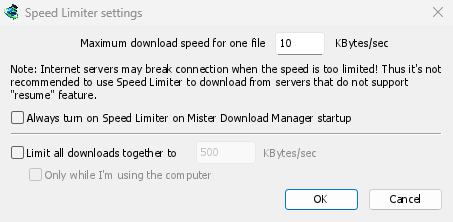
- İndirilenler → Hız Sınırlayıcı → Ayarlar... seçeneğini belirleyin.
- Tek bir dosya için maksimum indirme hızı değerini KB/sn cinsinden ayarlayın. Başlangıçta 10'dur, bu yüzden sınırlayıcıyı açmadan önce ayarlayın.
- Tamam'a tıklayın.
- İndirilenler → Hız Sınırlayıcı → Aç seçeneğini belirleyin. Kapat tekrar tam hız verir.
Always turn on Speed Limiter on GolinksPRO Download Manager startup turns it on each time GDM starts.
Burada bir torrent tek bir dosya sayılır: her torrent kendi limitini alır. Kendi limiti olan bir indirme (Tek bir indirme için bölümüne bakın) bu limiti korur.
Tüm indirmeler birlikte
In the same window, tick Limit all downloads together to and set the speed. This caps GDM as a whole, however many files are downloading, torrents included. When torrents and other downloads run at the same time, each side gets at least half of the speed, and more when the other side needs less: a torrent going slowly leaves the rest to the other downloads, and the other way round. It applies whenever it is ticked, whether the per-file limiter is on or off.
Tick Only while I'm using the computer to apply it only while you use the mouse or keyboard. After a minute without input, GDM goes back to full speed.
Tek bir indirme için
İndirmenin ilerleme penceresinde, Hız Sınırlayıcı sekmesini açın:
- Hız Sınırlayıcı kullan seçeneğini işaretleyin.
- Maksimum indirme hızı değerini KB/sn cinsinden ayarlayın. Yeni limit hemen uygulanır.
- Tick Remember Speed Limiter settings for this file on download stop/resume to keep this limit for the file: it applies again when you resume it later, even after restarting GDM.
Bir torrent için limit sadece o torrente aittir; diğerleri kendi limitlerini korur. Bir torrent 16 KB/sn'nin altında tutulamaz: daha düşük bir limit ona 16 verir.
Bazı sunucular hız çok düşük olduğunda bağlantıyı keser. Sürdürme özelliği olmayan sunucular için (Sürdürme özelliği: Hayır) sıkı bir limitten kaçının.
Sonraki adımlar
- Diğer her şey için biraz hız bırak →
- Kesintiye uğramış bir indirmeyi sürdür →
- Seçeneklerdeki bağlantı ayarları →
Ücretsiz, açık kaynak, reklamsız, deneme sürümü yok.
Download GolinksPRO Download Manager