

Set up the extension once, and every download link you click in Firefox, Chrome, Edge, Brave, Opera or Vivaldi goes to GDM.
Başlamadan önce
On Windows, GDM must be installed with the setup, with Set up browser integration (Chrome, Edge, Brave, Firefox) ticked. It is ticked by default. If you're not sure, run the setup again. A portable copy can't do this. On Linux and macOS, start GDM once: it sets browser integration up itself.
GDM's Add GolinksPRO Download Manager to your browser window, which opens at each start until a browser's extension has reached GDM, does the steps below for you: Add the extension opens the store's page in that browser.
Ayarladıktan sonra, indirme bağlantısı şöyle çalışır:
Click a download link in the browser: Download File Info opens in GDM. 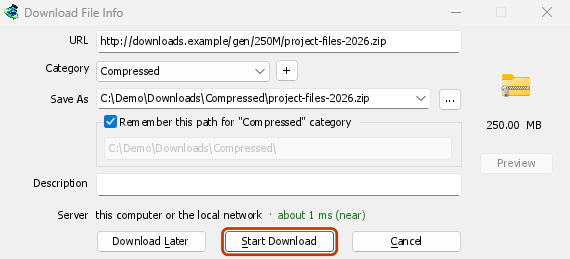
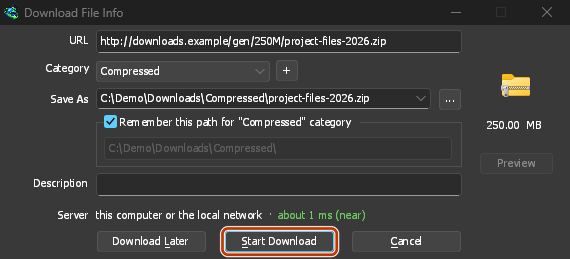
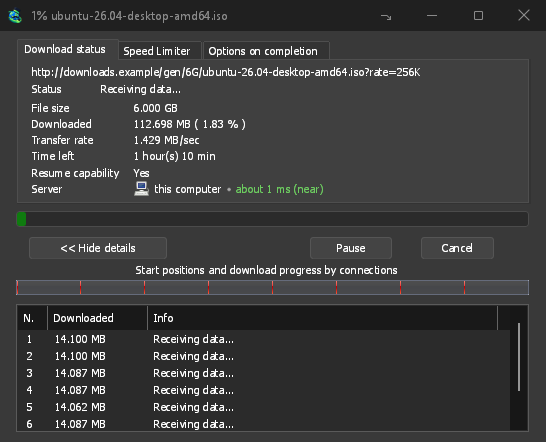
İndirmeyi Başlat: İlerleme penceresi, dosyanın indirildiğini gösterir. 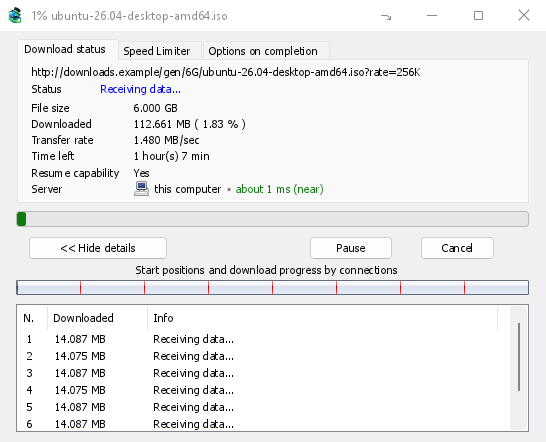
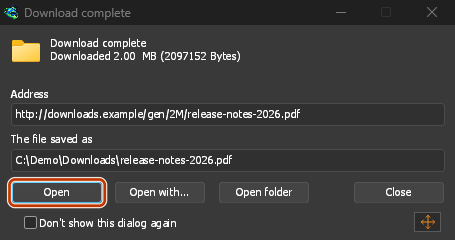
İndirme tamamlandı: Dosyayı açın veya Klasörü açın. 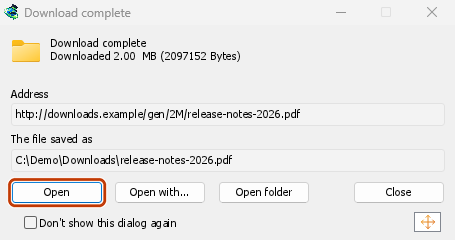
Firefox'ta
- Open the add-on's page on addons.mozilla.org, GolinksPRO Download Manager, and click Add to Firefox. Zen and LibreWolf use the same page.
- Firefox onaylamanızı ister: Ekle düğmesine tıklayın. Firefox eklentiyi güncel tutar.
- Go to a web page and click a download link, for example a ZIP or an EXE: GDM opens Download File Info. Click Start Download.
Chrome, Edge, Brave, Opera veya Vivaldi'de
- Open the extension's page in the Chrome Web Store, GolinksPRO Download Manager, and click Add to Chrome. In Edge the button is Get, and Edge first asks to Allow extensions from other stores: click Allow.
- Tarayıcı onaylamanızı ister: Uzantıyı ekle düğmesine tıklayın. Bu, uzantıyı güncel tutar.
- Go to a web page and click a download link, for example a ZIP or an EXE: GDM opens Download File Info. Click Start Download.
Mağaza olmadan
Bir tarayıcı mağazasını kullanamadığında (bir kuruluş tarafından yönetilen bir bilgisayar veya kendi derlemeniz), uzantıyı elle ekleyin:
- Tarayıcınızın uzantılar sayfasını açın: adres çubuğuna
chrome://extensions,edge://extensionsveyabrave://extensionsyazın. - Geliştirici modunu açın.
- Paketlenmemiş uzantıyı yükle’ye tıklayın.
- Choose the
extension\chromiumfolder inside GDM's folder. If you installed GDM for yourself, that is%LOCALAPPDATA%\Programs\GolinksPRO Download Manager\extension\chromium; you can paste that path into the folder box. - GolinksPRO Download Manager appears. Make sure it is turned on.
- Bir web sayfasına gidin ve bir indirme bağlantısına tıklayın, örneğin bir ZIP veya bir EXE.
- GDM opens Download File Info instead of the browser downloading the file. Click Start Download.
You don't need to start GDM first: if it isn't running, it starts by itself.
Choose what GDM takes
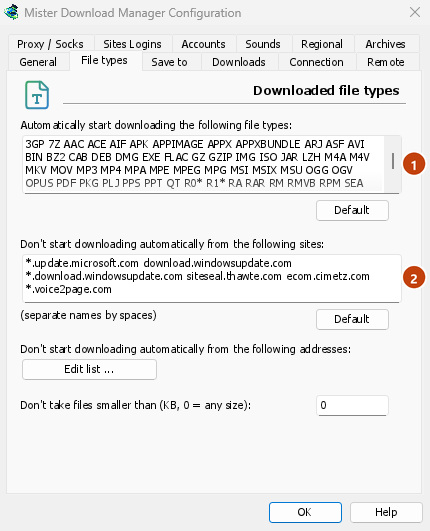
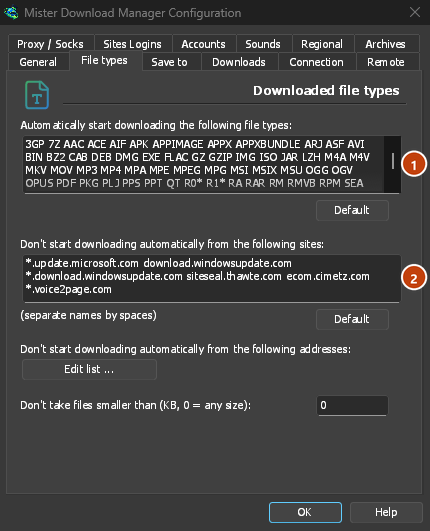
- Hangi dosya türleri: Seçenekler → Dosya türleri → Aşağıdaki dosya türlerini otomatik olarak indirmeye başla. Boşluklarla ayırarak türleri ekleyin veya kaldırın.
- Hariç tutulacak siteler: Seçenekler → Dosya türleri → Aşağıdaki sitelerden otomatik olarak indirmeye başlama. Sitenin adını ekleyin, örneğin
downloads.example.comveya*.example.com. - One browser only: Options → General → Capture downloads from the following browsers. Untick the ones GDM should leave alone.
Everything GDM doesn't take stays with the browser.
Tarayıcının açacağı bir bağlantıyı indirin
Links to a PDF or a video file, which the browser would open itself, go to GDM too when their type is listed. To leave one to the browser, hold Alt while clicking it (Firefox opens it; Chrome and Edge download it themselves). Any other link: right-click it and choose Download with GolinksPRO Download Manager, which takes any type.
Sonraki adımlar
- Tarayıcı tümleştirmesi ayrıntılı (Firefox, gizli pencereler, ne gönderilir) →
- Tarayıcı indirmeleri devretmiyorsa →
- Gece boyunca indir →
Ücretsiz, açık kaynak, reklamsız, deneme sürümü yok.
Download GolinksPRO Download Manager