

Set up the extension once, and every download link you click in Firefox, Chrome, Edge, Brave, Opera or Vivaldi goes to GDM.
Avant de commencer
On Windows, GDM must be installed with the setup, with Set up browser integration (Chrome, Edge, Brave, Firefox) ticked. It is ticked by default. If you're not sure, run the setup again. A portable copy can't do this. On Linux and macOS, start GDM once: it sets browser integration up itself.
GDM's Add GolinksPRO Download Manager to your browser window, which opens at each start until a browser's extension has reached GDM, does the steps below for you: Add the extension opens the store's page in that browser.
Une fois l’intégration configurée, un lien de téléchargement suit ce parcours :
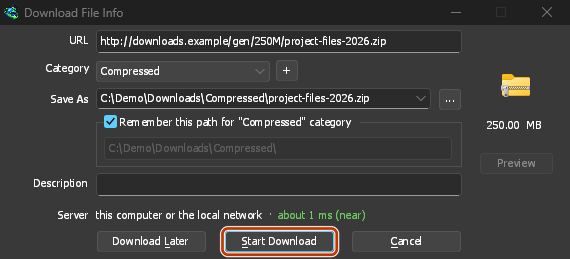
Click a download link in the browser: Download File Info opens in GDM. 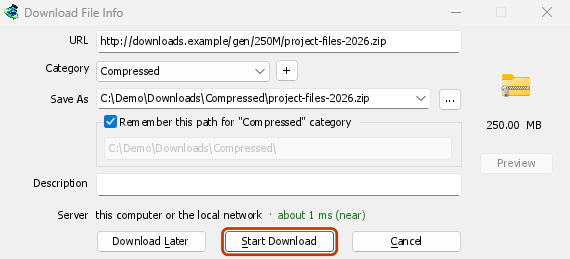
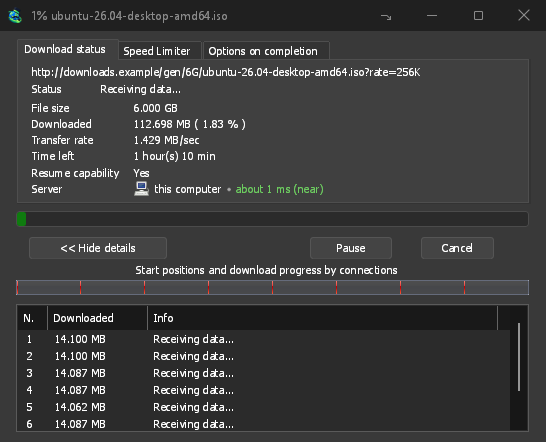
Démarrer le téléchargement : la fenêtre de progression montre le téléchargement en cours. 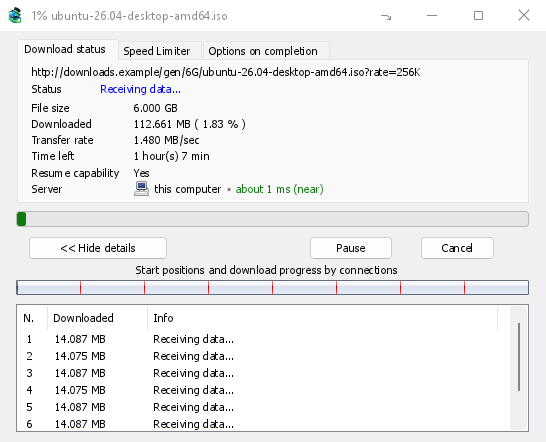
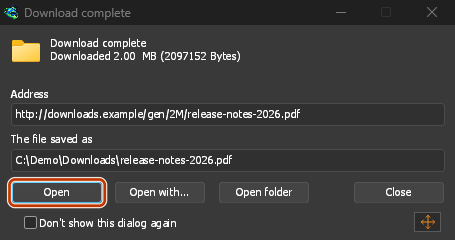
Téléchargement terminé : Ouvrir le fichier, ou Ouvrir le dossier. 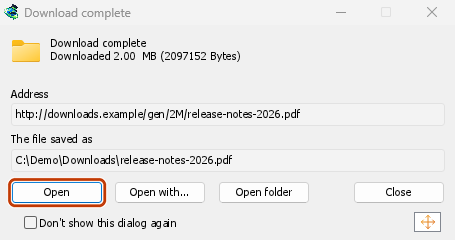
Dans Firefox
- Open the add-on's page on addons.mozilla.org, GolinksPRO Download Manager, and click Add to Firefox. Zen and LibreWolf use the same page.
- Firefox vous demande de confirmer l’ajout : cliquez sur Ajouter. Firefox met l’extension à jour automatiquement.
- Go to a web page and click a download link, for example a ZIP or an EXE: GDM opens Download File Info. Click Start Download.
Dans Chrome, Edge, Brave, Opera ou Vivaldi
- Open the extension's page in the Chrome Web Store, GolinksPRO Download Manager, and click Add to Chrome. In Edge the button is Get, and Edge first asks to Allow extensions from other stores: click Allow.
- Le navigateur vous demande de confirmer l’ajout : cliquez sur Ajouter l’extension. Il met l’extension à jour automatiquement.
- Go to a web page and click a download link, for example a ZIP or an EXE: GDM opens Download File Info. Click Start Download.
Sans passer par le magasin
Lorsqu'un navigateur ne peut pas utiliser son magasin (un ordinateur géré par une organisation, ou une version que vous avez compilée), ajoutez l'extension manuellement :
- Ouvrez la page des extensions de votre navigateur : saisissez
chrome://extensions,edge://extensionsoubrave://extensionsdans la barre d’adresse. - Activez le Mode développeur.
- Cliquez sur Charger l’extension non empaquetée.
- Choose the
extension\chromiumfolder inside GDM's folder. If you installed GDM for yourself, that is%LOCALAPPDATA%\Programs\GolinksPRO Download Manager\extension\chromium; you can paste that path into the folder box. - GolinksPRO Download Manager appears. Make sure it is turned on.
- Allez sur une page web et cliquez sur un lien de téléchargement, par exemple un ZIP ou un EXE.
- GDM opens Download File Info instead of the browser downloading the file. Click Start Download.
You don't need to start GDM first: if it isn't running, it starts by itself.
Choose what GDM takes
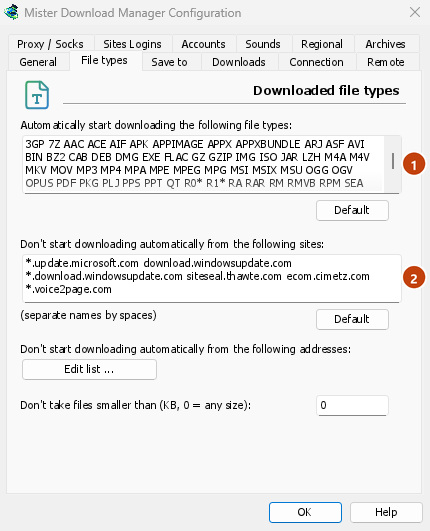
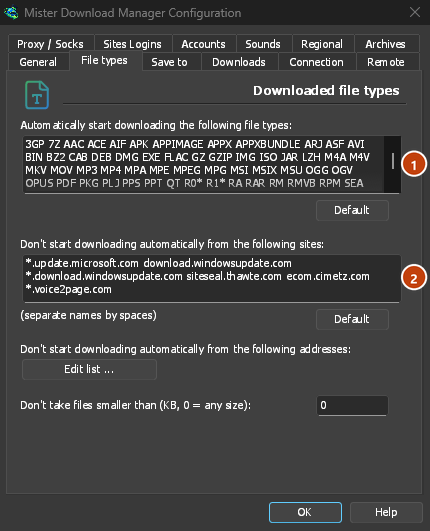
- Types de fichiers : Options → Types de fichiers → Démarrer automatiquement le téléchargement des types de fichiers suivants. Ajoutez ou supprimez des extensions, séparées par des espaces.
- Sites à ignorer : Options → Types de fichiers → Ne pas démarrer automatiquement le téléchargement depuis les sites suivants. Ajoutez le nom du site, par exemple
downloads.example.comou*.example.com. - One browser only: Options → General → Capture downloads from the following browsers. Untick the ones GDM should leave alone.
Everything GDM doesn't take stays with the browser.
Télécharger un lien que le navigateur ouvrirait
Links to a PDF or a video file, which the browser would open itself, go to GDM too when their type is listed. To leave one to the browser, hold Alt while clicking it (Firefox opens it; Chrome and Edge download it themselves). Any other link: right-click it and choose Download with GolinksPRO Download Manager, which takes any type.
Étapes suivantes
- Détails sur l’intégration du navigateur (Firefox, fenêtres privées, données envoyées) →
- Si le navigateur ne transmet pas les téléchargements →
- Télécharger pendant la nuit →
Gratuit, open source, sans publicité ni période d’essai.
Download GolinksPRO Download Manager