

Set up the extension once, and every download link you click in Firefox, Chrome, Edge, Brave, Opera or Vivaldi goes to GDM.
Zanim zaczniesz
On Windows, GDM must be installed with the setup, with Set up browser integration (Chrome, Edge, Brave, Firefox) ticked. It is ticked by default. If you're not sure, run the setup again. A portable copy can't do this. On Linux and macOS, start GDM once: it sets browser integration up itself.
GDM's Add GolinksPRO Download Manager to your browser window, which opens at each start until a browser's extension has reached GDM, does the steps below for you: Add the extension opens the store's page in that browser.
Po skonfigurowaniu link do pobierania działa następująco:
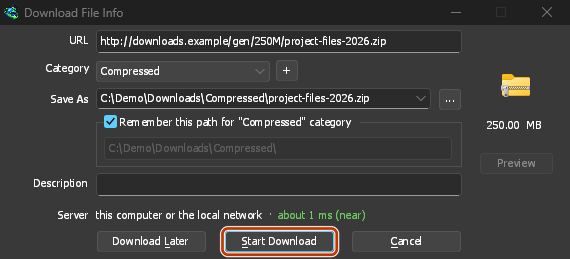
Click a download link in the browser: Download File Info opens in GDM. 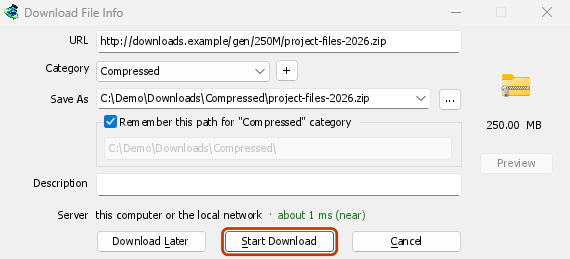
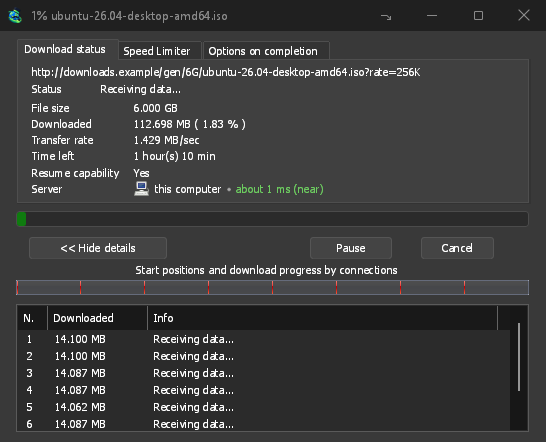
Rozpocznij pobieranie: okno postępu pokazuje, jak plik jest pobierany. 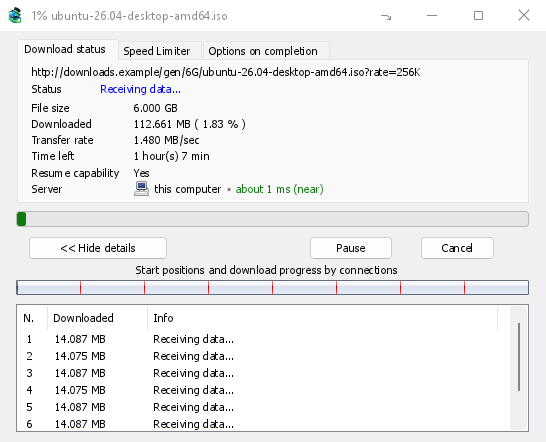
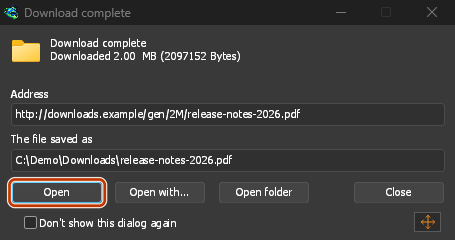
Pobieranie zakończone: Otwórz plik lub Otwórz folder. 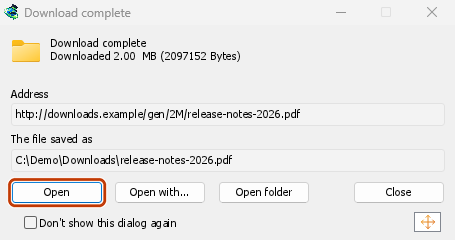
W Firefox
- Open the add-on's page on addons.mozilla.org, GolinksPRO Download Manager, and click Add to Firefox. Zen and LibreWolf use the same page.
- Firefox poprosi o potwierdzenie. Kliknij Dodaj. Firefox będzie automatycznie aktualizować dodatek.
- Go to a web page and click a download link, for example a ZIP or an EXE: GDM opens Download File Info. Click Start Download.
W Chrome, Edge, Brave, Opera lub Vivaldi
- Open the extension's page in the Chrome Web Store, GolinksPRO Download Manager, and click Add to Chrome. In Edge the button is Get, and Edge first asks to Allow extensions from other stores: click Allow.
- Przeglądarka poprosi o potwierdzenie. Kliknij Dodaj rozszerzenie. Przeglądarka będzie automatycznie aktualizować rozszerzenie.
- Go to a web page and click a download link, for example a ZIP or an EXE: GDM opens Download File Info. Click Start Download.
Bez sklepu
Jeśli przeglądarka nie może korzystać ze swojego sklepu (na przykład na komputerze zarządzanym przez organizację lub w samodzielnie skompilowanej wersji przeglądarki), dodaj rozszerzenie ręcznie:
- Otwórz stronę rozszerzeń przeglądarki: wpisz
chrome://extensions,edge://extensionslubbrave://extensionsw pasku adresu. - Włącz Tryb programisty.
- Kliknij Załaduj rozpakowane.
- Choose the
extension\chromiumfolder inside GDM's folder. If you installed GDM for yourself, that is%LOCALAPPDATA%\Programs\GolinksPRO Download Manager\extension\chromium; you can paste that path into the folder box. - GolinksPRO Download Manager appears. Make sure it is turned on.
- Przejdź na stronę internetową i kliknij link do pobrania, na przykład pliku ZIP lub EXE.
- GDM opens Download File Info instead of the browser downloading the file. Click Start Download.
You don't need to start GDM first: if it isn't running, it starts by itself.
Choose what GDM takes
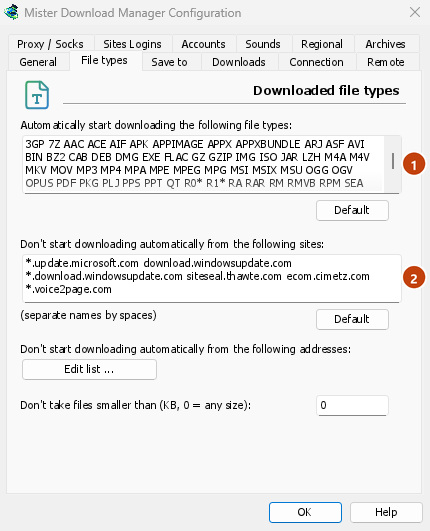
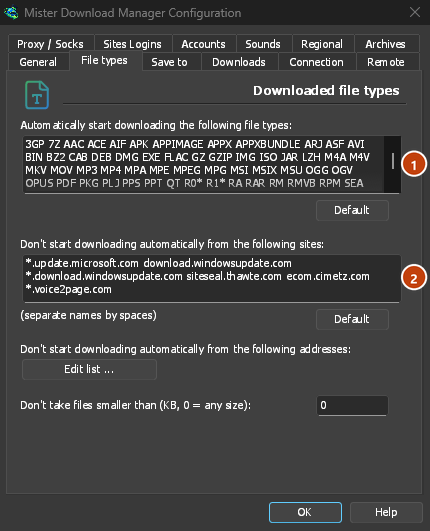
- Jakie typy plików: Opcje → Typy plików → Automatycznie rozpoczynaj pobieranie następujących typów plików. Dodaj lub usuń typy, oddzielone spacjami.
- Witryny do pominięcia: Opcje → Typy plików → Nie rozpoczynaj automatycznego pobierania z następujących witryn. Dodaj nazwę witryny, na przykład
downloads.example.comlub*.example.com. - One browser only: Options → General → Capture downloads from the following browsers. Untick the ones GDM should leave alone.
Everything GDM doesn't take stays with the browser.
Pobieranie linków otwieranych w przeglądarce
Links to a PDF or a video file, which the browser would open itself, go to GDM too when their type is listed. To leave one to the browser, hold Alt while clicking it (Firefox opens it; Chrome and Edge download it themselves). Any other link: right-click it and choose Download with GolinksPRO Download Manager, which takes any type.
Następne kroki
- Szczegółowe informacje o integracji z przeglądarką (Firefox, okna prywatne, wysyłane dane) →
- Jeśli przeglądarka nie przekazuje pobieranych plików →
- Pobieranie w nocy →
Darmowy, open source, bez reklam, bez wersji próbnej.
Download GolinksPRO Download Manager