

GDM runs on 64-bit Windows 10 and Windows 11, and on 64-bit Linux: see On Linux. Builds for macOS are new and still experimental: see On a Mac.
Wybierz plik do pobrania
Każda wersja znajduje się na stronie Wydania. Dla systemu Windows dostępne są trzy pliki:
| Plik | Co to jest |
|---|---|
MisterDownloadManager-<version>-setup.exe |
The installer. Pick this one unless you have a reason not to. It can set up browser integration and open .torrent files and magnet links with GDM. |
MisterDownloadManager-<version>-portable.zip |
Przenośna kopia. Lista pobierania i ustawienia pozostają w folderze data obok programu, a nic nie jest zapisywane w rejestrze. Integracja z przeglądarką wymaga instalatora. Zobacz Tryb przenośny. |
MisterDownloadManager-<version>-x64.zip |
Te same programy bez instalatora. Przechowuje swoje dane w %APPDATA%\misterdownloadmanager, tak jak zainstalowana kopia. |
W systemie Linux
GDM runs on 64-bit Linux with a desktop session. It is tested on Ubuntu 24.04, Debian 12 and
Fedora, with GNOME, KDE Plasma, Xfce and Cinnamon, on X11 and in Wayland sessions. Pick one
of these files (up to version 0.2.4, their names end in -experimental, as in
...-linux-x86_64-experimental.deb):
| Plik | Co to jest |
|---|---|
...-linux-x86_64.deb |
For Ubuntu, Debian, Mint and Pop!_OS: sudo apt install ./<file>.deb. It brings the libraries GDM needs. |
...-linux-x86_64.rpm |
For Fedora, openSUSE and RHEL: sudo dnf install ./<file>.rpm. It brings the libraries GDM needs. |
...-linux-x86_64.AppImage |
Działa na większości dystrybucji: nadaj mu uprawnienia do wykonania (chmod +x) i uruchom. Aktualizuje się w miejscu (Pomoc → Sprawdź aktualizacje). |
...-linux-x86_64.tar.gz |
Zwykłe programy, dla każdej dystrybucji. |
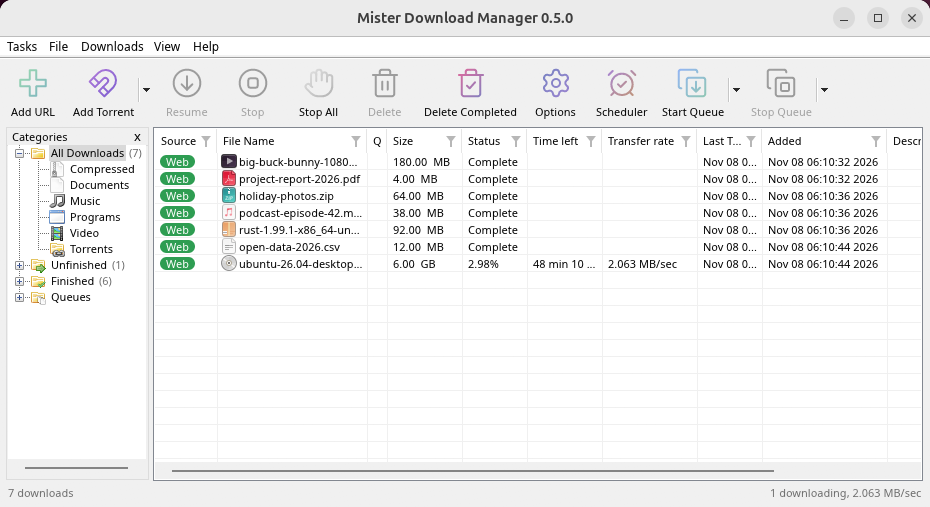
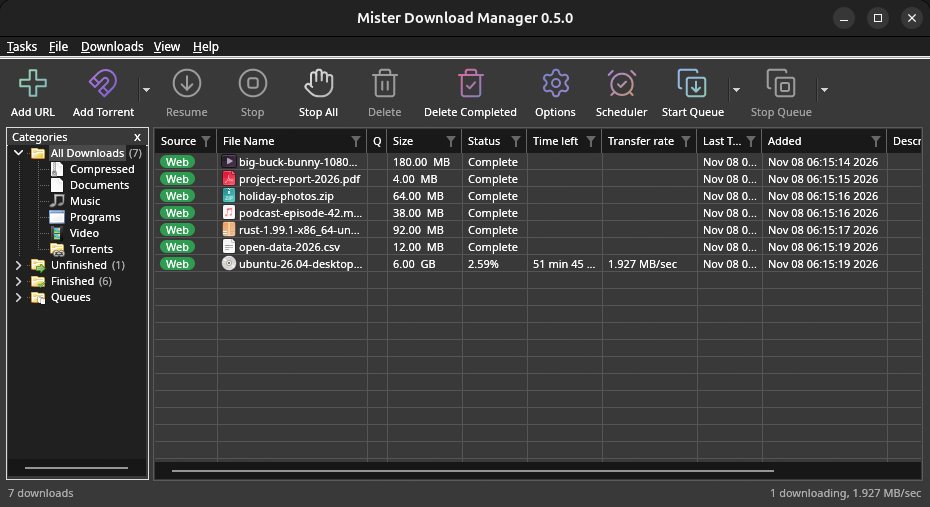
Browser integration is set up by GDM itself at each start (the browsers installed then are found); add the extension as in Browser integration. Firefox installed as a Snap (Ubuntu's) reaches GDM once you allow it; other Snap and Flatpak browsers can't (see Flatpak and Snap browsers). The tray icon, Dark Mode support and Launch on startup work on GNOME (Ubuntu's), KDE Plasma, Xfce and Cinnamon.
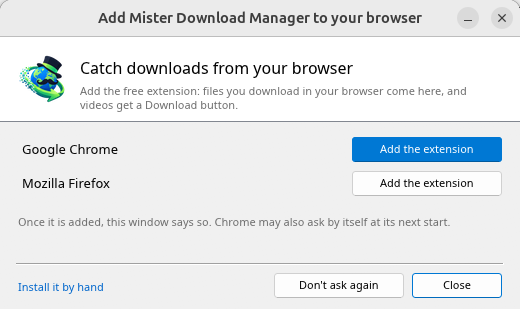
In a Wayland session the windows go through XWayland (below). Not there yet on Linux: screen readers (Orca) don't read GDM's windows; browsers installed as a Flatpak can't reach GDM (Firefox from Flathub may, through the desktop as the Snap does, but that isn't checked yet); and View → Draw with → Vulkan is a choice, OpenGL stays the default.
In a Wayland session (GNOME, KDE Plasma and others), GDM's windows run through XWayland when it is there: Wayland doesn't let a program place its own windows, so GDM's menus and drop-down lists would open in the middle of the screen. To run on Wayland itself anyway, start it with MDM_WAYLAND=1 misterdownloadmanager. If the system lacks a library X11 windows need (such as libxkbcommon-x11, which the .deb and .rpm bring but the AppImage and the tar.gz can't), GDM opens on Wayland instead; with no window system it can use, it names what's missing and the command that installs it.
Okna są takie, jak opisano w tej pomocy, z czcionkami, ikonami plików i paskami tytułowymi pulpitu:
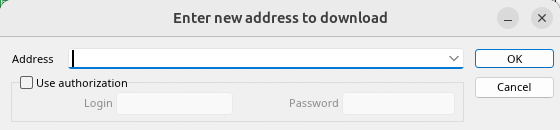
Dodaj URL. 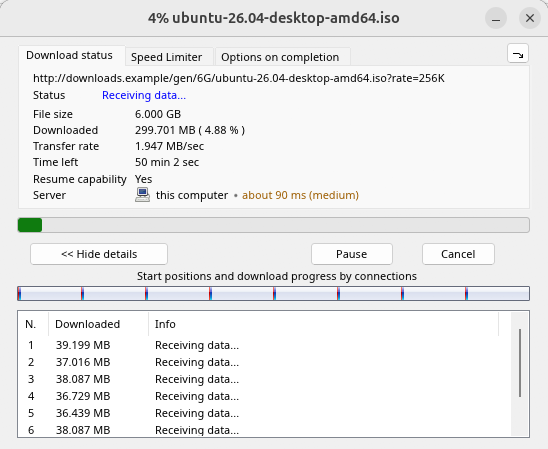
Postęp pobierania. 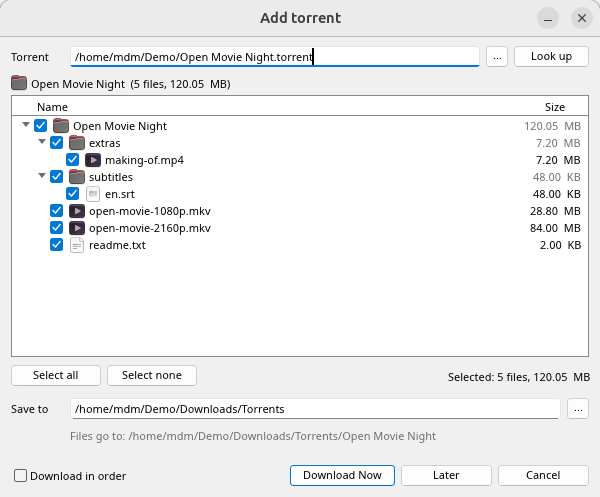
Dodaj torrent. 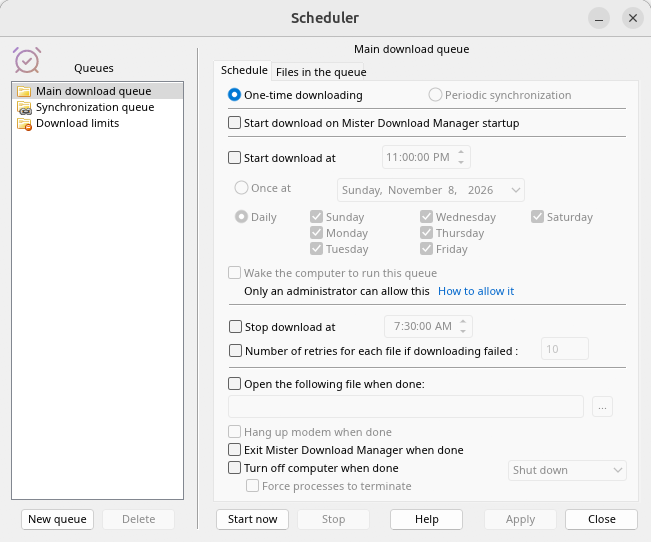
Harmonogram. 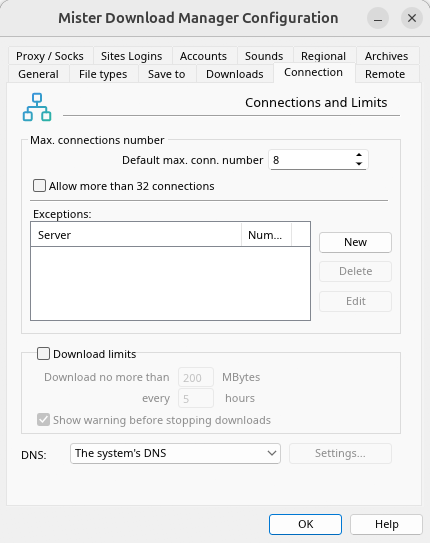
Opcje.
I na innych pulpitach, na których był sprawdzany:
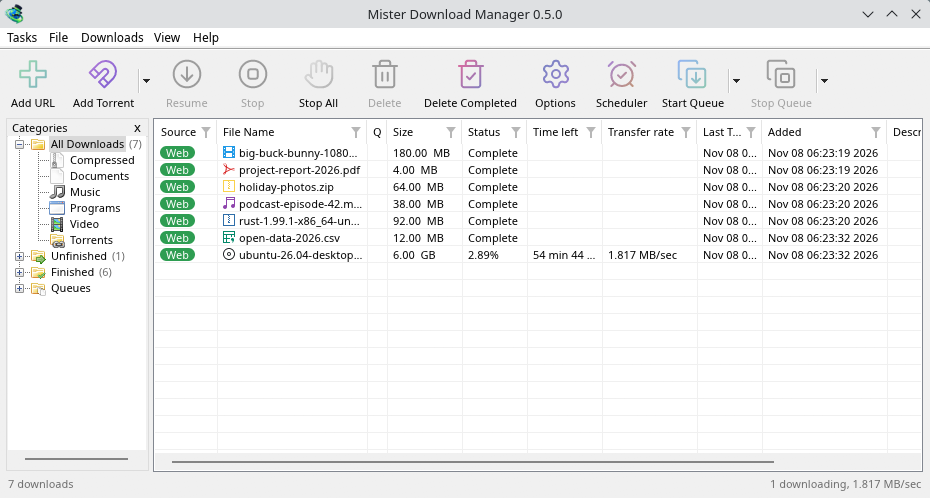
KDE Plasma. 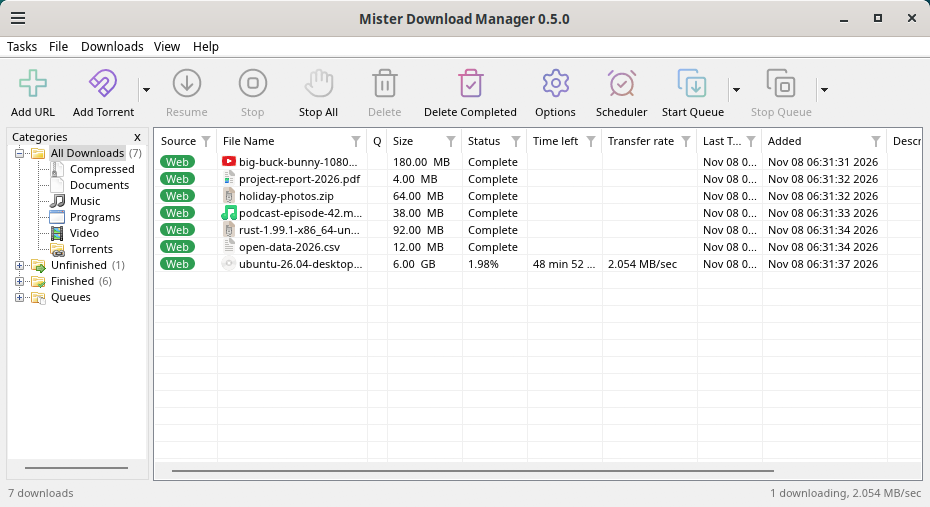
Cinnamon. 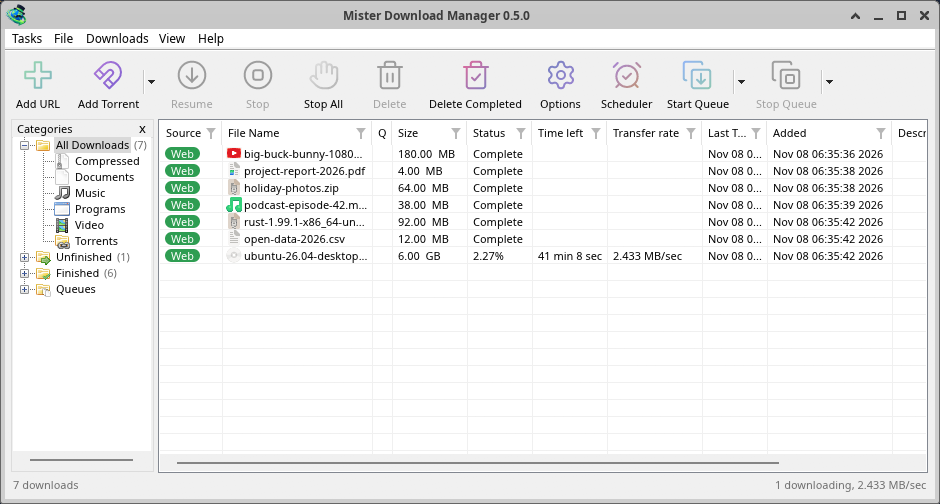
Xfce.
Odinstaluj w systemie Linux
sudo apt remove misterdownloadmanager (or sudo dnf remove misterdownloadmanager) removes the
programs, and the small files that tell your browsers where GDM's helper is: the .deb and .rpm
install those for everyone (in /etc and /usr/lib), for Chrome, Chromium, Edge, Brave, Vivaldi
and Firefox (the Snap too), so GDM doesn't write them in your home folder. For the AppImage or the
tar.gz, delete the file or the folder.
What GDM keeps in your home folder stays, as with any package: your list and settings
(~/.local/share/misterdownloadmanager), the AppImage's and the tar.gz's browser files, and
those of the browsers that read them only there (Opera, Helium, Thorium, and Firefox's forks:
Zen, LibreWolf, Floorp, Waterfox). A package can't remove those: it never touches
home folders. Without GDM they lead nowhere, so the extension says it can't reach GDM. To remove
them as well, run this as each user who used GDM, before uninstalling:
misterdownloadmanager-nmhost --unregister
(Z AppImage: ~/.local/share/misterdownloadmanager/browser-host/misterdownloadmanager-nmhost --unregister.) Już odinstalowano? To usuwa te same pliki:
find ~/.mozilla ~/.librewolf ~/.config -name com.misterdownloadmanager.host.json -delete 2>/dev/null
Na Macu
Kompilacje dla macOS są świeże i wciąż eksperymentalne: sami jeszcze ich nie testowaliśmy na Macu, więc będziesz wśród pierwszych. Prosimy powiedz nam, jak poszło, dobrze czy źle.
| Plik | Co to jest |
|---|---|
...-macos-arm64-experimental.dmg |
For a Mac with Apple Silicon (M1 or later: Apple menu → About This Mac shows a Chip). Open it and drag GolinksPRO Download Manager to Applications. macOS asks before its first start, because the app isn't notarized by Apple: right-click it and choose Open (on macOS 15 and later: System Settings → Privacy & Security → Open Anyway). |
...-macos-x86_64-experimental.dmg |
To samo dla Maca z procesorem Intel (Ten Mac pokazuje Procesor). |
Browser integration is set up by GDM itself at each start (the browsers installed then are found); add the extension as in Browser integration.
Instalacja za pomocą instalatora
- Uruchom
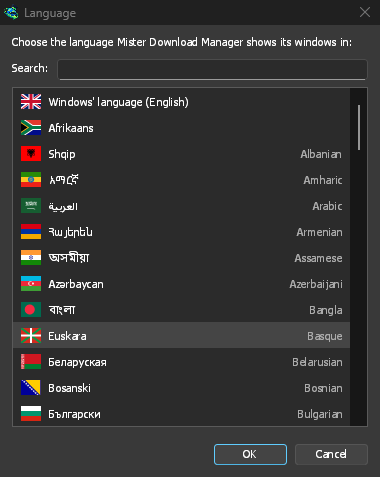
MisterDownloadManager-<version>-setup.exe. - Choose the language. Windows' display language is already selected. The setup offers every language GDM has, and GDM starts in the one you pick.
- Wybierz, czy zainstalować tylko dla Ciebie, czy dla wszystkich użytkowników komputera. Tylko dla Ciebie nie wymaga praw administratora i trafia do
%LOCALAPPDATA%\Programs\GolinksPRO Download Manager. Dla wszystkich trafia doProgram Files. - Pick what the setup should do: - Set up browser integration (Chrome, Edge, Brave, Firefox) - Open .torrent files and magnet links with GolinksPRO Download Manager - Start GolinksPRO Download Manager when Windows starts - Create a desktop shortcut (off unless you tick it)
- Click Install, then Finish to start GDM.
If GDM is already running, the setup asks it to save and close first. To update, use Help → Check for updates → Update now, or run the setup of the new version; your list and settings stay.
Integracja z przeglądarką wymaga jeszcze jednego kroku w każdej przeglądarce: dodania rozszerzenia. W przeglądarce Firefox kliknij Dodaj do Firefox na stronie rozszerzenia w addons.mozilla.org; w Chrome, Edge, Brave, Opera i Vivaldi kliknij Dodaj do Chrome na stronie rozszerzenia w Chrome Web Store. Integracja z przeglądarką pokazuje, jak to zrobić.
Odinstaluj
Uninstall GDM from Windows Settings → Apps. The uninstaller asks whether to delete your download list and settings too. Your downloaded files are never touched.
Użyj kopii zip
- Rozpakuj plik do folderu, w którym możesz zapisywać pliki (nie bezpośrednio do
Program Files). - Uruchom
misterdownloadmanager.exe.
Archiwa ZIP zawierają te same programy co instalator: aplikację, misterdownloadmanager-cli.exe (pobieranie z wiersza poleceń; zobacz Wiersz poleceń i automatyzacja) oraz folder extension.
Pierwsze uruchomienie i język
- Installed with the setup: GDM starts in the language you chose in the setup.
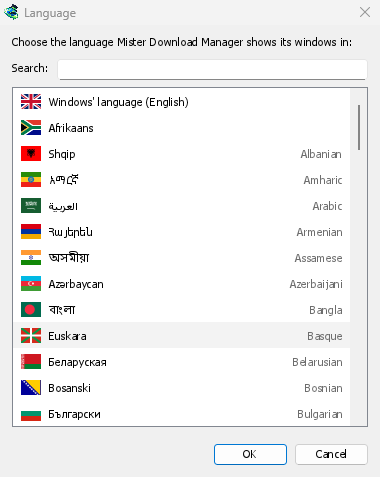
- Otherwise: GDM shows the list of languages, each with its flag and its own name. Pick yours.
Możesz to zmienić w dowolnym momencie w Widok → Język. Więcej w Języki.
Narzędzia do obsługi wideo
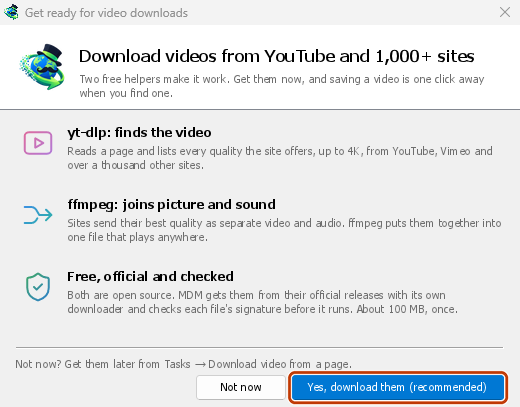
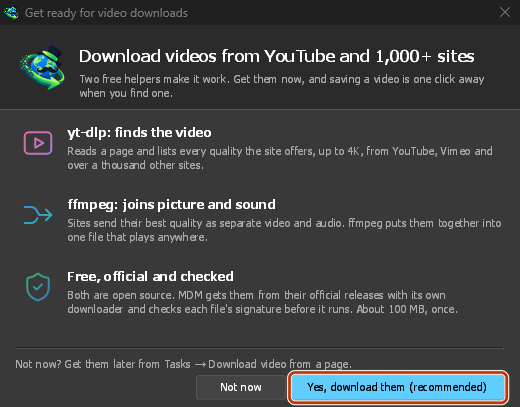
Next, GDM offers its two free video helpers: yt-dlp, which finds the video on a page, and ffmpeg, which joins its picture and sound. Click Yes, download them (recommended) and they download in the background, about 100 MB, once. Not now leaves them for later: the video window offers them when you first need them. More in Videos.
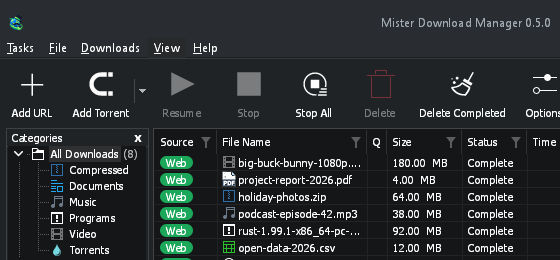
Główne okno
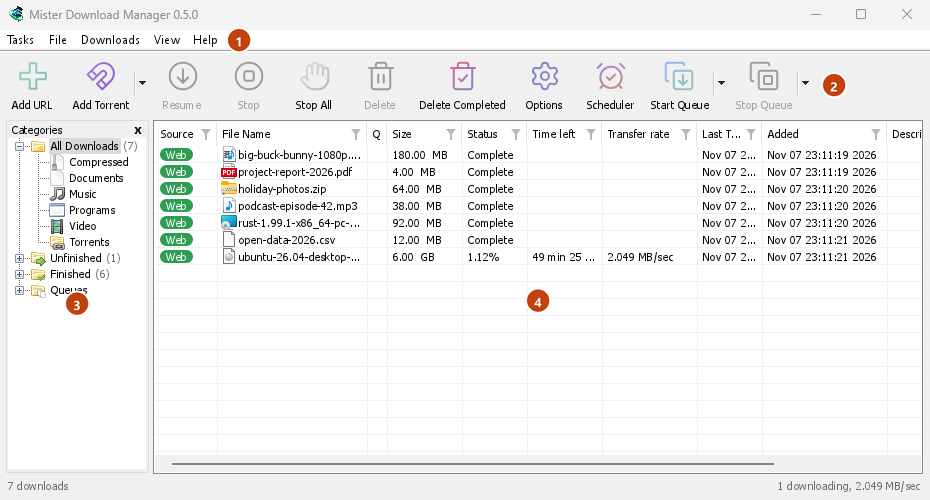
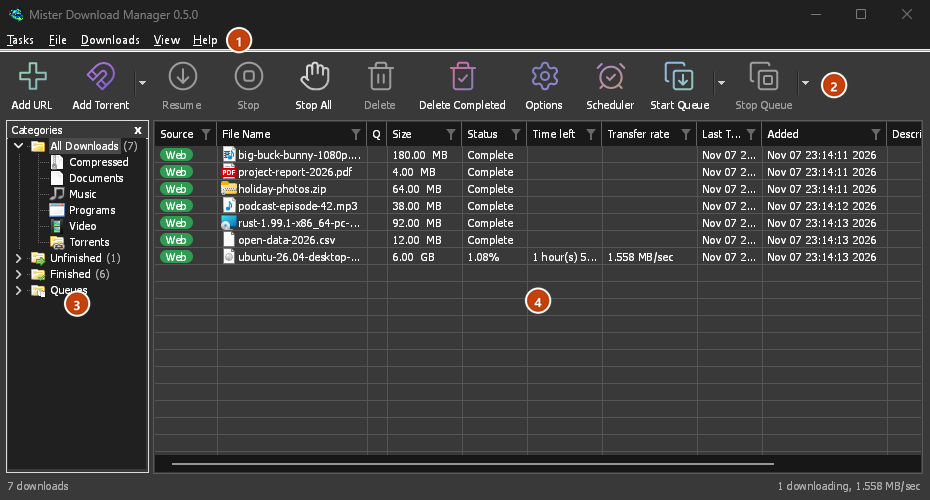
Od góry do dołu:
- Pasek menu.
- Zadania — dodaj pobieranie, torrenty, linki magnet, pobieranie wsadowe i filmy ze strony; Ustawienia torrenta; Link grabber; Kanały RSS; pokaż cel upuszczania; importuj i eksportuj listę; wyjdź.
- Plik — wybrane pobieranie: Zatrzymaj pobieranie, Usuń, Pobierz teraz, Pobierz ponownie.
- Pobrane pliki — Wstrzymaj wszystkie, Zatrzymaj wszystkie, Usuń wszystkie ukończone, Znajdź, Harmonogram, kolejki, Ogranicznik prędkości i Opcje.
- Widok — pokaż lub ukryj kategorie, posortuj listę (Uporządkuj pliki), Obsługa trybu ciemnego, Zawsze ciemny, Motyw, Rozmiar interfejsu (każde okno większe, od 100% do 200%; również Ctrl +, Ctrl − i Ctrl 0), Rysuj za pomocą (OpenGL, lub Direct3D w Windows, Vulkan w Linux, Metal w macOS) i Język.
- Help — help pages and tutorials (on the website, in your language when it has it), Keyboard shortcuts, Report a problem, Check for updates, About, Tell a friend and Support GDM (its creator's GitHub Sponsors page: optional, nothing in GDM changes).
- Pasek narzędzi. Dodaj URL, Dodaj torrent, Wznów, Zatrzymaj, Zatrzymaj wszystkie, Usuń, Usuń ukończone, Opcje, Harmonogram, Uruchom kolejkę, Zatrzymaj kolejkę. Mała strzałka obok Dodaj torrent, Uruchom kolejkę i Zatrzymaj kolejkę otwiera więcej opcji.
- Kategorie (po lewej). Wybierz, co ma wyświetlać lista: Wszystkie pobierania, Niezakończone, Ukończone i Kolejki, a w każdej z nich odpowiednie kategorie. Przeciągnij krawędź między panelem a listą, aby poszerzyć panel.
- Lista pobierania (po prawej). Jeden wiersz na każde pobieranie. Zobacz Listę pobierania.
Tryb ciemny
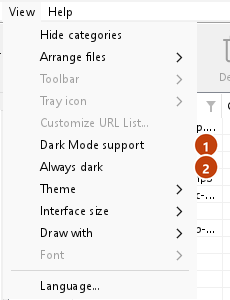
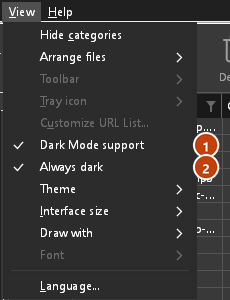
GDM follows your system: when Windows (or your desktop's light/dark preference on Linux and macOS) is set to dark mode, so is GDM. To keep GDM light whatever the system does, turn off View → Dark Mode support. To keep it dark whatever the system does, for example on a desktop that reports no preference, turn on View → Always dark.
Motywy
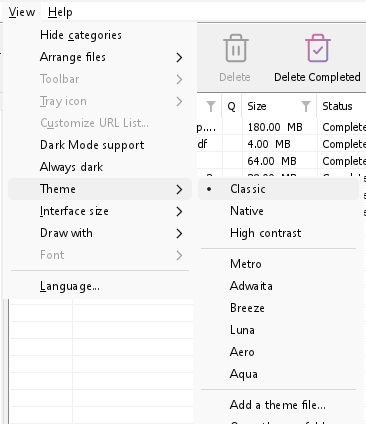
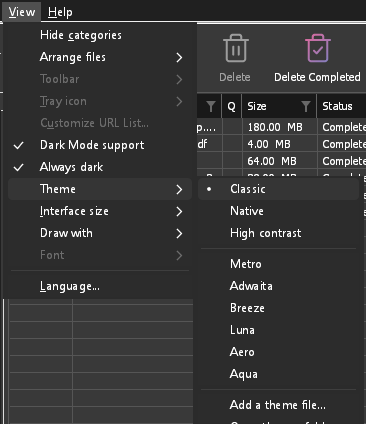
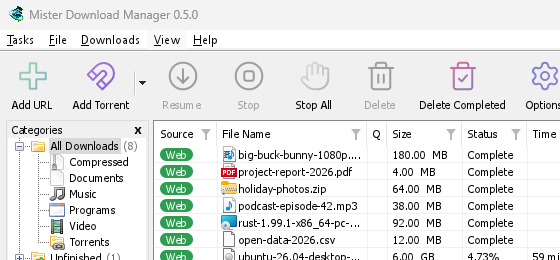
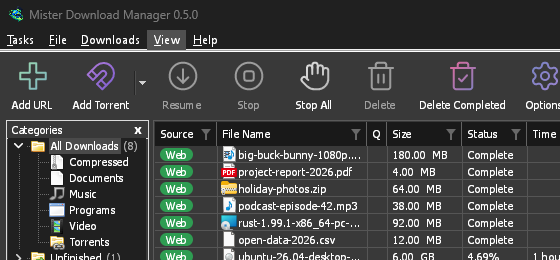
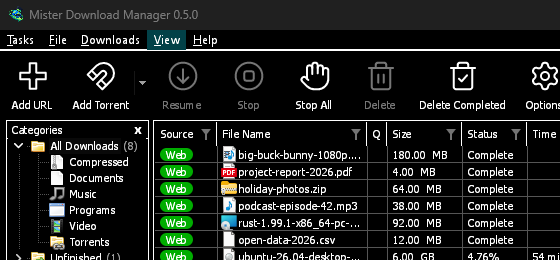
View → Theme changes GDM's look at once, keeping its layout:
- Classic: GDM's own look, the default.
- Natywny: kolory Twojego systemu. Kolor akcentu Windows (Ustawienia → Personalizacja → Kolory) i, gdy jest włączony, jego motyw kontrastowy; kolor akcentu pulpitu i jego ustawienie wyższego kontrastu w Linux (GNOME 47 i nowsze, KDE Plasma); kolor akcentu w macOS. Podąża za nimi, gdy je zmieniasz.
- Wysoki kontrast: czarno-biały, jasny akcent, każda krawędź narysowana, tekst o kontraście 7:1 lub więcej.
- Metro: Windows 8's flat look: square corners, flat buttons and boxes, a coloured title bar with the title centred (on Windows, where GDM draws it), and one-colour icons (Microsoft's Fluent UI System Icons).
- Adwaita: GNOME's look: round corners, flat grey buttons, a rounded focus ring, GNOME's check boxes, a header bar with the title in bold and round buttons (on Windows, where GDM draws it), and GNOME's Adwaita icons, in colour for files and categories, one colour in the toolbar.
- Breeze: KDE Plasma's look: rounded corners, buttons and boxes that take the accent's edge under the pointer or when focused, KDE's check boxes and focus frame, KDE's title bar with the title centred and round buttons (on Windows, where GDM draws it), and KDE's Breeze icons.
- Luna: Windows XP's look: buttons shaded from white with an orange glow under the pointer, green ticks, square text boxes, progress in green blocks, a deep blue title bar with the title in bold (on Windows, where GDM draws it), and colourful icons drawn for GDM in that manner.
- Aero: Windows 7's look: glossy buttons that turn light blue under the pointer, quiet check boxes, a glossy green progress bar, a glassy title bar with the title on a soft glow (on Windows), and glossy icons drawn for GDM in that manner.
- Aqua: Mac OS X's look: gel buttons round at the ends (the default one blue), glossy check boxes, a blue focus ring, a blue gel progress bar, a grey title bar with small round buttons (on Windows), and icons drawn for GDM in that manner.
Klasyczny 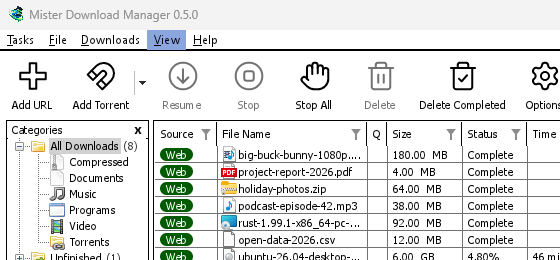
Wysoki kontrast 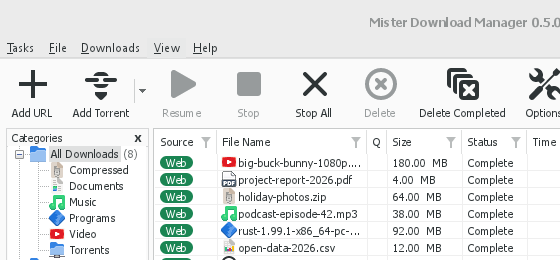
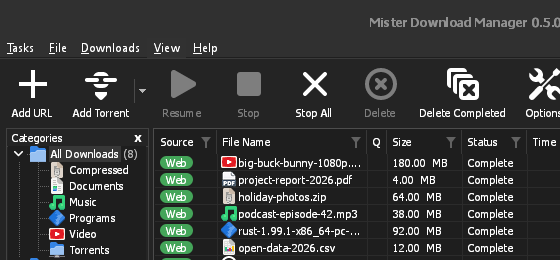
Adwaita 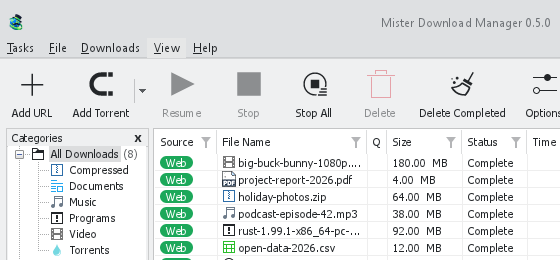
Breeze
Każdy motyw ma jasną i ciemną stronę: Obsługa trybu ciemnego i Zawsze ciemny wybierają między nimi jak poprzednio. Pliki motywów, które umieścisz w folderze motywów (Widok → Motyw → Otwórz folder motywów), są tam również wymienione, podobnie jak schematy kolorów Base16 i pywal (Widok → Motyw → Dodaj plik motywu…; pywal działa zgodnie z wal): Motywy informuje, gdzie znajduje się ten folder, co zawiera plik motywu (inherits, kolory, rozmiary, kształty kontrolek, ikony), jak używane są kolory schematu oraz jak stworzyć i udostępnić własny motyw.
Ikona w zasobniku systemowym
Closing the main window doesn't quit GDM. It hides in the notification area, and downloads, queues and schedules carry on. To make closing quit (a portable copy's folder can then be deleted), untick Options → General → Keep running when closing the window. If there is no icon for GDM at all — not in the notification area, nor behind the ^ hidden icons — the window minimizes to the taskbar instead, so downloads continue and there is a way back. An icon behind ^ can be clicked to bring the window back, and starting GDM again always does.
On Linux this needs a tray, which most desktops have (KDE Plasma, Xfce, Cinnamon, Ubuntu's GNOME or GNOME with the AppIndicator extension, waybar's tray). On a desktop without one (some tiling window managers), closing the window quits GDM, since there would be nowhere to bring it back from.
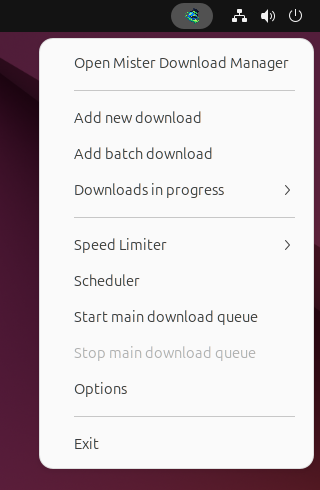
- Kliknij ikonę w zasobniku systemowym, aby przywrócić okno.
- Kliknij ikonę prawym przyciskiem myszy, aby uzyskać dostęp do opcji Dodaj nowe pobieranie, Dodaj pobieranie wsadowe, Pobieranie w toku, Ogranicznik prędkości, Harmonogram, głównej kolejki pobierania, Opcje i Zakończ.
- Pobieranie w toku wyświetla listę aktywnych pobierań. Wybierz jedno, aby zobaczyć jego okno postępu.
Przycisk Minimalizuj również ukrywa główne okno, gdy w Opcje → Ogólne włączona jest opcja Minimalizuj do obszaru powiadomień. Jest ona domyślnie włączona; jeśli w zasobniku systemowym nie ma ikony, Minimalizuj zamiast tego wysyła okno do paska zadań.
Okno postępu pobierania również można ukryć w obszarze powiadomień za pomocą przycisku Minimalizuj lub Ukryj w obszarze powiadomień: krótkiej kreski ze strzałką skierowaną w dół, ku rogowi.
W systemie Windows ten przycisk znajduje się na pasku tytułu okna, po lewej stronie przycisku Minimalizuj, oraz w menu paska tytułu (Alt+Space). W systemach Linux i macOS znajduje się na końcu wiersza kart.
Aby przywrócić okno, wybierz pobieranie w Pobieranie w toku lub kliknij je dwukrotnie na liście.
Aby zakończyć działanie programu, wybierz Zadania → Zakończ lub Zakończ w menu zasobnika systemowego.
Where GDM keeps its data
Lista pobierania i ustawienia znajdują się w %APPDATA%\misterdownloadmanager (downloads.json); w systemie Linux w ~/.local/share/misterdownloadmanager, na komputerze Mac w ~/Library/Application Support/misterdownloadmanager. Przenośna kopia przechowuje je zamiast tego w folderze data. Pobrane pliki trafiają do folderu Pobrane pliki, posortowane w folderach według kategorii; możesz to zmienić w Opcje → Zapisz w.
Następne kroki
Darmowy, open source, bez reklam, bez wersji próbnej.
Download GolinksPRO Download Manager