

GDM runs on 64-bit Windows 10 and Windows 11, and on 64-bit Linux: see On Linux. Builds for macOS are new and still experimental: see On a Mac.
اختيار تنزيل
توجد جميع الإصدارات في صفحة الإصدارات. بالنسبة لنظام Windows، توجد ثلاثة ملفات:
| الملف | ما هو |
|---|---|
MisterDownloadManager-<version>-setup.exe |
The installer. Pick this one unless you have a reason not to. It can set up browser integration and open .torrent files and magnet links with GDM. |
MisterDownloadManager-<version>-portable.zip |
نسخة محمولة. تبقى قائمة التنزيلات والإعدادات في مجلد data بجوار البرنامج، ولا يتم كتابة أي شيء في السجل. يتطلب دمج المتصفح برنامج التثبيت. راجع الوضع المحمول. |
MisterDownloadManager-<version>-x64.zip |
نفس البرامج بدون برنامج تثبيت. يحتفظ ببياناته في %APPDATA%\misterdownloadmanager، مثل النسخة المثبتة. |
على Linux
GDM runs on 64-bit Linux with a desktop session. It is tested on Ubuntu 24.04, Debian 12 and
Fedora, with GNOME, KDE Plasma, Xfce and Cinnamon, on X11 and in Wayland sessions. Pick one
of these files (up to version 0.2.4, their names end in -experimental, as in
...-linux-x86_64-experimental.deb):
| الملف | ما هو |
|---|---|
...-linux-x86_64.deb |
For Ubuntu, Debian, Mint and Pop!_OS: sudo apt install ./<file>.deb. It brings the libraries GDM needs. |
...-linux-x86_64.rpm |
For Fedora, openSUSE and RHEL: sudo dnf install ./<file>.rpm. It brings the libraries GDM needs. |
...-linux-x86_64.AppImage |
يعمل على معظم التوزيعات: اجعله قابلا للتنفيذ (chmod +x) وقم بتشغيله. يقوم بتحديث نفسه في مكانه (تعليمات ← التحقق من وجود تحديثات). |
...-linux-x86_64.tar.gz |
البرامج العادية، لأي توزيعة. |
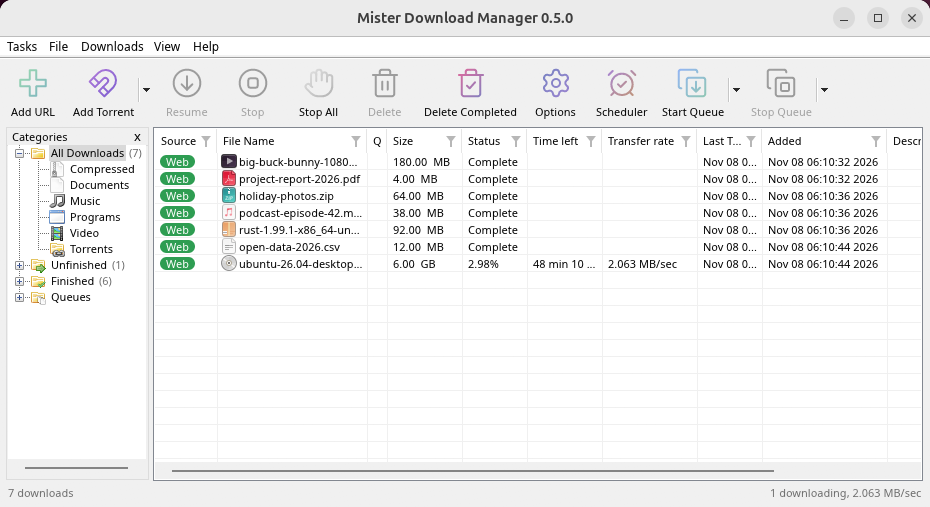
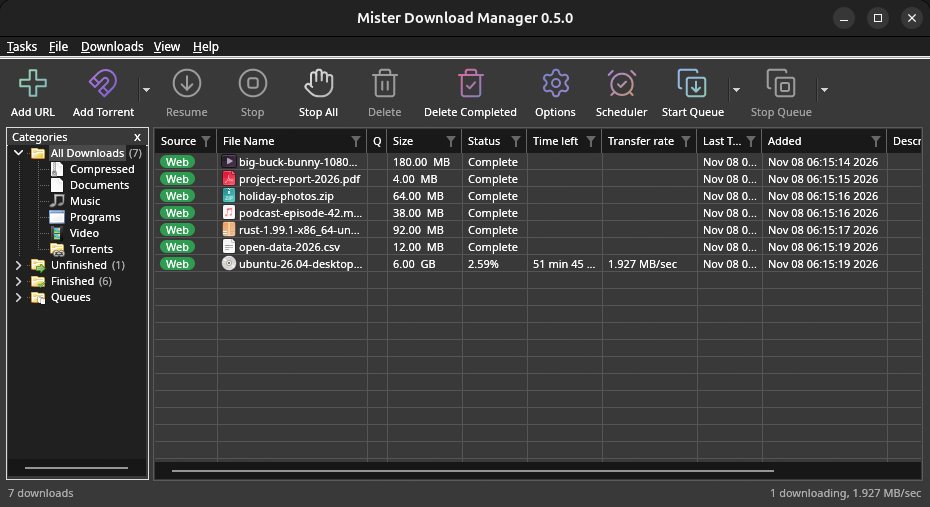
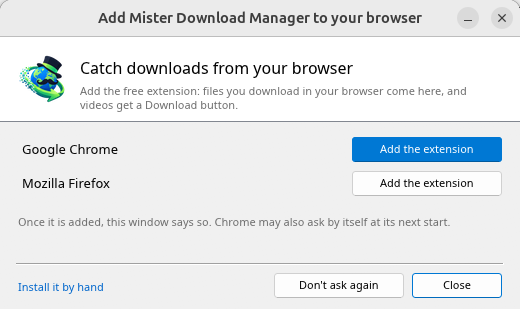
Browser integration is set up by GDM itself at each start (the browsers installed then are found); add the extension as in Browser integration. Firefox installed as a Snap (Ubuntu's) reaches GDM once you allow it; other Snap and Flatpak browsers can't (see Flatpak and Snap browsers). The tray icon, Dark Mode support and Launch on startup work on GNOME (Ubuntu's), KDE Plasma, Xfce and Cinnamon.
In a Wayland session the windows go through XWayland (below). Not there yet on Linux: screen readers (Orca) don't read GDM's windows; browsers installed as a Flatpak can't reach GDM (Firefox from Flathub may, through the desktop as the Snap does, but that isn't checked yet); and View → Draw with → Vulkan is a choice, OpenGL stays the default.
In a Wayland session (GNOME, KDE Plasma and others), GDM's windows run through XWayland when it is there: Wayland doesn't let a program place its own windows, so GDM's menus and drop-down lists would open in the middle of the screen. To run on Wayland itself anyway, start it with MDM_WAYLAND=1 misterdownloadmanager. If the system lacks a library X11 windows need (such as libxkbcommon-x11, which the .deb and .rpm bring but the AppImage and the tar.gz can't), GDM opens on Wayland instead; with no window system it can use, it names what's missing and the command that installs it.
النوافذ هي تلك الموصوفة في هذه التعليمات، مع خطوط سطح المكتب وأيقونات الملفات وأشرطة العناوين:
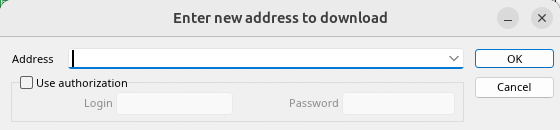
إضافة URL. 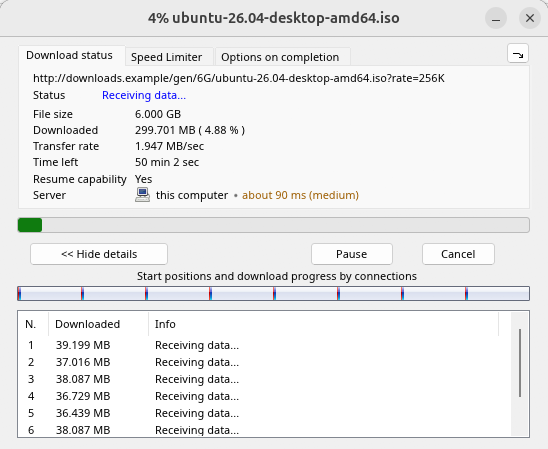
تقدم التنزيل. 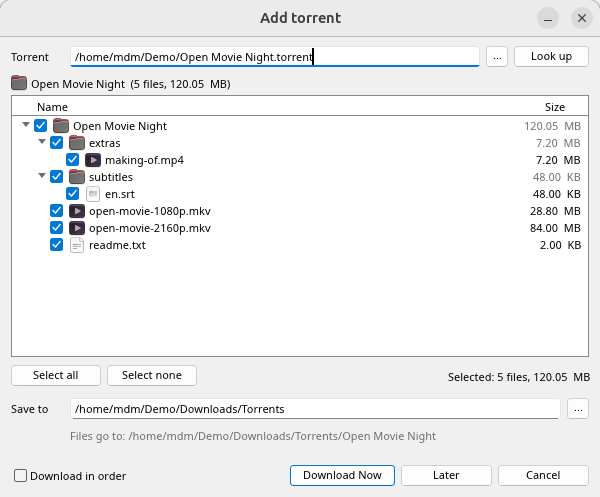
إضافة تورنت. 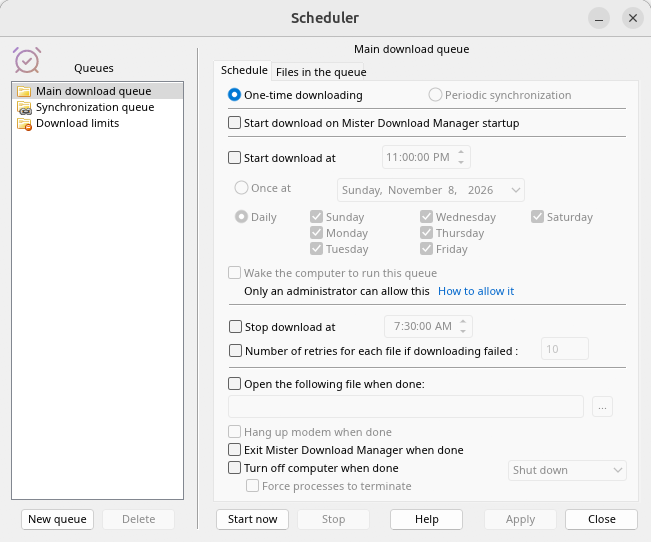
المجدول. 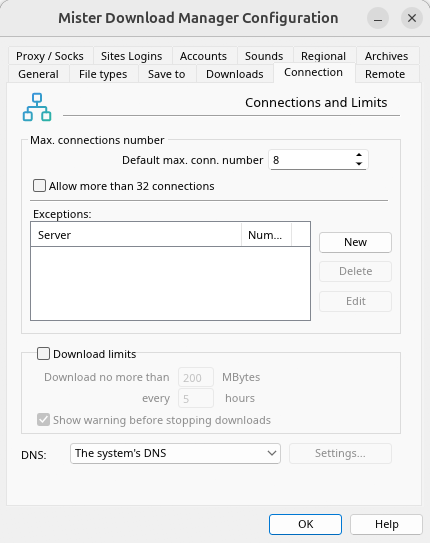
الخيارات.
وعلى أسطح المكتب الأخرى التي تم التحقق منها:
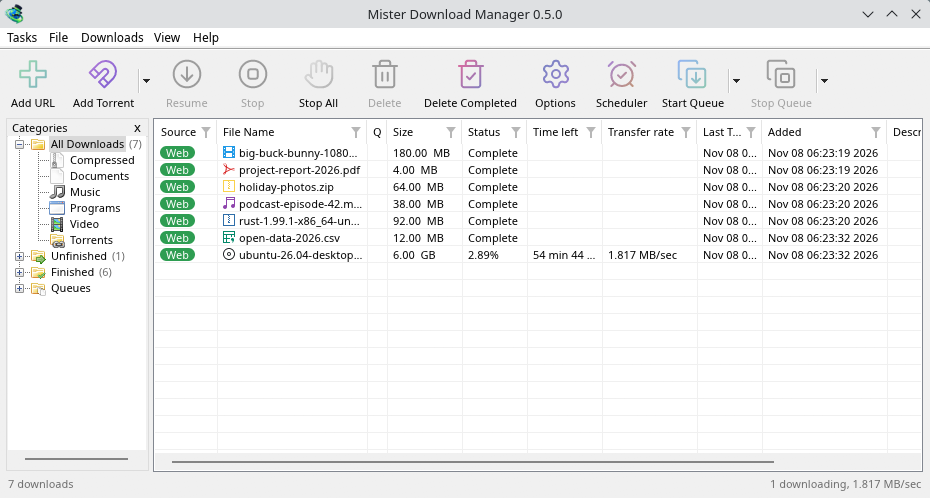
KDE Plasma. 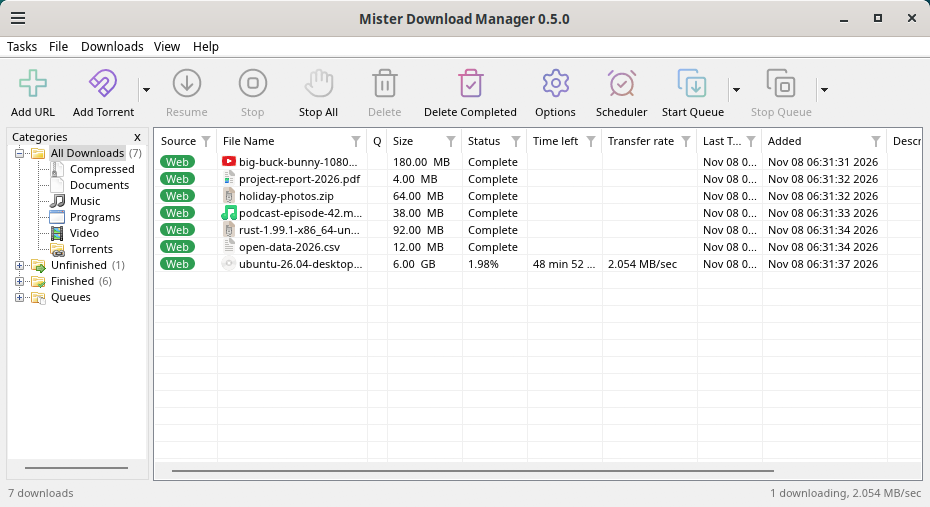
Cinnamon. 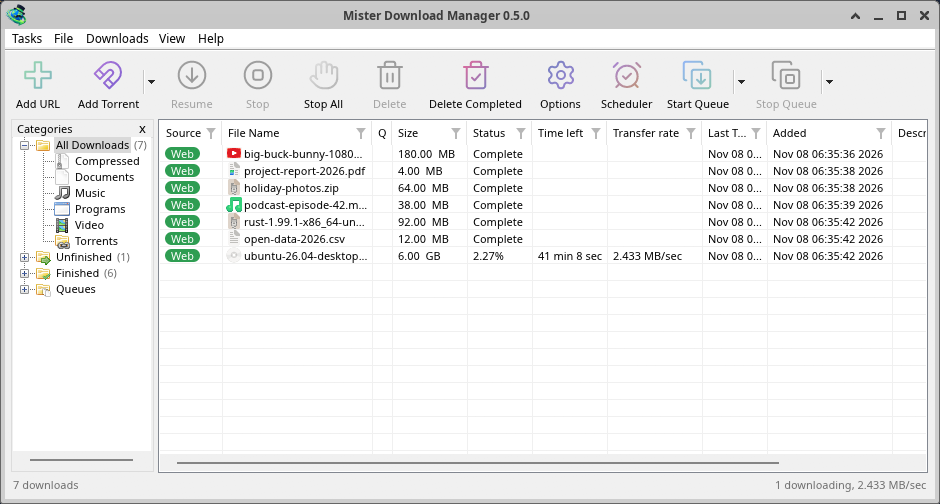
Xfce.
إلغاء التثبيت على Linux
sudo apt remove misterdownloadmanager (or sudo dnf remove misterdownloadmanager) removes the
programs, and the small files that tell your browsers where GDM's helper is: the .deb and .rpm
install those for everyone (in /etc and /usr/lib), for Chrome, Chromium, Edge, Brave, Vivaldi
and Firefox (the Snap too), so GDM doesn't write them in your home folder. For the AppImage or the
tar.gz, delete the file or the folder.
What GDM keeps in your home folder stays, as with any package: your list and settings
(~/.local/share/misterdownloadmanager), the AppImage's and the tar.gz's browser files, and
those of the browsers that read them only there (Opera, Helium, Thorium, and Firefox's forks:
Zen, LibreWolf, Floorp, Waterfox). A package can't remove those: it never touches
home folders. Without GDM they lead nowhere, so the extension says it can't reach GDM. To remove
them as well, run this as each user who used GDM, before uninstalling:
misterdownloadmanager-nmhost --unregister
(من AppImage: ~/.local/share/misterdownloadmanager/browser-host/misterdownloadmanager-nmhost --unregister.) هل تم إلغاء التثبيت بالفعل؟ هذا يزيل نفس الملفات:
find ~/.mozilla ~/.librewolf ~/.config -name com.misterdownloadmanager.host.json -delete 2>/dev/null
على Mac
إصدارات macOS جديدة ولا تزال تجريبية: لم نجربها على Mac بأنفسنا بعد، لذا ستكون من بين الأوائل. يرجى إخبارنا كيف سارت الأمور، سواء كانت جيدة أو سيئة.
| الملف | ما هو |
|---|---|
...-macos-arm64-experimental.dmg |
For a Mac with Apple Silicon (M1 or later: Apple menu → About This Mac shows a Chip). Open it and drag GolinksPRO Download Manager to Applications. macOS asks before its first start, because the app isn't notarized by Apple: right-click it and choose Open (on macOS 15 and later: System Settings → Privacy & Security → Open Anyway). |
...-macos-x86_64-experimental.dmg |
نفس الشيء، لأجهزة Mac المزودة بمعالج Intel (حول هذا الـ Mac يعرض المعالج). |
Browser integration is set up by GDM itself at each start (the browsers installed then are found); add the extension as in Browser integration.
التثبيت باستخدام الإعداد
- شغل
MisterDownloadManager-<version>-setup.exe. - Choose the language. Windows' display language is already selected. The setup offers every language GDM has, and GDM starts in the one you pick.
- اختر ما إذا كنت تريد التثبيت لك فقط أو للجميع على الكمبيوتر. لك فقط لا يتطلب حقوق المسؤول ويذهب إلى
%LOCALAPPDATA%\Programs\GolinksPRO Download Manager. للجميع يذهب إلىProgram Files. - Pick what the setup should do: - Set up browser integration (Chrome, Edge, Brave, Firefox) - Open .torrent files and magnet links with GolinksPRO Download Manager - Start GolinksPRO Download Manager when Windows starts - Create a desktop shortcut (off unless you tick it)
- Click Install, then Finish to start GDM.
If GDM is already running, the setup asks it to save and close first. To update, use Help → Check for updates → Update now, or run the setup of the new version; your list and settings stay.
يتطلب دمج المتصفح خطوة إضافية في كل متصفح: إضافة الملحق. في Firefox، انقر على أضف إلى Firefox في صفحته على addons.mozilla.org؛ وفي Chrome وEdge وBrave وOpera وVivaldi، انقر على أضف إلى Chrome في صفحته في سوق Chrome الإلكتروني. يوضح دمج المتصفح كيفية القيام بذلك.
إلغاء التثبيت
Uninstall GDM from Windows Settings → Apps. The uninstaller asks whether to delete your download list and settings too. Your downloaded files are never touched.
استخدام نسخة مضغوطة
- فك ضغط الملف إلى مجلد يمكنك الكتابة فيه (ليس مباشرة في
Program Files). - شغل
misterdownloadmanager.exe.
تحتوي الملفات المضغوطة على نفس البرامج الموجودة في برنامج التثبيت: التطبيق، misterdownloadmanager-cli.exe (للتنزيل من سطر الأوامر؛ انظر سطر الأوامر والأتمتة) ومجلد extension.
التشغيل الأول واللغة
- Installed with the setup: GDM starts in the language you chose in the setup.
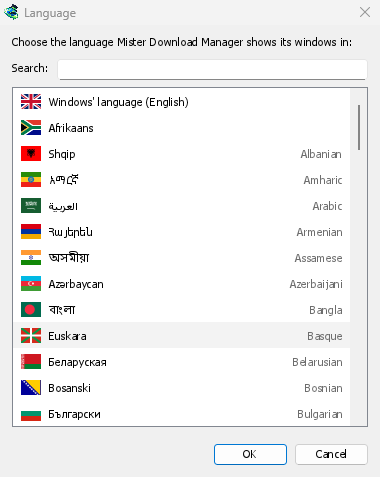
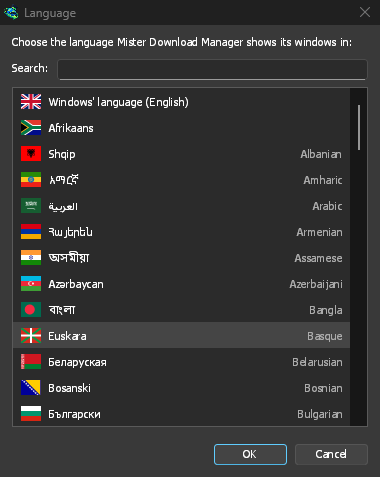
- Otherwise: GDM shows the list of languages, each with its flag and its own name. Pick yours.
يمكنك تغييرها في أي وقت من عرض ← اللغة. المزيد في اللغات.
مساعدات الفيديو
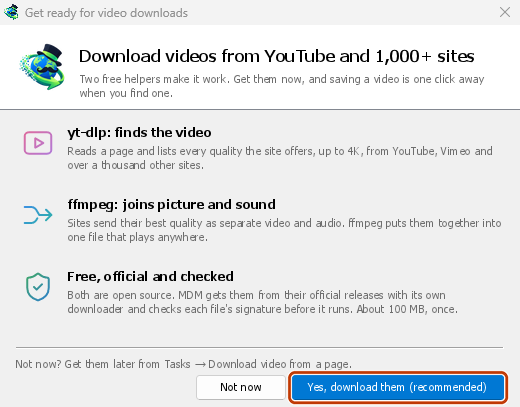
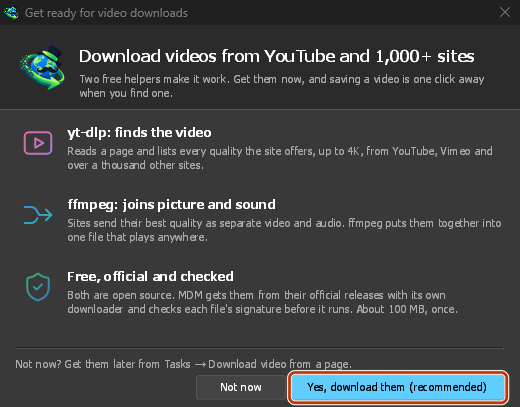
Next, GDM offers its two free video helpers: yt-dlp, which finds the video on a page, and ffmpeg, which joins its picture and sound. Click Yes, download them (recommended) and they download in the background, about 100 MB, once. Not now leaves them for later: the video window offers them when you first need them. More in Videos.
النافذة الرئيسية
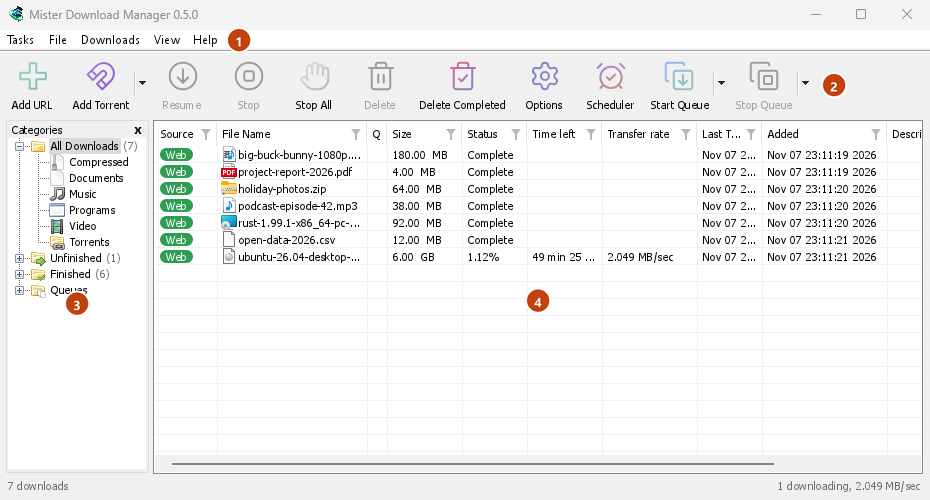
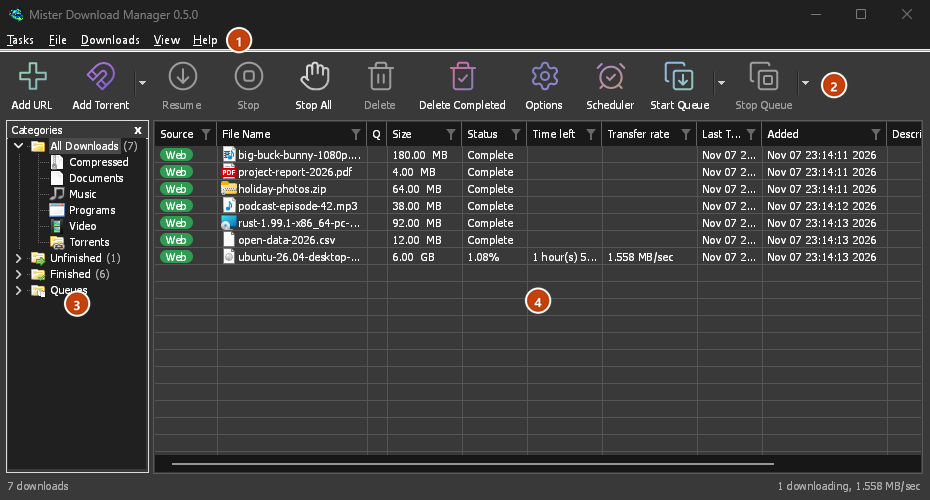
من الأعلى إلى الأسفل:
- شريط القوائم.
- المهام — إضافة تنزيلات، تورنت، روابط مغناطيسية، تنزيلات جماعية ومقاطع فيديو من صفحة؛ إعدادات التورنت؛ ملتقط الروابط؛ موجزات RSS؛ إظهار هدف الإفلات؛ استيراد وتصدير القائمة؛ خروج.
- ملف — التنزيل المحدد: إيقاف التنزيل، إزالة، تنزيل الآن، إعادة التنزيل.
- التنزيلات — إيقاف مؤقت للكل، إيقاف الكل، حذف كل المكتملة، بحث، الجدولة، قوائم الانتظار، محدد السرعة والخيارات.
- عرض — إظهار أو إخفاء الفئات، فرز القائمة (ترتيب الملفات)، دعم الوضع الداكن، داكن دائما، السمة، حجم الواجهة (كل نافذة أكبر، من 100% إلى 200%؛ Ctrl +، Ctrl − و Ctrl 0 أيضا)، الرسم باستخدام (OpenGL، أو Direct3D على Windows، Vulkan على Linux، Metal على macOS) و اللغة.
- Help — help pages and tutorials (on the website, in your language when it has it), Keyboard shortcuts, Report a problem, Check for updates, About, Tell a friend and Support GDM (its creator's GitHub Sponsors page: optional, nothing in GDM changes).
- شريط الأدوات. إضافة URL، إضافة تورنت، استئناف، إيقاف، إيقاف الكل، حذف، حذف المكتملة، الخيارات، الجدولة، بدء قائمة الانتظار، إيقاف قائمة الانتظار. السهم الصغير بجانب إضافة تورنت، بدء قائمة الانتظار وإيقاف قائمة الانتظار يفتح المزيد من الخيارات.
- الفئات (يسار). اختر ما تعرضه القائمة: جميع التنزيلات، غير مكتمل، مكتمل وقوائم الانتظار، كل منها بفئاته. اسحب الفجوة بين الجزء والقائمة لتوسيعها.
- قائمة التنزيلات (يمين). صف واحد لكل تنزيل. انظر قائمة التنزيلات.
الوضع الداكن
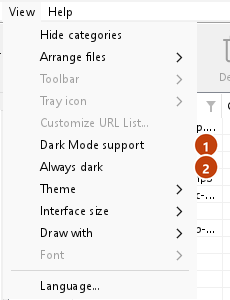
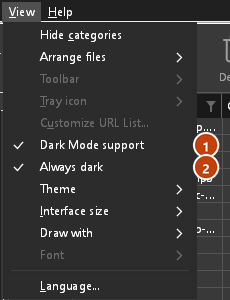
GDM follows your system: when Windows (or your desktop's light/dark preference on Linux and macOS) is set to dark mode, so is GDM. To keep GDM light whatever the system does, turn off View → Dark Mode support. To keep it dark whatever the system does, for example on a desktop that reports no preference, turn on View → Always dark.
السمات
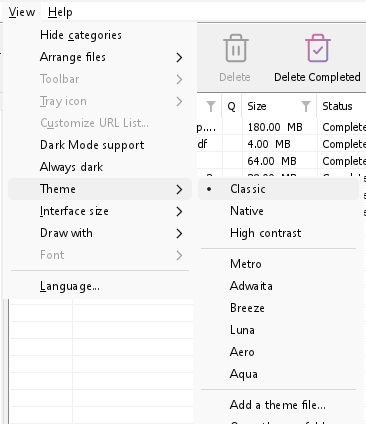
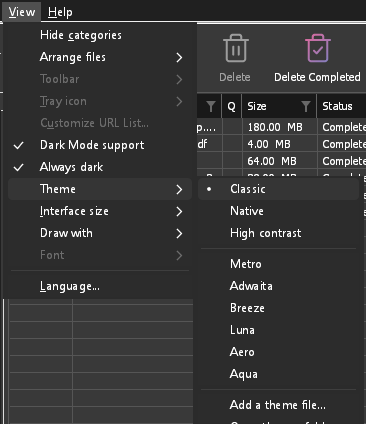
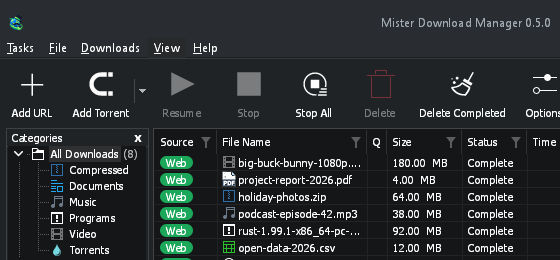
View → Theme changes GDM's look at once, keeping its layout:
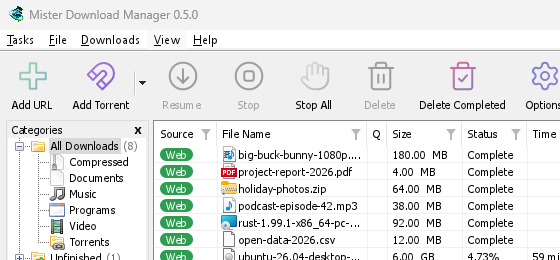
- Classic: GDM's own look, the default.
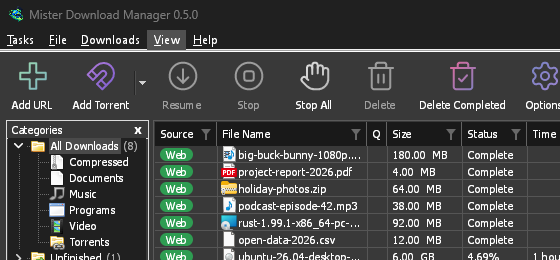
- أصلي: ألوان نظامك. لون التمييز في Windows (الإعدادات ← التخصيص ← الألوان) وعند تشغيله، نسق التباين الخاص به؛ لون التمييز في سطح المكتب وإعداد التباين الأعلى الخاص به على Linux (GNOME 47 والإصدارات الأحدث، KDE Plasma)؛ لون التمييز على macOS. يتبعها عند تغييرها.
- تباين عال: أبيض وأسود، تمييز ساطع، كل حافة مرسومة، نص بنسبة 7:1 أو أكثر.
- Metro: Windows 8's flat look: square corners, flat buttons and boxes, a coloured title bar with the title centred (on Windows, where GDM draws it), and one-colour icons (Microsoft's Fluent UI System Icons).
- Adwaita: GNOME's look: round corners, flat grey buttons, a rounded focus ring, GNOME's check boxes, a header bar with the title in bold and round buttons (on Windows, where GDM draws it), and GNOME's Adwaita icons, in colour for files and categories, one colour in the toolbar.
- Breeze: KDE Plasma's look: rounded corners, buttons and boxes that take the accent's edge under the pointer or when focused, KDE's check boxes and focus frame, KDE's title bar with the title centred and round buttons (on Windows, where GDM draws it), and KDE's Breeze icons.
- Luna: Windows XP's look: buttons shaded from white with an orange glow under the pointer, green ticks, square text boxes, progress in green blocks, a deep blue title bar with the title in bold (on Windows, where GDM draws it), and colourful icons drawn for GDM in that manner.
- Aero: Windows 7's look: glossy buttons that turn light blue under the pointer, quiet check boxes, a glossy green progress bar, a glassy title bar with the title on a soft glow (on Windows), and glossy icons drawn for GDM in that manner.
- Aqua: Mac OS X's look: gel buttons round at the ends (the default one blue), glossy check boxes, a blue focus ring, a blue gel progress bar, a grey title bar with small round buttons (on Windows), and icons drawn for GDM in that manner.
كلاسيكي 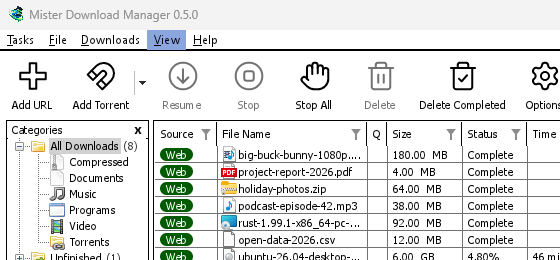
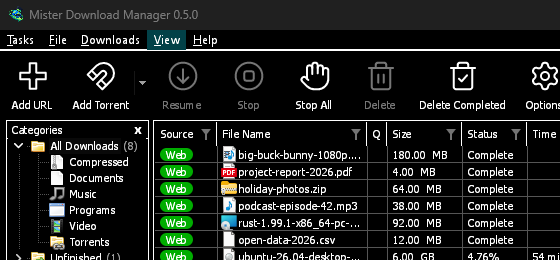
تباين عال 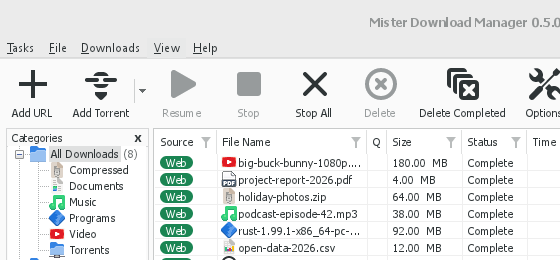
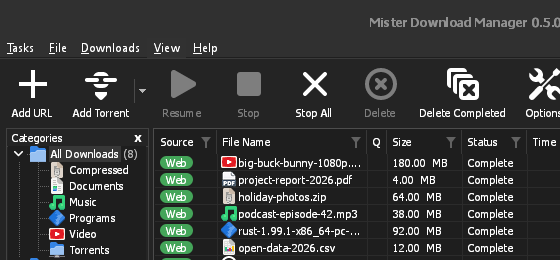
Adwaita 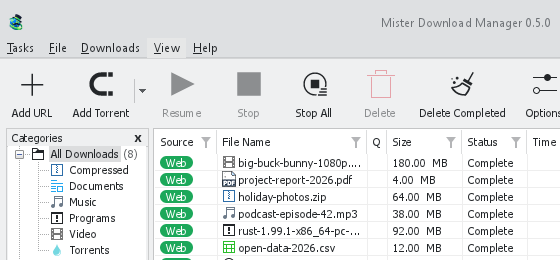
Breeze
لكل منها جانب فاتح وجانب داكن: يختار دعم الوضع الداكن وداكن دائما بينهما كما كان من قبل. ملفات السمات التي تضعها في مجلد السمات (عرض ← السمة ← فتح مجلد السمات) مدرجة هناك أيضا، وكذلك مخططات ألوان Base16 و pywal (عرض ← السمة ← إضافة ملف نسق...؛ يتبع pywal wal أثناء تشغيله): توضح السمات مكان هذا المجلد، وما يحتويه ملف السمة (inherits، الألوان، الأحجام، أشكال عناصر التحكم، الأيقونات)، وكيفية استخدام ألوان المخطط، وكيفية إنشاء واحد ومشاركته.
أيقونة منطقة الإشعارات
Closing the main window doesn't quit GDM. It hides in the notification area, and downloads, queues and schedules carry on. To make closing quit (a portable copy's folder can then be deleted), untick Options → General → Keep running when closing the window. If there is no icon for GDM at all — not in the notification area, nor behind the ^ hidden icons — the window minimizes to the taskbar instead, so downloads continue and there is a way back. An icon behind ^ can be clicked to bring the window back, and starting GDM again always does.
On Linux this needs a tray, which most desktops have (KDE Plasma, Xfce, Cinnamon, Ubuntu's GNOME or GNOME with the AppIndicator extension, waybar's tray). On a desktop without one (some tiling window managers), closing the window quits GDM, since there would be nowhere to bring it back from.
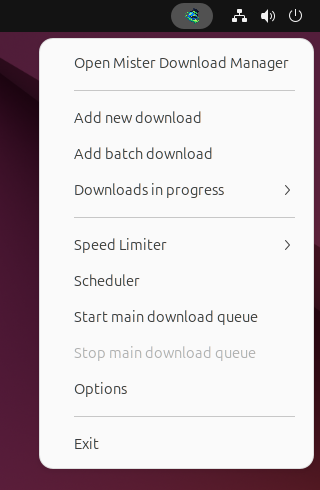
- انقر على أيقونة منطقة الإشعارات لإعادة فتح النافذة.
- انقر عليها بزر الفأرة الأيمن لعرض إضافة تنزيل جديد، وإضافة تنزيل جماعي، والتنزيلات الجارية، ومحدد السرعة، والمجدول، وقائمة انتظار التنزيلات الرئيسية، والخيارات وإنهاء.
- تعرض التنزيلات الجارية التنزيلات قيد التنفيذ. اختر أحدها لعرض نافذة تقدمه.
يؤدي «تصغير» إلى إخفاء النافذة الرئيسية هناك أيضا، بينما يكون خيار تصغير إلى منطقة الإشعارات قيد التشغيل في الخيارات ← عام. وهو قيد التشغيل افتراضيا؛ وحيث لا تحتوي منطقة الإشعارات على أيقونة، يرسل «تصغير» النافذة إلى شريط المهام بدلا من ذلك.
يمكن أيضا إخفاء نافذة تقدم التنزيل في منطقة الإشعارات، باستخدام زر التصغير أو زر إخفاء إلى منطقة الإشعارات: شرطة قصيرة يتبعها سهم نحو الزاوية.
في Windows، يوجد هذا الزر في شريط عنوان النافذة، إلى يسار زر التصغير، وفي قائمة شريط العنوان (Alt+Space). أما في Linux وmacOS، فيوجد في نهاية صف علامات التبويب.
لإعادة فتح النافذة، اختر التنزيل من التنزيلات الجارية، أو انقر نقرا مزدوجا على التنزيل في القائمة.
للخروج، اختر المهام → إنهاء أو إنهاء من قائمة منطقة الإشعارات.
Where GDM keeps its data
توجد قائمة التنزيلات والإعدادات في %APPDATA%\misterdownloadmanager (downloads.json)؛ على نظام Linux في ~/.local/share/misterdownloadmanager، وعلى نظام Mac في ~/Library/Application Support/misterdownloadmanager. تحتفظ النسخة المحمولة بها في مجلد data الخاص بها بدلا من ذلك. تذهب الملفات التي تم تنزيلها إلى مجلد التنزيلات الخاص بك، مرتبة في مجلد لكل فئة؛ يمكنك تغيير ذلك في الخيارات ← حفظ في.
الخطوات التالية
مجاني، مفتوح المصدر، بدون إعلانات، بدون فترة تجريبية.
Download GolinksPRO Download Manager