
GDM runs on 64-bit Windows 10 and Windows 11, and on 64-bit Linux: see On Linux. Builds for macOS are new and still experimental: see On a Mac.
Scegli un download
Tutte le versioni si trovano nella pagina Release. Per Windows ci sono tre file:
| File | Cos'è |
|---|---|
MisterDownloadManager-<version>-setup.exe |
The installer. Pick this one unless you have a reason not to. It can set up browser integration and open .torrent files and magnet links with GDM. |
MisterDownloadManager-<version>-portable.zip |
Una copia portatile. L'elenco dei download e le impostazioni rimangono in una cartella data accanto al programma, e nulla viene scritto nel registro. L'integrazione con i browser richiede il programma di installazione. Vedi Modalità portatile. |
MisterDownloadManager-<version>-x64.zip |
Gli stessi programmi senza un programma di installazione. Mantiene i suoi dati in %APPDATA%\misterdownloadmanager, come una copia installata. |
Su Linux
GDM runs on 64-bit Linux with a desktop session. It is tested on Ubuntu 24.04, Debian 12 and
Fedora, with GNOME, KDE Plasma, Xfce and Cinnamon, on X11 and in Wayland sessions. Pick one
of these files (up to version 0.2.4, their names end in -experimental, as in
...-linux-x86_64-experimental.deb):
| File | Cos'è |
|---|---|
...-linux-x86_64.deb |
For Ubuntu, Debian, Mint and Pop!_OS: sudo apt install ./<file>.deb. It brings the libraries GDM needs. |
...-linux-x86_64.rpm |
For Fedora, openSUSE and RHEL: sudo dnf install ./<file>.rpm. It brings the libraries GDM needs. |
...-linux-x86_64.AppImage |
Funziona sulla maggior parte delle distribuzioni: rendilo eseguibile (chmod +x) e avvialo. Si aggiorna automaticamente (Guida → Verifica aggiornamenti). |
...-linux-x86_64.tar.gz |
I programmi senza installazione, per qualsiasi distribuzione. |
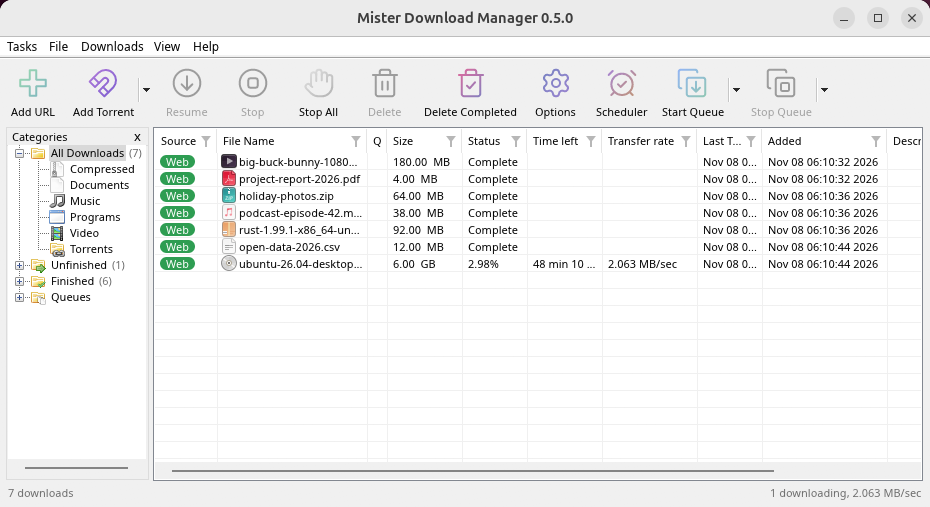
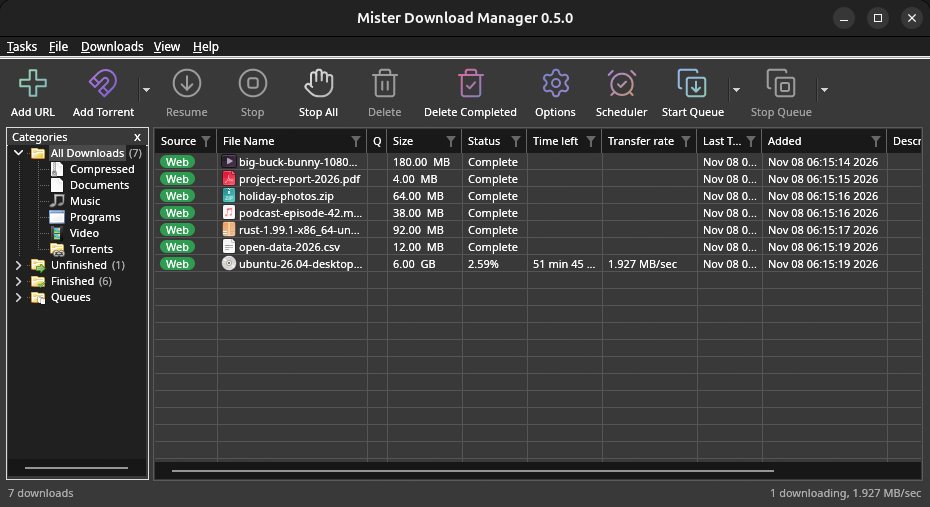
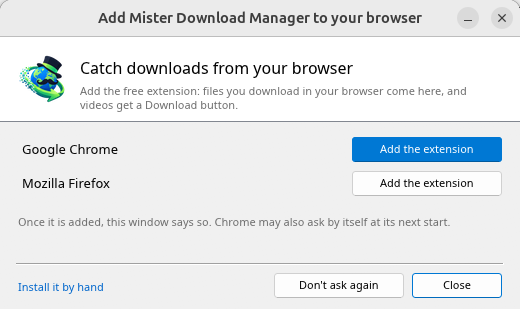
Browser integration is set up by GDM itself at each start (the browsers installed then are found); add the extension as in Browser integration. Firefox installed as a Snap (Ubuntu's) reaches GDM once you allow it; other Snap and Flatpak browsers can't (see Flatpak and Snap browsers). The tray icon, Dark Mode support and Launch on startup work on GNOME (Ubuntu's), KDE Plasma, Xfce and Cinnamon.
In a Wayland session the windows go through XWayland (below). Not there yet on Linux: screen readers (Orca) don't read GDM's windows; browsers installed as a Flatpak can't reach GDM (Firefox from Flathub may, through the desktop as the Snap does, but that isn't checked yet); and View → Draw with → Vulkan is a choice, OpenGL stays the default.
In a Wayland session (GNOME, KDE Plasma and others), GDM's windows run through XWayland when it is there: Wayland doesn't let a program place its own windows, so GDM's menus and drop-down lists would open in the middle of the screen. To run on Wayland itself anyway, start it with MDM_WAYLAND=1 misterdownloadmanager. If the system lacks a library X11 windows need (such as libxkbcommon-x11, which the .deb and .rpm bring but the AppImage and the tar.gz can't), GDM opens on Wayland instead; with no window system it can use, it names what's missing and the command that installs it.
Le finestre sono quelle descritte in questa guida, con i font, le icone dei file e le barre del titolo del desktop:
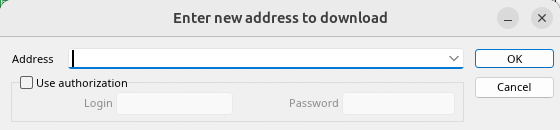
Aggiungi URL. 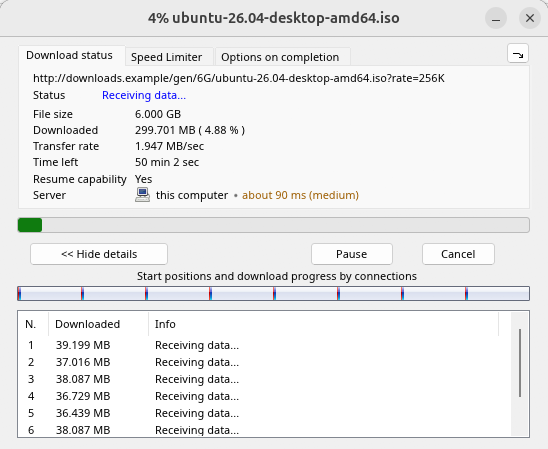
Avanzamento di un download. 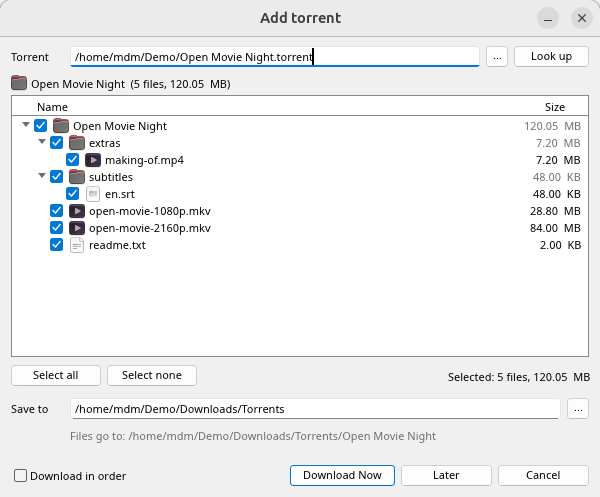
Aggiungi torrent. 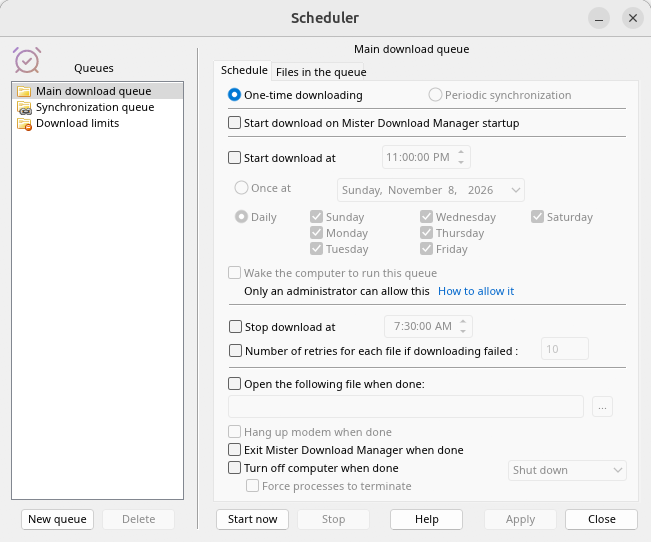
Il Pianificatore. 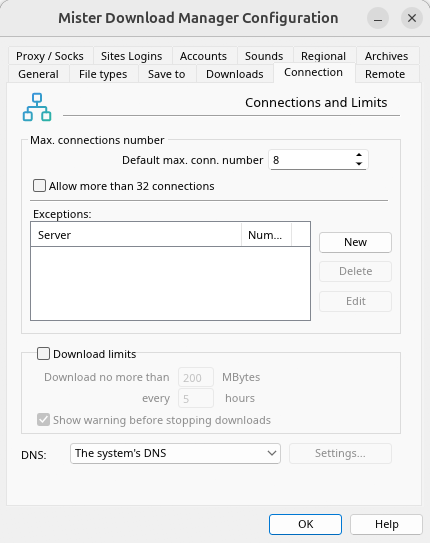
Opzioni.
E sugli altri desktop su cui è stato verificato:
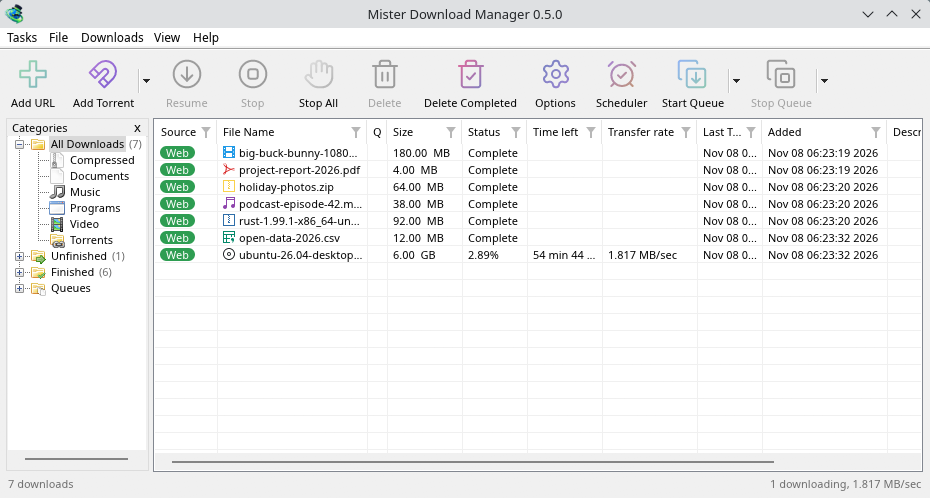
KDE Plasma. 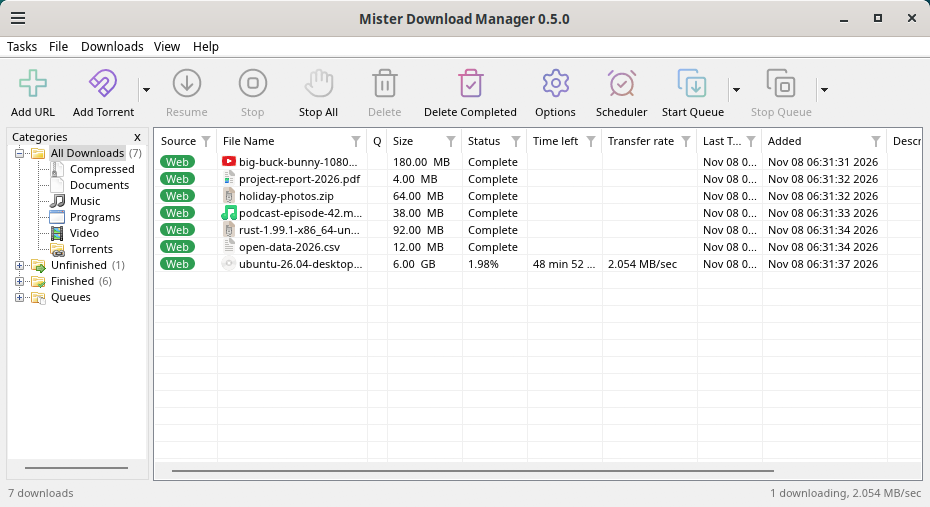
Cinnamon. 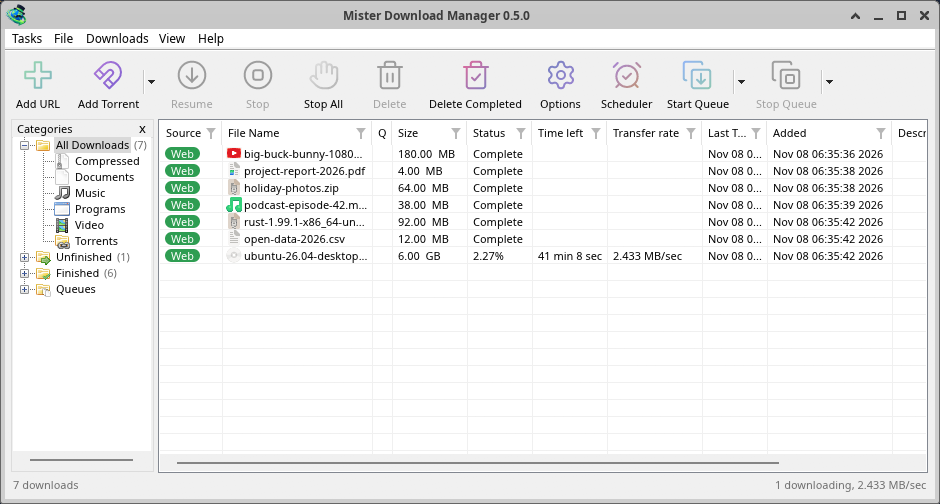
Xfce.
Disinstallazione su Linux
sudo apt remove misterdownloadmanager (or sudo dnf remove misterdownloadmanager) removes the
programs, and the small files that tell your browsers where GDM's helper is: the .deb and .rpm
install those for everyone (in /etc and /usr/lib), for Chrome, Chromium, Edge, Brave, Vivaldi
and Firefox (the Snap too), so GDM doesn't write them in your home folder. For the AppImage or the
tar.gz, delete the file or the folder.
What GDM keeps in your home folder stays, as with any package: your list and settings
(~/.local/share/misterdownloadmanager), the AppImage's and the tar.gz's browser files, and
those of the browsers that read them only there (Opera, Helium, Thorium, and Firefox's forks:
Zen, LibreWolf, Floorp, Waterfox). A package can't remove those: it never touches
home folders. Without GDM they lead nowhere, so the extension says it can't reach GDM. To remove
them as well, run this as each user who used GDM, before uninstalling:
misterdownloadmanager-nmhost --unregister
(Dall'AppImage: ~/.local/share/misterdownloadmanager/browser-host/misterdownloadmanager-nmhost --unregister.) Già disinstallato? Questo comando rimuove gli stessi file:
find ~/.mozilla ~/.librewolf ~/.config -name com.misterdownloadmanager.host.json -delete 2>/dev/null
Su Mac
Le build per macOS sono nuove e ancora sperimentali: non le abbiamo ancora provate su un Mac, quindi saresti tra i primi. Per favore, dicci come è andata, bene o male.
| File | Cos'è |
|---|---|
...-macos-arm64-experimental.dmg |
For a Mac with Apple Silicon (M1 or later: Apple menu → About This Mac shows a Chip). Open it and drag GolinksPRO Download Manager to Applications. macOS asks before its first start, because the app isn't notarized by Apple: right-click it and choose Open (on macOS 15 and later: System Settings → Privacy & Security → Open Anyway). |
...-macos-x86_64-experimental.dmg |
Lo stesso, per un Mac con processore Intel (Informazioni su questo Mac mostra un Processore). |
Browser integration is set up by GDM itself at each start (the browsers installed then are found); add the extension as in Browser integration.
Installa con il programma di installazione
- Esegui
MisterDownloadManager-<version>-setup.exe. - Choose the language. Windows' display language is already selected. The setup offers every language GDM has, and GDM starts in the one you pick.
- Scegli se installare GDM solo per te o per tutti gli utenti del computer. Per installarlo solo per te non servono i diritti di amministratore e verrà installato in
%LOCALAPPDATA%\Programs\GolinksPRO Download Manager. Per tutti gli utenti verrà installato inProgram Files. - Pick what the setup should do: - Set up browser integration (Chrome, Edge, Brave, Firefox) - Open .torrent files and magnet links with GolinksPRO Download Manager - Start GolinksPRO Download Manager when Windows starts - Create a desktop shortcut (off unless you tick it)
- Click Install, then Finish to start GDM.
If GDM is already running, the setup asks it to save and close first. To update, use Help → Check for updates → Update now, or run the setup of the new version; your list and settings stay.
L'integrazione con i browser richiede un passaggio aggiuntivo per ogni browser: l'aggiunta dell'estensione. In Firefox, fai clic su Aggiungi a Firefox sulla sua pagina su addons.mozilla.org; in Chrome, Edge, Brave, Opera e Vivaldi, Aggiungi a Chrome sulla sua pagina nel Chrome Web Store. La sezione Integrazione con i browser mostra come fare.
Disinstalla
Uninstall GDM from Windows Settings → Apps. The uninstaller asks whether to delete your download list and settings too. Your downloaded files are never touched.
Usa una copia zip
- Decomprimi il file in una cartella in cui puoi scrivere (non direttamente in
Program Files). - Esegui
misterdownloadmanager.exe.
Gli archivi ZIP contengono gli stessi programmi del programma di installazione: l'app, misterdownloadmanager-cli.exe (per scaricare dalla riga di comando; vedi Riga di comando e automazione) e la cartella extension.
Primo avvio e lingua
- Installed with the setup: GDM starts in the language you chose in the setup.
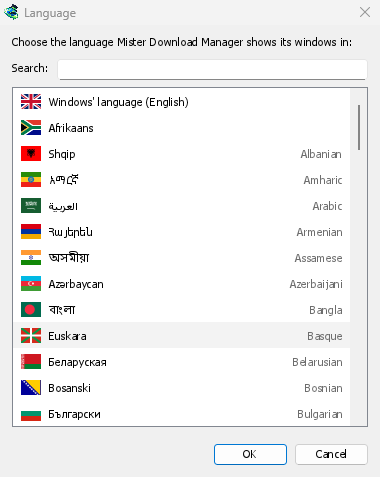
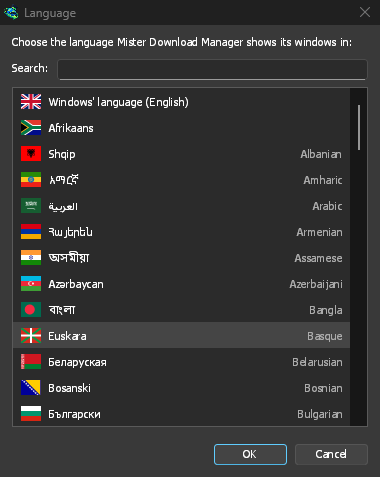
- Otherwise: GDM shows the list of languages, each with its flag and its own name. Pick yours.
Puoi cambiarla in qualsiasi momento in Visualizza → Lingua. Maggiori informazioni in Lingue.
I programmi di supporto per i video
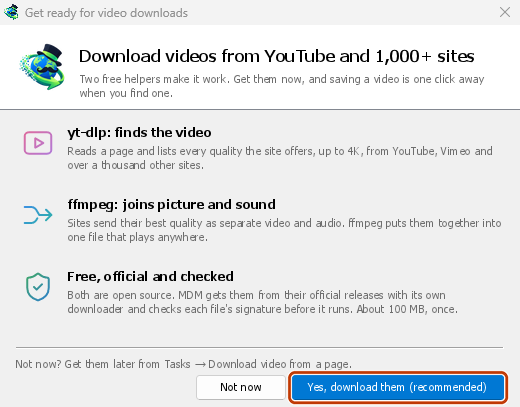
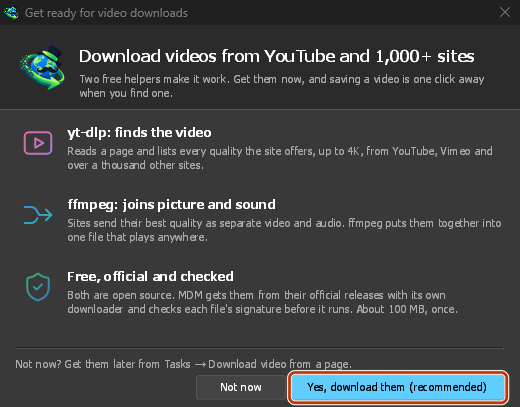
Next, GDM offers its two free video helpers: yt-dlp, which finds the video on a page, and ffmpeg, which joins its picture and sound. Click Yes, download them (recommended) and they download in the background, about 100 MB, once. Not now leaves them for later: the video window offers them when you first need them. More in Videos.
La finestra principale
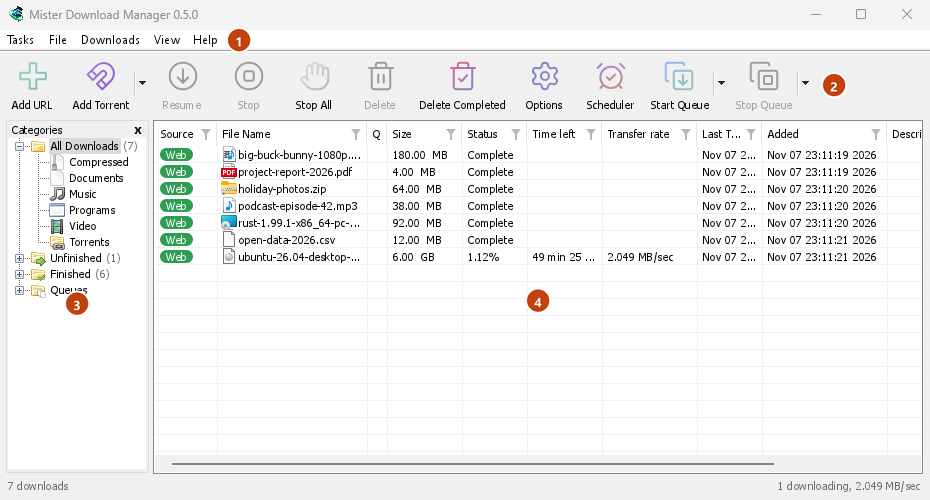
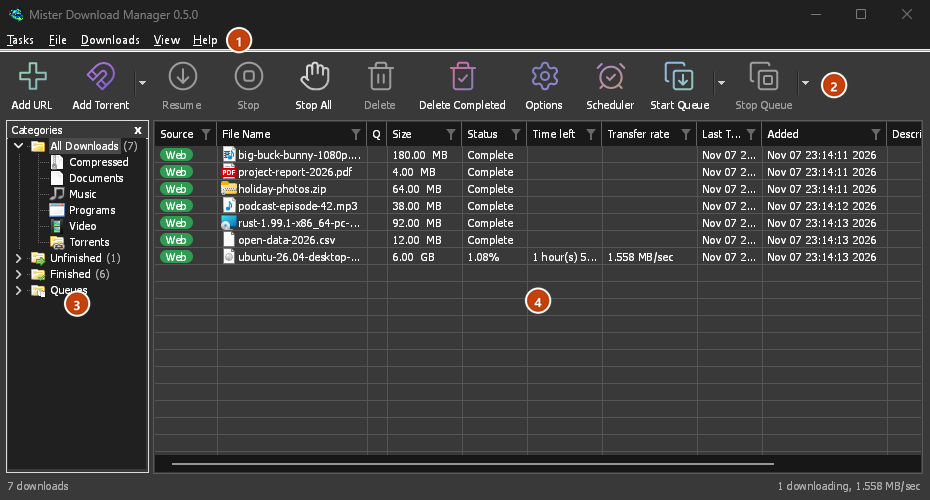
Dall'alto in basso:
- Barra dei menu.
- Attività: aggiungi download, torrent, link magnet, download in batch e video da una pagina; Impostazioni torrent; Link grabber; Feed RSS; mostra l'area di rilascio; importa ed esporta l'elenco; esci.
- File: il download selezionato: Interrompi download, Rimuovi, Scarica ora, Scarica di nuovo.
- Download: Metti tutto in pausa, Interrompi tutto, Elimina tutti i completati, Trova, il Pianificatore, le code, il Limitatore di velocità e le Opzioni.
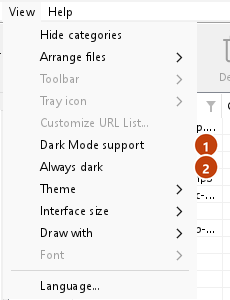
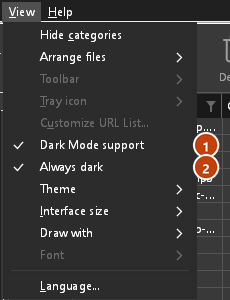
- Visualizza: mostra o nascondi le categorie, ordina l'elenco (Ordina file), Supporto modalità scura, Sempre scuro, Tema, Dimensioni interfaccia (ogni finestra più grande, dal 100% al 200%; anche Ctrl +, Ctrl − e Ctrl 0), Rendering con (OpenGL, o Direct3D su Windows, Vulkan su Linux, Metal su macOS) e Lingua.
- Help — help pages and tutorials (on the website, in your language when it has it), Keyboard shortcuts, Report a problem, Check for updates, About, Tell a friend and Support GDM (its creator's GitHub Sponsors page: optional, nothing in GDM changes).
- Barra degli strumenti. Aggiungi URL, Aggiungi torrent, Riprendi, Interrompi, Interrompi tutto, Elimina, Elimina completati, Opzioni, Pianificatore, Avvia coda, Interrompi coda. La piccola freccia accanto a Aggiungi torrent, Avvia coda e Interrompi coda apre altre opzioni.
- Categorie (a sinistra). Scegli cosa mostra l'elenco: Tutti i download, Non completati, Completati e Code, ciascuno con le proprie categorie. Trascina il bordo tra il pannello e l'elenco per allargarlo.
- Elenco dei download (a destra). Una riga per ogni download. Vedi L'elenco dei download.
Modalità scura
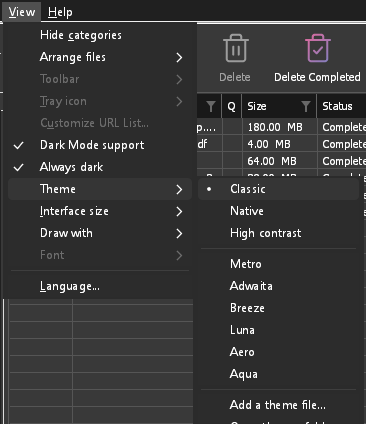
GDM follows your system: when Windows (or your desktop's light/dark preference on Linux and macOS) is set to dark mode, so is GDM. To keep GDM light whatever the system does, turn off View → Dark Mode support. To keep it dark whatever the system does, for example on a desktop that reports no preference, turn on View → Always dark.
Temi
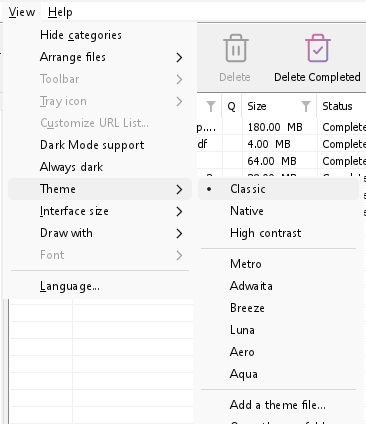
View → Theme changes GDM's look at once, keeping its layout:
- Classic: GDM's own look, the default.
- Nativo: i colori del sistema. Il colore principale di Windows (Impostazioni → Personalizzazione → Colori) e, se attivo, il tema a contrasto; il colore principale del desktop e l'impostazione di contrasto elevato su Linux (GNOME 47 e versioni successive, KDE Plasma); il colore principale su macOS. GDM segue le modifiche che apporti a queste impostazioni.
- Contrasto elevato: bianco e nero, un colore principale acceso, tutti i bordi visibili, testo con contrasto di almeno 7:1.
- Metro: Windows 8's flat look: square corners, flat buttons and boxes, a coloured title bar with the title centred (on Windows, where GDM draws it), and one-colour icons (Microsoft's Fluent UI System Icons).
- Adwaita: GNOME's look: round corners, flat grey buttons, a rounded focus ring, GNOME's check boxes, a header bar with the title in bold and round buttons (on Windows, where GDM draws it), and GNOME's Adwaita icons, in colour for files and categories, one colour in the toolbar.
- Breeze: KDE Plasma's look: rounded corners, buttons and boxes that take the accent's edge under the pointer or when focused, KDE's check boxes and focus frame, KDE's title bar with the title centred and round buttons (on Windows, where GDM draws it), and KDE's Breeze icons.
- Luna: Windows XP's look: buttons shaded from white with an orange glow under the pointer, green ticks, square text boxes, progress in green blocks, a deep blue title bar with the title in bold (on Windows, where GDM draws it), and colourful icons drawn for GDM in that manner.
- Aero: Windows 7's look: glossy buttons that turn light blue under the pointer, quiet check boxes, a glossy green progress bar, a glassy title bar with the title on a soft glow (on Windows), and glossy icons drawn for GDM in that manner.
- Aqua: Mac OS X's look: gel buttons round at the ends (the default one blue), glossy check boxes, a blue focus ring, a blue gel progress bar, a grey title bar with small round buttons (on Windows), and icons drawn for GDM in that manner.
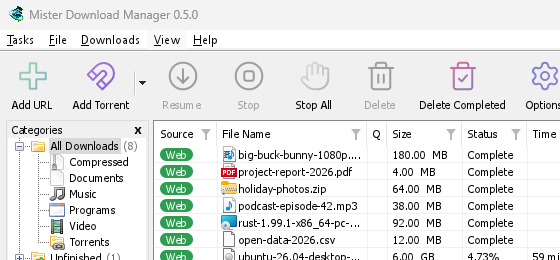
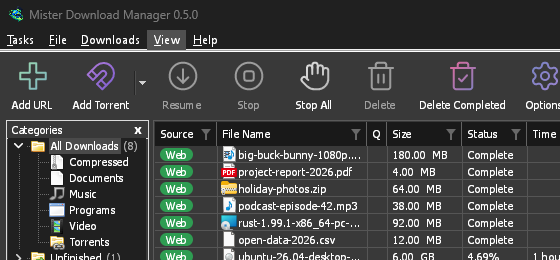
Classico 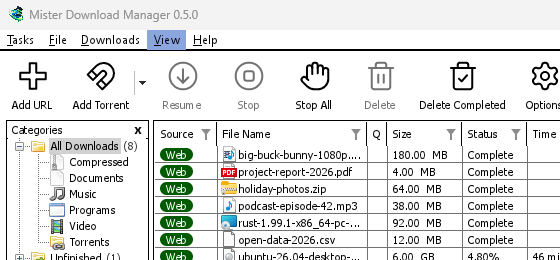
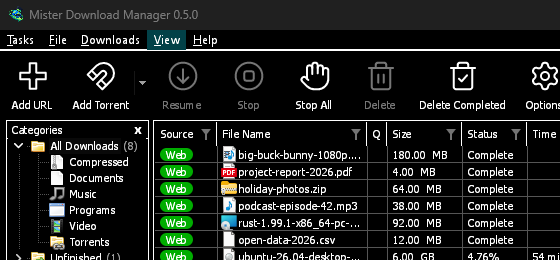
Contrasto elevato 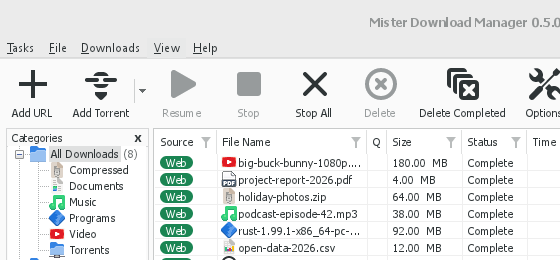
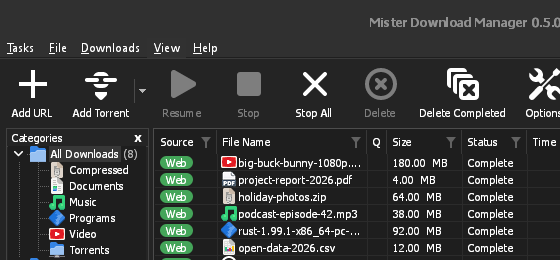
Adwaita 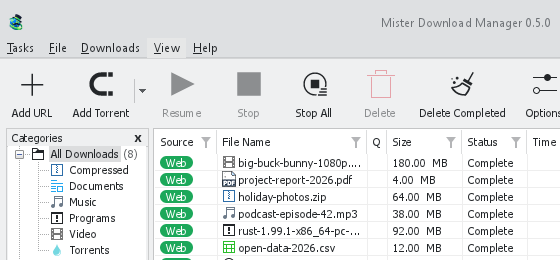
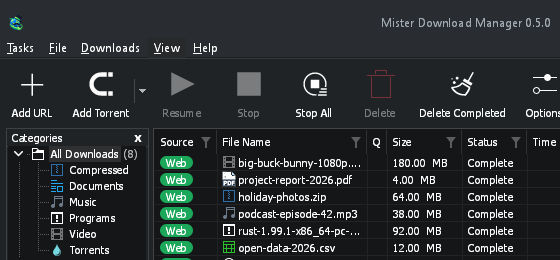
Breeze
Ognuno ha un lato chiaro e uno scuro: il Supporto modalità scura e Sempre scuro permettono di scegliere tra i due come prima. I file di tema che metti nella cartella dei temi (Visualizza → Tema → Apri la cartella dei temi) sono elencati anche lì, così come gli schemi di colore Base16 e pywal (Visualizza → Tema → Aggiungi un file di tema…; pywal segue wal mentre è in esecuzione): Temi spiega dove si trova quella cartella, cosa contiene un file di tema (inherits, colori, dimensioni, forme dei controlli, icone), come vengono usati i colori di uno schema e come crearne e condividerne uno.
L'icona nell'area di notifica
Closing the main window doesn't quit GDM. It hides in the notification area, and downloads, queues and schedules carry on. To make closing quit (a portable copy's folder can then be deleted), untick Options → General → Keep running when closing the window. If there is no icon for GDM at all — not in the notification area, nor behind the ^ hidden icons — the window minimizes to the taskbar instead, so downloads continue and there is a way back. An icon behind ^ can be clicked to bring the window back, and starting GDM again always does.
On Linux this needs a tray, which most desktops have (KDE Plasma, Xfce, Cinnamon, Ubuntu's GNOME or GNOME with the AppIndicator extension, waybar's tray). On a desktop without one (some tiling window managers), closing the window quits GDM, since there would be nowhere to bring it back from.
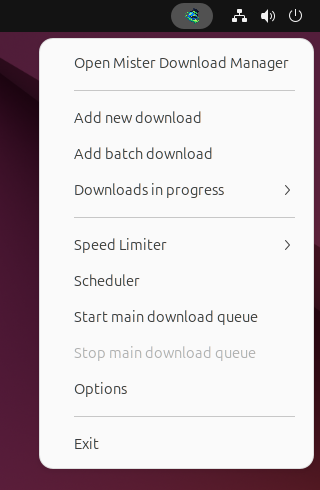
- Fai clic sull'icona nell'area di notifica per ripristinare la finestra.
- Fai clic destro sull'icona per Aggiungi nuovo download, Aggiungi download in batch, Download in corso, Limitatore di velocità, Pianificatore, la coda di download principale, Opzioni ed Esci.
- Download in corso elenca i download attivi. Scegline uno per vedere la sua finestra di avanzamento.
Anche Riduci a icona nasconde la finestra principale, se Riduci a icona nell'area di notifica è attiva in Opzioni → Generale. È attiva per impostazione predefinita; dove l'area di notifica non ha un'icona, Riduci a icona invia la finestra alla barra delle applicazioni.
La finestra di avanzamento di un download può anche andare lì, con il suo pulsante Riduci a icona o con il suo pulsante Nascondi nell'area di notifica: un trattino corto con una freccia verso l'angolo.
Su Windows, quel pulsante si trova nella barra del titolo della finestra, a sinistra di Riduci a icona, e nel menu della barra del titolo (Alt+Spazio). Su Linux e macOS si trova alla fine della riga delle schede.
Per riportare la finestra, sceglila in Download in corso, oppure fai doppio clic sul download nell'elenco.
Per uscire, scegli Attività → Esci o Esci nel menu dell'icona nell'area di notifica.
Where GDM keeps its data
L'elenco dei download e le impostazioni si trovano in %APPDATA%\misterdownloadmanager (downloads.json); su Linux in ~/.local/share/misterdownloadmanager, su Mac in ~/Library/Application Support/misterdownloadmanager. Una copia portatile li conserva invece nella sua cartella data. I file scaricati vanno nella tua cartella Download, ordinati in una cartella per categoria; puoi cambiarlo in Opzioni → Salva in.
Passi successivi
Gratuito, open source, senza pubblicità, senza periodo di prova.
Download GolinksPRO Download Manager