

GDM downloads BitTorrent files from magnet links and .torrent files. Torrents appear in the same list as other downloads, marked Torrent in the Source column, and can be queued and scheduled like them.
添加种子
- 点击工具栏上的添加 Torrent来选择一个
.torrent文件。或者点击旁边的箭头,选择打开 torrent 文件...或添加磁力链接...(也在任务下)。 - 添加种子窗口打开。将磁力链接粘贴到种子中,或点击...选择一个
.torrent文件,然后点击查找。 - GDM reads the torrent and shows its files as a folder tree. A
.torrentfile is read at once. A magnet link first has to get the file list from other peers, usually within seconds. While it waits, Add torrent shows how many peers it found, from the trackers, the DHT or your local network, and how many answered. After 30 seconds without an answer, it says what may be in the way: a link with no trackers while the DHT is off, or a firewall, a VPN or a network that blocks BitTorrent. - 取消勾选您不想要的文件夹或文件。全选和不选有助于处理大型种子。已选显示您选择了多少文件和多少数据。
- 检查保存到。文件保存到显示确切的文件夹。种子有自己的类别,因此默认情况下是
Downloads\Torrents。 - 要边下载边观看视频,请勾选按顺序下载(参见按顺序下载)。
- 点击立即下载,或点击稍后将其添加到列表而不开始下载。
取消勾选不想要的文件,然后点击“立即下载”。 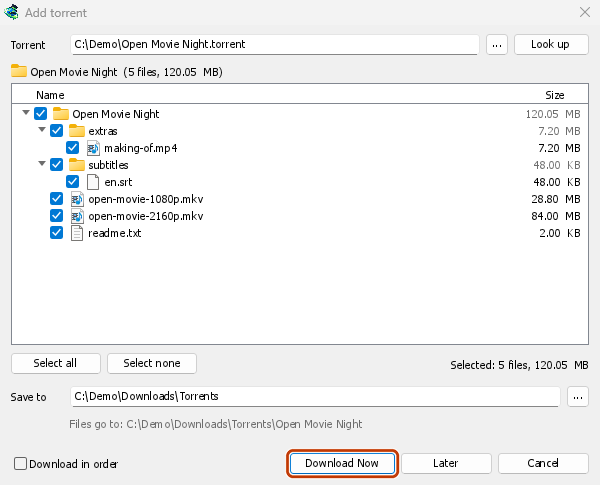
其进度窗口:显示每个文件及其已下载的百分比。 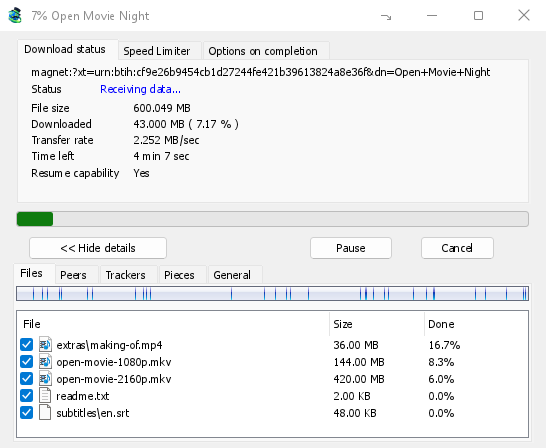
分块:种子的地图,正在填充中。 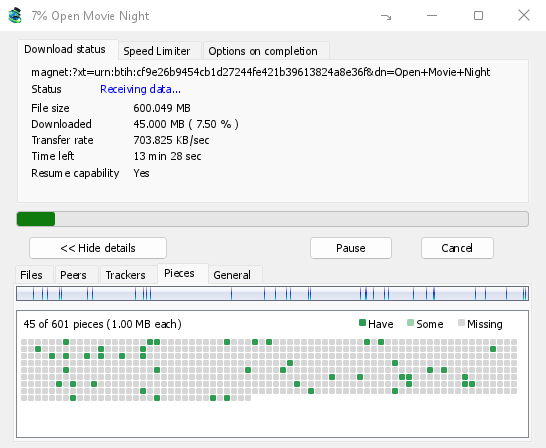
You can also paste a magnet link into Add URL, or drop a magnet link or a .torrent file on the drop target (Tasks → Show drop target). If a torrent is already in the list, GDM says so instead of adding it twice.
A .torrent file's web address works too: paste it into Add URL or Torrent, or let the browser hand the download over. GDM fetches the file, with the browser's cookies when the browser sent it, and Add torrent shows what it holds. The browser hands .torrent downloads over because TORRENT is in Options → File types. It's there by default; a list you had before this version keeps what it had, so add TORRENT to it yourself. Download with GolinksPRO Download Manager on a link always hands it over. A command line with /n (silent) saves the .torrent file itself, like any file. GDM fetches at most 10 MB: anything bigger isn't a .torrent file.
If some of the torrent's files are already in the folder, GDM asks before using them. Yes keeps them for the torrent: GDM checks them, keeps what matches the torrent and downloads the rest, which is how you continue a download started elsewhere or share files you already have. No (the default) goes back, so you can choose another folder and nothing of yours is overwritten.
GDM refuses a torrent with file names your system can't write safely, says which name, and writes nothing. What others can see, the network switches in Torrent settings, blocklists and proxies: Torrents and your security.
下载期间
双击列表中的种子以打开其进度窗口。除了常规状态外,种子的窗口有五个选项卡:
- 文件 — 每个文件、其大小以及完成的进度。未勾选的文件显示已跳过。勾选或取消勾选文件的框以更改下载内容,即使种子正在运行。至少有一个文件保持勾选状态。如果您取消勾选所有仍缺失的文件,则种子完成。如果一个已完成但未运行的种子重新获得一个文件,它会保持停止状态,直到您恢复它,这样就不会在不知情的情况下下载任何内容。
- 对等方 — 您正在从中下载的计算机,以及您从每个计算机接收和发送的数据量。
- 跟踪器 — 种子的跟踪器。如果没有跟踪器,对等方将来自 DHT 和其他对等方。
- 分块 — 种子分块的映射:已存在、部分存在或缺失。
- General — the info hash, pieces, peers, how much was sent, the share ratio, how long it has been shared and the folder. What was sent and the time shared add up over all of the torrent's runs: they don't start again at 0 after a pause or a restart of GDM.
只要 torrent 仍在共享,其选项卡就会在下载完成后保留。
torrent 窗口的速度限制器选项卡除了下载限制外,还有限制上传到您选择的速度。该限制会随 torrent 保存:每当 torrent 运行或分享时,该限制都会再次生效。无论如何,torrent 的上传速度不能低于 16 千字节/秒。
种子命令
右键单击列表中的种子,然后打开种子:
- 重新检查文件 — 读取种子文件的每个部分并进行检查,例如在您移动文件或磁盘出现错误之后。运行中的种子会继续运行并获取缺失的部分。已停止的种子保持停止状态。其事件日志会显示找到多少内容:已完成的种子如果损坏了一个部分,则会变为停止状态,恢复它会再次获取该部分。
- 重新发布 — 立即再次向种子的跟踪器请求对等点,而不是等待下一轮。它在种子运行或共享时有效。
- Add trackers... — adds trackers, one address a line (
http,httpsorudp). They are kept with the torrent, after the ones it has, and the Trackers tab shows them. A tracker on your computer or your local network is refused: GDM never contacts those (why). - 按顺序下载 — 从种子的文件开头开始下载(见下文)。再次点击可切换回优先下载最稀有分块。
- 先下载首尾分块 — 启用按顺序下载时,每个文件的首尾分块会优先于其他分块下载。此功能默认开启。
- 复制磁力链接 — 复制种子的磁力链接,包括其跟踪器。
每条命令的执行结果都会记录在种子的事件日志中;将鼠标悬停在列表中的状态单元格上即可查看。
按顺序下载
By default GDM downloads the pieces that the fewest peers have first, as BitTorrent programs usually do. That way a piece only one peer has is fetched before that peer leaves, and GDM can pass it on to others sooner. On GDM's test swarms it finished just as fast as downloading in order, and it was the only order that finished when a scarce piece's only holder left.
按顺序下载会优先下载文件开头部分,这样您就可以边下载边观看视频:第一部分下载完成后,就可以在播放器中打开视频。在添加种子时勾选此选项,或随时(包括下载过程中)在列表的右键菜单中选择种子 → 按顺序下载。之后请求的分块会按新的顺序下载。
- 启用先下载首尾分块(默认开启)后,每个文件末尾的分块也会提前下载。大多数视频文件将索引保存在末尾,而播放器会先读取索引,再开始播放。
- 多个文件会按名称排序,依次下载。
- 速度较慢的对等方会下载稍靠后的分块,因此文件开头部分无需等待它们。
按顺序下载不会让种子更快完成,对群的贡献也较小:仅在需要立即观看内容时使用此功能。
RSS 源
Many sites publish their new torrents as an RSS or Atom feed. GDM can watch feeds, list what they hold, and add the new torrents you want by itself. Choose Tasks → RSS feeds..., or click the arrow next to Add Torrent.
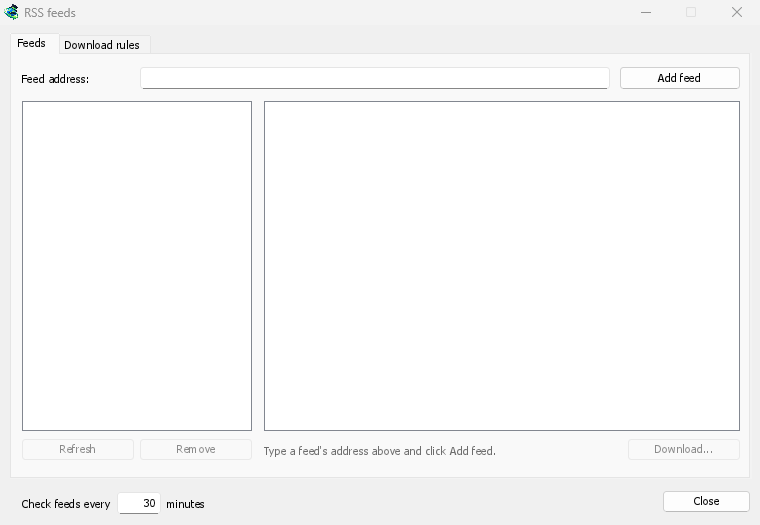
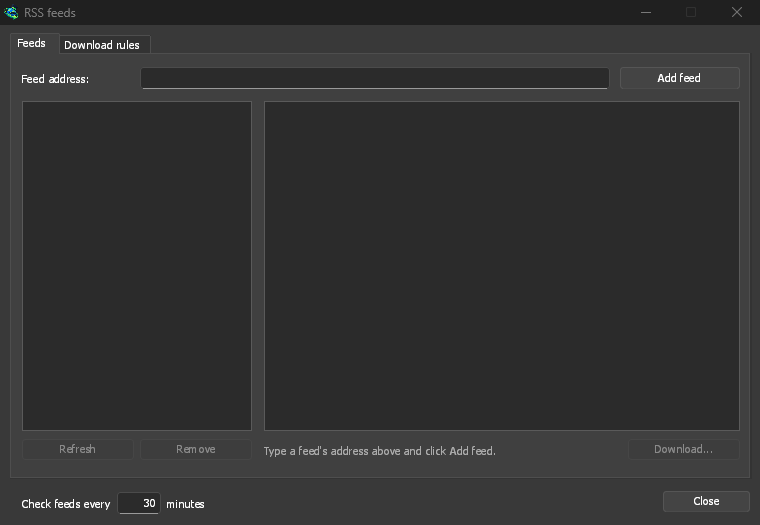
源选项卡:
- Type a feed's address into Feed address and click Add feed. GDM fetches it at once, then every 30 minutes; change that under Check feeds every ... minutes, 5 at the least.
- 选择左侧的源以查看其中的文章。如果文章包含种子,且源提供了种子大小,文章旁会显示种子图标和大小。双击文章,或选中后点击下载...,即可用该种子打开添加种子窗口,操作方式与磁力链接或
.torrent地址相同。 - 刷新会立即获取选定的源。删除会停止监视该源。无法读取的源会显示为红色,底部一行会说明原因。
下载规则选项卡:规则会自动添加标题符合条件的新文章中的种子,无需确认。
- 必须包含:标题必须包含的词语,且所有词语都要出现,顺序不限。
|用于分隔备选项(1080p|2160p),*和?是通配符。不区分大小写。 - 不得包含:标题中包含这些词语时,规则会跳过该文章;写法相同。
- 正则表达式:这两个输入框改为填写正则表达式。
- 剧集:从标题中的
S01E05或1x05读取要下载的剧集。1x2表示第 1 季第 2 集,1x5-8表示第 5 至 8 集,2x1-表示从第 2 季第 1 集开始的所有剧集,3表示第 3 季的所有剧集,各项之间用;分隔。留空表示匹配任何文章。每个剧集只会由一条规则下载一次:已添加过的剧集再次发布时会被跳过。 - 保存到:种子文件的保存文件夹;留空则使用“种子”类别的文件夹。启用添加但不启动时,添加方式与稍后下载相同。
- 源:规则适用的源;如果没有勾选任何源,则适用于所有源。
Rules only look at articles that are new since the feed was last fetched, and a feed's first fetch only lists what is there. So adding a feed or a rule never downloads a whole backlog. Matches ... articles now shows which of the articles the feeds hold now the rule matches, to check it; download those by hand. A torrent the list already has isn't added again, and neither is one whose files are already in the folder: GDM never writes into files it didn't make without asking. The bottom line of the tab says what the rules did last, and a torrent a rule added says so in its event log.
Feeds and rules are kept in rss.json in GDM's data folder. GDM reads at most 5 MB of a feed.
种子设置
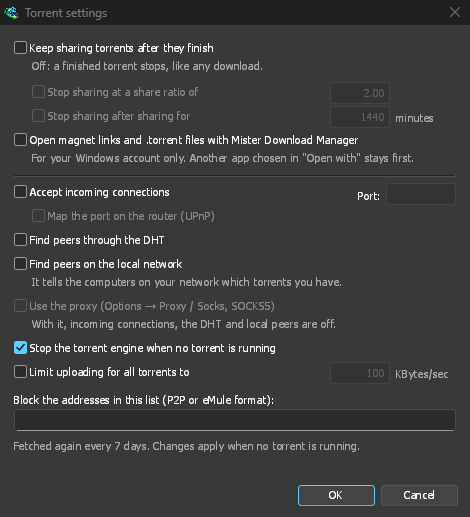
选择任务 → 种子设置...(或点击添加 Torrent旁边的箭头):
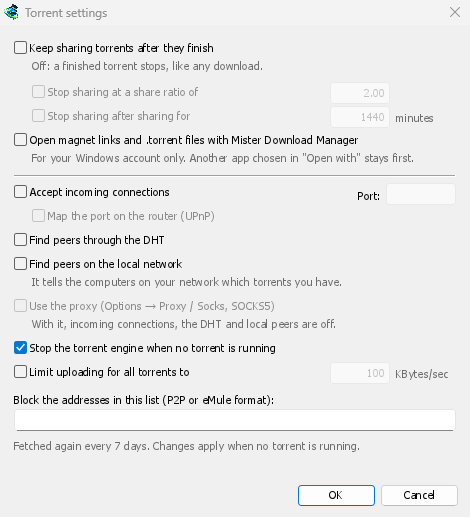
- 下载完成后继续共享种子 — 默认关闭:种子完成后会停止共享,与其他下载相同。启用此选项后,下载完成仍会继续向其他节点上传。
- 共享率达到以下比率后停止共享 — 种子完成后,上传的数据量达到下载数据量指定倍数时(2.00 即两倍)便会停止共享。默认关闭。
- 共享时间达到以下时长后停止共享 — 或者累计共享达到指定时长后停止。默认关闭。
A torrent stopped by one of these says so in its event log, and isn't shared again when GDM starts. Raise or turn off the limit to share it again.
- Limit uploading for all torrents to — off by default. Caps what all your torrents together send to other peers, while they download and while they share. A torrent's own upload limit, in its progress window, applies on top of it.
- Open magnet links and .torrent files with GolinksPRO Download Manager — Windows then opens magnet links in your browser and .torrent files in Explorer with GDM. This is for your Windows account only; a program you chose in Windows' Open with stays first. The setup can turn it on for you.
同一窗口中还有网络开关(传入连接、端口、UPnP、DHT、SOCKS5 代理)和阻止列表:请参阅种子与您的安全。
GDM starts its torrent engine the first time you add a torrent. If you never use torrents, it never listens for peers.
On a Linux system without CA certificates (a minimal install without the ca-certificates package), torrents still work: peers, the DHT and http:// trackers. An https:// tracker can't be checked there, so GDM skips it; install that package to use those too.
With a debrid account, torrents and magnet links can go to the service instead of to peers, and GDM downloads the files from it over HTTP: see Torrents through the service.
下一步
免费、开源、无广告、无试用版。
Download GolinksPRO Download Manager