

GDM downloads BitTorrent files from magnet links and .torrent files. Torrents appear in the same list as other downloads, marked Torrent in the Source column, and can be queued and scheduled like them.
토렌트 추가
- 도구 모음에서 토렌트 추가를 클릭해
.torrent파일을 선택합니다. 또는 옆의 화살표를 클릭해 토렌트 파일 열기... 또는 마그넷 링크 추가...를 선택합니다(작업 메뉴에도 있습니다). - 토렌트 추가 창이 열립니다. 마그넷 링크를 토렌트에 붙여넣거나 ...을 클릭해
.torrent파일을 선택한 다음 찾아보기를 클릭합니다. - GDM reads the torrent and shows its files as a folder tree. A
.torrentfile is read at once. A magnet link first has to get the file list from other peers, usually within seconds. While it waits, Add torrent shows how many peers it found, from the trackers, the DHT or your local network, and how many answered. After 30 seconds without an answer, it says what may be in the way: a link with no trackers while the DHT is off, or a firewall, a VPN or a network that blocks BitTorrent. - 원하지 않는 폴더나 파일의 선택을 해제합니다. 모두 선택과 선택 안 함은 용량이 큰 토렌트에서 유용합니다. 선택됨에는 선택한 파일 수와 데이터 용량이 표시됩니다.
- 저장 위치를 확인합니다. 파일 저장 위치에 정확한 폴더가 표시됩니다. 토렌트는 별도의 카테고리를 사용하므로 기본 저장 위치는
Downloads\Torrents입니다. - 동영상을 다운로드하면서 보려면 순서대로 다운로드를 선택합니다(순서대로 다운로드 참조).
- 지금 다운로드를 클릭하거나, 시작하지 않고 목록에 추가하려면 나중에를 클릭하세요.
원하지 않는 항목의 선택을 해제한 다음 지금 다운로드를 클릭합니다. 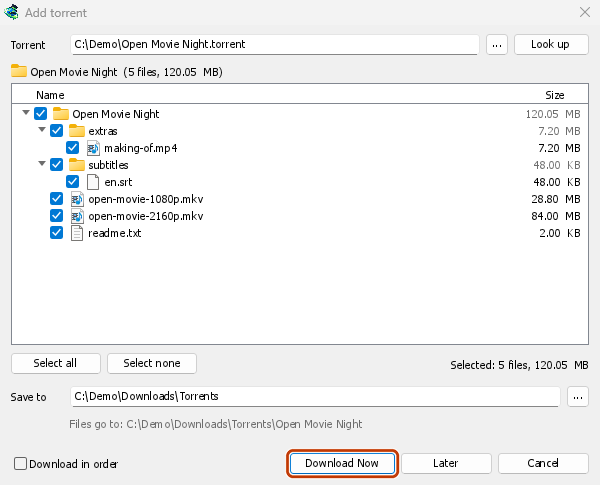
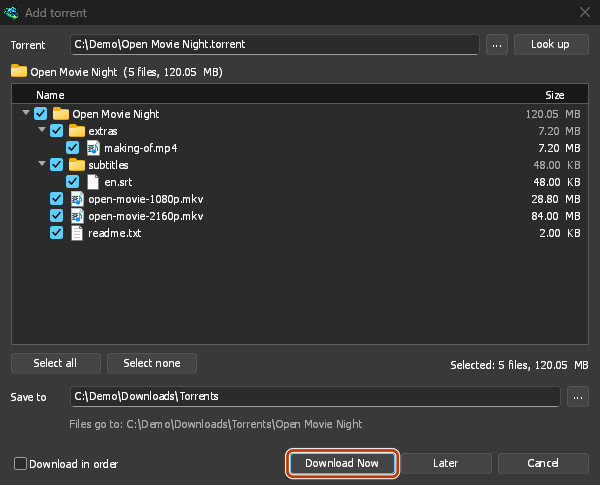
진행 상황 창: 각 파일과 다운로드된 양이 표시됩니다. 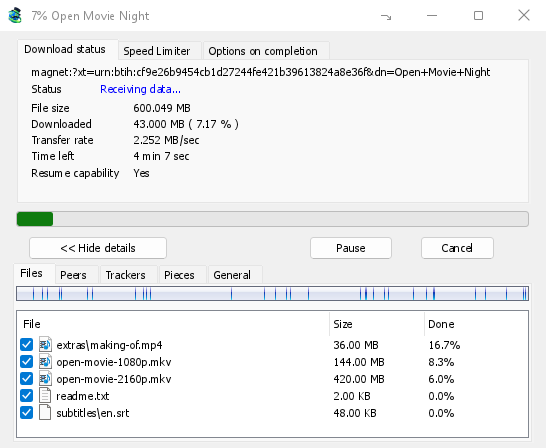
조각: 토렌트의 조각 지도가 채워지는 모습 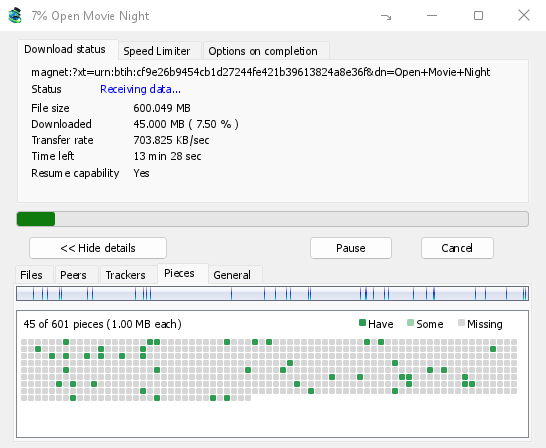
You can also paste a magnet link into Add URL, or drop a magnet link or a .torrent file on the drop target (Tasks → Show drop target). If a torrent is already in the list, GDM says so instead of adding it twice.
A .torrent file's web address works too: paste it into Add URL or Torrent, or let the browser hand the download over. GDM fetches the file, with the browser's cookies when the browser sent it, and Add torrent shows what it holds. The browser hands .torrent downloads over because TORRENT is in Options → File types. It's there by default; a list you had before this version keeps what it had, so add TORRENT to it yourself. Download with GolinksPRO Download Manager on a link always hands it over. A command line with /n (silent) saves the .torrent file itself, like any file. GDM fetches at most 10 MB: anything bigger isn't a .torrent file.
If some of the torrent's files are already in the folder, GDM asks before using them. Yes keeps them for the torrent: GDM checks them, keeps what matches the torrent and downloads the rest, which is how you continue a download started elsewhere or share files you already have. No (the default) goes back, so you can choose another folder and nothing of yours is overwritten.
GDM refuses a torrent with file names your system can't write safely, says which name, and writes nothing. What others can see, the network switches in Torrent settings, blocklists and proxies: Torrents and your security.
다운로드 중
목록에서 토렌트를 두 번 클릭하면 진행 상황 창이 열립니다. 일반적인 상태 정보 외에도 토렌트 창에는 탭이 5개 있습니다.
- 파일 — 각 파일의 이름, 크기와 다운로드 완료 정도가 표시됩니다. 선택 해제한 파일에는 건너뜀이 표시됩니다. 토렌트가 실행 중일 때도 파일의 확인란을 선택하거나 선택 해제해 다운로드할 파일을 변경할 수 있습니다. 파일은 최소 1개 이상 선택해야 합니다. 아직 다운로드되지 않은 파일을 모두 선택 해제하면 토렌트가 완료됩니다. 완료된 토렌트가 실행 중이 아닐 때 파일을 다시 선택하면, 다시 시작할 때까지 중지 상태로 대기하므로 알지 못하는 사이에 다운로드가 진행되지 않습니다.
- 피어 — 파일을 다운로드하는 상대 컴퓨터와 각 상대에게서 받은 양 및 보낸 양이 표시됩니다.
- 트래커 — 토렌트의 트래커입니다. 트래커가 없으면 DHT와 다른 피어에서 피어를 찾습니다.
- 조각 — 토렌트 조각의 지도입니다. 각 조각이 있음, 일부만 있음 또는 없음으로 표시됩니다.
- General — the info hash, pieces, peers, how much was sent, the share ratio, how long it has been shared and the folder. What was sent and the time shared add up over all of the torrent's runs: they don't start again at 0 after a pause or a restart of GDM.
토렌트가 완료된 후에도 공유 중인 동안 탭이 계속 표시됩니다.
토렌트 창의 속도 제한 탭에서는 다운로드 속도 제한 외에 업로드 제한을 원하는 속도로 설정할 수 있습니다. 이 제한은 토렌트에 저장되어 토렌트가 실행되거나 공유될 때마다 적용됩니다. 어느 쪽의 속도 제한도 토렌트 속도를 16 KB/초 미만으로 낮출 수는 없습니다.
토렌트 명령
목록에서 토렌트를 마우스 오른쪽 버튼으로 클릭한 다음 토렌트 메뉴를 엽니다.
- 파일 다시 확인 — 토렌트 파일의 모든 조각을 읽어 확인합니다. 파일을 옮겼거나 디스크 오류가 발생한 후 등에 사용할 수 있습니다. 실행 중인 토렌트는 확인 후 계속 진행하며 누락된 조각을 가져옵니다. 중지된 토렌트는 중지 상태로 유지됩니다. 이벤트 로그에 확인된 데이터 양이 표시됩니다. 완료된 토렌트에서 손상된 조각이 발견되면 중지 상태가 되며, 다시 시작하면 해당 조각을 다시 가져옵니다.
- 다시 알림 — 다음 차례를 기다리지 않고 지금 토렌트의 트래커에 피어를 다시 요청합니다. 토렌트가 실행 중이거나 공유 중일 때 사용할 수 있습니다.
- Add trackers... — adds trackers, one address a line (
http,httpsorudp). They are kept with the torrent, after the ones it has, and the Trackers tab shows them. A tracker on your computer or your local network is refused: GDM never contacts those (why). - 순서대로 다운로드 — 토렌트 파일을 처음부터 다운로드합니다 (아래 참조). 다시 클릭하면 가장 희귀한 조각부터 다운로드하는 방식으로 돌아갑니다.
- 처음과 마지막 조각 먼저 — 순서대로 다운로드와 함께 각 파일의 처음과 마지막 조각이 먼저 다운로드됩니다. 기본적으로 켜져 있습니다.
- 마그넷 링크 복사 — 토렌트의 마그넷 링크와 트래커를 복사합니다.
각 명령의 결과는 토렌트의 이벤트 로그에 기록됩니다. 목록에서 상태 셀 위에 마우스를 올리면 읽을 수 있습니다.
순서대로 다운로드
By default GDM downloads the pieces that the fewest peers have first, as BitTorrent programs usually do. That way a piece only one peer has is fetched before that peer leaves, and GDM can pass it on to others sooner. On GDM's test swarms it finished just as fast as downloading in order, and it was the only order that finished when a scarce piece's only holder left.
순서대로 다운로드는 대신 파일의 시작 부분을 먼저 가져오므로, 다운로드하는 동안 비디오를 시청할 수 있습니다. 첫 부분이 들어오면 플레이어에서 엽니다. 토렌트 추가에서 선택하거나, 목록의 오른쪽 클릭 메뉴에서 토렌트 → 순서대로 다운로드를 언제든지, 심지어 실행 중에도 선택할 수 있습니다. 다음으로 요청되는 조각들은 새로운 순서를 따릅니다.
- 처음과 마지막 조각 먼저 (기본적으로 켜져 있음)를 사용하면 각 파일의 마지막 조각도 일찍 가져옵니다. 대부분의 비디오 파일은 인덱스를 끝에 보관하며, 플레이어는 재생하기 전에 이를 읽습니다.
- 여러 파일은 이름순으로 정렬되어 하나씩 다운로드됩니다.
- 느린 피어는 조금 더 나아간 조각을 가져가므로 시작 부분이 그들을 기다리지 않습니다.
순서대로 다운로드하는 토렌트는 더 빨리 완료되지 않으며, 스웜에 덜 도움이 됩니다. 지금 시청하고 싶은 것에 사용하세요.
RSS 피드
Many sites publish their new torrents as an RSS or Atom feed. GDM can watch feeds, list what they hold, and add the new torrents you want by itself. Choose Tasks → RSS feeds..., or click the arrow next to Add Torrent.
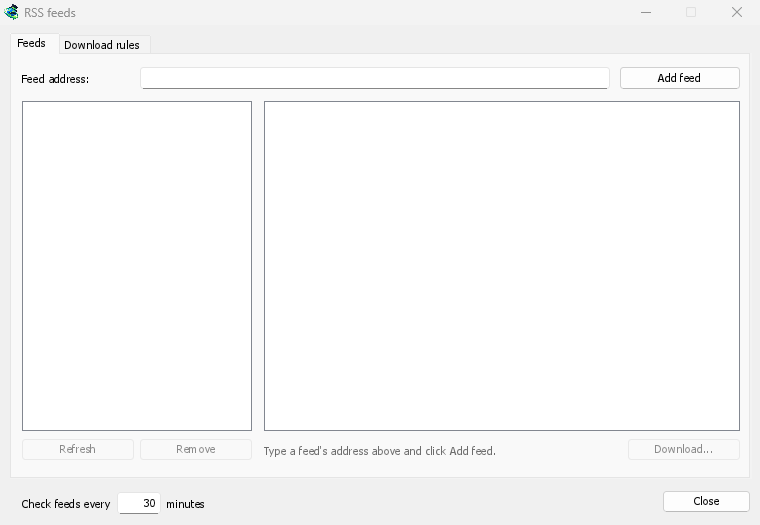
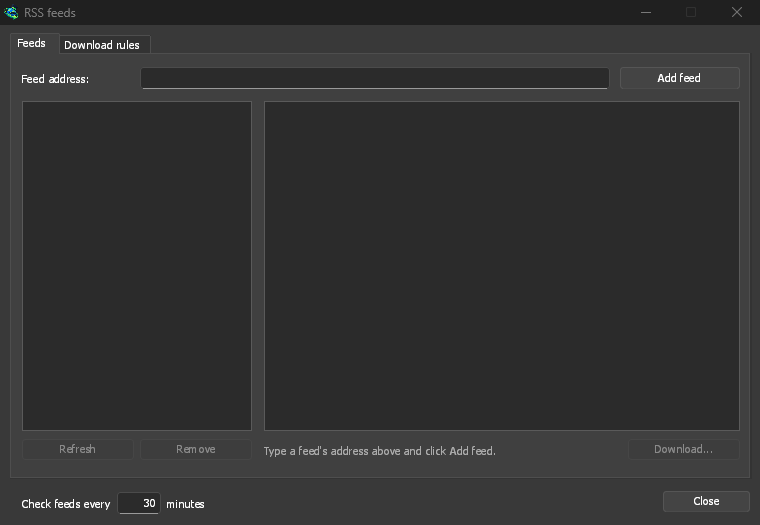
피드 탭:
- Type a feed's address into Feed address and click Add feed. GDM fetches it at once, then every 30 minutes; change that under Check feeds every ... minutes, 5 at the least.
- 왼쪽에서 피드를 선택하여 기사를 확인하세요. 토렌트가 있는 기사는 피드에서 제공하는 경우 토렌트 아이콘과 크기를 표시합니다. 기사를 두 번 클릭하거나 선택한 후 다운로드...를 클릭하면 모든 마그넷 링크 또는
.torrent주소와 마찬가지로 토렌트 추가가 열립니다. - 새로 고침은 선택한 피드를 지금 가져옵니다. 제거는 피드 감시를 중지합니다. 읽을 수 없는 피드는 빨간색으로 표시되며, 하단 줄에 이유가 표시됩니다.
다운로드 규칙 탭: 규칙은 제목이 일치하는 새 기사의 토렌트를 묻지 않고 추가합니다.
- 포함해야 하는 단어: 제목에 포함되어야 하는 모든 단어(순서 무관).
|는 대안(1080p|2160p)을 구분하고,*와?는 와일드카드입니다. 대소문자는 구분하지 않습니다. - 포함하지 않아야 하는 단어: 규칙이 기사를 건너뛰게 하는 단어이며, 동일한 방식으로 작성됩니다.
- 정규식: 두 상자에는 정규식이 대신 들어갑니다.
- 에피소드: 제목의
S01E05또는1x05에서 읽은 에피소드.1x2는 시즌 1 에피소드 2,1x5-8는 에피소드 5~8,2x1-는 시즌 2 에피소드 1부터 모든 에피소드,3는 시즌 3 전체를;로 구분합니다. 비어 있으면 모든 기사입니다. 규칙은 각 에피소드를 한 번만 가져옵니다. 이미 추가된 에피소드의 두 번째 릴리스는 건너뜁니다. - 저장 위치: 토렌트가 저장될 폴더입니다. 비어 있으면 토렌트 카테고리의 폴더입니다. 시작하지 않고 추가는 나중에 다운로드와 같이 추가합니다.
- 피드: 감시하는 피드입니다. 아무것도 선택하지 않으면 모든 피드입니다.
Rules only look at articles that are new since the feed was last fetched, and a feed's first fetch only lists what is there. So adding a feed or a rule never downloads a whole backlog. Matches ... articles now shows which of the articles the feeds hold now the rule matches, to check it; download those by hand. A torrent the list already has isn't added again, and neither is one whose files are already in the folder: GDM never writes into files it didn't make without asking. The bottom line of the tab says what the rules did last, and a torrent a rule added says so in its event log.
Feeds and rules are kept in rss.json in GDM's data folder. GDM reads at most 5 MB of a feed.
토렌트 설정
작업 → 토렌트 설정...을 선택합니다 (토렌트 추가 옆의 화살표도 가능):
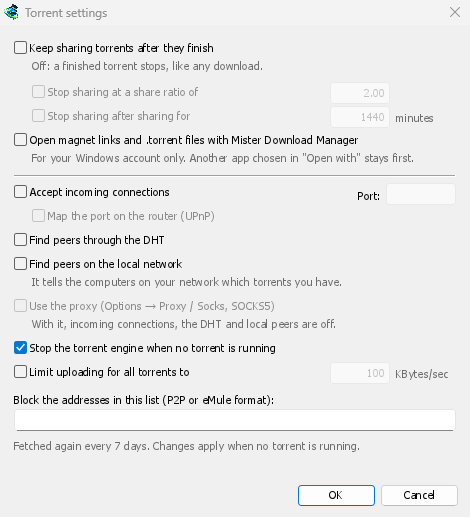
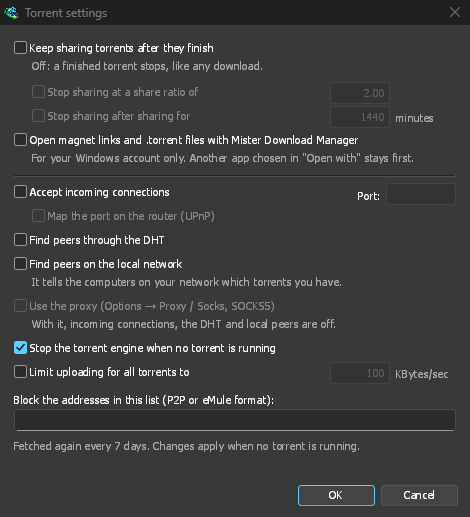
- 토렌트 완료 후 계속 공유 — 기본적으로 꺼져 있습니다: 완료된 토렌트는 다른 다운로드와 마찬가지로 중지됩니다. 다운로드가 완료된 후에도 다른 피어에게 계속 업로드하려면 이 기능을 켜십시오.
- 다음 공유 비율에서 공유 중지: — 완료된 토렌트는 보낸 데이터 양이 가진 데이터 양의 특정 배수(예: 2.00은 두 배)가 되면 공유를 중지합니다. 기본적으로 꺼져 있습니다.
- 다음 시간 동안 공유한 후 공유 중지: …분 — 또는 모든 실행에서 해당 시간 동안 공유된 후 중지됩니다. 기본적으로 꺼져 있습니다.
A torrent stopped by one of these says so in its event log, and isn't shared again when GDM starts. Raise or turn off the limit to share it again.
- Limit uploading for all torrents to — off by default. Caps what all your torrents together send to other peers, while they download and while they share. A torrent's own upload limit, in its progress window, applies on top of it.
- Open magnet links and .torrent files with GolinksPRO Download Manager — Windows then opens magnet links in your browser and .torrent files in Explorer with GDM. This is for your Windows account only; a program you chose in Windows' Open with stays first. The setup can turn it on for you.
동일한 창에서 네트워크 스위치(수신 연결, 포트, UPnP, DHT, SOCKS5 프록시)와 차단 목록을 설정할 수 있습니다. 자세한 내용은 토렌트 및 보안을 참조하세요.
GDM starts its torrent engine the first time you add a torrent. If you never use torrents, it never listens for peers.
On a Linux system without CA certificates (a minimal install without the ca-certificates package), torrents still work: peers, the DHT and http:// trackers. An https:// tracker can't be checked there, so GDM skips it; install that package to use those too.
With a debrid account, torrents and magnet links can go to the service instead of to peers, and GDM downloads the files from it over HTTP: see Torrents through the service.
다음 단계
무료, 오픈 소스, 광고 없음, 평가판 없음.
Download GolinksPRO Download Manager