

GDM downloads BitTorrent files from magnet links and .torrent files. Torrents appear in the same list as other downloads, marked Torrent in the Source column, and can be queued and scheduled like them.
Adicionar um torrent
- Clique em Adicionar Torrent na barra de ferramentas para escolher um ficheiro
.torrent. Ou clique na seta ao lado e escolha Abrir ficheiro torrent... ou Adicionar link magnet... (também em Tarefas). - Abre-se Adicionar torrent. Cole um link magnet em Torrent, ou clique em ... para escolher um ficheiro
.torrent, depois clique em Procurar. - GDM reads the torrent and shows its files as a folder tree. A
.torrentfile is read at once. A magnet link first has to get the file list from other peers, usually within seconds. While it waits, Add torrent shows how many peers it found, from the trackers, the DHT or your local network, and how many answered. After 30 seconds without an answer, it says what may be in the way: a link with no trackers while the DHT is off, or a firewall, a VPN or a network that blocks BitTorrent. - Desmarque as pastas ou ficheiros que não quer. Selecionar tudo e Não selecionar nada ajudam com torrents grandes. Selecionado mostra quantos ficheiros e quantos dados selecionou.
- Verifique Guardar em. Os ficheiros vão para mostra a pasta exata. Os torrents têm a sua própria categoria, por isso, por predefinição, é
Downloads\Torrents. - Para ver um vídeo enquanto este é transferido, selecione Transferir por ordem (ver Transferir por ordem).
- Clique em Transferir Agora, ou em Mais tarde para adicioná-lo à lista sem iniciar.
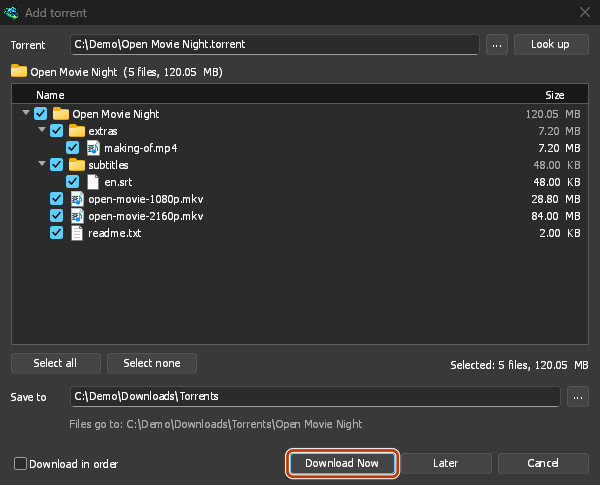
Desselecione o que não quer e depois clique em Transferir Agora. 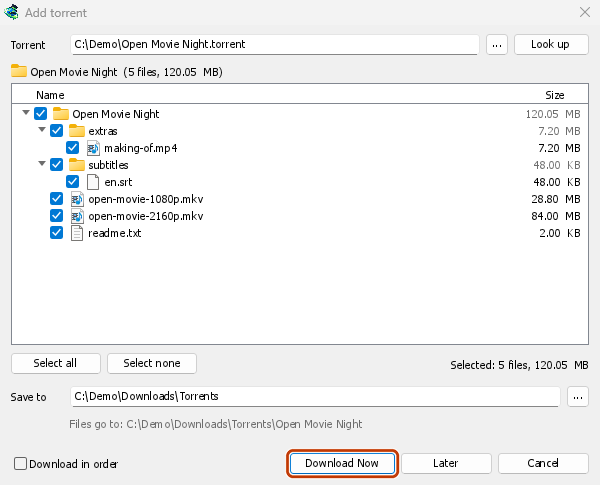
A janela de progresso: cada ficheiro e a sua percentagem de conclusão. 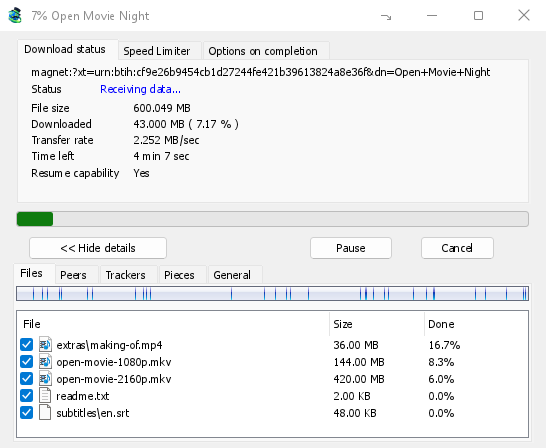
Partes: o mapa do torrent, a ser preenchido. 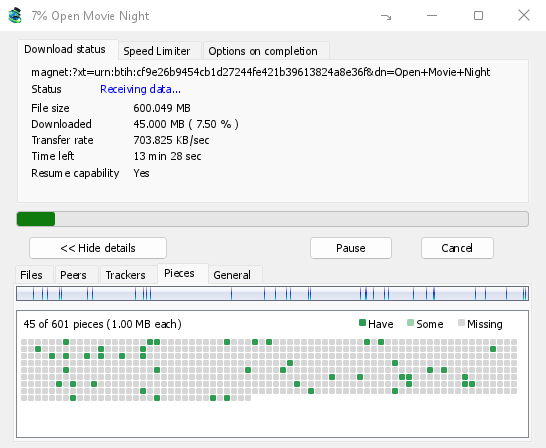
You can also paste a magnet link into Add URL, or drop a magnet link or a .torrent file on the drop target (Tasks → Show drop target). If a torrent is already in the list, GDM says so instead of adding it twice.
A .torrent file's web address works too: paste it into Add URL or Torrent, or let the browser hand the download over. GDM fetches the file, with the browser's cookies when the browser sent it, and Add torrent shows what it holds. The browser hands .torrent downloads over because TORRENT is in Options → File types. It's there by default; a list you had before this version keeps what it had, so add TORRENT to it yourself. Download with GolinksPRO Download Manager on a link always hands it over. A command line with /n (silent) saves the .torrent file itself, like any file. GDM fetches at most 10 MB: anything bigger isn't a .torrent file.
If some of the torrent's files are already in the folder, GDM asks before using them. Yes keeps them for the torrent: GDM checks them, keeps what matches the torrent and downloads the rest, which is how you continue a download started elsewhere or share files you already have. No (the default) goes back, so you can choose another folder and nothing of yours is overwritten.
GDM refuses a torrent with file names your system can't write safely, says which name, and writes nothing. What others can see, the network switches in Torrent settings, blocklists and proxies: Torrents and your security.
Enquanto transfere
Faça duplo clique no torrent na lista para abrir a sua janela de progresso. Além do estado habitual, a janela de um torrent tem cinco separadores:
- Ficheiros — cada ficheiro, o seu tamanho e quanto dele está concluído. Os ficheiros que desmarcou mostram Ignorado. Marque ou desmarque a caixa de um ficheiro para alterar o que é transferido, mesmo enquanto o torrent está a ser executado. Pelo menos um ficheiro permanece marcado. Se desmarcar tudo o que ainda falta, o torrent termina. Se um torrent concluído que não está a ser executado recuperar um ficheiro, ele espera como parado até que o retome, para que nada seja transferido sem ser visto.
- Pares — os computadores de onde está a transferir, com o quanto recebeu e enviou para cada um.
- Trackers — os trackers do torrent. Sem nenhum, os pares vêm do DHT e de outros pares.
- Partes — um mapa das partes do torrent: presentes, parcialmente presentes ou em falta.
- General — the info hash, pieces, peers, how much was sent, the share ratio, how long it has been shared and the folder. What was sent and the time shared add up over all of the torrent's runs: they don't start again at 0 after a pause or a restart of GDM.
Os separadores permanecem depois de o torrent terminar, enquanto estiver a ser partilhado.
O separador Limitador de Velocidade da janela de um torrent tem, além do seu limite de descarregamento, a opção Limitar carregamento a uma velocidade à sua escolha. Esse limite é mantido com o torrent: aplica-se novamente sempre que o torrent é executado ou partilhado. Um torrent não pode ser mantido abaixo de 16 KB/seg de qualquer forma.
Comandos de torrent
Clique com o botão direito num torrent na lista e abra Torrent:
- Reverificar ficheiros — lê e verifica cada parte dos ficheiros do torrent, por exemplo, depois de ter movido ficheiros ou de um disco ter tido erros. Um torrent em execução continua depois e obtém o que falta. Um torrent parado permanece parado. O seu registo de eventos indica quanto foi encontrado: um torrent concluído com uma parte danificada fica parado, e ao retomá-lo, obtém a parte novamente.
- Reanunciar — pede aos trackers do torrent por pares novamente agora, em vez de esperar pela próxima ronda. Funciona enquanto o torrent está a ser executado ou partilhado.
- Add trackers... — adds trackers, one address a line (
http,httpsorudp). They are kept with the torrent, after the ones it has, and the Trackers tab shows them. A tracker on your computer or your local network is refused: GDM never contacts those (why). - Transferir por ordem — transfere os ficheiros do torrent a partir do início (ver abaixo). Clique novamente para voltar às partes mais raras primeiro.
- Primeiras e últimas partes primeiro — com Transferir por ordem, as primeiras e últimas partes de cada ficheiro vêm antes do resto. Está ativado por predefinição.
- Copiar ligação magnet — copia uma ligação magnet para o torrent, com os seus trackers.
O resultado de cada comando vai para o registo de eventos do torrent; passe o rato sobre a célula Estado na lista para o ler.
Transferir por ordem
By default GDM downloads the pieces that the fewest peers have first, as BitTorrent programs usually do. That way a piece only one peer has is fetched before that peer leaves, and GDM can pass it on to others sooner. On GDM's test swarms it finished just as fast as downloading in order, and it was the only order that finished when a scarce piece's only holder left.
Transferir por ordem obtém o início de um ficheiro primeiro, para que possa ver um vídeo enquanto este é transferido: abra-o no seu leitor assim que a primeira parte estiver disponível. Selecione-o em Adicionar torrent, ou escolha Torrent → Transferir por ordem no menu de clique direito da lista, a qualquer momento, mesmo enquanto está a ser executado. As próximas partes solicitadas seguem a nova ordem.
- Com Primeiras e últimas partes primeiro (ativado por predefinição), as últimas partes de cada ficheiro também chegam cedo. A maioria dos ficheiros de vídeo mantém o seu índice no final, e um leitor lê-o antes de qualquer coisa ser reproduzida.
- Vários ficheiros são transferidos um após o outro, ordenados por nome.
- Pares mais lentos levam as partes um pouco mais adiante, para que o início não esteja à espera deles.
Um torrent por ordem não é mais rápido a terminar, e ajuda menos o enxame: use-o para o que quer ver agora.
Feeds RSS
Many sites publish their new torrents as an RSS or Atom feed. GDM can watch feeds, list what they hold, and add the new torrents you want by itself. Choose Tasks → RSS feeds..., or click the arrow next to Add Torrent.
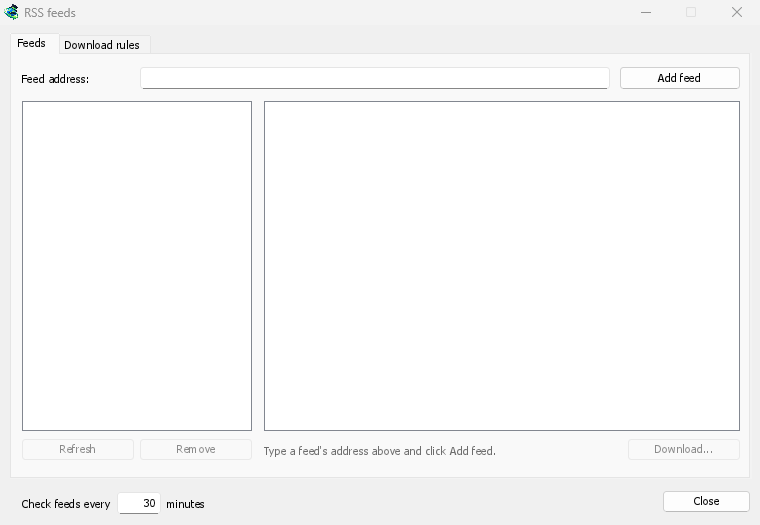
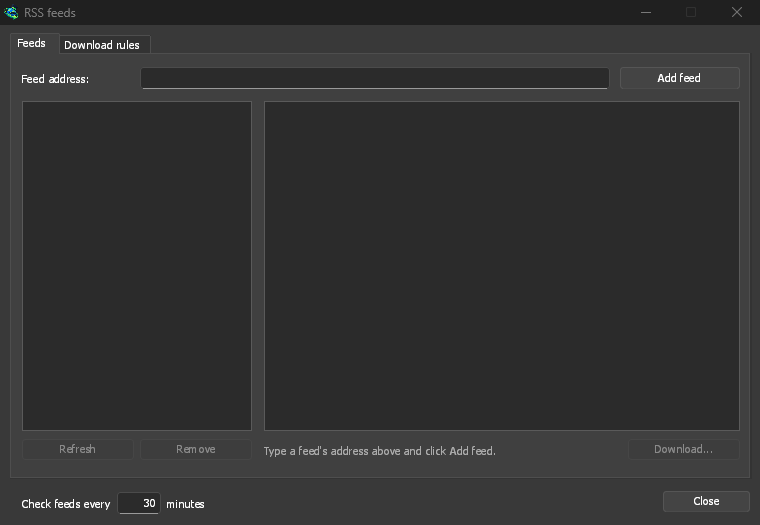
Separador Feeds:
- Type a feed's address into Feed address and click Add feed. GDM fetches it at once, then every 30 minutes; change that under Check feeds every ... minutes, 5 at the least.
- Escolha um feed à esquerda para ver os seus artigos. Um artigo com um torrent mostra um ícone de torrent e o seu tamanho, se o feed o fornecer. Faça duplo clique num, ou selecione-o e clique em Transferir..., para abrir Adicionar torrent com ele, tal como para qualquer link magnet ou endereço
.torrent. - Atualizar obtém o feed selecionado agora. Remover para de o monitorizar. Um feed que não pode ser lido é mostrado a vermelho, e a sua linha na parte inferior indica o motivo.
Separador Regras de transferência: uma regra adiciona os torrents de novos artigos cujos títulos correspondem, sem perguntar.
- Deve conter: palavras que o título deve conter, todas elas, em qualquer ordem.
|separa alternativas (1080p|2160p), e*e?são caracteres curinga. A capitalização não importa. - Não deve conter: palavras que fazem a regra ignorar um artigo, escritas da mesma forma.
- Expressões regulares: as duas caixas contêm expressões regulares em vez disso.
- Episódios: quais episódios selecionar, lidos de
S01E05ou1x05no título.1x2é a temporada 1 episódio 2,1x5-8episódios 5 a 8,2x1-tudo a partir da temporada 2 episódio 1, e3toda a temporada 3, separados por;. Vazio: qualquer artigo. Uma regra seleciona cada episódio uma vez: um segundo lançamento de um episódio que já adicionou é ignorado. - Guardar em: a pasta para onde os seus torrents vão; se vazio, a pasta da categoria Torrents. Adicioná-los sem os iniciar adiciona-os como Transferir Mais Tarde faria.
- Feeds: os feeds que monitoriza; se nenhum estiver selecionado, todos eles.
Rules only look at articles that are new since the feed was last fetched, and a feed's first fetch only lists what is there. So adding a feed or a rule never downloads a whole backlog. Matches ... articles now shows which of the articles the feeds hold now the rule matches, to check it; download those by hand. A torrent the list already has isn't added again, and neither is one whose files are already in the folder: GDM never writes into files it didn't make without asking. The bottom line of the tab says what the rules did last, and a torrent a rule added says so in its event log.
Feeds and rules are kept in rss.json in GDM's data folder. GDM reads at most 5 MB of a feed.
Definições de torrent
Escolha Tarefas → Definições de torrent... (ou a seta ao lado de Adicionar Torrent):
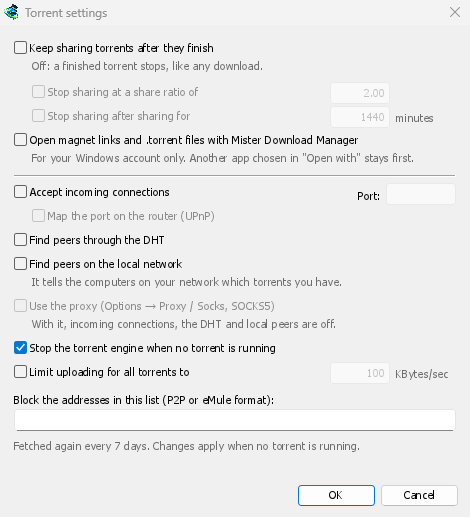
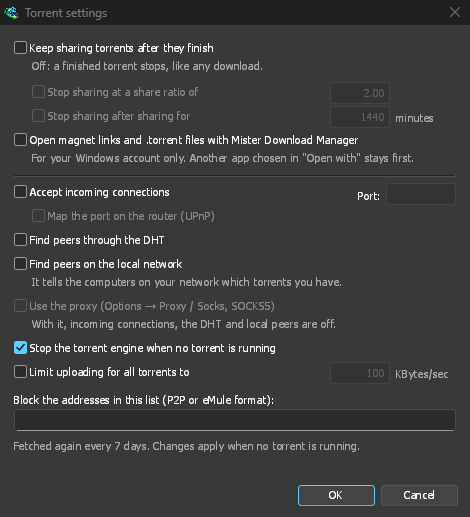
- Manter a partilha de torrents após a conclusão — desativado por predefinição: um torrent concluído para, como qualquer transferência. Ative-o para continuar a enviar para outros pares após a sua transferência estar completa.
- Parar de partilhar quando o rácio de partilha for — um torrent concluído deixa de ser partilhado quando tiver enviado o número de vezes que tem (2.00: o dobro). Desativado por predefinição.
- Parar de partilhar após partilhar durante … minutos — ou depois de ter sido partilhado durante esse tempo, em todas as suas execuções. Desativado por predefinição.
A torrent stopped by one of these says so in its event log, and isn't shared again when GDM starts. Raise or turn off the limit to share it again.
- Limit uploading for all torrents to — off by default. Caps what all your torrents together send to other peers, while they download and while they share. A torrent's own upload limit, in its progress window, applies on top of it.
- Open magnet links and .torrent files with GolinksPRO Download Manager — Windows then opens magnet links in your browser and .torrent files in Explorer with GDM. This is for your Windows account only; a program you chose in Windows' Open with stays first. The setup can turn it on for you.
A mesma janela tem os interruptores de rede (ligações de entrada, a porta, UPnP, o DHT, um proxy SOCKS5) e a lista de bloqueio: consulte Torrents e a sua segurança.
GDM starts its torrent engine the first time you add a torrent. If you never use torrents, it never listens for peers.
On a Linux system without CA certificates (a minimal install without the ca-certificates package), torrents still work: peers, the DHT and http:// trackers. An https:// tracker can't be checked there, so GDM skips it; install that package to use those too.
With a debrid account, torrents and magnet links can go to the service instead of to peers, and GDM downloads the files from it over HTTP: see Torrents through the service.
Próximos passos
Gratuito, de código aberto, sem anúncios, sem período de avaliação.
Download GolinksPRO Download Manager