

队列是按顺序运行下载任务的列表,每次运行几个。计划程序会按计划启动和停止队列,并决定队列完成后要执行的操作。
队列
GDM comes with two queues:
- 主下载队列 — 稍后下载、批量下载和导入的列表都会添加到此队列。下载完成后会从队列中移除。
- 同步队列 — 已完成的下载会保留在此队列中,不会移除。这是唯一一个会接收已完成下载的队列。
您可以在“计划程序”中添加自己的队列,或者通过下载右键菜单中的创建新队列来添加。
将下载添加到队列
- 在下载文件信息中,点击稍后下载并选择队列。
- 也可以在列表中选择下载任务,右键点击并选择添加到队列,然后选择队列。已在队列中的下载任务会显示移动到队列。
- 要将下载任务从队列中移除,请右键点击该任务并选择从队列中删除。下载任务仍会保留在列表中。
Q列会显示哪些下载任务已加入队列。在类别窗格的队列下选择一个队列,即可只查看该队列中的下载任务。
启动和停止队列
- 工具栏上的启动队列和停止队列用于启动和停止主下载队列。每个按钮旁的箭头会列出所有队列。
- 下载 → 启动队列和下载 → 停止队列也会列出所有队列。
- 或者右键点击队列下的一个队列,然后选择立即开始或停止。
队列运行时,会按列表顺序启动下载任务,每次启动几个(默认 4 个)。下载失败后会移到队列末尾,并在 30 秒后重试。没有剩余下载任务时,队列会停止。
计划程序窗口
点击工具栏上的计划程序或选择下载 → 计划程序即可打开窗口。右键点击某个队列,然后选择计划或编辑队列,即可打开该队列的设置。
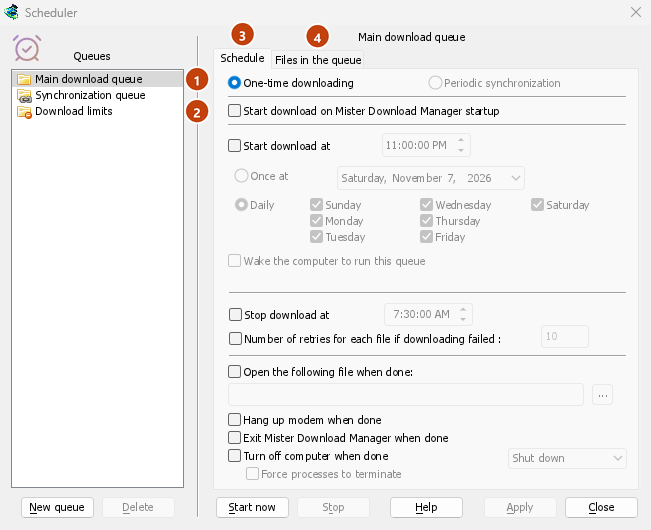
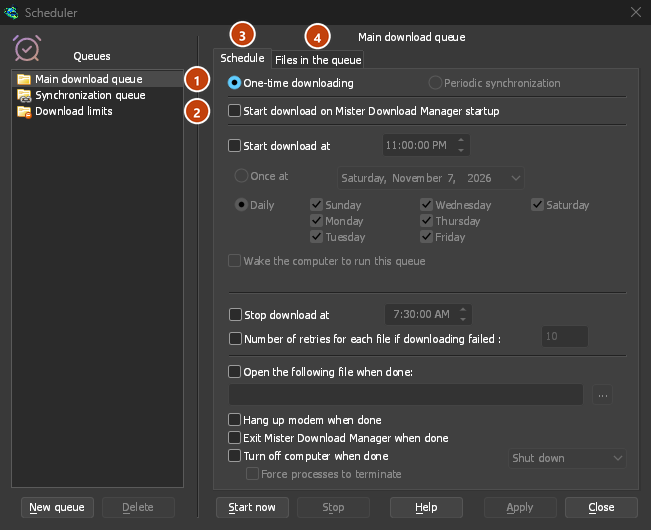
队列位于左侧,下载限制位于其下方。右侧通过两个选项卡显示所选队列的内容:计划和队列中的文件。
- 新建队列会提示您输入名称,然后添加队列。删除会移除您创建的队列;两个内置队列无法删除。删除队列后,其中的下载任务仍会保留在列表中。
- 立即开始和停止会立即启动或停止所选队列。
- 应用保存您的更改。关闭关闭窗口。
计划:按时启动和停止
- Start download on GolinksPRO Download Manager startup — start the queue whenever GDM starts.
- 在以下时间开始下载 — 设置开始时间,然后选择:
- 一次在某个日期,或者
- 每日,在勾选的日期执行。
- 在以下时间停止下载 — 设置停止时间;如果队列仍在运行,则在此时停止。
- Number of retries for each file if downloading failed — how often a failed download is tried again before the queue gives up on it. Without it, GDM keeps trying.
要设置时间,请点击时间的一部分(小时、分钟、秒),然后使用箭头、鼠标滚轮、向上/向下键或数字键。向左和向右键可在各部分之间移动。
GDM has to be running for a schedule to fire. It can sit in the tray: closing the main window doesn't quit it.
唤醒电脑以运行队列
勾选开始时间下方的唤醒电脑以运行此队列,电脑将在开始时间被唤醒。此功能需要在以下时间开始下载。
- GDM wakes the computer a minute before the start time, so the network is back when the queue starts.
- 队列运行时,电脑不会进入睡眠状态。队列完成后,电脑自身的睡眠设置将再次生效:无人使用的电脑会自行进入睡眠状态。完成后关闭计算机 → 睡眠会立即让电脑进入睡眠状态。
- 选项下方的文字会显示电脑下次唤醒的时间,或无法唤醒的原因。
- GDM has to be running (it can sit in the notification area). The computer has to be asleep, not shut down.
- The wake follows the schedule: change the start time or the days, untick the option or delete the queue, and the wake moves or goes away. GDM sets it again each time it starts. Nothing stays behind in the system when GDM quits or is uninstalled.
Windows
Windows 仅在其电源计划允许唤醒计时器时才会唤醒电脑。如果不允许,计划程序会提示,更改会打开设置:电源选项 → 更改计划设置 → 更改高级电源设置 → 睡眠 → 允许唤醒计时器。选择启用:仅重要唤醒计时器只允许 Windows 自身的重要计时器唤醒电脑。在笔记本电脑上,此设置在电池供电时通常是关闭的,因此电脑只会在插入电源时被唤醒。
Linux
在 Linux 上,只有管理员才能设置电脑的唤醒闹钟,因此该选项在管理员允许之前是灰色的。要让wakealarm组中的用户设置它,管理员需运行一次:
sudo groupadd --system wakealarm
sudo usermod -aG wakealarm "$USER"
echo 'z /sys/class/rtc/rtc0/wakealarm 0664 root wakealarm -' | sudo tee /etc/tmpfiles.d/wakealarm.conf
sudo systemd-tmpfiles --create /etc/tmpfiles.d/wakealarm.conf
then signs out and in again. The setting stays after a restart. The computer has one wake alarm: if another program has set it, GDM leaves it alone and says so.
A user's systemd timer can't wake the computer, and rtcwake needs root, so without this setting GDM can't wake the computer. GDM never asks for an administrator's password.
macOS
On macOS only an administrator can schedule a wake, so the option is greyed. GDM doesn't ask for an administrator's password. An administrator can have the Mac wake every day a minute before the queue starts, for example at 10:59 PM for a queue that starts at 11:00 PM:
sudo pmset repeat wakeorpoweron MTWRFSU 22:59:00
sudo pmset repeat cancel将其删除。
计划程序:队列完成时
- 完成后打开以下文件 — 例如声音、脚本或程序。...用于选择文件。
- 完成后挂断调制解调器 — 如果您使用拨号连接,此选项会结束连接。
- Exit GolinksPRO Download Manager when done.
- 完成后关闭计算机 — 选择关机、睡眠或休眠。
- GDM first shows a 30-second countdown. Cancel stops it; Turn off now goes ahead at once.
- 强制终止进程会关闭那些可能导致 Windows 无法正常关闭的程序。
队列中的文件
- 同时下载 [N] 个文件 — 队列中同时运行的下载数量。其余的会等待轮到它们。
- 此列表按下载运行的顺序显示队列中的下载。列表下方的箭头按钮可将选定的下载向上或向下移动;叉号按钮可将其从队列中移除。
下载限制
对于有数据上限的互联网套餐,请在左侧选择下载限制:
- 勾选下载限制。
- 填写每 [H] 小时下载不超过 [N] MB。默认设置为每 5 小时 200 MB。
- 点击应用。
When the limit is reached, GDM stops downloading. New downloads show Waiting: the download limit is reached (Scheduler). Everything resumes on its own when the period is over. Show warning before stopping downloads tells you when this happens and when downloads will go on.
相同的设置位于选项 → 连接中。
下一步
免费、开源、无广告、无试用版。
Download GolinksPRO Download Manager