

随电脑启动,不显眼
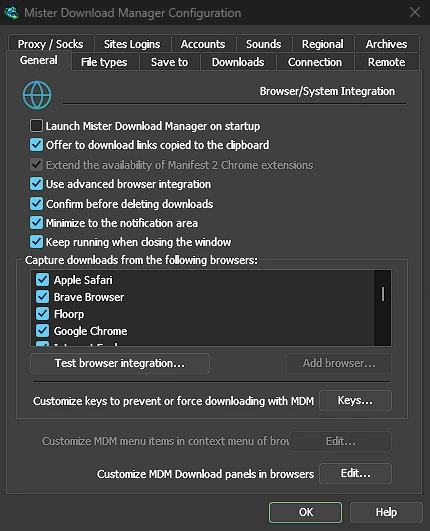
Tick Launch GolinksPRO Download Manager on startup in Options → General and GDM starts when you sign in, hidden, its icon in the notification area. Its downloads, queues, the Scheduler and downloads from the browser all run from there. Click the icon, or start GDM again, and the window opens as usual.
The option is off until you tick it. On Linux and macOS GDM starts with your session the same way. A portable copy can't start with Windows, since that needs the registry, so the option is greyed there.
一键隐藏下载窗口
下载进度窗口有一个隐藏到通知区域按钮:一个短横线,带一个指向角落的箭头。在 Windows 上,它位于标题栏中,“最小化”按钮的左侧,以及标题栏菜单(Alt+Space)中。在 Linux 和 macOS 上,它位于标签页行的末尾。下载将继续进行。
要再次查看,请右键点击托盘图标,然后在正在进行的下载下选择它,其中列出了所有正在运行的下载。双击列表中的下载也会将其窗口带回。
最小化也会将窗口发送到托盘
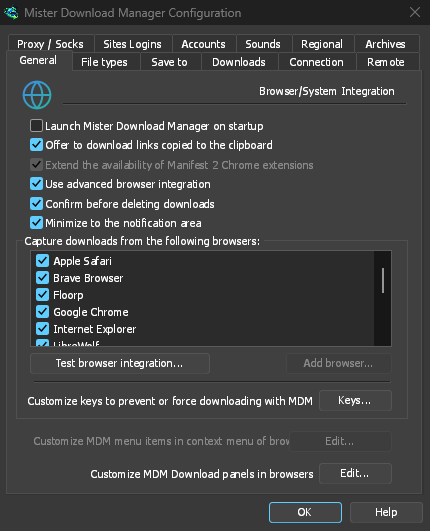
With Minimize to the notification area on in Options → General (it is on by default), Minimize hides the main window, and a progress window, in the notification area instead of leaving them on the taskbar. Closing the main window does the same: GDM keeps running until you choose Tasks → Exit or Exit in the tray menu.
托盘菜单还包括添加新下载、添加批量下载、速度限制器、计划程序、主下载队列和选项。
等待时轻量运行
Hidden in the notification area, GDM hands the memory it isn't using back to the system. Task Manager's Memory for GDM drops from about 50 MB to under 10 MB there, and GDM gives memory back again every 10 minutes while it stays hidden. On Linux it does the same with its free memory.
没有托盘时
All of this needs a notification area that shows GDM's icon. Windows and macOS have one, and so do most Linux desktops (KDE, GNOME with its AppIndicator extension, waybar's tray). On a desktop without one, GDM starts minimized instead, closing the window quits GDM, and Minimize to the notification area is greyed. In a Wayland session the main window stays minimized in the dock, because Wayland can't hide a window.
免费、开源、无广告、无试用版。
Download GolinksPRO Download Manager