

- Startseite
- Funktionen
- Benachrichtigungsbereich
Unauffällig. Lädt trotzdem herunter.
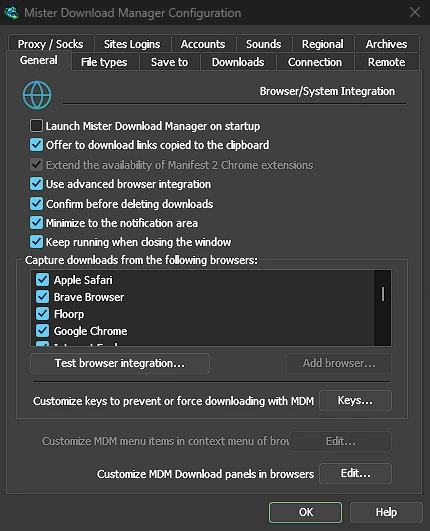
GDM can start with your computer and wait in the notification area, its window closed and its downloads running. A download's progress window can go there too, with one click.
Startet mit dem Computer, ohne sich in den Vordergrund zu drängen
Tick Launch GolinksPRO Download Manager on startup in Options → General and GDM starts when you sign in, hidden, its icon in the notification area. Its downloads, queues, the Scheduler and downloads from the browser all run from there. Click the icon, or start GDM again, and the window opens as usual.
The option is off until you tick it. On Linux and macOS GDM starts with your session the same way. A portable copy can't start with Windows, since that needs the registry, so the option is greyed there.
Ein Klick blendet das Download-Fenster aus
Das Fortschrittsfenster eines Downloads hat eine Schaltfläche Im Infobereich ausblenden: ein kurzer Strich mit einem Pfeil nach unten zur Ecke. Unter Windows befindet sie sich in der Titelleiste, links neben Minimieren, und im Menü der Titelleiste (Alt+Leertaste). Unter Linux und macOS ist sie am Ende der Registerkartenreihe. Der Download wird fortgesetzt.
Um es wieder anzuzeigen, klicken Sie mit der rechten Maustaste auf das Tray-Symbol und wählen Sie es unter Aktive Downloads aus, wo jeder laufende Download aufgelistet ist. Ein Doppelklick auf den Download in der Liste bringt dessen Fenster ebenfalls zurück.
Minimieren sendet Fenster ebenfalls in den Infobereich
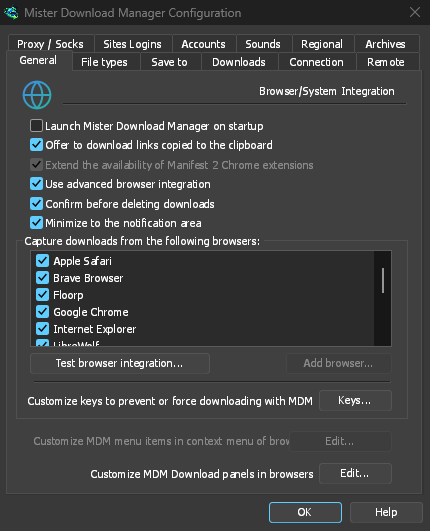
With Minimize to the notification area on in Options → General (it is on by default), Minimize hides the main window, and a progress window, in the notification area instead of leaving them on the taskbar. Closing the main window does the same: GDM keeps running until you choose Tasks → Exit or Exit in the tray menu.
Das Tray-Menü enthält auch Neuen Download hinzufügen, Batch-Download hinzufügen, den Geschwindigkeitsbegrenzer, den Zeitplaner, die Haupt-Download-Warteschlange und Optionen.
Leicht, während es wartet
Hidden in the notification area, GDM hands the memory it isn't using back to the system. Task Manager's Memory for GDM drops from about 50 MB to under 10 MB there, and GDM gives memory back again every 10 minutes while it stays hidden. On Linux it does the same with its free memory.
Wo es keinen Infobereich gibt
All of this needs a notification area that shows GDM's icon. Windows and macOS have one, and so do most Linux desktops (KDE, GNOME with its AppIndicator extension, waybar's tray). On a desktop without one, GDM starts minimized instead, closing the window quits GDM, and Minimize to the notification area is greyed. In a Wayland session the main window stays minimized in the dock, because Wayland can't hide a window.
Kostenlos, Open Source, keine Werbung, keine Testversion.
Download GolinksPRO Download Manager