

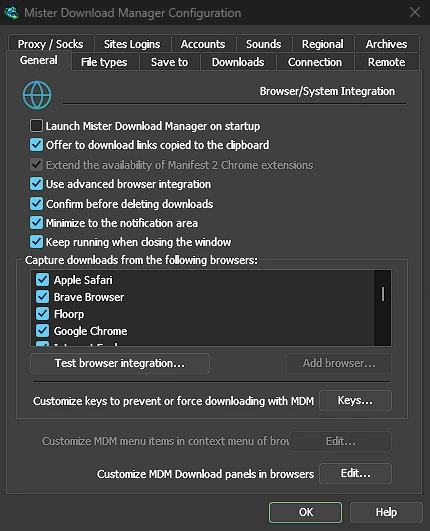
เริ่มพร้อมคอมพิวเตอร์ โดยไม่แสดงหน้าต่าง
Tick Launch GolinksPRO Download Manager on startup in Options → General and GDM starts when you sign in, hidden, its icon in the notification area. Its downloads, queues, the Scheduler and downloads from the browser all run from there. Click the icon, or start GDM again, and the window opens as usual.
The option is off until you tick it. On Linux and macOS GDM starts with your session the same way. A portable copy can't start with Windows, since that needs the registry, so the option is greyed there.
คลิกเดียวซ่อนหน้าต่างดาวน์โหลด
หน้าต่างแสดงความคืบหน้าการดาวน์โหลดมีปุ่ม ซ่อนไปยังพื้นที่แจ้งเตือน: เป็นขีดสั้นๆ พร้อมลูกศรชี้ลงไปที่มุม บน Windows ปุ่มนี้จะอยู่ในแถบชื่อเรื่อง ทางซ้ายของ ย่อเล็กสุด และในเมนูของแถบชื่อเรื่อง (Alt+Space) บน Linux และ macOS จะอยู่ที่ท้ายแถบแท็บ การดาวน์โหลดจะดำเนินต่อไป
หากต้องการดูอีกครั้ง ให้คลิกขวาที่ไอคอนถาดระบบแล้วเลือกรายการภายใต้ กำลังดาวน์โหลด ซึ่งจะแสดงรายการดาวน์โหลดที่กำลังทำงานอยู่ทั้งหมด การดับเบิลคลิกที่รายการดาวน์โหลดในรายการก็จะนำหน้าต่างกลับมาเช่นกัน
ย่อเล็กสุดก็ส่งหน้าต่างไปยังถาดระบบเช่นกัน
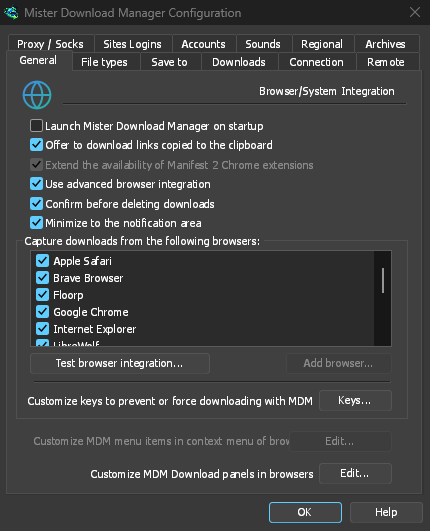
With Minimize to the notification area on in Options → General (it is on by default), Minimize hides the main window, and a progress window, in the notification area instead of leaving them on the taskbar. Closing the main window does the same: GDM keeps running until you choose Tasks → Exit or Exit in the tray menu.
เมนูถาดระบบยังมี เพิ่มการดาวน์โหลดใหม่, เพิ่มการดาวน์โหลดเป็นชุด, ตัวจำกัดความเร็ว, ตัวจัดกำหนดการ, คิวการดาวน์โหลดหลัก และ ตัวเลือก
เบาเครื่องขณะรอ
Hidden in the notification area, GDM hands the memory it isn't using back to the system. Task Manager's Memory for GDM drops from about 50 MB to under 10 MB there, and GDM gives memory back again every 10 minutes while it stays hidden. On Linux it does the same with its free memory.
ในกรณีที่ไม่มีถาดระบบ
All of this needs a notification area that shows GDM's icon. Windows and macOS have one, and so do most Linux desktops (KDE, GNOME with its AppIndicator extension, waybar's tray). On a desktop without one, GDM starts minimized instead, closing the window quits GDM, and Minimize to the notification area is greyed. In a Wayland session the main window stays minimized in the dock, because Wayland can't hide a window.
ฟรี, โอเพนซอร์ส, ไม่มีโฆษณา, ไม่มีช่วงทดลองใช้
Download GolinksPRO Download Manager